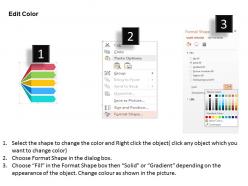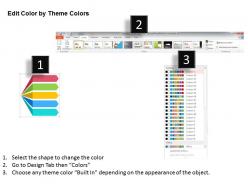
1214 five colored text boxes with computer icons powerpoint template

Rating:
90%
1214 five colored text boxes with computer icons powerpoint template
Slide 1 of 5
Favourites Favourites

Try Before you Buy Download Free Sample Product

Audience Impress Your
Audience
Editable 100%
Editable
Time Save Hours
of Time
The Biggest Sale is ending soon in
0
0
:
0
0
:
0
0
Rating:
90%
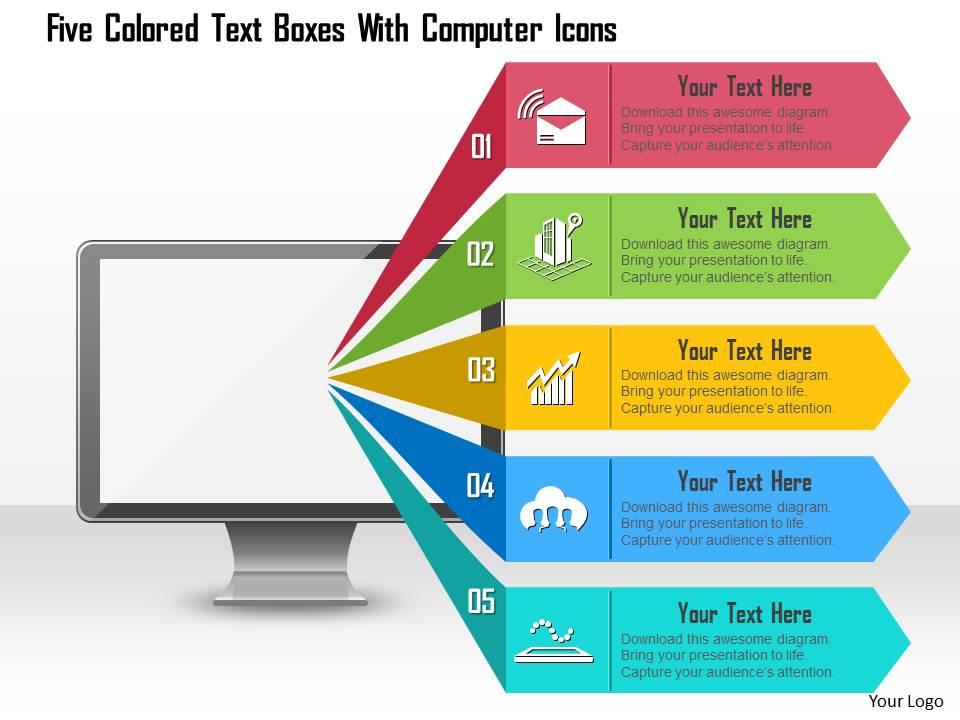
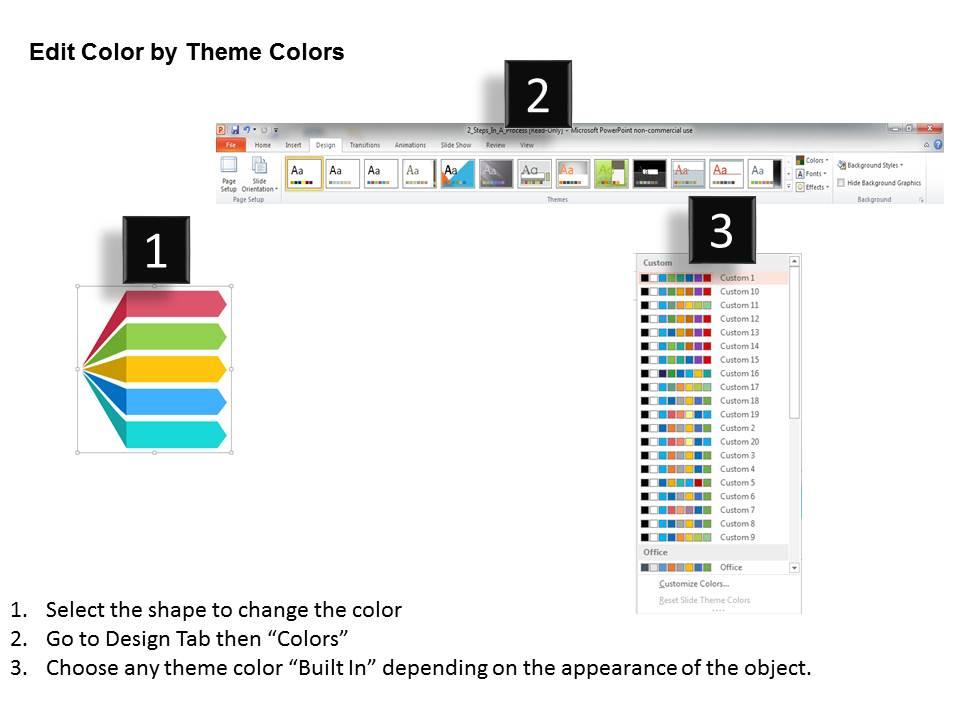
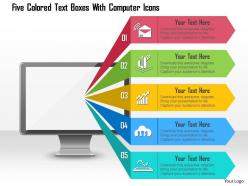
We are proud to present our 1214 five colored text boxes with computer icons powerpoint template. This power point template has been designed with graphic of five colored linear text boxes and computer icons. This PPT contains the concept of computer technology and application. Use this PPT for your computer related presentations and get good remarks from viewers.

People who downloaded this PowerPoint presentation also viewed the following :

FAQs for 1214 five colored text boxes with computer

Okay so first thing - check that the fonts and colors actually match throughout. Seriously, some of these templates are a total mess. You want clean layouts with enough white space that your text doesn't look cramped. Stay away from anything too flashy because it'll just distract from your actual content. Make sure there's different slide types too - like title pages, basic content layouts, maybe some chart templates. Oh and definitely test out some free ones before you spend money on the fancy stuff. Trust me on that one.

Honestly, good templates are game-changers because your audience won't get distracted by ugly slides or unreadable fonts. Consistent colors and layouts create this smooth flow that keeps people listening instead of mentally checking out. Clean designs with decent contrast make your points actually stand out - like seriously, who thought yellow text on white was ever a good idea? Short sentences work. But you also want some variety so it doesn't feel choppy. When people can easily follow along, they'll stay engaged instead of scrolling their phones. Just spend 10 minutes upfront finding something decent before you start building.

Honestly, business consulting firms buy the most specialized PowerPoint templates. Healthcare and tech are huge too. Marketing agencies go through templates like crazy - makes sense since they're constantly pitching. Real estate, finance, and education also spend good money on this stuff. Generic templates look amateur when you're presenting to serious clients, so these industries actually pay for quality design. Oh, and they all have the budget for it which is key. I'd probably start with consulting or marketing agencies if you're making templates - they seem to need new designs every week.

Colors totally matter more than people think! Red and orange pump up energy - perfect for sales stuff. Blue builds trust (seriously, every tech company ever uses it). Green feels calm but sometimes too corporate-y. Dark colors = authority, though they can be heavy. Match your vibe to your goal basically. Energizing colors for pitches, calming blues when you're drowning people in data. Oh, and don't go crazy with color combos - stick to 2-3 max or it'll just distract from what you're actually saying.

Honestly, the biggest thing is avoiding templates that are way too busy - like, your content should be the main event, not some flashy design. Also skip anything with tiny fonts or where you can barely read the text because of weird color choices. Those cheesy clipart ones are the worst unless they actually fit your topic (which they usually don't). I always go for clean and simple. Here's my test: if I'm more focused on how the template looks than what I'm actually saying, it's gotta go. You'll thank me later when people actually pay attention to your presentation instead of getting distracted by random graphics.

Oh this is super easy! First, hit up the Design tab and swap those default colors for your brand ones - just look for "Variants" or "Customize Colors." Drop your actual logo in there instead of whatever placeholder they used. Fonts are next - honestly, I never use more than 2 or 3 because it starts looking like a ransom note lol. You'll want to tweak the slide layouts too and throw in some of your brand's imagery. Maybe add a footer if that's your thing. Save it as a .potx file when you're done so everyone can use it.

Honestly, fonts can make or break your whole presentation. I always go with clean ones like Arial or Calibri - nothing fancy that'll have people squinting. Your headings can be a bit bolder, but don't get crazy with it. Size matters too - 24pt minimum for body text or you'll lose half the room. I learned this the hard way when my professor couldn't read my slide from like 10 feet away, super embarrassing. Keep everything consistent throughout. Oh, and avoid those decorative fonts at all costs - they look amateur and nobody can actually read them.

Dude, just use a template - seriously saves so much time. All the design stuff's already figured out, so you can focus on your actual content instead of obsessing over font choices for 2 hours (been there). The whole thing stays consistent too, which is nice because I'm terrible at matching colors. Most templates have different layouts for whatever you're presenting - charts, text, images, whatever. I know it might feel like "cheating" but honestly? Nobody cares if you used a template. They care about what you're saying. Just pick one that doesn't look too corporate-y and drop your stuff in. You'll be done way faster.

Honestly, animations are pretty clutch for keeping people's attention during presentations. You can reveal info bit by bit so your audience doesn't just read the whole slide and zone out. They're also solid for emphasizing key points right when you want to make them. Just don't get crazy with it – we've all sat through those presentations with wayyyy too many spinning effects that make you dizzy. Keep it simple with basic entrance animations and maybe some emphasis stuff. Oh, and use the Animation Pane to time everything properly. Makes the whole thing feel way more professional.

So basically responsive design means your PowerPoint slides automatically adjust depending on what device people are viewing them on. Super helpful for hybrid meetings where half the team's on laptops and others are squinting at their phones. The template will resize images, reflow text, adjust spacing - all that stuff so it doesn't look like garbage on smaller screens. Honestly beats having someone go "sorry, can't read that" mid-presentation. Quick tip though - definitely preview your slides on mobile beforehand. Some templates handle it better than others.

So the trick is building story right into your slide structure. Think problem/solution or before/after sequences. Use colors that progress or keep the same icons throughout - helps people follow along. Most templates are honestly just data dumps which is so boring. Set up specific slides for the conflict, then resolution, plus those big turning moments. Don't forget placeholder spots for customer quotes or real case studies - that human stuff makes all the difference. Pick one solid story framework first, then just let everything else follow that flow. Way better than random info all over the place.

Match your template to who you're talking to, basically. Clean, simple stuff works for business presentations. Got kids in the audience or doing something artsy? Go colorful - just don't overdo it with those awful rainbow gradients (seriously, why do people love those so much?). Your industry matters too. Tech folks dig sleek, modern vibes while nonprofits usually want something that feels warmer. Here's what I do: show your template to someone who doesn't know your topic. Can they guess what you're presenting? That'll tell you everything.

Honestly, minimalist stuff is everywhere right now - tons of white space, super clean layouts. Dark mode is also having a moment, especially if you're doing anything tech-related. Those fancy serif fonts? Yeah, everyone's ditching them for bold sans-serif instead. Charts and infographics are way more popular than cramming slides full of bullet points (which is actually refreshing). Interactive elements are pretty standard now too, plus subtle animations. Just don't get carried away with the bells and whistles - I've seen some truly chaotic presentations lately. My take? Choose one trendy thing and do it really well instead of trying to squeeze everything in.

Dude, those education templates are actually a game-changer. Your students will be way more engaged than with boring default slides – I've seen the difference firsthand. They come with lesson plan layouts and interactive stuff that's designed for different age groups. Plus you'll save so much prep time, which we all need more of honestly. The consistency thing is huge too; kids can focus on what you're teaching instead of getting distracted by random formatting changes. Oh, and they usually have progress bars and section breaks that help with pacing. Check out Canva for Education or Microsoft's teacher resources first – both have solid free options.

Honestly, it depends on what you're presenting. Free templates are fine for basic stuff, but they're pretty generic - you'll probably see the same design in three other presentations that week lol. Premium ones usually have way better fonts and more slide options. Plus you won't get in trouble using them for work stuff. The customization is night and day different too. Free versions barely let you change colors without breaking the whole thing. If it's important or for clients, just spend the $20. Your presentation will actually look professional instead of like everyone else's.

Ratings and Reviews

90% of 100
Write a review
Most Relevant Reviews
  1. 100%

    by James Lewis

    Use of icon with content is very relateable, informative and appealing.
  2. 80%

    by Donnell Bradley

    Graphics are very appealing to eyes.

2 Item(s)

per page: