

 30 Comments
 Customer Reviews

Like we said in our last post on typography tips, text is often sidelined in a presentation. Whenever we think about creating beautiful slides that audience will love, we think about making it more visual. We even spend a few dollars to get the best image for our slide. Nothing wrong in that, we do it too. But what about the words? What about our presentation content? Do we even bother to pause for a moment and think if our audience will like it?
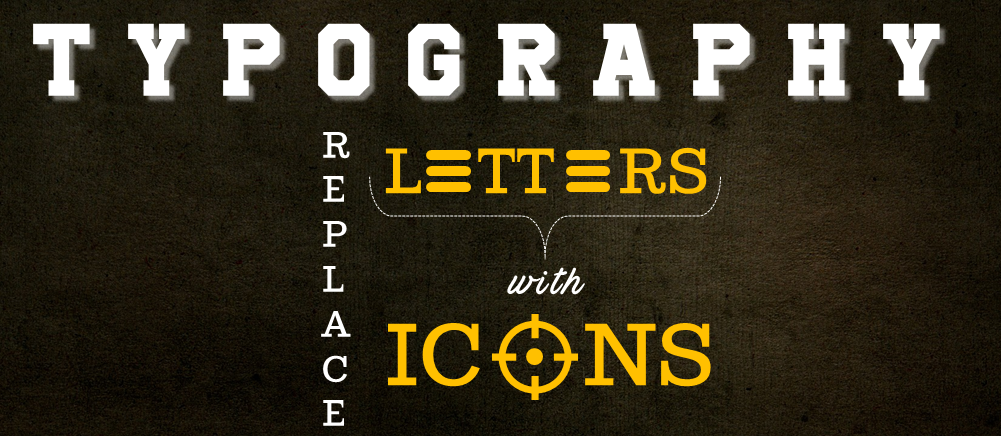
Supposing our content is good enough- it is informative and valuable to audience. Can we make the content look visually enticing too? Yes, we can and we will show you one way to do that in this article- Replace letters with icons to add meaning to your words and reinforce the message visually. The shape of the icon and the letter have to be similar so that audience have no trouble in reading the word in its totality.
This design hack will come in most handy to you in creating impressive presentation cover slides (or section header slides and slides with minimal content). For you don’t want to overdo this in your presentation and look kiddish! We want to look creative but not kiddish, right?
Also, the presentation cover slide is the most important slide of your presentation. It has to be attention grabbing and inviting. Your presentation title sits there- big and bold- telling everyone in the audience what the talk is all about. And since the title outlines the subject of discussion for the next 20 minutes, we want it to make a powerful statement and not evoke a weak meh in the audience. We want our cover slide to be impactful like this one:

Just a minor typographic tweak and see the impact!
Wait, have any professionals done this before? Of course! Do you know what is common in all these famous animated movies- Toy Story, Finding Nemo, Inside Out, The Incredibles, and Wall-E? Pixar Animation Studios! Do you remember their logo coming on the screen in the beginning of the movie? If not, this image will surely jog your memory:
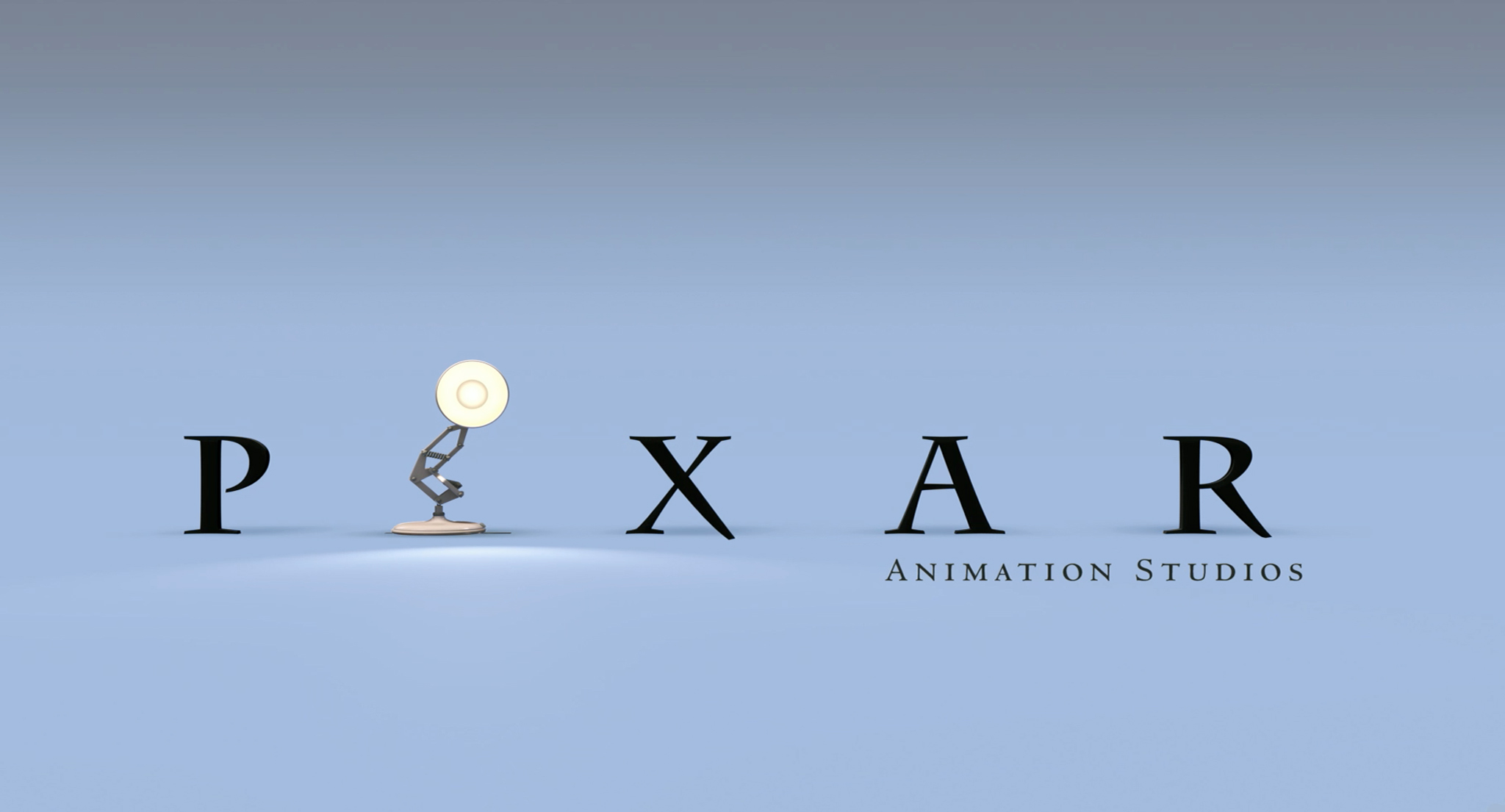
Yes, the brightly shining lamp hops onto the screen and jumps on the “I” of the Pixar, squashing it down, and then sheepishly looks toward the audience! Never knew corporate logos could be so interesting!
Anyone else done something like this? Yes, Coke Studio- a name that will instantly ring bells to people belonging to Pakistan, India, and Middle East. It is an international music franchise and a hit television series in those countries. Let’s see their logo:
Simple and impactful. If leading companies are doing this, why can’t we try out the same in our PowerPoint presentations? And if we can, how do we go about doing it? Here’s how:
How To Be Creative While Designing Presentation Content:
So what’s the back-end process that goes behind such creative designs? Is it just an “Aha” moment or a clever technique that designers follow to come up with “out of the box” designs? It can definitely be an Aha moment but most creativity in designing or any other field is the outcome of a process. The process is similar for this typographic exercise too. Here’s the strategy we followed in coming up with icons for replacing the letters:
Step 1- Read your Presentation Title Twice
Let’s take the first example we showed you. Say the Presentation Title is “How to Build an Impactful Business”. Find what is the focus word here. Business? No. It is Impactful. For through your presentation, you are not giving tips on starting just any business but an impactful one.
Step 2- Do Visual Search/ Icon Search on the Focus Word
Do a Google search on how impactful is represented visually. Just type it and hit the “Images” category. You’ll see how others have visually depicted impactful. I can see images of swinging pendulum, ripple in the water, scattering of bowling pins, a punch, finger pushing dominoes causing a chain reaction, and so on. All are valid results- they do represent impact. But icons of the same won’t replace any alphabet in our word. Plus, we are looking for an even stronger impact.
Note: A simpler way is to simply type “Impactful Icon” on Google and pick an icon that has similar shape as one of the alphabets in your word and be done with it. But many a times, visual search can give us better ideas than a simple icon search. For we may come up with way better icons than icon-websites themselves can!
Step 3- Find Synonyms or Related Words of the Focus Word
First shorten your focus word. Search for visuals and icons on “Impact” rather than “Impactful”. The results might vary a little. Let’s search a bit more. Find synonyms of the focus word. In our case, the synonyms of impact would be collision, crash, smash, clash, bump, bang, knock, jolt, thump, whack, thwack, slam, smack; contact. Great! Now, do visual or icon search on these and you will have all visual ideas at your disposal. You’ll automatically find something great now...
Impact Visual Search Result- Meteor impact! Yes, that is powerful and the meteor icon can easily replace the “i” letter in the word “impactful”.
Jolt Visual Search Result- A lightning jolt! That’s extremely powerful too. And icon of a lightning bolt can also easily replace the letter “i”.
See you have 2 creative visual ideas for your presentation content. And you thought you won’t find any!
This is the intellectual process that we followed and came up with ideas for the designs we are about to show you. So, open your PowerPoint or just take a piece of paper. Write your presentation title (current or an old one) for practice. Just look at the title again. Forget about finding the perfect visual for the slide, forget about colors, and font type and size...let’s step into the shoes of a PowerPoint surgeon and tear apart the words to find how we can play around with those alphabets to create visually enticing words.
Let’s Icon-ise Our Presentation Content!
Here are some more examples to whet your appetite:
Letter A
Presentation Title- How to Launch Your Start-Up
If you are starting a start-up or giving advice to budding entrepreneurs, you know that the successful launch of a new business is no less than the launch of a rocket. You need all your firepower to push off the ground. So, a rocket launch is the perfect metaphor for start-up launch. Go to any good stockphoto website and type “startup launch” in their search box and you’ll find tons of results showing you rocket launch. All valid results.
Now that we have this metaphor handed to us on platter, let’s use it for our typography hack. Take an icon of a rocket (pick from any of our product launch icons if you can’t find) and replace the alphabet with the icon.

What Else We Did in the Slide:
- Picked a cool color- Sky Blue for the slide background (know the difference between warm and cool colors),
- Changed the icon’s color and gave it a slight tilt to make it stand out,
- Joined two letters (T of Start and U of Up) to give it an “up lift” feel,
- Gave the text an outer shadow- Bottom Right and increased the distance of shadow from default 3 to 5 point.
Letter I
“I” is a very friendly letter, where this typographic hack is concerned. It easily lends itself to many creative expressions. For instance:
Presentation Title- Create the Perfect Elevator Pitch
Take a look at the presentation cover slide on Elevator Pitch below. Any type of mic can easily take the place of “i” in the pitch. The image and the icon in the word together complement to complete the message- elevator plus the speech. Your 30-second elevator speech is all that stands between you and the investors’ attention. All the best!

What Else We Did in the Slide:
- Chose the obvious image of an elevator. Used the Rule of Thirds to crop the image and further made the image bleed till the edges,
- Added solid rectangular shapes behind the text to make the title stand out (Learn 11 Ways to Make Text Over Images More Readable),
- Gave the word Pitch a different color to draw audience's eye there first.
Presentation Title- Ideas for Delivering Excellent Customer Service
How can we forget the simplest example for substitution of “I”- Idea. Bulb has become such a frequently used icon to represent an idea that use of this icon is sufficient in itself. No words are needed to elaborate. So how can we let it go when we are using icons to empower words!

What Else We Did in the Slide:
- Added Gradient Fill (using the colors in the headphone) to the text as well as the icon,
- Added an Outer Shadow- Bottom Right to the words "Customer Service" for added emphasis.
Presentation Title- Quit Smoking Before Your Life Goes Up in Smoke
Another no-brainer example for substitution of letters with icons is cigarette in “i” of smoking. You could have also used it in the “i” of quit. Use it where you feel it suits more but like we said before, just use it once. Overdoing it kills the impact and has the opposite effect of what we intended.

What Else We Did in the Slide:
- Followed the Rule of Thirds for slide composition,
- Used a customized font for the words "Quit Smoking",
- Used eyedropper to pick the grey color from the image and used it for the text "before your life goes up in smoke".
Presentation Title- How to Build an Impactful Business
You have already seen “Impactful Business” cover slide. Here’s just a variation of the same with just one addition- that of an image. Now, both the fist and lightning bolt complement to create the look and feel of impact. Which one do you prefer?

What Else We Did in the Slide:
- Followed the Rule of Thirds,
- Created a lightning bolt icon using 2 triangles and joined them with a square using Edit Points (Format tab > Edit Shape > Edit Points). You can alternatively grab a similar lightning bolt shape from the Insert tab > Shapes menu.
- Gave the subtitle a darker shade of grey (slide background color) for a harmonious look.
Letter L
Presentation Title- Keys to Successful Supply Chain Management
Supply Chain Management presentations are often very boring. The order fulfillment process, supply chain optimization, inventory and distribution management, warehouse management, etc. are often explained in jargon-heavy terms. Icons can bring visual relief to these otherwise text-heavy slides, including the cover slide.
So, if you are not finding any impressive visual to create a great first impression, use the hack like we did in the cover slide below. Besides replacing “L” in the supply with a trolley icon, we could have also replaced “I” in the chain with a chain icon. But one is enough!

What Else We Did in the Slide:
- Added a world map in the presentation background,
- Added a solid rectangular shape over the map and gave it a 96% transparency to make the map faintly visible,
- Gave the text an Outer Shadow- Bottom Right and Distance 8 point.
Letter O
Like the alphabet “i”, o is also a very accommodating letter in this typography exercise. You can use the icon of a clock to replace the "o" in the clock and a football icon to replace the "o" in soccer. As you will see in the examples below, it is very easy to find shapes similar to this letter.
Presentation Title- Business Operational Controls and Procedures
Gear is the perfect metaphor and icon for any operations slide. It quickly brings to mind the concepts of teamwork and cooperation for success of any project or business operation. Finding a great visual for a Business Operational Plan PPT is a hard task and so is creating a cover slide. This typography hack can be your savior in such situations!

What Else We Did in the Slide:
- Added a pattern background of interlinked gears. Also added a solid rectangular fill over it and gave it a transparency of 90%,
- The less important text- controls and procedures- was given a light tint of the background fill for a harmonious slide look.
Presentation Title: Tips to Achieve Business Goals in the Shortest Time
We have seen plenty of presentation cover slides that have dartboards to depict business goals. That is perfectly all right. Audience quickly understand this icon to represent your business targets. If you want to do something different, you can use some other metaphor to represent goals like we did in the cover slide below. Reaching the summit of a mountain is a goal achievement too. It is more visually appealing and cathartic in some sense.
You can instead use the dartboard icon or a dart hitting the bulls eye in your text to reinforce the message of business goals. No harm in having the best of two worlds, nay, three worlds- image, icon and text!

What Else We Did in the Slide Below:
- Solid fill rectangular boxes behind text to make the message jump out,
- Highlighted "Goals" with the color picked from the climber’s t-shirt. That’s all!
Presentation Title: Zero In On Your Target Market
Since dartboards signify the targets you set for your goals, it can also be leveraged to represent your target audience. We picked an icon for the word target and used it in the presentation title “zero in”. We could also have used the icon of a magnifying glass to replace the ‘o’ in the zero. That would have been just fine too.

What Else We Did in the Slide:
- Used a texture background instead of any image,
- Used the same dartboard icon as a visual- increased its size, kept half over the slide and half outside it, and gave it a 90% transparency.
Presentation Title: Zoom In, Zoom Out- How to Manage Yourself in Tough Situations
We can always tweak our presentation title a bit if we are not able to find any icon that can add value to our message. Your presentation title could have been a simple How to manage yourself in tough situations. Nothing immediately comes to our mind for letter replacement. So what you can do is pick a nice phrase that you might have used in your content on any other slide and if it is catchy, use that in the cover slide too. Like Zoom In, Zoom Out!
It becomes so easy now to pick the icon of binoculars and replace the letters o. It enhances the meaning of the text, ain’t it? Also notice how we shrinked the size of letters o in the "zoom out" to make full use of typography in PowerPoint.

What Else We Did in the Slide:
- Removed the image background (you can’t see since we removed it!) and gave a blue gradient background fill to the slide (Learn How to Remove Background in PowerPoint),
- Made the color of text “zoom out” lighter to mirror the faded effect of a zoomed out object.
Letter S
Presentation Title: Do You Want Financial Security
Tell us honestly- have you never ever felt the urge to replace the alphabet S with $? If you haven’t, that’s probably because you never had to present on money or budget. But if you ever need to, know that $ can easily take the place of any word that has the alphabet s in it. Like security of financial security!
We could also have instead chosen the “i” in the security and replaced it with icon of a locker key. But enough with “i”- other alphabets also deserve their fair share of attention. Don’t they?

What Else We Did in the Slide:
The lovely image of piggy we found on Shutterstock was actually composed in center of the frame. So we just made it follow the Rule of Thirds and cropped to make the image bleed.
Letter T
Presentation Title: Cloud Security Services
The letter T is not a very amiable one in this typography exercise. But it can definitely be used in a presentation on security. An umbrella icon can easily replace the T as they are similar in appearance. Even the above slide on financial security could have a colorful umbrella replacing the T and that would have beautifully contributed to the personality of the image. Piggy basking in sun, beach sand, stylish sunglasses and a colorful umbrella! Why didn’t that idea come earlier?
Better late than never. Let’s use the umbrella for cloud security instead. Your data on the cloud is protected from other threats like hacking, theft and network intrusion (symbolically represented as rain drops 🙂

What Else We Did in the Slide:
- Used icons of clouds and a sky-blue background fill to represent clouds in the sky,
- Shadow to the text and font size variation for emphasis.
Letter U
Presentation Title: Customer Acquisition Strategy
Check out this cover slide on customer acquisition strategy and you’ll know what we have done. No icon was used over here. We just played with the letter “u” to create an icon- flipped the alphabet upside down, added two squares to the foot of u (red squares) and we have an icon of a magnet attracting customers toward itself!
Can we give ourselves a pat on the back for that?

What Else We Did in the Slide:
- Added icons of people and tilted those nearest the magnet to show the pull,
- Font size variation for emphasis.
Letter W
Presentation Title: Business Growth Strategies
What kind of cover slide would you have created on business growth strategies? A businessman standing next to a bar graph pointing upwards? You can do better than that. No, don’t get us wrong. It is perfectly fine but it has been done to death. Audiences won’t be attracted by an image of a random person drawing a rising graph on whiteboard!
A business growing from a sapling to a tree or even climbing a mountain would be a refreshing change. So what to do with the rising graph, huh? Use it as an icon and replace the W of growth for reinforcement. You are tired of hearing us say that, right? Sorry, can’t help it.

Anything else we can do in typography in PowerPoint? We have one more tip before you leave:
BONUS TIP: Play with the Personality of the Words
Some words can easily be played around with just by imitating their personality. For example, time. Simply make it digital; no need to even find an icon. Here’s what we did in the presentation cover slide below: Took rounded rectangles and fit them together to create the alphabets- T I M E , that’s it!

Gap Analysis. Let’s increase the gap between the letters of the word Gap and give it the space it begs for! (Go to Home tab > Character Spacing > Very Loose > More Spacing… for an exact character spacing as you want)

Why Follow Typography in PowerPoint Presentations:
You have seen it for yourself. But still, let us spell it out:
- It reinforces your message. For example, replacing letter with an icon completes the word and shows it visually too.
- It shows your creative side. Audience will notice the hard work you put in designing your slides. Audience is smart enough to know if the content has been dumped or designed.
- It breaks the normal reading habit of the audience. The audience isn’t used to seeing such typographic tweaks, especially in PowerPoint presentations. So typography draws their immediate attention toward the text and retains it for a longer time. Make good use of it!
How did you like the idea we shared today? We are eager to know your feedback in the comments below.
Any ideas where a letter could have been replaced with an icon (apart from the exclamation point warning in place of “i” in risk, the globe icon in place of letter “o” in world or global)? Share us your ideas in the comments below. If you liked it, don’t forget to…
Share The Post With Your Followers