Business powerpoint examples between two circles templates ppt backgrounds for slides

Rating:
100%
Business powerpoint examples between two circles templates ppt backgrounds for slides
Slide 1 of 9
Favourites Favourites

Try Before you Buy Download Free Sample Product

Audience Impress Your
Audience
Editable 100%
Editable
Time Save Hours
of Time
The Biggest Sale is ending soon in
0
0
:
0
0
:
0
0
Rating:
100%
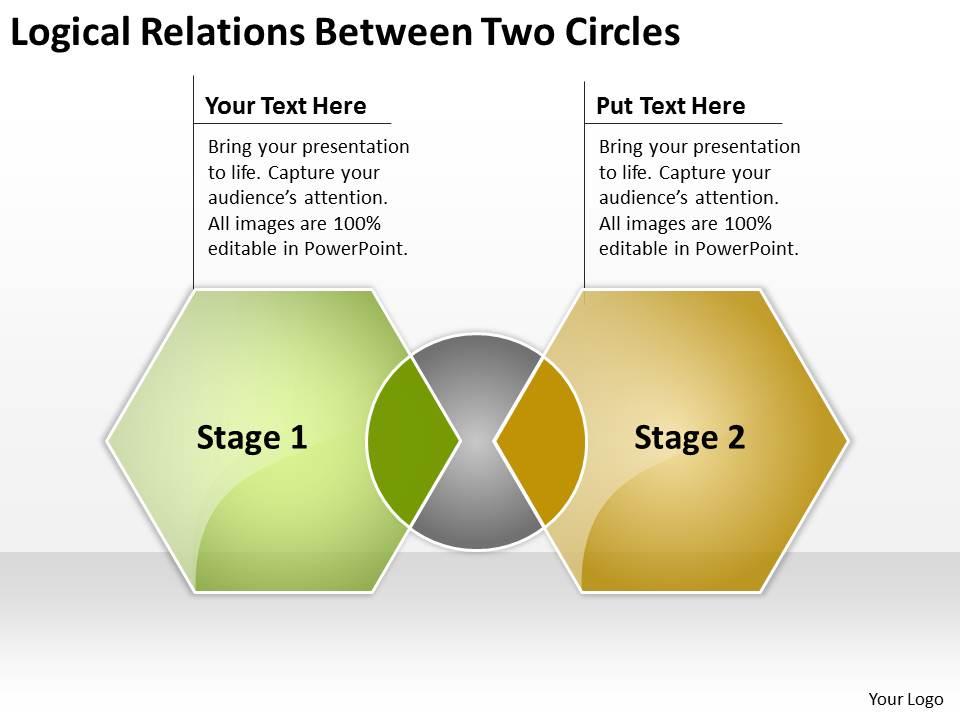
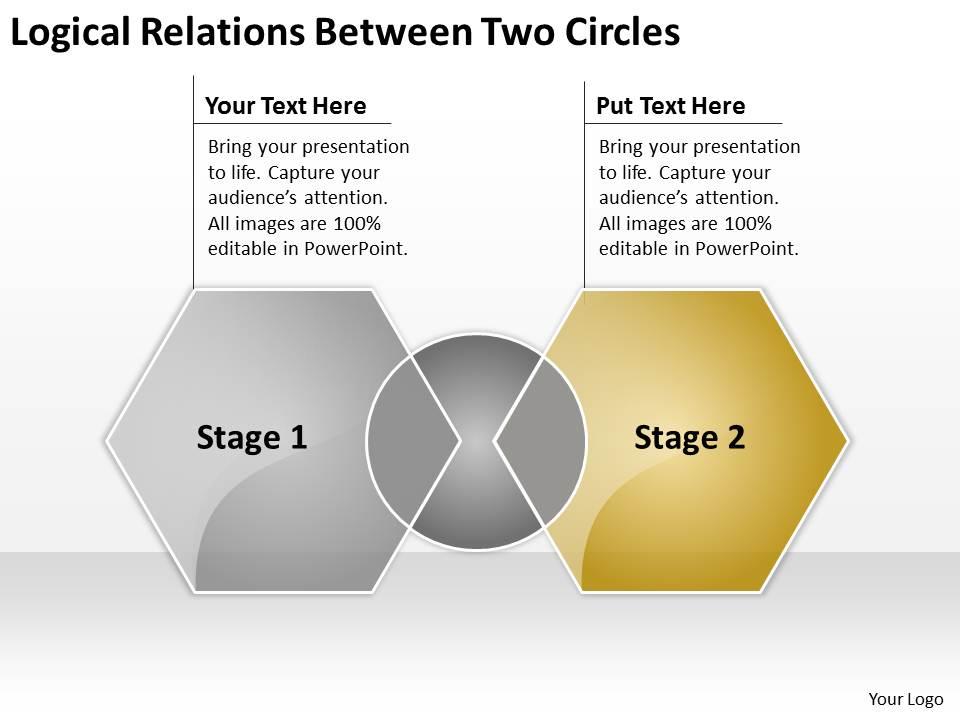
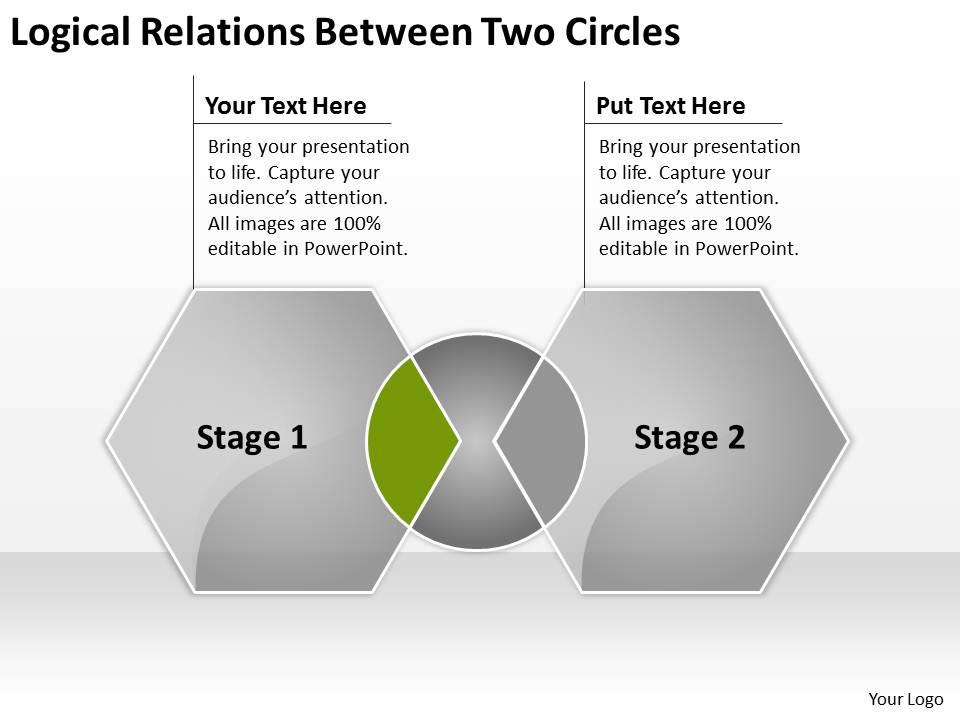
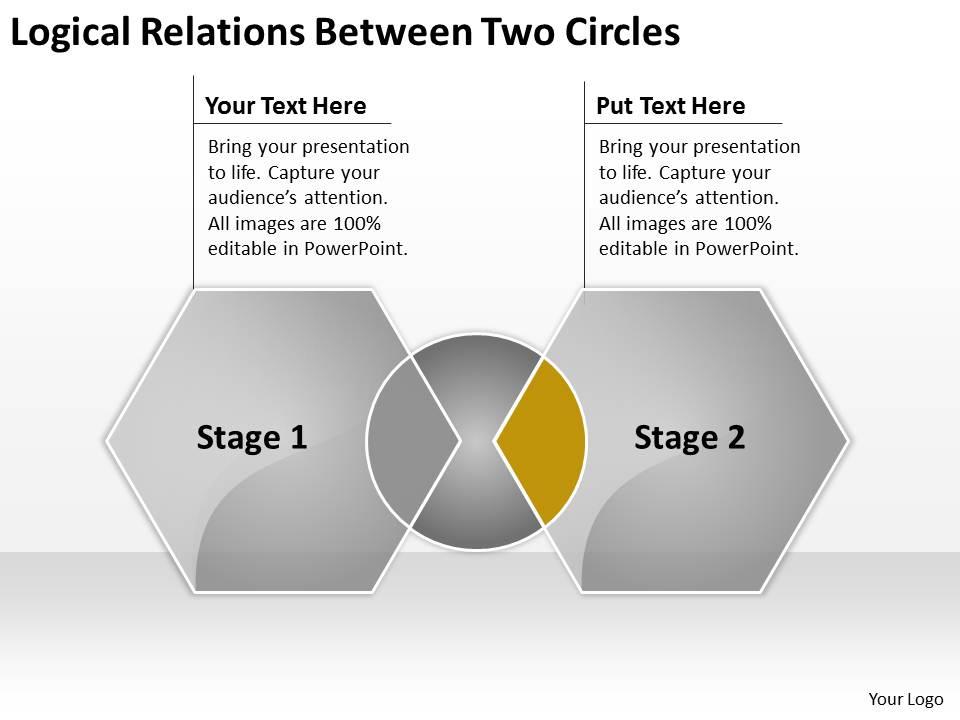
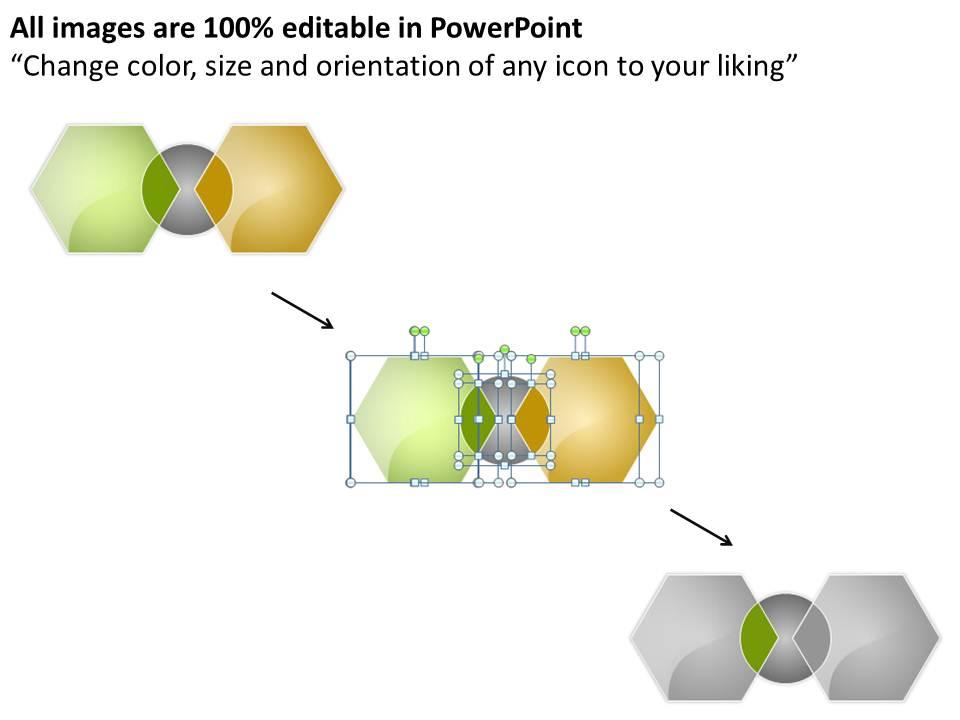
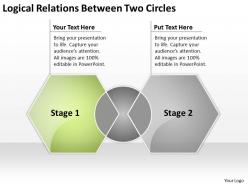
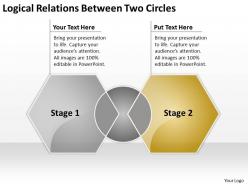
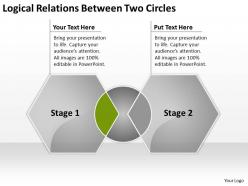
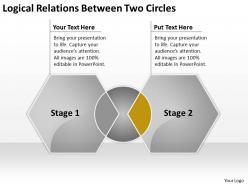
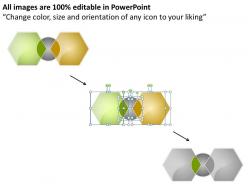
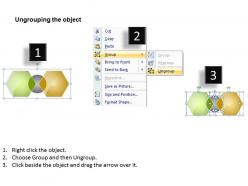
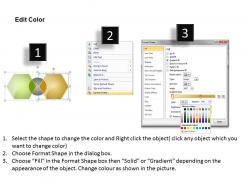
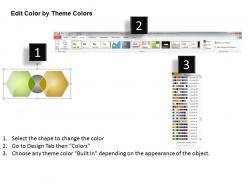
We are proud to present our business powerpoint examples between two circles templates ppt backgrounds for slides. Business Template displays overlapping hexagon shape. This diagram is also called Venn diagram. The PowerPoint Diagram provides you with a vast range of viable options. Select the appropriate ones and just fill in your text.

People who downloaded this PowerPoint presentation also viewed the following :

FAQs for Business powerpoint examples between two circles templates ppt

Honestly, start with the basics - clean layout, fonts that don't look weird together. You'll want different slide types so you're not rebuilding everything from scratch. Professional colors are key (unless you're doing something creative, then go wild I guess). Test it with your PowerPoint version first - some templates are buggy as hell. The placeholder text should swap out easily without the whole design falling apart. Icons and graphics need to be editable too. My advice? Download like 3-4 options and actually try your content in them before picking one. Nothing worse than realizing halfway through that your template sucks.

Colors totally change how people see your presentation. Reds and oranges feel energetic and urgent, blues and greens seem trustworthy and chill. Though honestly, I'm so tired of seeing the same boring blue corporate slides everywhere! You want high contrast so people can actually read your stuff without squinting. Clashing colors just distract everyone from what you're trying to say. Stick with 2-3 colors max that match your vibe. And use them consistently - it makes you look way more put-together and professional.

First thing - swap out those template colors for your brand palette. Most templates have a one-click option under Design > Variants. Then replace the placeholder logos with yours and match your fonts to brand guidelines (or get close with PowerPoint's options). The master slide is your friend here - customize it so new slides automatically follow your branding. Keep layouts consistent throughout, but honestly? Don't go overboard with animations just because they're there. I always save the customized version as a new template afterward so my team can reuse it. Makes life way easier.

Dude, infographics are a game changer for corporate stuff. They turn those soul-crushing spreadsheets into something people actually want to look at. Charts and icons work way better than endless bullet points - executives can spot the important bits without having to dig through everything. Most busy people scan presentations anyway, so visual stories just make sense. Oh, and stick to your company's colors or whatever, but don't go overboard with fancy graphics. Too much clutter and you'll lose them. It's honestly the difference between people understanding your data or glazing over completely.

Okay so the big thing right now is minimalist stuff - tons of white space, clean fonts, you know? Dark mode is literally everywhere (I swear even my toaster has dark mode now lol). Data viz that doesn't make your eyes bleed is finally having a moment instead of those hideous default Excel charts. Interactive bits and smooth animations are pretty much expected now. Oh, and sustainability vibes are showing up in color choices too. Honestly, you should probably start swapping out templates because those cluttered text-heavy slides from 2019 look ancient now.

Honestly, you gotta match whatever industry you're in. Finance and consulting folks love clean, minimal stuff - lots of white space, blues and grays, nothing crazy. Creative agencies? They get to have all the fun with bold colors and wild layouts (so jealous). Healthcare sticks with trustworthy blues and greens, makes sense I guess. Tech companies go for that sleek, modern look with tons of charts and data viz. Pro tip though - just stalk your industry leaders' presentations online and see what templates they're using. Way easier than guessing.

Honestly, templates save you so much time. Skip the whole design nightmare and just focus on what you're actually saying. You get professional layouts that don't look like a rainbow exploded (guilty as charged on that one). Plus they've got the visual hierarchy stuff figured out already - where to put headers, how to balance text and images, all that. Your slides end up looking intentional instead of thrown together. Consistency across the whole deck makes a huge difference too. Next time you're building a presentation, grab a template first. Way better than staring at a blank slide wondering why nothing looks right.

Map out your story first, then figure out where multimedia actually adds value - like dropping a customer testimonial right when you're pitching your solution. Don't go overboard though. Too much video/audio just becomes noise and people tune out. Compress your files so everything loads smoothly - nothing kills momentum like a frozen presentation. I learned this the hard way lol. Short clips work better than long ones. Always bring backup static slides because tech loves to fail at the worst moments. Trust me on that one.

Make sure there's good contrast between your text and background - people with vision issues need to actually read your stuff. Go with clean, simple fonts and skip the fancy decorative ones (they're usually terrible anyway). Don't rely just on color to show information since colorblind people might miss it. Red and green together? Bad idea. Check that your template has proper headings so screen readers work right. Oh, and test everything in grayscale first - if you can see all the elements clearly that way, you're golden. White space is your friend here.

Good layouts are like a roadmap for people's eyes - they guide viewers through your points without confusion. You want consistent spacing and clear hierarchy so folks can quickly grasp what matters most. Nobody's got time to decipher a messy slide, honestly. Clean templates keep that flow going across all your slides too, which builds your story naturally. Oh, and here's the thing - pick templates that actually support what you're trying to say instead of working against you. It'll save you so much frustration later when you're putting everything together.

Dude, typography can literally make or break your presentation. Bad fonts kill your credibility instantly - I've watched brilliant ideas crash because someone thought Comic Sans was "fun." Pick 2-3 fonts that work together and stick with them. Make sure people in the back can actually read your text (bigger than you think!). Your font choices guide people through your main points, so don't mess around with weird sizes or colors. Oh, and test it on different screens first - what looks good on your laptop might be trash on the projector. Trust me on this one.

Totally! They're actually super helpful for remote stuff. Just go for templates with bigger fonts and high contrast - video calls make everything look washed out. Skip the crazy animations though, they always seem to freeze up when you're screen sharing (why is that always a thing?). Simple layouts work best since people are squinting at laptops half the time. Bold text is your friend. Oh, and definitely do a test run in presentation mode first. I've seen too many people realize their slides look terrible only after they've already started presenting.

Honestly? Don't cram walls of text into those template slides. They're meant for visuals, not essays. Also make sure the colors actually match your brand - nobody wants to see hot pink when you're pitching corporate clients lol. Most people just accept whatever default fonts come with the template, but you should customize it. Otherwise everyone's presentation looks exactly the same. Skip templates with those crazy spinning transitions too. They're distracting as hell. Go clean, make it yours, and definitely test it on the actual screen beforehand. Trust me on that last one.

Okay so basically stick to your template religiously - same fonts, colors, spacing, all of it. I know slide 15 might look boring but don't randomly switch things up! Keep your headings consistent and if your title sits 2 inches from the top on slide one, do that everywhere. Honestly, the spacing thing trips up so many people. Make yourself a little cheat sheet with your hex codes and font sizes. Trust me, you'll thank yourself later when you're three hours deep and can't remember if you used 24pt or 28pt for subheadings.

honestly start with Microsoft's free template gallery - might save you time and money. Google Slides has decent ones too that work in PowerPoint. Canva's pretty solid for business stuff. SlidesCarnival doesn't look super obviously free if that matters to you. if you need something fancier, GraphicRiver has professional templates for like $5-15. SlideModel's good too. oh and Envato Elements is worth checking out if you think you'll need templates regularly - it's unlimited downloads for a monthly subscription thing. but yeah, I'd definitely try the free Microsoft ones first before spending anything.

Ratings and Reviews

100% of 100
Write a review
Most Relevant Reviews
  1. 100%

    by Darnell Tucker

    Unique research projects to present in meeting.
  2. 100%

    by Jones Cook

    Design layout is very impressive.

2 Item(s)

per page: