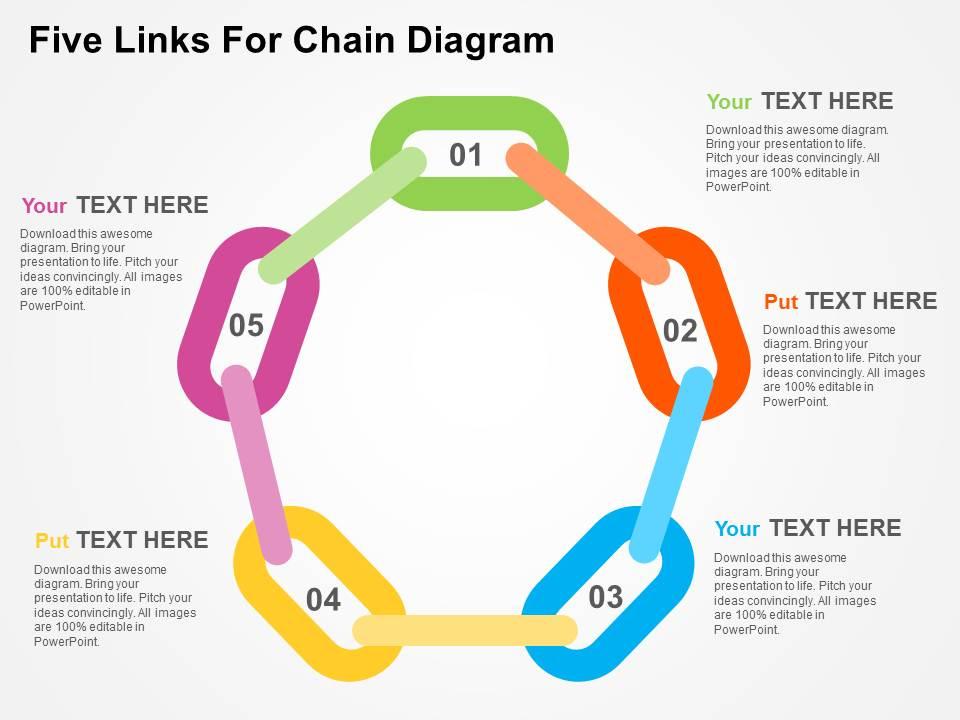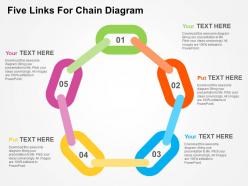
Five links for chain diagram flat powerpoint design

Rating:
90%
Five links for chain diagram flat powerpoint design
Slide 1 of 4
Favourites Favourites

Try Before you Buy Download Free Sample Product

Audience Impress Your
Audience
Editable 100%
Editable
Time Save Hours
of Time
The Biggest Sale is ending soon in
0
0
:
0
0
:
0
0
Rating:
90%
We are proud to present our five links for chain diagram flat powerpoint design. This power point template diagram has been crafted with graphic of five links chain diagram. This PPT diagram contains the concept of safety. Use this PPT diagram for business and marketing related presentations.

People who downloaded this PowerPoint presentation also viewed the following :

FAQs for Five links for chain diagram

Oh that's just a flowchart that shows steps in order - like dominoes falling. Perfect for walking people through processes, timelines, or showing how A leads to B leads to C. I use them constantly for project workflows and decision trees. They look super clean when done right. Don't cram too much text in each box though, that's where people mess up. Clear arrows help show the direction. Honestly they're probably my go-to visual more than they should be, but hey, if it works it works!

Start with your main path first - that's way easier than trying to map everything at once. You'll need clear start/end points, then just work through each step sequentially. Honestly, I always screw up the arrow directions initially, but they just show which way the process flows. Add decision points where things might branch off or loop back. Each box should be one specific action, and keep the labels short but clear enough that someone random could follow along. Once you've got the basic flow down, then go back and add all the weird exceptions and "what if" scenarios.

Honestly, chain diagrams are a game changer for messy problems. You map out each step and see how everything connects - like dominoes falling. Makes it super obvious where things break down or get stuck. I'm always drawing these when I'm debugging code or figuring out why a project went sideways. The best part? You don't have to juggle all the moving pieces in your head anymore. Just start with what you want to happen, then trace backwards through each link. Sometimes I use sticky notes instead of drawing - whatever works. Give it a shot next time you're banging your head against something complex.

Honestly, chain diagrams are perfect for linear stuff - like when you're mapping out project steps or onboarding new people. Way better than flowcharts if you don't have any branching or weird logic to deal with. I probably overuse them, but they're just so clean for showing A-to-B-to-C processes. Mind maps get messy when order matters, and Gantt charts are overkill if timing isn't your main thing. Oh, and manufacturing workflows too - forgot about those. Bottom line: if it's sequential and you want people to get it fast, chain diagrams win.

Honestly, I'd go with Lucidchart first - web-based, tons of templates, and collaboration is really smooth. If you're already deep in Microsoft stuff, Visio works but feels kinda clunky now. Draw.io (they renamed it diagrams.net for some reason) is totally free and way more powerful than you'd expect. Perfect if budget's tight. They all export to different formats and play nice with other tools. Start with Lucidchart's free trial and see how it feels. Worst case, you can always switch later.

Dude, color coding seriously saves your sanity with chain diagrams. I usually do blue for one department, green for another, red for problem areas - you get the idea. Makes everything so much clearer when you're not staring at a bunch of identical boxes connected by lines. Your brain can actually follow the flow instead of getting completely lost. Oh, and don't go crazy with like 10 different colors (learned that the hard way). Stick to maybe 4 max or it gets messy again. Trust me, once you start doing this you won't go back to plain diagrams.

Ugh, the worst thing you can do is make it way too complicated. I always see people cramming like 10 different actions into one box - total mess. Each step should just do ONE thing, you know? And please don't write vague stuff like "handle data" because that tells me literally nothing. What are you actually doing with it? Also watch your arrows - they need to make logical sense and not skip over important stuff. I learned this the hard way on a project last year. Start basic, then add details only if you really need them.

Honestly, chain diagrams are a lifesaver for mapping out processes. They show everything step-by-step in a straight line, so you can actually see what's happening instead of trying to decode some confusing paragraph. Super helpful for catching bottlenecks or figuring out where things usually break down. Just draw boxes for each step and connect them with arrows - nothing fancy needed. Your whole team gets it instantly, which is clutch when you're training new people. Plus you won't be that person who keeps all the important process stuff locked in their brain anymore.

Yeah, they work really well for both! Business stuff like workflows and project timelines are perfect for chain diagrams. Schools love them too - great for showing cause and effect or walking through problem-solving steps. Students actually prefer the visual flow over reading dense paragraphs (can't blame them honestly). Just keep each step short and make sure your arrows point the right direction. Oh, and start with whatever process you're explaining, then just map it out one step at a time. Way easier than trying to do it all at once.

Short, specific labels work best - action verbs or clear nouns that instantly show what's happening. Pick a format like "Verb + Object" and stick with it. I swear, some diagrams look like complete word salad! Position labels so they don't overlap with lines or other stuff. Same font size and style for similar elements makes everything cleaner. Different formatting for inputs, outputs, and decisions helps too - honestly saves people from squinting at your work. Have someone else look it over first. They'll catch things you missed.

Make each step clickable so people can dive deeper into the details. Hover effects work great too - just show extra info when someone muses over a section. Animations are honestly where it gets fun though. When users scroll through, highlight the connections between steps. Way better than those boring static charts everyone uses. Try expandable sections or filters that let people explore different pathways. Drag-and-drop for "what-if" scenarios is cool but maybe overkill? Start simple with basic click-to-expand stuff first. See what people actually use before you go crazy adding features. No point building something fancy if they'll just ignore it.

So hierarchy is like the backbone of your whole chain diagram - it shows the order and flow of everything. Map out your components top-down or left-to-right based on priority, timing, or what depends on what. Kind of like cooking where you can't add the eggs before you've cracked them, right? Viewers can instantly see what comes first and how everything flows through the system. Honestly, I always sketch out the hierarchy before getting caught up in making it look pretty - saves so much headache later. The structure does most of the heavy lifting for you.

So basically you just switch up the detail level depending on who's looking at it. Executives want the big picture stuff - outcomes, numbers they actually care about. Technical people though? They're gonna want all the nitty-gritty steps and how everything connects. For clients or outside people, strip out the internal jargon and focus on what affects them directly. Honestly, I usually end up making like 2-3 different versions of the same diagram because everyone needs different things. Just think about what each group actually needs to do with the info and adjust from there.

Dude, try switching up those boring boxes for actual chain links or puzzle pieces that fit together. Subway map styles work great too - I'm obsessed with those lately. Colors can show different categories, and thick vs thin lines reveal how strong connections are. Icons beat text every time if you can swing it. Dominoes work for sequential stuff, though that might be overkill depending on your audience. DNA helixes look sick for complex processes. Just match whatever style fits your content's vibe. Trust me, people actually pay attention when it doesn't look like every other presentation they've seen.

Chain diagrams work better when you've got a straightforward, linear process - way cleaner to follow. Flowcharts are good for complex stuff with lots of decision points, but they get overwhelming pretty quick if you're not careful. Honestly, I love that chain diagrams force you to keep things simple. Your team will actually understand what's happening instead of getting lost in a maze of boxes and arrows. Start with a chain diagram first. Only go flowchart if you really need all those branches and decision trees - which, let's be real, you probably don't.

Ratings and Reviews

90% of 100
Write a review
Most Relevant Reviews
  1. 100%

    by Dane Harrison

    Unique design & color.
  2. 80%

    by Delmer Black

    Easy to edit slides with easy to understand instructions.

2 Item(s)

per page: