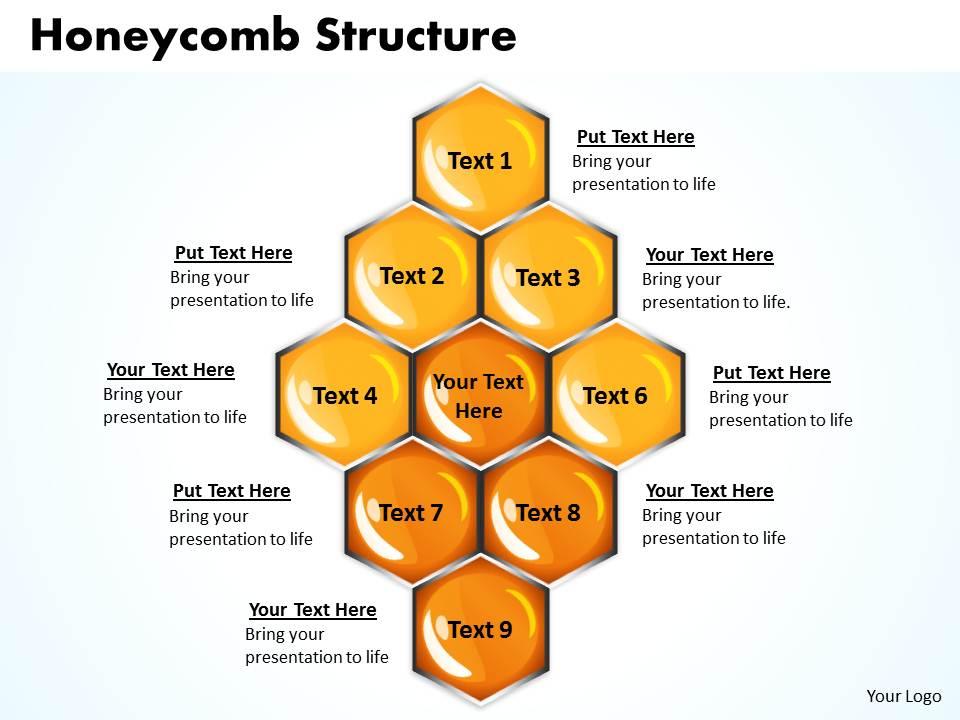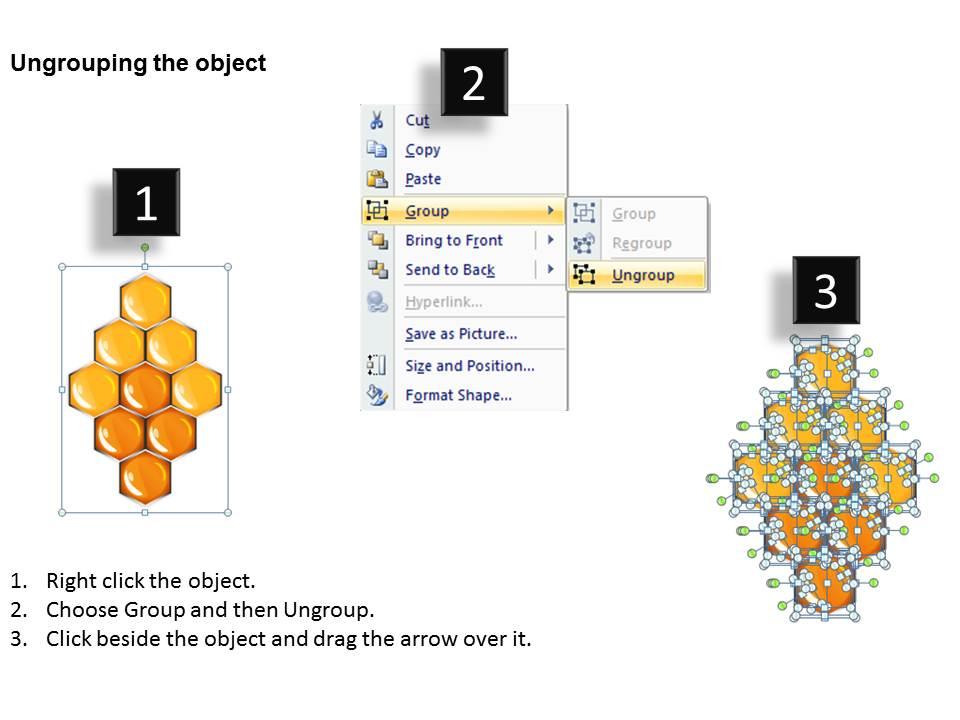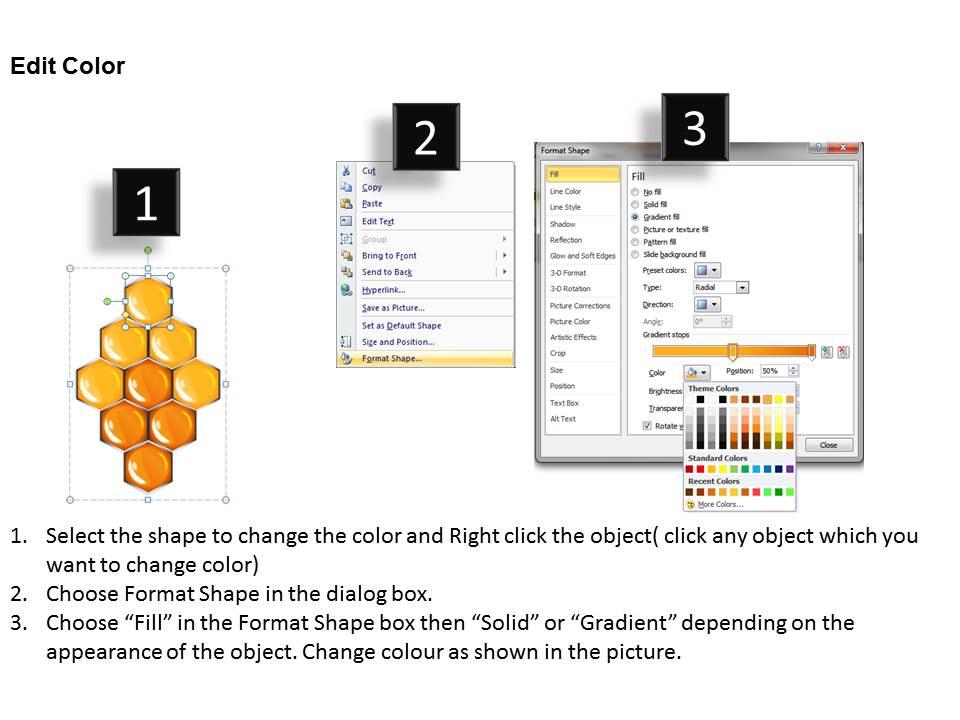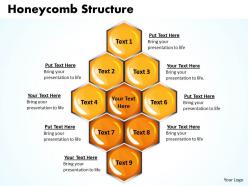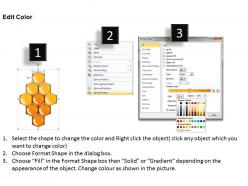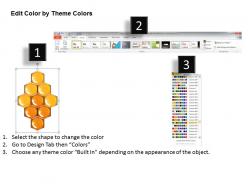
Honeycomb structure powerpoint slides presentation diagrams templates
Try Before you Buy Download Free Sample Product
Audience
Editable
of Time
Your diagram needs some explanation. Do it inphases with our Honeycomb Structure Powerpoint Slides Presentation Diagrams Templates.
People who downloaded this PowerPoint presentation also viewed the following :
Honeycomb structure powerpoint slides presentation diagrams templates with all 5 slides:
Dress up your thoughts with our Honeycomb Structure Powerpoint Slides Presentation Diagrams Templates. They will truly complement your style.
FAQs for Honeycomb structure powerpoint slides
Honestly, honeycomb templates are perfect for breaking down complex stuff without making people's brains hurt. Each hexagon holds one focused idea, so your audience can actually process everything instead of drowning in text walls. They look super clean too - way better than those tired bullet points everyone uses. You can group related hexagons together to show how concepts connect, which helps your story flow better. I've seen them work really well for process maps, feature lists, team org charts - basically anything where you've got 4-8 related points to cover. Plus they're just visually interesting, you know?
So honeycomb templates are actually pretty genius for visual storytelling. Each hexagon holds a piece of your story - character details, plot points, whatever - but the magic happens in how they connect. People naturally follow that geometric pattern with their eyes, which is weirdly satisfying to look at. I mean, there's something about organized chaos that just clicks with our brains. They're perfect for complex stuff because you can show relationships between story elements without it looking like a hot mess. Different colors work great for timelines too. Honestly, way better than boring old flowcharts.
So tech, consulting, and marketing teams are obsessed with honeycomb templates - they're great for showing how stuff connects. Healthcare uses them for patient journeys, manufacturing for workflows, education for curriculum stuff. They work way better than regular grids because your eye naturally follows the hexagon pattern. Manufacturing was probably a weird example but whatever. Any industry with complex systems can use them. Next time you're presenting layered info, try one out. People actually stay focused instead of zoning out halfway through your presentation.
Dude, honeycomb templates are such a game changer compared to regular slide decks. You're not stuck going 1-2-3 anymore - jump around based on what people actually want to hear about. It's like having a conversation map instead of reading from a script. Way more natural, honestly. Traditional slides work fine if you need total control over the story, but honeycomb lets you pivot when someone asks something interesting. I started sketching my presentations as connected hexagons instead of linear slides and wow, the flow is so much better. You should try it next time - just don't overthink the hexagon shapes lol.
For honeycomb templates, cell sizing consistency is key - make your walls about 10-15% of the cell diameter. Your hexagons need to be perfectly regular or you'll get annoying weak spots that ruin everything. Don't forget about spacing between cells if you're doing multiple layers. Material properties matter a lot here since some stuff shrinks weirdly during fabrication. Honestly, I'd test a small section first before committing to the full template - saves you from potentially wasting a ton of material. The wall thickness ratio is probably the most critical part to get right.
Dude, honeycomb layouts are actually perfect for team stuff! Each hexagon becomes its own topic or section that connects to the others - way more interesting than bullet points, trust me. Your teammates can literally own different hexagons and build off each other's ideas. During meetings, you just point to whatever section you're discussing. It's like having a visual map of your whole project. Oh, and it shows how everything links together instead of just listing random points. Try giving each person their own hexagon or use them for different project phases. Works so much better than traditional slides.
Honestly, honeycomb templates are clutch for anything with categories that still relate to each other - like customer feedback or project breakdowns. The hexagonal thing naturally makes your eye move around instead of just reading top to bottom, which is way better than boring lists. Perfect for brainstorming sessions too. I use them for dashboards and process maps when I need to show connections but keep everything visually separate. They're great when you're breaking down complex stuff into smaller pieces. Oh, and they work really well for feature comparisons - something about the layout just makes it easier to digest everything at once.
Honestly, colors can totally make or break these things. High contrast is your friend - you need those hexagon borders to pop against the background. Don't go crazy with too many colors though, maybe stick to 3-4 max? I learned this the hard way after creating what looked like a rainbow explosion once. Your text has to be readable too, so test it on your phone and laptop. Oh, and here's something that works really well - pick one accent color for your most important hexagons and keep the rest pretty neutral. Trust me on this one.
Depends what you're after really. CAD stuff like Fusion 360 or SolidWorks if you need it super precise for engineering. Illustrator works fine for simpler stuff - hexagons aren't rocket science. I've literally watched people make decent honeycomb patterns in PowerPoint when they're desperate lol. 3D printing? Definitely go CAD route. Grasshopper with Rhino is sick for parametric designs where you can tweak cell sizes on the fly. Inkscape's free and solid too. My advice? Just start with whatever you already know instead of learning something brand new.
Yeah totally! Same template works for both. Just tweak the settings - 72 DPI and RGB for screens, then 300 DPI and CMYK when you print. Hexagons look crisp either way, which is nice. One thing though - check your text size first. I learned this the hard way when tiny text in those cells basically disappeared on my printed version. Super annoying. Save both versions separately so you don't have to mess with settings every time. Way easier that way.
Oh man, don't make your hexagons too small or dense - learned that one the hard way when mine cracked everywhere. Wall thickness needs to be consistent too, which sounds obvious but trust me, it's easy to mess up. If you're 3D printing, factor in shrinkage or you'll hate yourself later. Drainage holes are clutch if moisture's a thing. Honestly though? Just test a tiny section first. I know it feels like extra work, but it beats redoing everything when your full design fails spectacularly.
Dude, honeycomb templates are actually pretty smart for engagement. They chop up content so it's not just this intimidating wall of text - way easier to scan through. People can jump around and find what they need fast. The hexagon shape thing naturally pulls your eye around the page, so visitors stick around longer. Perfect for organizing messy info like product specs or team pages. I've heard click-through rates jump like 20-30% when people ditch boring layouts for these. Honestly didn't expect them to work this well, but definitely try one for your next landing page.
Honestly, sequential filling works great - each cell pops up with content one by one. You could also do this zoom thing where you show the whole honeycomb first, then dive into specific cells for details. That ripple effect is really cool too, where one cell grows and makes the surrounding ones animate. Oh, and there's this building animation where hexagons literally drop from above to form the structure. The color-shift one is probably my favorite though - cells change colors as you go through your presentation points. Just don't go overboard with effects or people will get motion sick lol. Pick one, maybe two max.
Oh absolutely, culture plays a huge role in this stuff. Red screams "lucky!" in China but "danger!" here in the West. White's tricky too - pure and clean for us, but mourning colors in parts of Asia. You'll want to flip your whole honeycomb flow for Arabic/Hebrew readers since they go right-to-left. Some cultures dig hierarchical layouts, others prefer that circular equality vibe (honestly gets way more complex than you'd think). Watch out for hand gestures and religious symbols in your icons - they can backfire hard. My advice? Do your homework on the specific audience and definitely run it by local team members first.
Look at engagement metrics like how long people stick around viewing each section and which hexagons get the most clicks. Follow up with surveys about what they actually remembered - people are surprisingly honest about what made zero sense to them! During live presentations, watch faces for those "huh?" expressions or nodding. Track whether they actually do anything with the info afterward, though that part's trickier to measure. Oh, and see if they complete whatever action you wanted them to take. Mix of immediate feedback and longer-term behavior change tells you if it's really working.
-
Commendable slides with attractive designs. Extremely pleased with the fact that they are easy to modify. Great work!
-
Amazing product with appealing content and design.