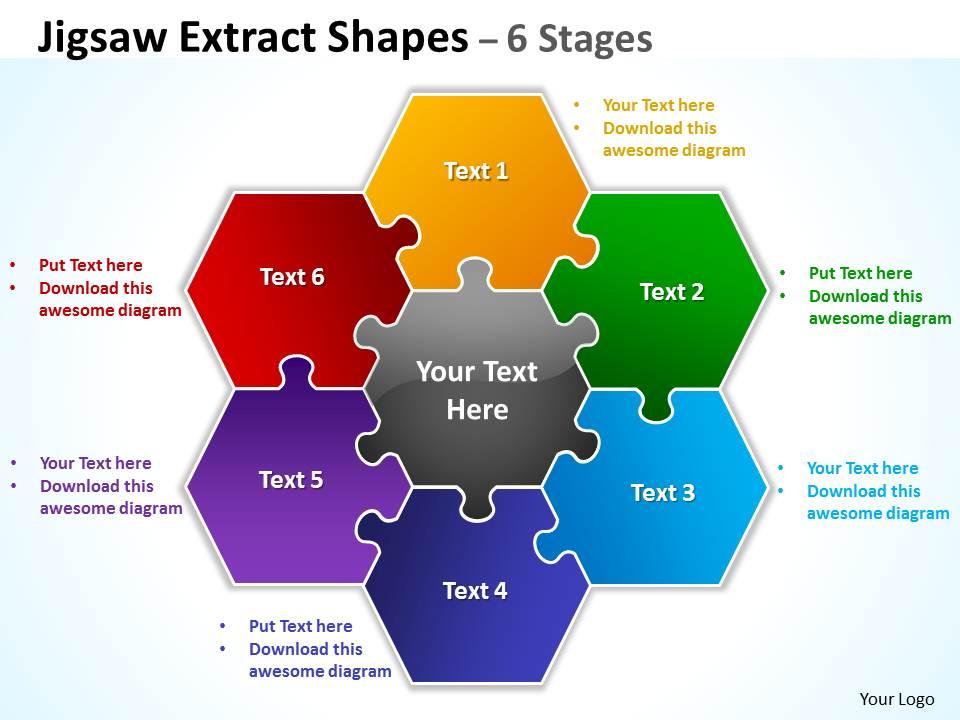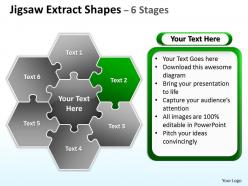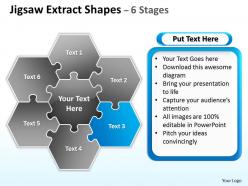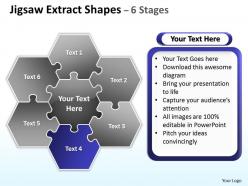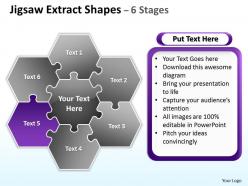
Jigsaw extract diagram shapes 6 stages 9
Try Before you Buy Download Free Sample Product
Audience
Editable
of Time
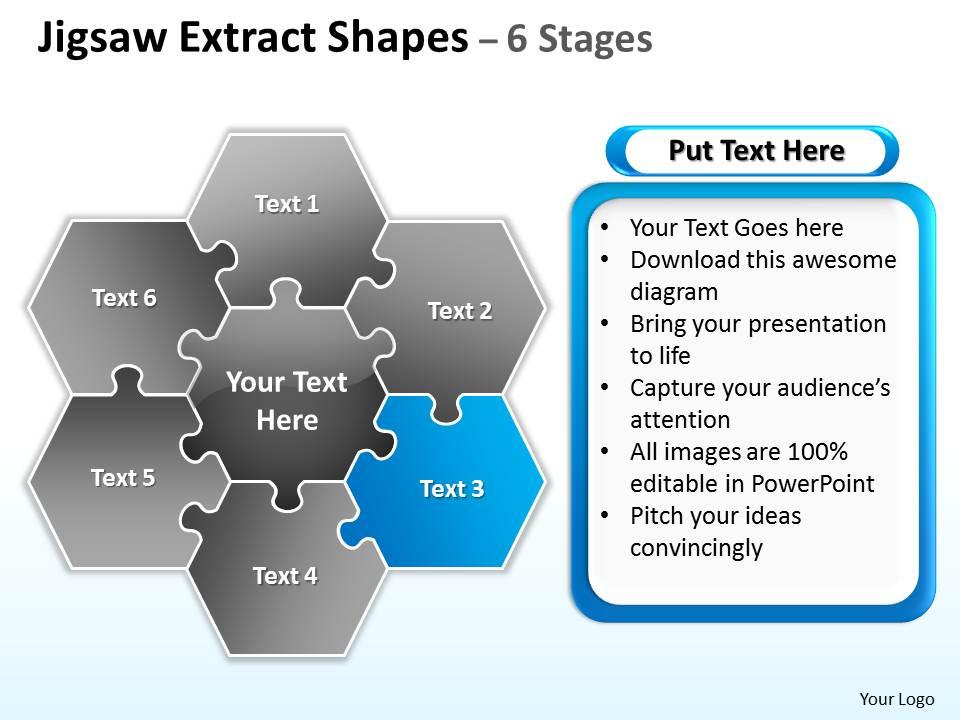
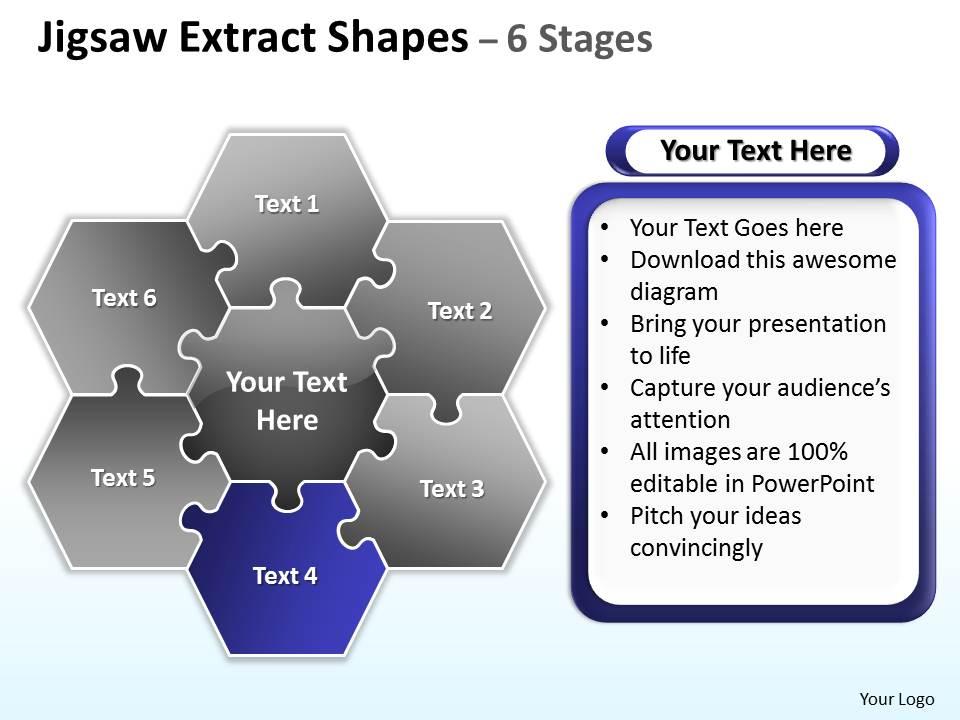
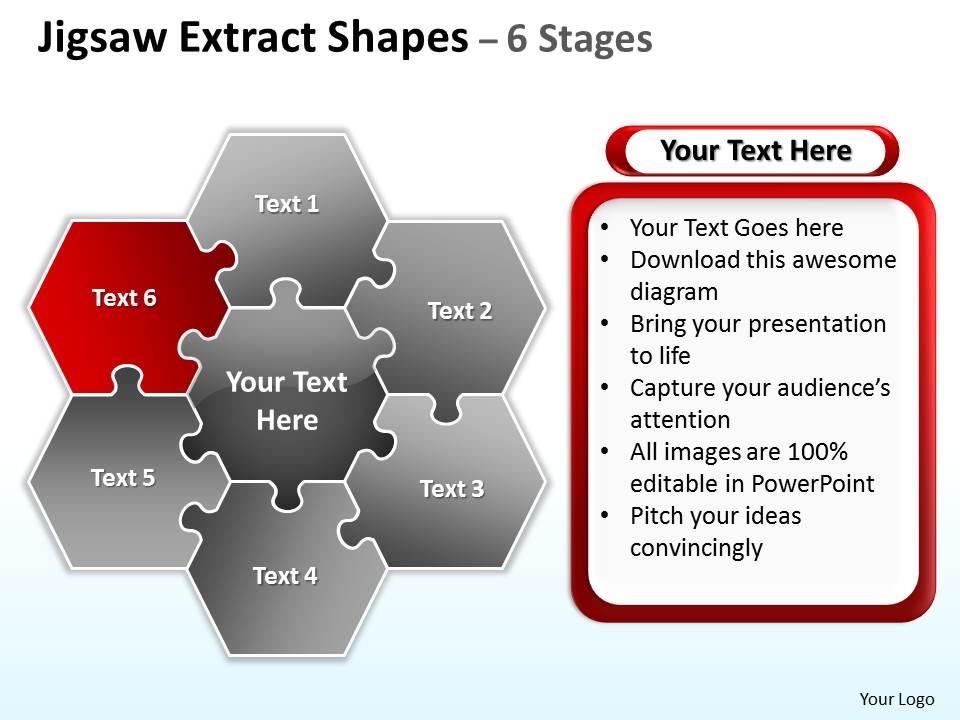
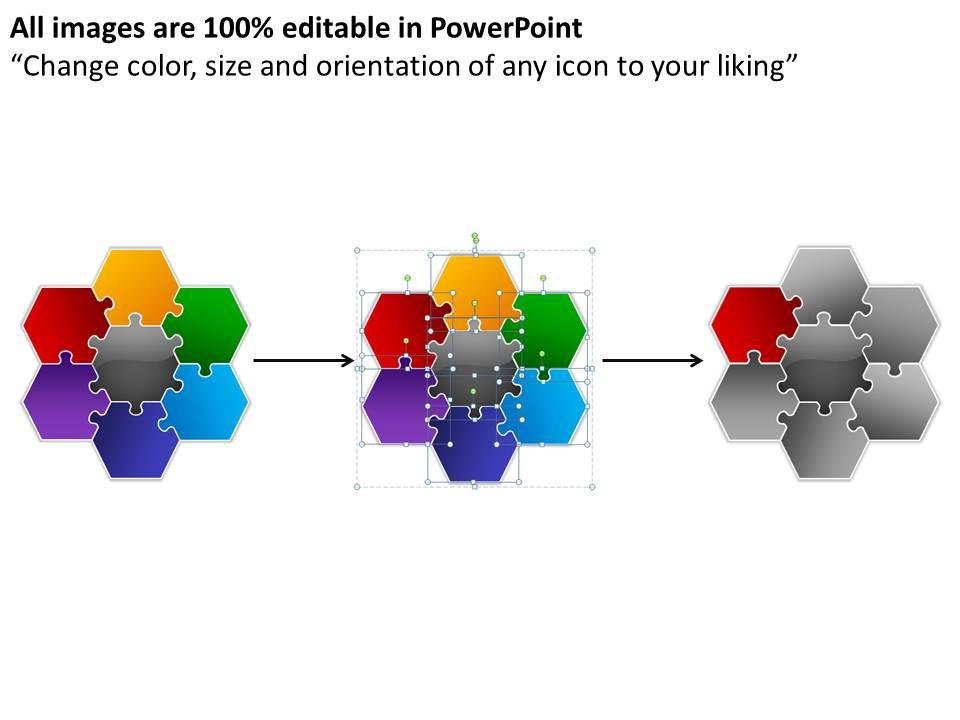
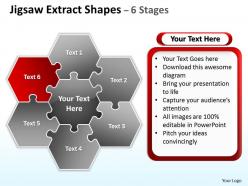
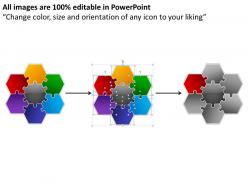
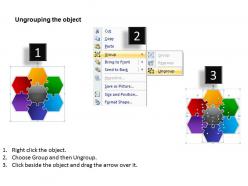
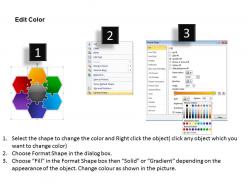
Provided here is a multi utility presentation diagram which can be easily fitted into any number of corporate or educational PowerPoint presentations. The jigsaw extract diagram shapes 6 stages 9 can be applied to any of those marketing and business activities which have set of six steps or six functions or six attributes or six objectives attached to it. Varied colors have been provided to the six puzzle shapes which are joined together in a strategic manner to design one single goal. The proper arrangement of puzzles in composite shapes communicates that all the corporate and other non professional moves are directed with strategic vision in mind and disciplined move. Enough space has been provided to incorporate texts for heading and minor detailing for each of the puzzle. So without any second thought, simply download and save the jigsaw extract PPT PowerPoint presentation model for further personalization and presentation.Make your presentations perform at their best. Versatile Jigsaw Extract diagram Shapes 6 Stages 9 at affordable prices.
People who downloaded this PowerPoint presentation also viewed the following :
Jigsaw extract diagram shapes 6 stages 9 with all 10 slides:
Let your thoughts get up close to our Jigsaw Extract diagram Shapes 6 Stages 9. They will make a great combination.
FAQs for Jigsaw extract diagram shapes
Think of it like this - each puzzle piece is one part of your bigger idea or strategy. Label them clearly with different colors or icons so people can actually follow what you're saying. Show the pieces separately first, then reveal how they connect into the complete puzzle. It's honestly perfect for breaking down complicated stuff or explaining how different teams work together. Just don't make your pieces look like weird random shapes that obviously don't fit - I've seen too many slides where the "puzzle" makes zero sense. The whole point is showing how individual components create something bigger when combined.
Oh man, jigsaw diagrams are seriously helpful for getting teams on track. They show how everyone's work connects - like puzzle pieces fitting together. Super useful when you're planning and need people to see dependencies between tasks. Honestly, they've saved me from so many awkward "I thought YOU were doing that" conversations. Try mapping out who's responsible for what in your next kickoff meeting. It's way better than just talking through everything and hoping people remember. Plus you can spot potential bottlenecks before they become actual problems.
Honestly, jigsaw diagrams are clutch when you've got interconnected stuff that forms a bigger picture. Like system breakdowns, project pieces, team dynamics - anything where parts depend on each other. Way better than dumping a wall of text on people (trust me on this one). They're great for complex workflows too. Your audience gets to see individual elements AND how everything connects. Perfect when you need folks to grasp both the details and the overall goal. Really shines when you're dealing with complicated processes that need breaking down into manageable chunks.
Jigsaw diagrams are great when you've got interconnected pieces that make up something bigger - like project phases or team roles that all depend on each other. I actually love using them because they're way more engaging than boring flowcharts. Use them instead of org charts when you want to show partnership rather than hierarchy. They work better than flowcharts too since the relationships go both ways instead of just flowing in one direction. Perfect for showing how different departments contribute to a goal - really gets that "we're all in this together" vibe across. Plus they'll keep people awake in meetings!
So jigsaw diagrams basically turn messy processes into puzzle pieces that actually make sense. You can see how each step connects instead of drowning in some boring flowchart. Honestly, they're way better at showing you where things might break down or get stuck. Each piece is like one part of your workflow, and when you lay them out visually, gaps become super obvious. Kind of reminds me of those puzzle TikToks but actually practical lol. Next time you're trying to explain something complicated to your team, just sketch one out - it'll save you so much back-and-forth confusion.
Honestly, I'd go with Draw.io (they renamed it to diagrams.net but whatever). It's free and has decent puzzle piece templates. Lucidchart works too but costs money after the trial. PowerPoint's actually not terrible if you're already used to it - just takes forever to get the shapes looking right. Canva makes everything look pretty automatically, though you can't customize much. My company has Visio but it's way too complicated for something like this. Draw.io's probably your best bet since you can just open it in your browser right now and mess around with it.
Oh jigsaw diagrams are perfect for this! Break your topic into puzzle pieces - each one is a key concept. Students dive deep into their assigned piece, then teach the others about it. The teaching part is where the magic happens honestly, way better than just listening to lectures. Start small though, maybe 4-6 pieces max or it gets chaotic. Each group becomes the "expert" on their section. Then they have to explain how their piece connects to everyone else's. It's collaborative but not in that forced group project way that sucks. Really helps them see the big picture.
Oh man, don't cram every piece with a novel's worth of text - nobody's reading all that. One main idea per piece, that's it. Colors should actually mean something too, not just random pretty shades you picked. I've watched so many people totally bomb this part! Make sure there's a clear path from one piece to the next. Like, can someone follow your logic without getting lost halfway through? Short sentences work. Don't overthink the design either - sometimes simple hits harder. Oh and definitely test it on a friend first because you'll be way too close to spot the confusing bits.
Color coding your jigsaw diagram is honestly a game changer - people will actually want to look at it instead of zoning out. Assign different colors to themes or process steps so the relationships jump out immediately. Your audience gets those instant "oh I see" moments instead of squinting at identical pieces. I usually stick to 3-4 colors max (learned that one the hard way). Short sentences work better than cramming everything together. Also don't forget about colorblind folks when you're picking colors. Trust me, it's worth the extra two minutes to check accessibility.
Okay so here's the thing about Jigsaw Diagrams - without a good story connecting everything, you're basically just showing people random puzzle pieces. The narrative is what makes people actually *get* how all the parts fit together. Like, imagine trying to explain a recipe by just rattling off ingredients vs. walking someone through the actual cooking process, you know? Way different impact. Your audience needs to see the flow and understand why each piece matters in relation to the others. Honestly, I'd spend just as much time on crafting that connecting story as you do on the diagram itself. It's what turns a decent visual into something people will actually remember later.
Oh this is actually pretty cool! You write different ideas on separate "pieces" like a puzzle, then move them around to see how they connect. Way better than regular brainstorming where ideas just get lost in the chaos. Your team can spot patterns and gaps they'd totally miss otherwise. I mean, our brains are wired to see visual connections anyway, right? Have everyone throw in their pieces first, then work together arranging them into solutions. It keeps the creative energy flowing while making you think more systematically. Give it a shot next time you're stuck on something complex.
Hey! So jigsaw diagrams are everywhere in consulting and marketing - those teams are basically addicted to puzzle metaphors lol. Perfect for breaking down messy business problems into chunks people can actually wrap their heads around. Project managers use them constantly too. Oh, and software developers love showing system architecture this way. Training materials? Same thing - great for step-by-step stuff. Honestly way better than those mind-numbing bullet point slides everyone defaults to. Next presentation you do, try the jigsaw approach if you've got interconnected pieces to explain.
Digital presentations let you go crazy with interactive stuff - clickable pieces, animations, drag-and-drop features. You can zoom into tiny details too since there's no print resolution limits. Static print versions aren't necessarily worse though, people can actually focus without getting distracted by all the moving parts. Clear labels are key for print, maybe throw in some QR codes that link to the fancier digital version. Oh, and definitely pick your main format first then adapt from there - trying to make one design work perfectly for both is kind of a nightmare.
Dude, animation totally changes the game with jigsaw diagrams. Instead of dumping everything at once, you reveal pieces gradually - builds this nice suspense as people watch it come together. Each part gets proper attention, so your audience actually follows your logic instead of getting lost. They won't read ahead either since there's nothing to read yet! I'm a big fan of fade-ins or having pieces slide into place. Just remember to pause between each reveal - gives people time to actually process what you're showing them. Way more engaging than static slides, trust me.
Honestly, the biggest mistake I see is cramped, messy designs where you can't tell pieces apart. Use contrasting colors and readable text - sounds obvious but you'd be surprised how many people mess this up. Don't go crazy with too many pieces either, 4-6 max or it looks like a jigsaw puzzle exploded. Make sure the shapes line up so it's clear how everything connects. Oh, and definitely test it on someone first. If they squint at it for more than 3 seconds trying to figure it out, you need to simplify.
-
Awesome use of colors and designs in product templates.
-
Awesome presentation, really professional and easy to edit.