


Key statistics ppt styles layout
Decide on disputes with our Key Statistics Ppt Styles Layout. Arrive at conclusions acceptable to all.
-

- Google Slides is a new FREE Presentation software from Google.
- All our content is 100% compatible with Google Slides.
- Just download our designs, and upload them to Google Slides and they will work automatically.
- Amaze your audience with SlideTeam and Google Slides.
-

Want Changes to This PPT Slide? Check out our Presentation Design Services
-

- WideScreen Aspect ratio is becoming a very popular format. When you download this product, the downloaded ZIP will contain this product in both standard and widescreen format.
-

- Some older products that we have may only be in standard format, but they can easily be converted to widescreen.
- To do this, please open the SlideTeam product in Powerpoint, and go to
- Design ( On the top bar) -> Page Setup -> and select "On-screen Show (16:9)” in the drop down for "Slides Sized for".
- The slide or theme will change to widescreen, and all graphics will adjust automatically. You can similarly convert our content to any other desired screen aspect ratio.
Compatible With Google Slides

Get This In WideScreen
You must be logged in to download this presentation.


Do you want to remove this product from your favourites?
PowerPoint presentation slides
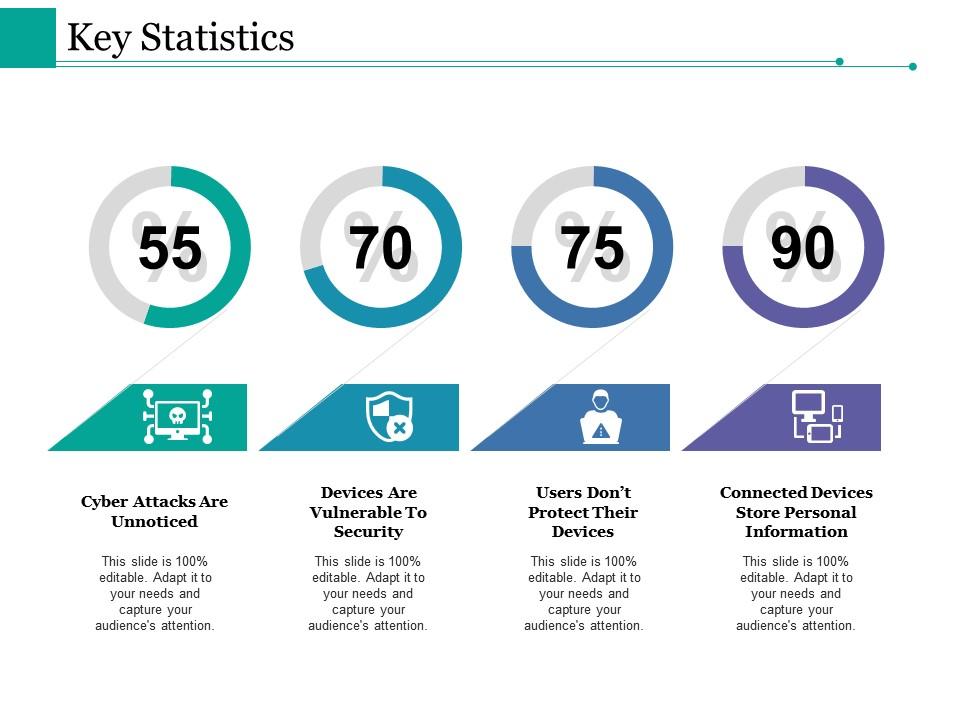
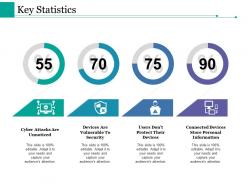
Presenting this set of slides with name - Key Statistics Ppt Styles Layout. This is a four stage process. The stages in this process are Cyber Attacks Are Unnoticed, Devices Are Vulnerable To Security, Users Don T Protect Their Devices, Connected Devices Store Personal Information.

People who downloaded this PowerPoint presentation also viewed the following :
Key statistics ppt styles layout with all 5 slides:
Folks find cause to continue discussions due to our Key Statistics Ppt Styles Layout. It ensures the dialogue carries on.
-
Awesome presentation, really professional and easy to edit.
-
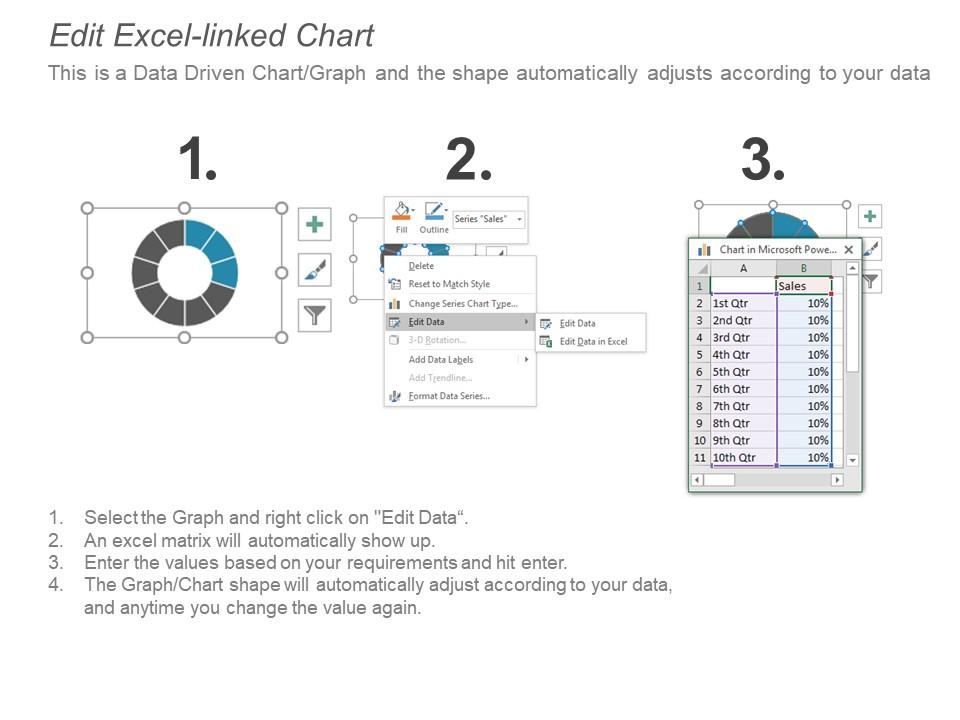
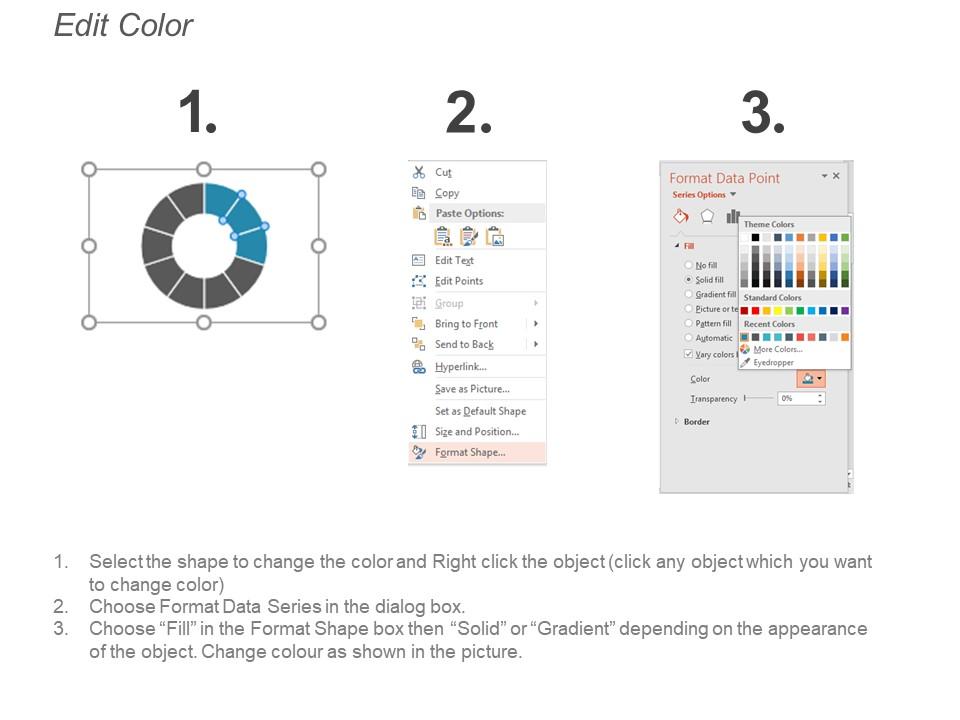
Easy to edit slides with easy to understand instructions.
