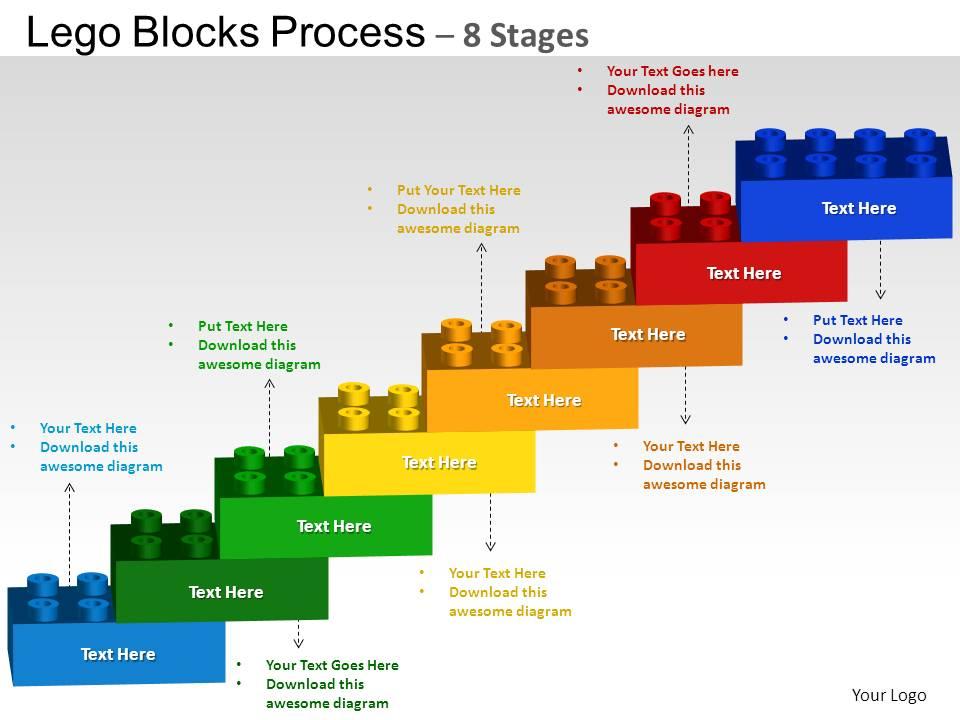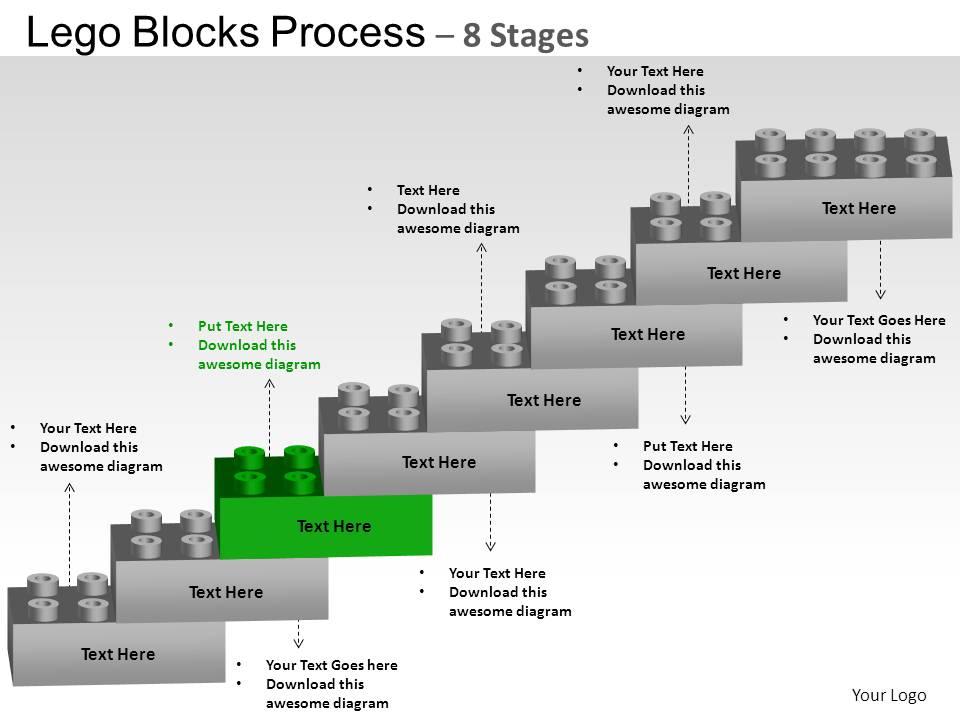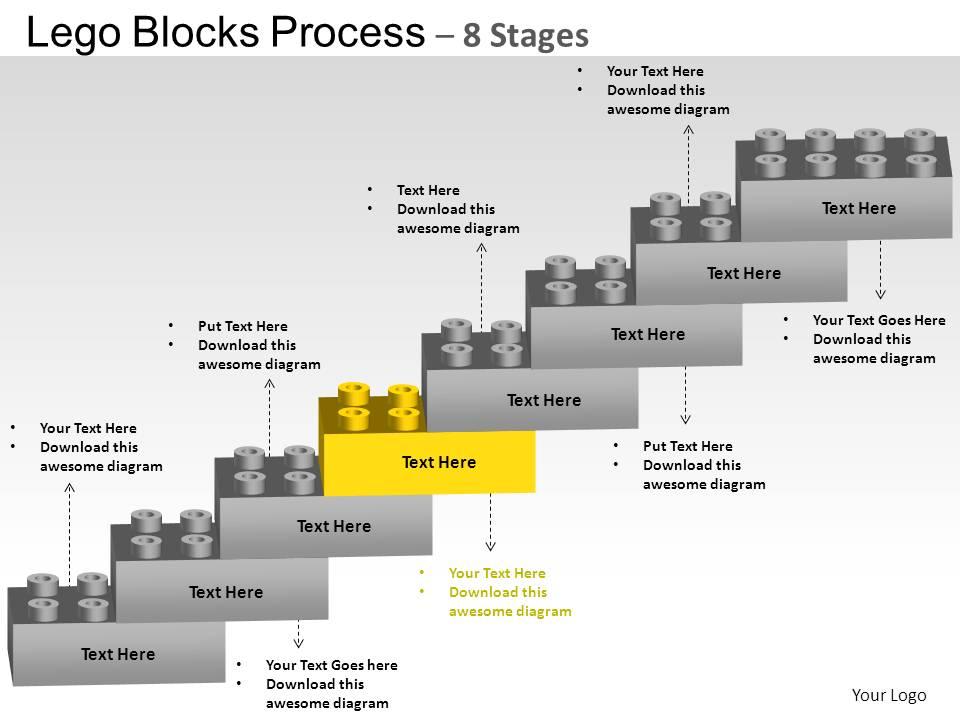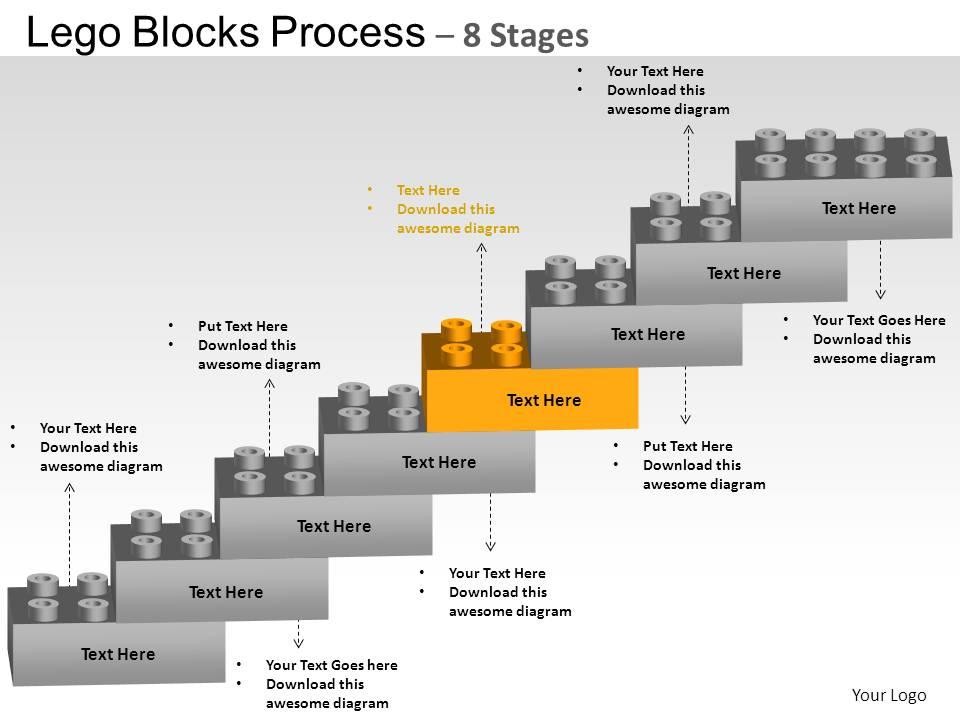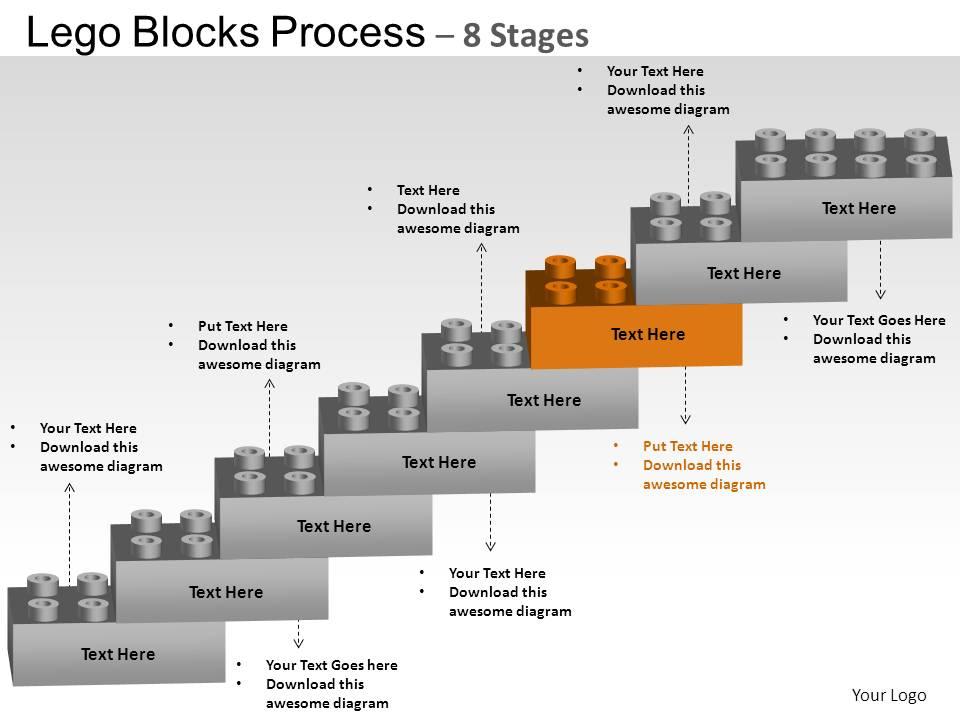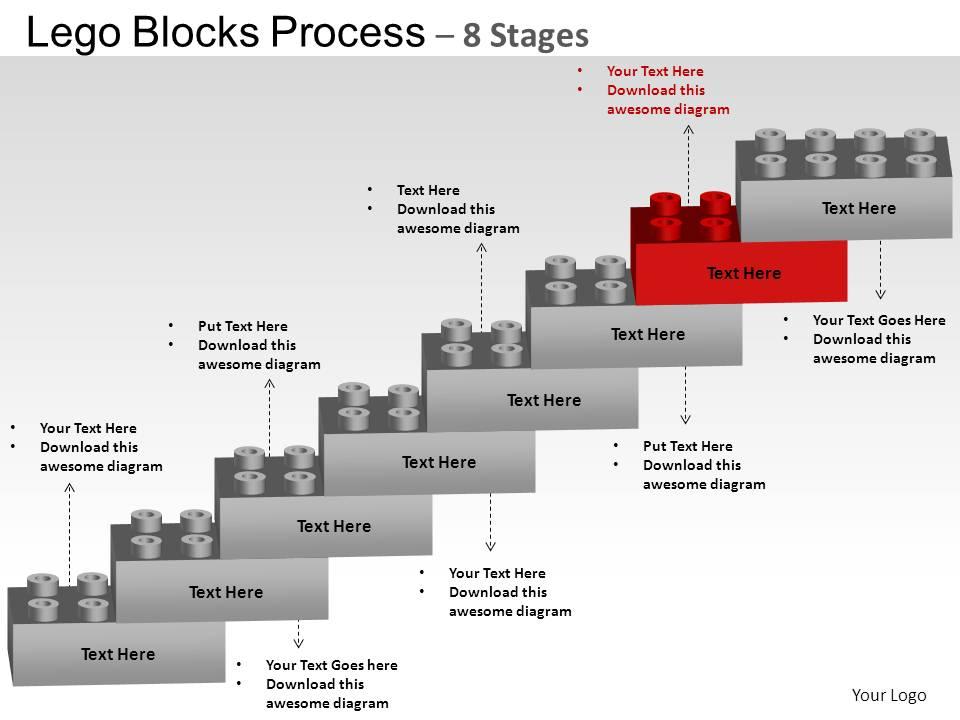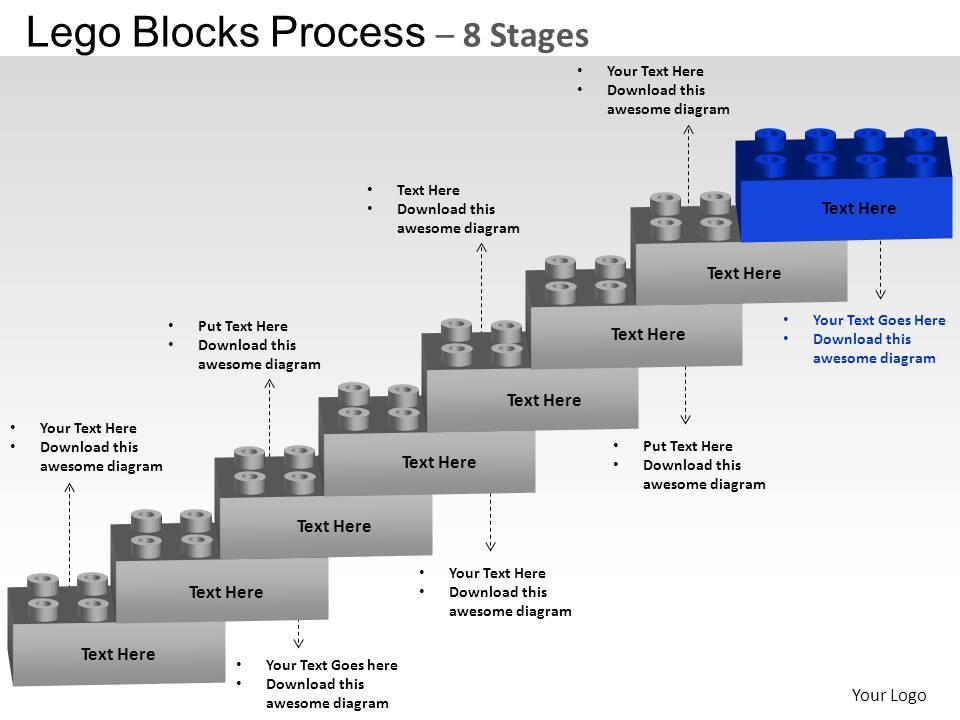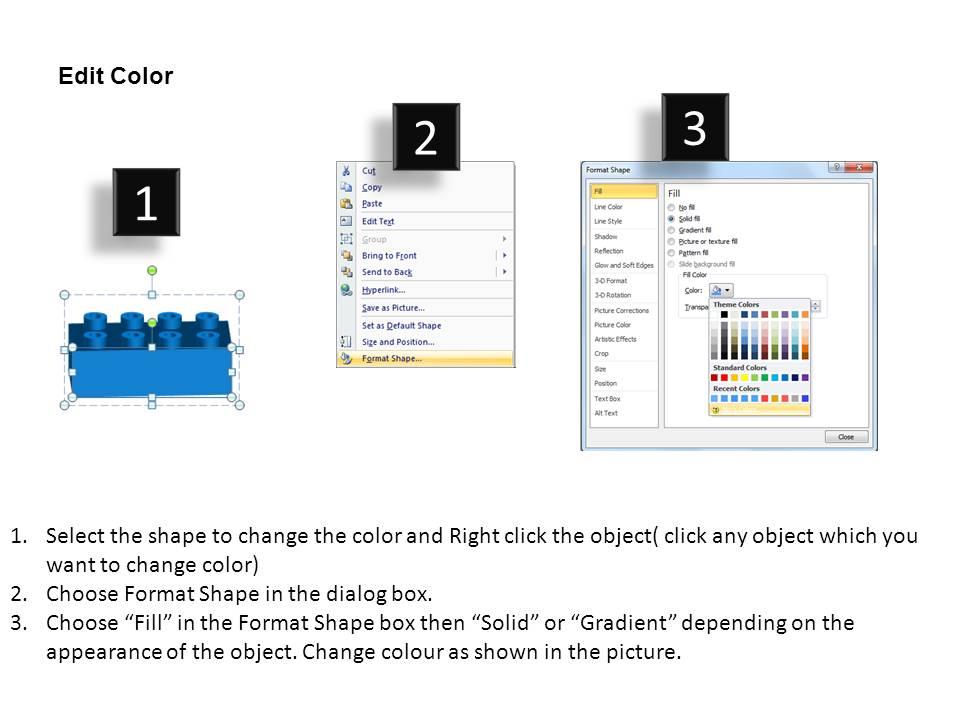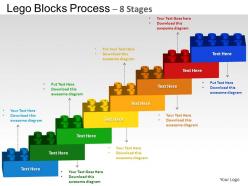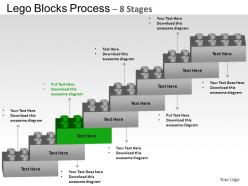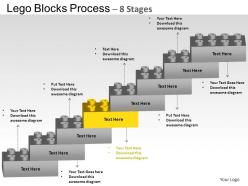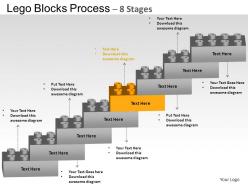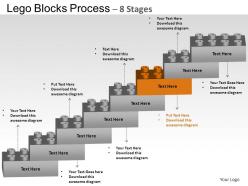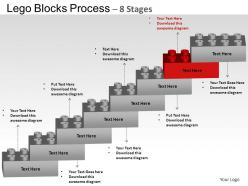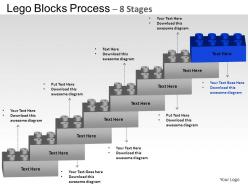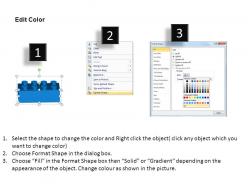
Lego blocks flowchart process diagram 8 stages powerpoint slides and ppt templates 0412

Rating:
80%
Lego blocks flowchart process diagram 8 stages powerpoint slides and ppt templates 0412
Slide 1 of 12
Favourites Favourites

Try Before you Buy Download Free Sample Product

Audience Impress Your
Audience
Editable 100%
Editable
Time Save Hours
of Time
The Biggest Sale is ending soon in
0
0
:
0
0
:
0
0
Rating:
80%
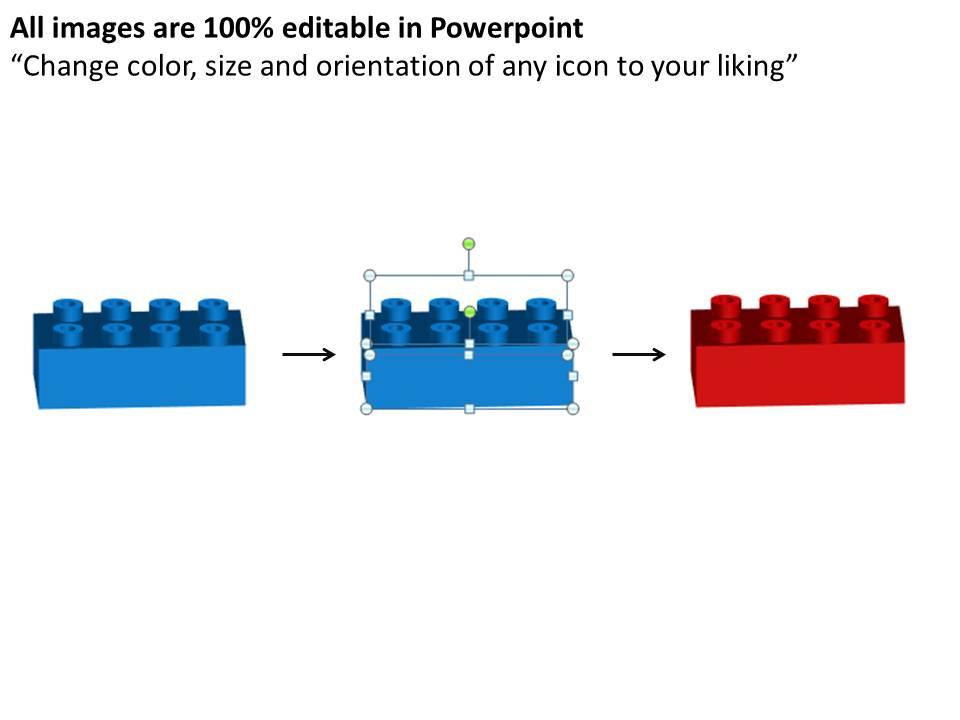
These high quality, editable pre-designed Lego Blocks Flowchart Process Diagram 8 Stages Powerpoint Slides And ppt Templates 0412 powerpoint slides and powerpoint templates have been carefully created by our professional team to help you impress your audience. Each graphic in every powerpoint slide is vector based and is 100% editable in powerpoint. Each and every property of any slide - color, size, shading etc can be modified to build an effective powerpoint presentation. Use these slides to convey complex business concepts in a simplified manner. Any text can be entered at any point in the powerpoint slide. Simply DOWNLOAD, TYPE and PRESENT

People who downloaded this PowerPoint presentation also viewed the following :

FAQs for Lego blocks flowchart process diagram 8 stages powerpoint slides and

Flexibility is the biggest win - you can move stuff around without redrawing everything. Each block is like a puzzle piece representing tasks or decisions, which makes workflows way easier for everyone to follow. When requirements change (and they will), just snap different pieces together instead of starting from scratch. Visual clarity is huge too - stakeholders actually get complex processes right away. I might be weird but there's something oddly satisfying about dragging those blocks around. Your team will definitely be more engaged than staring at boring text documents.

Honestly, Lego blocks work great for this! Different colors = different stages or departments. Build your main process first - stack blocks vertically for steps that happen in order. When things split off or run parallel, branch horizontally. The best part? People actually pay attention instead of zoning out during another PowerPoint death march. You can move pieces around super easily when (not if) your process changes later. Oh, and use those connector pieces to show how everything flows together. Way more fun than staring at boring flowcharts, plus it actually makes sense visually.

So for your Lego flowchart - start with visual hierarchy and logical flow. Use consistent colors for different things: blue blocks for actions, yellow for decisions, red for endpoints. Avoid crossing lines because honestly, tangled flowcharts are the worst. Group related steps together and give everything room to breathe - cluttered charts just stress people out. Different block sizes help too, depending on what each step represents. Oh, and definitely walk through it yourself first. If you can't follow your own flowchart without getting lost, nobody else will be able to either.

Oh that's actually genius! Colors turn your flowchart into like a GPS system - blue for processes, red for decisions, green for outcomes. Super easy to follow without getting lost in the mess. When you're presenting it, people can just say "look at the red blocks" instead of trying to describe where they mean. Honestly way more fun than regular boring flowcharts too. Just pick your colors and stick with them throughout. Maybe toss in a little legend at the top so nobody's confused about what means what.

You'll mostly see these in software development and project management. Tech teams love them because debugging code logic becomes way clearer than with regular flowcharts. Manufacturing uses them too - same with healthcare for mapping out procedures. Education departments have started using them since they're actually engaging (unlike those mind-numbing traditional diagrams we've all suffered through). Business process improvement is another big one. Honestly? Once you try them for explaining step-by-step stuff to your team, you'll get hooked. People actually read the documentation when it looks like Lego blocks instead of boring boxes.

So for Lego-style flowcharts, I'd honestly just start with Draw.io - it's free and the drag-and-drop thing works really well. Lucidchart's another good one if you don't mind paying. Your company might already have Visio licenses lying around somewhere, that works too. I've seen people do surprisingly decent stuff in PowerPoint (weird but true). Oh and Creately's pretty solid, though I haven't used it tons myself. Some designers I know are obsessed with Figma for everything visual. But yeah, try the free route first - you can always upgrade later if you need fancier features.

Dude, Lego flowcharts are seriously a game-changer. People get way more excited when you break out actual blocks instead of drawing boring rectangles on a whiteboard. There's something about moving physical pieces around that just clicks - literally and figuratively, I guess. Your team actually builds the process together instead of one person drawing while everyone else zones out. Abstract stuff suddenly makes sense when you can touch it. I tried this last month and the whole room's energy completely shifted. Way better than staring at screens all day. You should totally test it out next meeting.

First things first - decide on your symbols and colors so everyone's on the same page visually. Pick one person to actually move the blocks around while others just contribute ideas. Otherwise it gets messy real quick with everyone grabbing pieces. Oh, and definitely use a big enough table! Take photos after major changes because someone always bumps into these things. Sticky notes are clutch for adding context the blocks can't show. Walk through the whole flow together every so often. You'd be surprised how many gaps you miss when you're just staring at one section.

Oh totally! They're honestly amazing for teaching. Kids get so into the hands-on part - way better than staring at boring diagrams on paper. I've seen it work with programming logic, decision-making, even basic workflows. The color-coding thing is genius too, like red for stop/decisions, green for go actions. Physical learners especially love building out their thought process with actual blocks. Makes abstract stuff click. Start simple though - just basic if-then scenarios with maybe 3-4 blocks max. Once they get that, they'll start creating crazy complex flows on their own. It's pretty cool to watch actually.

Just drop feedback blocks right into your flowchart at decision points and after major steps. Users can flag confusing parts or pitch better ideas - seriously, you'll catch issues you never saw coming. Set up regular review sessions where your team actually looks at the feedback and updates things. Oh, and definitely version your flowcharts so you can track what changes came from user suggestions versus your own tweaks. The whole point is keeping feedback as visual as everything else. Start small though. Add maybe 2-3 feedback spots to what you've got now and see what people tell you.

Honestly, the biggest pain is gonna be space - these things eat up your desk real quick. Limited block shapes make it tough to show complex logic too. You can't really capture those nuanced decision points like you would digitally. Here's what works: set up a color system from the start and maybe sketch out a little legend. Break complicated flows into smaller chunks using separate builds. Take tons of photos as you go! That way you can track changes and send pics to teammates who aren't there. Trust me on the photo thing - I learned that one the hard way when I had to rebuild something from memory.

So basically you'd match the Lego shapes to what they represent - rectangles for regular process steps, diamonds for decisions, and those round pieces for start/end points. The flat wide ones work perfectly for data storage stuff. Honestly, it makes sense when you think about it - diamonds look like they're asking "which way?" and rectangles feel more like action steps. Different colors could show different teams or whatever. Oh, and definitely sketch out your flowchart first before you start building with the actual Legos. Way easier than figuring it out as you go.

Oh totally! Lego blocks work great for mapping out flowcharts before you get into the actual design. Different colored pieces can represent different departments or action types. Moving the physical blocks around makes it way easier to spot gaps or problems than just talking through stuff. There's something oddly therapeutic about clicking them together while brainstorming too - keeps your hands busy. Your team can actually see the process flow taking shape. Honestly beats staring at a whiteboard sometimes. Just grab a pile of blocks next meeting and start building your workflow. You'll be surprised how much clearer things become.

Dude, you really need that story thread or your flowchart just becomes a mess of random boxes. Think of it like dumping Legos everywhere without instructions - nobody knows what they're looking at. The narrative is what makes people actually care about each step instead of glazing over. It shows them why Box A leads to Box B and how everything fits together. Honestly, most people skip flowcharts that don't tell a clear story. Start with your narrative first, then plug in the visual pieces around it. Way more effective that way.

Yeah, definitely doable! I'd go with Miro or Figma for this - way better than trying to wrangle PowerPoint shapes (though that works too if you're stuck with it). Make your Lego blocks as templates first, keep the colors consistent. Then make each block clickable so people can expand sections during the meeting. Screen share and walk through it step by step, or - this is where it gets fun - give everyone edit access. People can actually drag blocks around and suggest changes live. Honestly feels like collaborative Lego building, which sounds nerdy but it's pretty engaging. Start simple though.

Ratings and Reviews

80% of 100
Write a review
Most Relevant Reviews
  1. 80%

    by Clair Gray

    Perfect template with attractive color combination.
  2. 80%

    by Dorsey Hudson

    Good research work and creative work done on every template.

2 Item(s)

per page: