

0414 workflow chart powerpoint




Try Before you Buy Download Free Sample Product
 Impress Your
 Audience
 100%
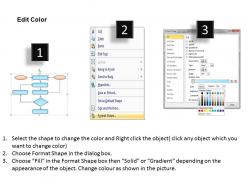
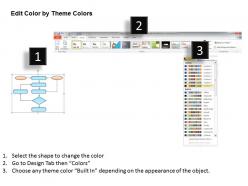
100% Editable
 Save Hours
 of Time


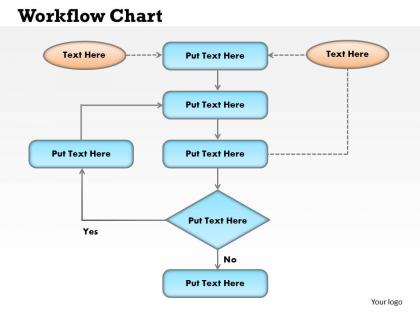
Enjoy happy days with our 0414 Workflow Chart Powerpoint. They help take care of the future.
People who downloaded this PowerPoint presentation also viewed the following :
0414 workflow chart powerpoint with all 5 slides:
Display fair handling with our 0414 Workflow Chart Powerpoint. They ensure equitable distribution.
FAQs for 0414
Effective workflow chart components in PowerPoint include clear process steps, directional arrows, decision points, role assignments, and timeline indicators. These elements streamline communication by visually mapping procedures, identifying bottlenecks, and establishing accountability, with many organizations finding that well-designed workflow charts ultimately enhance operational efficiency and reduce process confusion.
Customizing workflow chart templates involves modifying colors, fonts, shapes, and logos to align with brand guidelines, replacing placeholder text with organization-specific processes, and adjusting layouts for optimal clarity. Through PowerPoint's design tools, organizations streamline visual consistency across departments, enhance professional presentation standards, and create scalable templates for future projects, ultimately delivering cohesive brand recognition and improved stakeholder communication.
**INPUT**: What are the best practices for using colors and shapes in a workflow chart? **OUTPUT**: Best practices include using consistent colors for similar processes, distinct shapes for different action types, high-contrast combinations for readability, and limited color palettes to avoid confusion. These design principles enhance comprehension by creating visual hierarchy, reducing cognitive load, and enabling quick process identification, with many organizations finding that standardized color-coding across departments ultimately streamlines training and improves workflow efficiency. **Word count: 59 words**
A workflow chart enhances team communication by providing visual clarity, establishing clear role definitions, eliminating process ambiguity, and creating shared understanding of project sequences. Through standardized visual representations, teams streamline coordination, reduce miscommunication errors, and accelerate decision-making processes, with many organizations finding that workflow charts ultimately deliver improved collaboration and operational efficiency.
Linear workflow charts follow a sequential, step-by-step progression where each task must be completed before the next begins, while non-linear workflows allow for parallel processing, branching paths, and simultaneous activities. Non-linear approaches enable organizations to streamline operations by reducing bottlenecks, accelerating project timelines, and enhancing team collaboration, ultimately delivering greater operational efficiency and competitive advantage.
Common mistakes include overcrowding slides with excessive detail, using inconsistent shapes and colors, creating unclear decision points, and neglecting proper alignment and spacing. These presentation errors confuse audiences and diminish professional credibility, with many organizations finding that streamlined, visually consistent workflow charts enhance understanding, facilitate team collaboration, and ultimately deliver more effective process communication and stakeholder buy-in.
Animated transitions enhance workflow chart presentations by guiding audience attention through sequential steps, highlighting critical decision points, and creating visual continuity between processes. These dynamic elements help presenters control pacing and emphasis while maintaining viewer engagement, with many organizations finding that animated workflows improve comprehension rates and make complex operational processes more accessible to stakeholders.
PowerPoint offers SmartArt graphics, custom shapes, icons from the Insert menu, color themes, and connector lines to enhance workflow charts visually. These tools enable users to create professional diagrams by combining geometric shapes with consistent formatting, strategic color coding, and directional arrows, ultimately delivering clearer process visualization and improved audience engagement across organizational presentations.
Icons and visuals enhance workflow chart comprehension by simplifying complex processes, providing instant recognition of steps, reducing cognitive load, and creating universal understanding across diverse audiences. These visual elements enable faster information processing, improved retention, and clearer communication in presentations, with many organizations finding that well-designed visual workflows increase team alignment and operational efficiency.
**INPUT**: How can I integrate a workflow chart into a larger presentation effectively? **OUTPUT**: Effective workflow chart integration involves positioning it strategically within your presentation narrative, ensuring visual consistency with existing slides, and connecting each process step to your broader business objectives. Use consistent colors, fonts, and spacing that match your presentation theme, while introducing the chart with clear context and following up with specific examples from sectors like manufacturing, healthcare, or financial services, ultimately demonstrating how streamlined processes deliver competitive advantage. [Word count: 60 words]
Workflow charts offer visual clarity, faster comprehension, easier identification of bottlenecks, standardized process documentation, and enhanced team collaboration compared to text-heavy descriptions. These visual tools streamline training processes, reduce miscommunication, and enable rapid process optimization, with many organizations finding that workflow charts significantly improve operational efficiency and cross-departmental understanding of complex procedures.
**INPUT**: How do I determine the start and end points when designing a workflow chart? **OUTPUT**: Start points typically represent triggering events like customer requests, system alerts, or scheduled tasks, while end points indicate final outcomes such as completed deliveries, approved applications, or resolved issues. When mapping workflows, organizations across industries find that clearly defined boundaries streamline process documentation, enhance team understanding, and minimize operational confusion, ultimately delivering improved efficiency and accountability.
**INPUT**: What templates are recommended for beginners looking to create their first workflow chart in PowerPoint? **OUTPUT**: Recommended templates for beginners include basic flowchart layouts, process mapping templates, swimlane diagrams, decision tree formats, and step-by-step workflow designs with pre-built shapes and connectors. These templates streamline creation by providing structured frameworks, color-coded elements, and intuitive layouts, with many organizations finding that standardized templates enhance consistency, reduce design time, and ultimately deliver more professional presentations across teams. [Word count: 60 words]
Feedback can be incorporated through designated review points, stakeholder input sessions, performance metrics analysis, and iterative revision cycles within workflow charts. These mechanisms enable organizations to identify bottlenecks, streamline inefficiencies, and enhance operational outcomes, with many teams finding that systematic feedback integration delivers improved process accuracy, faster cycle times, and ultimately stronger competitive advantage.
Workflow charts should be updated quarterly or whenever significant process changes occur, such as new software implementations, staff role modifications, or procedure revisions. Many organizations find that regular reviews during quarterly business assessments help maintain accuracy, while immediate updates following major operational changes ensure teams have current documentation, ultimately delivering improved efficiency and reducing confusion across departments.
-
Use of different colors is good. It's simple and attractive.
-
Enough space for editing and adding your own content.