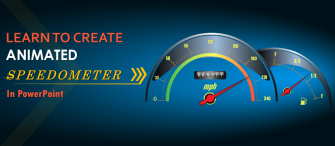

Ready-to-Use Animated PowerPoint Templates
Upgrade your presentations instantly with Animated PPT Templates that add motion, clarity, and impact. These easy-to-use templates ensure a professional, engaging look — no design skills required!
Browse Our Collection of Premium Animated Templates Now!















































We Love Hearing from Our Customers
Verified Reviews from Professionals Who Trust SlideTeam for Impactful Presentations!

These animated PowerPoint templates have transformed my business presentations! The animations are smooth and keep my audience engaged throughout
I used an animated PPT theme for my marketing campaign report, and my team loved it! It made my data so much easier to understand
As an educator, I always struggled with keeping students engaged. These animated PPT slides have made my online classes more interactive and interesting.
The best part about these animated PowerPoint templates is that they are fully customizable. I can tweak the animations and design elements to fit my brand perfectly!
I found some great animated PowerPoint templates with free download options here. The quality is impressive, and they work flawlessly on both Mac and Windows!
Convert Your Ideas into
Stunning Presentations in 3 Simple Steps
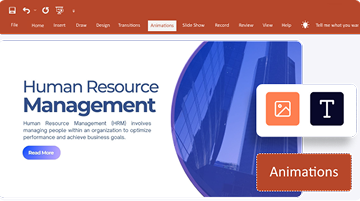
Add Animations to Objects
 Open your PowerPoint presentation.
- Select the text, image, or object you want to animate.
- Go to the "Animations" tab and choose an animation effect (e.g., Fade, Fly In, Zoom).
- Adjust the animation settings in the Animation Pane.
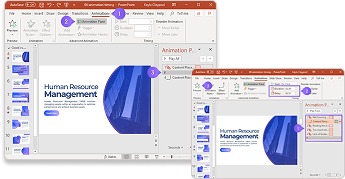
Set Timing & Transitions
- Click on the animated object and modify the "Start" option (On Click, With Previous, After Previous).
- Adjust the duration and delay for smooth transitions.
- Go to the "Animations" tab and choose an animation effect (e.g., Fade, Fly In, Zoom).
- Use "Slide Transitions" under the "Transitions" tab for slide-to-slide effects.
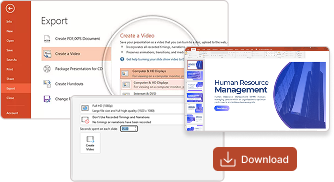
Preview & Save as Video
- Click "Slide Show" > "From Beginning" to preview the animations.
- Make adjustments if necessary.
- Go to the "Animations" tab and choose an animation effect (e.g., Fade, Fly In, Zoom).
- To save as a video, go to File > Export > Create a Video and choose the desired resolution.
Grab Attention & Engage Audience
Plain, static slides often fail to pique the audience's interest. Adding animations makes your content more dynamic and visually appealing. The animated effects keep your audience focused and make key points more memorable. Whether you’re presenting a business pitch, sales report, or training material, animations add life to your message.
Give Your Presentation a Professional Edge
Correctly done motions instantly enhance your presentation’s vibe. Our motion graphics templates offer built-in effects for easy transitions, helping you give your presentations a professional touch without needing any advanced skills.
Make Complex Topics Easier to Understand
It becomes challenging to present detailed concepts, complex data, or reports to your audience. You often struggle to explain it in an easy-to-understand manner. With Animated PPT slides, you can simplify information using motion graphics, dynamic charts, and smooth transitions. Using animations allows viewers to follow along and grasp key takeaways.
Save Time with Ready-Made Animations
Creating animations from scratch can be a daunting task and requires design skills. Our PowerPoint templates offer pre-built animations. Yes! You don’t have to start from zero. Simply add or edit the content and adjust the color and font if needed. Now, you are set to deliver a great presentation without spending hours on design work.
Work Seamlessly Across Multiple Platforms
Our templates are fully compatible with Microsoft PowerPoint, Google Slides, and Keynote. If you’re looking for animated Google Slides templates, we have products that ensure smooth functionality across multiple platforms. No matter where you present, your slideshow will work without any flaws.
Quick Tips & Tricks to Create Animated Presentations