
Best PowerPoint Backgrounds
Download the most trending PPT Background designs to enhance the overall look of your presentation. Ranging from subtle to bold, these backdrops are 100% editable — no design skills needed


Explore Our Best PowerPoint Backgrounds
































Verified Reviews from Professionals Who Trust SlideTeam for Impactful Presentations!

The team at SlideTeam is truly one of the greatest companies to work with. Not only do they have the most amazing selection of slides that will meet your every need, they also have the #1 top rated customer service platforms I have believe I have ever had the pleasure to work with.
Your bank of slides are simply unlimited. They are easy to customise and there is a slide for literally any particular piece of work.
I am amazed at the ease of use and their uniqueness. These slides make my presentation pretty, they are pleasing to the eyes. I used them throughout my PhD program and now for my teaching notes! The students love my notes!
I have been using SlideTeam services for several years, and they consistently meet their commitments. Their work quality and speed are unmatched. I highly recommend them to anyone looking to elevate their presentations to the next level.
Sophia guided me through the process of purchasing this incredible wealth of on-line tools to upgrade my presentations. She was helpful, courteous, and efficient. I'm looking forward to using these tools. thanks! Melissa
As I had difficulty making a simple and nice chart, I reached out. I appreciate that we had a meeting before the Slite Team started to work on my chart. The result was exactly what I wanted. I also appreciated the quick turnout. The chart looks very professional. Thank you.
The SlideTeam custom design team is professional, prompt, and does great work! If you're a professional/executive, looking for a board-ready presentation, the slide team can take your rough outline and turn it into board materials in a day or two.
There are times the turnaround is less than 8-hours, too! Please believe me when I say that I have saved over 100 hours using the SlideTeam custom services. Give them a try. I promise it will be worth the money spent.
Bennet was just exceptional. The help service was so quick, professional, and trustworthy. I pray I meet Bennet some other time incase I am stuck. This was my first time buying the product, tried the AI already... This is my best time. Thanks Bennet
The wide variety of options was a bit overwhelming at first but when I went to the chat with Ana it became very easy, and I was able to get multiple options that addressed my needs. The site itself is very easy to navigate and filled with nearly infinite options. Also, the pricing is reasonable.
I was attended on the chat support by Sophia Lopez. She was extremely patient and professional in responding to all my enquiries on subscription options and also regarding the products. She promptly provided useful links for me to review potential products.
So happened Shawn is always the agent whom I am most familiar with. He is fast and quick to come back to me with proposals and options for me to decide. He gave me some time to decide by providing his email connection and quickly send me a short mail to indicate he will be available for me to connect with once i make my decision. He is the most friendliest agent whom I always get connected with. I felt very at ease chatting with him..
Use PowerPoint Background Templates in 3 Simple Steps
Download & Insert the Background
Browse our templates, choose your preferred design, and download it.
Open Microsoft PowerPoint, go to the "Design" tab, and select "Format Background."
Choose "Picture or Texture Fill" to insert the downloaded background
Customize the Design
Adjust colors, transparency, and layout to match your presentation theme.
Use SlideTeam’s fully editable templates to modify fonts, icons, and elements.
Apply the background to all slides or specific slides as needed
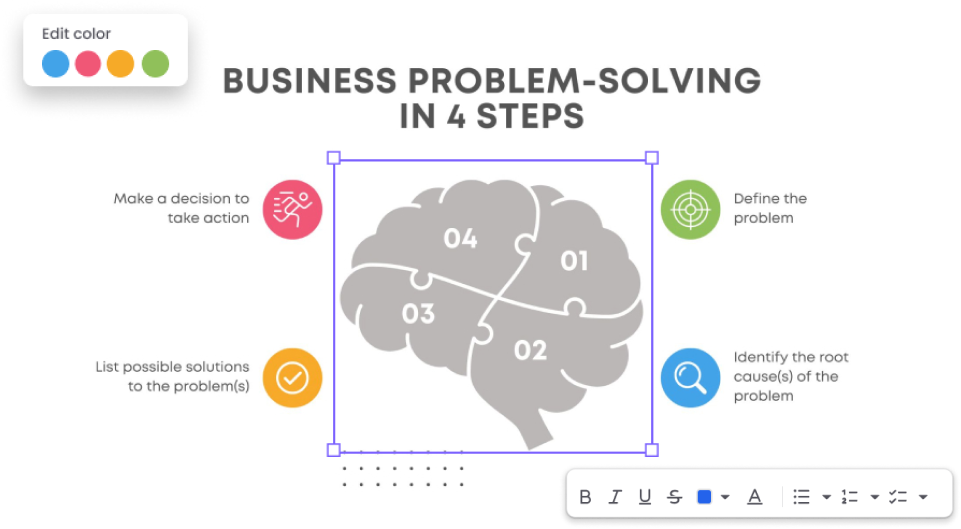
Finalize & Present
Add your content — text, charts, images, and animations to enhance engagement.
Save your presentation and switch to "Slide Show Mode" for a smooth delivery.
Impress your audience with a professionally designed PowerPoint background!
.
Enhances Visual Appeal
A well-designed and topic-related background theme makes your presentation look polished and professional. Our background templates feature stunning designs that instantly pique your audience’s interest.
Improves Readability & Clarity
The right backdrop ensures your text and graphics stand out clearly. Our templates are designed with optimal contrast, color schemes, and layout, ensuring maximum readability and resonance.
Sets the Mood & Tone
Colors, gradients, and themes add depth and create the right atmosphere — whether it’s corporate, educational, or creative. Explore SlideTeam’s industry-specific background to align your slides with your message and the vibe.
Reinforces Brand Identity
Custom backgrounds with logos, brand colors, or elements create consistency and strengthen branding. Our editable templates for Google Slides and PowerPoint allow you to personalize designs to match your style.
Keeps the Audience Engaged
An interactive and appealing background helps retain interest and makes the content more memorable. SlideTeam’s dynamic themes, including minimalist, abstract, gradient, and geometric designs, ensure your slides leave a lasting impact.
Supports Storytelling
Backgrounds can subtly reinforce your message, guiding the audience through the narrative of your presentation. Our story-driven PPT slides and themes provide cohesive designs that complement your content.
Differentiates Your Presentation
Unique and stylish backgrounds help make your slides stand out from the crowd. With our innovative and unique collection of PPT designs, you can choose from thousands of ideas to make your presentation distinctive.
Free Quick PowerPoint Tutorials
Learn and get the best tips on how to use Microsoft PowerPoint and edit
your presentation templates professionally.

How Do I change theme color in PowerPoint Template
Learn how to change the theme color in PowerPoint with this quick and easy guide! Customize your slides with different color schemes to match your style or brand. Watch now to enhance your presentation effortlessly!
How to change color and theme for master slide in PowerPoint Template
Learn how to change colors and themes for the master slide in PowerPoint with this step-by-step guide. Customize your presentation's overall look by adjusting the master slide settings effortlessly. Perfect for creating professional and consistent slideshows!
How to edit icons in PowerPoint Template
Want to customize your PowerPoint presentation? Learn how to change the color and theme for the master slide to create a consistent and professional look. Watch this step-by-step guide to enhance your slides effortlessly!
How to edit just a part of an icon in PowerPoint Template
Learn how to edit just a part of an icon in PowerPoint with this easy step-by-step guide. Discover how to break apart, modify, and customize icons to fit your design needs. Perfect for creating unique and professional presentations!
How to add or remove layers in an org chart in PowerPoint Template
Learn how to add or remove layers in an organizational chart in PowerPoint with this easy tutorial. Customize your org chart structure to fit your needs by adjusting hierarchy levels. Perfect for creating clear and professional organizational diagrams
How to make a square shape into round or vice versa in PowerPoint Template
Learn how to transform a square shape into a round one (or vice versa) in PowerPoint with easy steps. Discover simple tricks to adjust shapes seamlessly for a polished presentation. Perfect for creating custom designs and improving slide aesthetics