

12 Objectives Powerpoint Ppt Template Bundles




Try Before you Buy Download Free Sample Product
 Impress Your
 Audience
 100%
100% Editable
 Save Hours
 of Time


Our 12 Objectives Powerpoint Ppt Template Bundles are topically designed to provide an attractive backdrop to any subject. Use them to look like a presentation pro.
People who downloaded this PowerPoint presentation also viewed the following :
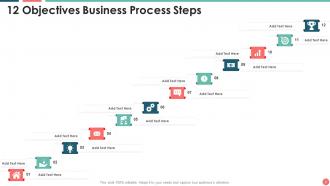
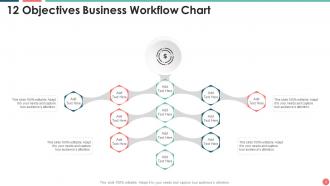
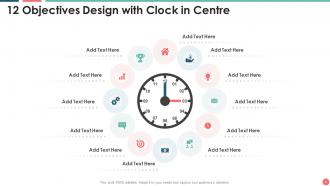
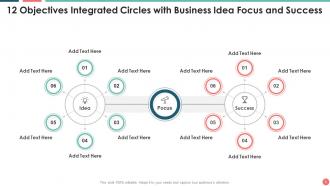
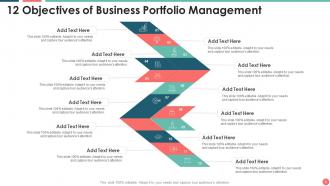
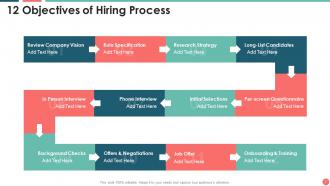
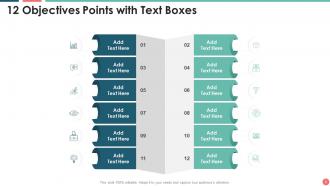
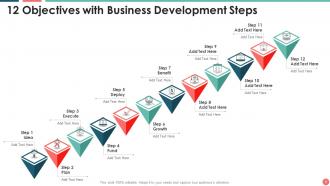
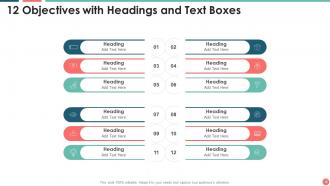
12 Objectives Powerpoint Ppt Template Bundles with all 16 slides:
Use our 12 Objectives Powerpoint Ppt Template Bundles to effectively help you save your valuable time. They are readymade to fit into any presentation structure.


FAQs for 12 Objectives Powerpoint
Okay so first thing - check if the master slides actually work. I've downloaded so many "professional" templates where the masters are completely broken, it's annoying. You want clean layouts with good white space, not cramped mess everywhere. The color scheme shouldn't hurt your eyes either. Make sure there's variety too - slides for charts, quotes, section dividers, all that. Oh and please, readable fonts only. None of that fancy script nonsense that makes everyone squint from the back row. Graphics need to be crisp and editable. Honestly? Test it with your real content first before buying anything.
First thing - go to View > Slide Master. That's honestly where you'll save yourself the most time. Swap out their colors and fonts for yours, drop in your logo, replace those generic stock photos with your own stuff. The color scheme change alone makes a huge difference, trust me. Also customize the bullet points and headers while you're in there - those little details add up. Oh, and don't forget the background elements too. Once you save it as a new template, boom - you're set for next time.
Honestly, go boring on this one. Clean templates with lots of white space work way better than those flashy animated ones - they're just distracting in meetings. Navy, gray, muted blues are safe bets. Arial or Calibri for fonts (I know, super exciting lol). You want consistent layouts that don't fight with your actual content. Make sure you get templates with different slide types - title, bullets, charts, images. The whole point is making your data look good, not showing off fancy transitions that'll annoy everyone.
Oh man, colors totally change everything! Warm ones like red get people hyped up, blues make you seem trustworthy. I once used this awful bright yellow template for budget meetings - never again lol. Dark backgrounds look cool but people squint in bright conference rooms. Pastels are nice for creative stuff, though they can look super washed out depending on the projector. Honestly? Just match your colors to what you're presenting. Test it out first if you can - saves you from looking like an amateur when nothing shows up right.
Dude, templates are such a lifesaver! You get professional layouts without the headache of figuring out where everything goes. The color schemes actually match too, which is harder than it sounds when you're doing it yourself. Honestly, I used to waste so much time just staring at blank slides. Templates keep everything looking consistent across your whole deck. Even if you're not great at design (join the club), your presentation will still look polished. Oh, and you can always tweak the colors or fonts later if you need to match your company's branding or whatever.
Focus on contrast and readability first - 14pt font minimum, stick with Arial or Calibri. That trendy light gray text everyone uses? Skip it, it's awful for people who actually need to read your stuff. Add alt text to images and use proper headings so screen readers work right. Test your colors with a colorblind simulator (there's free ones online). Honestly though, the smartest thing you can do is find someone who uses accessibility tools and get their feedback before you're done. They'll catch stuff you'd never think of.
Honestly, animations can make or break your presentation flow. They keep people awake instead of just staring at boring static slides. Use them to guide attention to your main points and reveal info at the right moment. But seriously, don't be that person with spinning text everywhere - I've sat through way too many of those! Simple fades work great between sections. Maybe add gentle highlights for key data points. Two or three animation types tops, otherwise it gets messy. The whole point is making your message clearer, not turning it into a circus show.
Honestly, go super minimal for technical stuff. White space is your friend here. Stick with boring fonts like Calibri or Arial - I know, I know, but trust me on this one. Blues, grays, whites work great. Avoid anything bright or busy because your charts will look like garbage against a crazy background. Don't get tempted by those fancy templates with animations and decorative stuff. Your data needs to shine, not compete with sparkly backgrounds. Quick tip: test whatever you pick with a sample slide first. Nothing worse than realizing your template sucks after you've built the whole deck.
Oh man, don't cram your slides with walls of text - nobody reads that anyway. Pick templates that actually match your brand colors instead of just grabbing whatever looks "professional." I see people go crazy with animations thinking it looks fancy, but honestly? Skip most of that stuff. You should tweak fonts and spacing to fit your content rather than just dropping text into placeholder boxes. One thing that always gets people - check how it looks on the actual projector beforehand since colors get weird. And stick with one template throughout, switching makes it look messy.
Make everything way bigger than normal - like 24pt minimum. People are squinting at laptops and phones, not big monitors. High contrast is your friend too since video calls make everything look washed out. I made this mistake once where my gorgeous slides were completely unreadable and everyone was too polite to say anything until after. Super awkward. Clean slides work best - don't cram text everywhere. Oh, and test it on your phone if you can. Remote audiences are dealing with weird lighting and tiny screens, so go bolder than feels right.
Honestly, minimalism is huge right now - tons of white space and clean layouts. Bold typography that actually pops instead of boring default fonts. Dark mode templates are everywhere too, which I'm totally here for since they look way more polished. Oh, and please tell me you're ditching those awful 2010-era charts for better data visualization! Custom icons beat clipart every time. Since we're all still on Zoom constantly, templates made for virtual presentations work better than trying to adapt old ones. Just go for high contrast and skip the busy backgrounds - nobody wants their eyes assaulted during a meeting.
Honestly, charts and graphs are lifesavers when you're presenting complex stuff. People's eyes just glaze over when you hit them with walls of text and endless bullet points. Visuals help them actually *see* the patterns and trends instead of having to decode everything in their heads. Plus they remember it way better afterward - there's something about our brains that just clicks with visual info. Oh, and pick the right chart type for what you're showing. Bar charts for comparisons, line graphs for trends over time, that kind of thing. Makes a huge difference in whether people actually get your point.
Honestly, go with something super clean and simple - your students need to read this stuff from the back row. I made the mistake once of using this crazy colorful template and half the class couldn't focus on anything but the background. Such a disaster. Look for lots of white space and make sure the headers are consistent. Short sentences work better than long ones. Also test it on a projector beforehand if you can! The colors always look different when it's actually up on the screen. Charts and images should fit naturally without looking weird.
Okay so first map out your story, then find a template that matches that vibe. Pick ones with consistent visual themes - like problem/solution layouts or before/after stuff. Good contrast and readable fonts are key because nobody wants to squint at your slides. The best templates honestly just fade into the background and let your content shine. Don't go for anything too flashy or weird. Oh, and make sure it fits the emotional journey you're taking people on - like, a serious business pitch probably shouldn't use the template with rainbow gradients, you know?
Honestly, I'd just start with the free Microsoft templates that are already built into PowerPoint - super easy to browse through. Canva's pretty solid too, and Google Slides has some decent stuff in their gallery. SlidesCarnival and SlideMart aren't bad either, though yeah, you'll probably see those same designs everywhere (kinda annoying but whatever). If you've got some cash to spend, Template.net and SlideModel have way better options - GraphicRiver too. The paid ones definitely look more professional and you can actually customize them properly. But honestly? Try the free Microsoft ones first since they're right there.
-
Use of different colors is good. It's simple and attractive.
-
Best way of representation of the topic.