


31973499 style circular zig-zag 5 piece powerpoint presentation diagram infographic slide




Try Before you Buy Download Free Sample Product
 Impress Your
 Audience
 100%
100% Editable
 Save Hours
 of Time


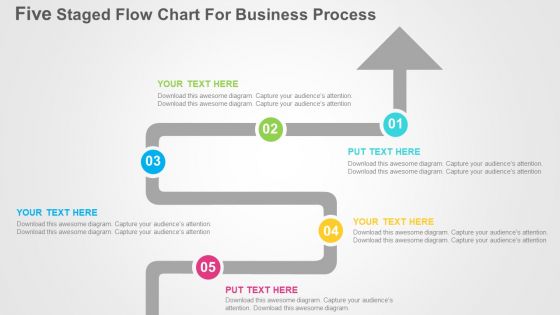
Use our five staged flow chart for business process flat PPT design slide and give a proper direction to your company goals and objectives. This template diagram has been crafted with graphic of five staged flow chart. This PPT slide contains the concept of business process indication and can be used for business and marketing related presentations. A flow chart, or flow diagram, is a graphical representation of a process or system that details the sequencing of steps required to create output. Flow charts can be used to document virtually any type of business system, from the movement of materials through machinery in a manufacturing operation to the flow of applicant information through the hiring process in a human resources department. Our Five Staged Flow Chart For Business Process Flat Powerpoint Design will provide weight to your words. They will bring out the depth of your thought process.
Content of this Powerpoint Presentation
Description:
The image illustrates a PowerPoint slide titled "Five Staged Flow Chart For Business Process," which is designed to depict a business or organizational process in five sequential steps. Each step is represented by a rounded rectangle with a number from 01 to 05, indicating the order of the process. The rectangles are interconnected by a line that flows from one to the next, suggesting a progression or workflow. The numbers are encased in circles of different colors, enhancing the visual differentiation between the steps. Adjacent to each step is a text box with placeholder text "YOUR TEXT HERE," prompting the presenter to insert specific information related to each stage of the process.
The slide is structured to help presenters convey a process clearly and effectively, using the visual format to guide the audience through each phase of the process. The design is clean and modern, with a neutral background that doesn't distract from the informational content.
Use Cases:
This type of slide is versatile and can be used across a wide range of industries for various purposes:
1. Manufacturing:
Use: Outlining production processes from raw materials to finished goods.
Presenter: Operations Manager.
Audience: Production Staff and Management.
2. Software Development:
Use: Demonstrating the stages of software development lifecycle.
Presenter: Project Lead.
Audience: Development Team and Stakeholders.
3. Education:
Use: Detailing the steps of a research methodology or educational program.
Presenter: Researcher or Academic.
Audience: Students and Academic Peers.
4. Healthcare:
Use: Mapping patient care pathways from admission to discharge.
Presenter: Healthcare Administrator.
Audience: Medical Staff and Healthcare Providers.
5. Marketing:
Use: Presenting a marketing campaign's development from conception to launch.
Presenter: Marketing Director.
Audience: Marketing Team and Brand Managers.
6. Construction:
Use: Laying out the phases of a construction project.
Presenter: Project Manager.
Audience: Contractors and Investors.
7. Event Planning:
Use: Sequencing the critical steps in event organization and execution.
Presenter: Event Coordinator.
Audience: Event Staff and Vendors.
31973499 style circular zig-zag 5 piece powerpoint presentation diagram infographic slide with all 4 slides:
Our Five Staged Flow Chart For Business Process Flat Powerpoint Design enable fruitful conversations. You will find them to be good company.
FAQs for 31973499 style circular zig-zag 5 piece powerpoint presentation
Start with your basic shapes - decision diamonds, process boxes, clear arrows for flow. Swimlanes are clutch when multiple departments are doing stuff, trust me on that one. Timing estimates help too, plus note what documents or systems you need at each step. Exception paths are honestly more important than people think because Murphy's law is real. Oh, and keep your labels short and clear - nobody wants to decode a novel just to understand one step. The goal is making it foolproof so you don't get bombarded with questions later.
Honestly, flow charts are game-changers for finding where your processes are broken. Map things out visually and you'll immediately see bottlenecks and weird redundancies you didn't even know existed. I always tell people to start with their most annoying process - you'll be surprised how many quick fixes jump out at you. You can cut out pointless approval steps, figure out what tasks can happen at the same time instead of one after another, and spot automation opportunities. New hires love having that visual guide too, makes training so much smoother. Seriously, just try it once.
So you'll mostly need ovals for start/end, rectangles for processes, and diamonds for decisions. Arrows show the flow obviously. There's also circles for connectors and parallelograms for inputs/outputs, but honestly I barely use those anymore. Some teams get creative with their own symbols, which is fine I guess, but the basic ones work for everyone. Oh and don't go crazy with like 8 different shapes - I learned that the hard way on a project last year. Keep it simple and you're good.
Look for what kicks things off and what actually signals you're done. Start points are usually some kind of trigger - customer places an order, someone requests time off, whatever gets the ball rolling. End points? That's when you've delivered the final thing and there's literally nothing left to do. I always ask myself "what makes this whole thing start?" and "how do I know we're actually finished?" Don't be vague about it either - saying "process complete" doesn't help anyone. You want specifics, like "invoice sent" or "new hire gets their laptop." Makes everything way clearer honestly.
Honestly, if your company has Microsoft Visio, just use that - it's what everyone expects anyway. Lucidchart is pretty solid too, especially when you need other people to jump in and edit stuff. The real-time collaboration thing actually works unlike some tools I've tried. Draw.io is free and does way more than you'd think, though it looks kinda dated. Takes some getting used to. You could even throw something together in PowerPoint if it's just basic boxes and arrows. I'd probably start with whatever you already have and see if it does the job before spending money on new software.
Honestly, flow charts are game-changers for getting everyone on the same page. You know how meetings always devolve into "wait, what step comes next?" Back and forth confusion? This fixes that. Everyone's literally staring at the same visual roadmap instead of having totally different ideas in their heads. Makes it dead simple to catch bottlenecks and figure out who owns what. Plus you can spot those awkward handoff moments where stuff usually falls through cracks. I'd say try mapping out your next project this way - you'll probably be shocked how fast your team actually aligns on things.
Don't overcomplicate it with a million decision points - that's where most people mess up. Start and end points need to be crystal clear, otherwise people get lost right away. Vague labels are the worst because nobody knows what's supposed to happen next. Make your boxes different sizes based on what they contain, not all identical (looks way cleaner). I'd skip the tiny details that just clutter everything up. Stick with standard symbols so it's not some weird puzzle only you understand. Oh, and definitely have someone else walk through it before you're done - they'll spot the gaps you missed.
Flowcharts are basically magic for finding bottlenecks. Map out every step and you'll instantly see where stuff gets stuck. Look for places where work piles up or one step takes forever compared to others. Decision points are usually trouble too - especially anything requiring multiple approvals (ugh, the worst). Time each step first so you have real data. The visual part is what makes it click though. You can stare at a written process all day, but seeing those boxes and arrows? Suddenly it's obvious where things go sideways. Then just fix those specific chokepoints.
Oh swimlanes? They're just visual lanes that show who does what in your process map. So like, sales gets one lane, finance gets another, operations gets theirs - you get the idea. Super helpful when processes jump between departments because nobody's confused about ownership anymore. Handoffs become obvious too. I always add them now because honestly, people actually pay attention to the flowchart instead of just pretending they understand it. They're also perfect for catching when one team is drowning while another barely has work. Game changer for cross-functional stuff.
Honestly, flowcharts are like having a roadmap for all your messy processes. They show you exactly where things get stuck - like when Sarah from accounting takes forever to approve expenses (we've all been there). You can see who actually needs to be involved versus who just thinks they do. The visual aspect is huge too - way easier to explain weird workflows to new people instead of rambling through some convoluted explanation. I'd start with whatever process drives you absolutely crazy. Map that one out first and you'll instantly spot why it's such a pain.
So just draw arrows that loop back to earlier steps when stuff needs fixing. Like if a document gets rejected in approval, the arrow goes back to "revise" instead of moving forward to publishing. Most processes aren't straight lines anyway - there's always some back-and-forth happening. Look for spots where you'd normally have quality checks or decision points. That's usually where things might need to circle back. Honestly, these feedback loops make flowcharts way more useful since they actually reflect how messy real work processes can be. Way better than those overly clean diagrams that pretend everything works perfectly the first time.
Okay so version control is basically a lifesaver when your processes keep changing - which they always do. Trust me, you don't want five different flowcharts floating around with nobody knowing which one's actually current. Been down that road and it's messy. The main thing is tracking what changed and why. Plus you can roll back if something's not working. Honestly, compliance audits become way less stressful too. Start basic though - just slap version numbers and dates on your flowcharts. Keep a simple change log of what you tweaked. Nothing fancy needed at first.
Honestly, you've gotta bake this into your regular routine or it'll never happen. I do quarterly reviews minimum, but if your company moves fast maybe more often. Calendar reminders are clutch - actually block time to look at your charts and see if they're still accurate. Talk to the people doing the work every day too. They'll catch outdated stuff way before you will. Oh, and here's the thing - when you change a process, update the chart right then. Don't tell yourself you'll get to it later because you won't. Making it automatic is really the only way this works long-term.
So high-level flowcharts are basically the 30,000-foot view - just your main steps and key decisions. Perfect for presentations or when someone asks "how does this work?" in a meeting. Detailed ones? Those get into every tiny action and subprocess. I mean, we're talking about *everything* - data inputs, system calls, weird edge cases. They can honestly become a nightmare to read if you go overboard. Use the simple version when you're planning stuff out or explaining to stakeholders. Save the detailed charts for when you're actually building the process or trying to figure out why something broke.
So for A/B testing in your flowchart, start with a decision diamond that splits traffic into two branches - A and B. I like adding those little "50% traffic" labels so it's obvious what's happening. Both branches go through identical steps but with different content/design/whatever you're testing. Then they merge back at a "collect results" step. After that, add an "analyze performance" box and a decision point to pick the winner. Oh and don't forget a feedback loop back to implementation - otherwise your chart looks incomplete. Makes the whole testing cycle really clear visually.
-
Great designs, really helpful.
-
Easily Editable.