

Flow chart ppt presentation examples




Try Before you Buy Download Free Sample Product
 Impress Your
 Audience
 100%
100% Editable
 Save Hours
 of Time


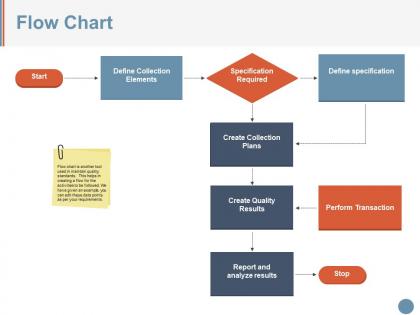
Depict the activities or functions of your business in a visual manner by using the Flow Chart PPT Presentation Examples. You can improve and communicate complex topics in an easy manner with the aid of this business process mapping PowerPoint graphic. With the help of business diagrams PPT slideshow, you can represent the various tasks in a proper sequence and share it with others. Employ the flow process chart presentation template to showcase the inputs clearly amongst different stakeholders. Portray the manufacturing process or organization structure graphically using the flow diagram PowerPoint layout that grabs the attention of your audience. Take the assistance of this information flow diagram PPT theme to explain how to reduce the cost and minimize the time using a flowchart. Included here are various high-grade icons with which you can make your presentation informative and reliable. You can create quality results and increase your reputation in the market by downloading our ready-to-use business process flow PowerPoint slide.
People who downloaded this PowerPoint presentation also viewed the following :
Flow chart ppt presentation examples with all 5 slides:
Get folks to indulge in beneficial discussions with our Flow Chart Ppt Presentation Examples. Encourage intelligent debate.
FAQs for Flow chart
So you'll want ovals for start/end points, diamonds for yes/no decisions, and rectangles for the actual steps. Arrows show which way things flow - pretty basic stuff. If your flowchart gets huge, connectors help when it spans multiple pages (though honestly, that usually means it's too complicated). Keep your shapes consistent and labels short. Nobody wants to read a paragraph inside a tiny box. I always sketch mine out first before jumping into software - saves me from redoing everything when I realize the flow is backwards. Oh, and decision points should actually be yes/no questions, not statements.
Okay so flow charts are honestly a game changer for explaining complicated stuff. You know how people's eyes glaze over when you hit them with giant paragraphs? Visual steps fix that. I use them whenever there's decision points or branching paths - makes everything so much clearer. Plus people can actually spot problems like bottlenecks or redundant steps that they'd totally miss in a wall of text. My boss would probably hate me saying this, but half our meeting confusion could be solved with a simple flow chart. Try it next time you're presenting something messy and see how much easier the whole thing becomes.
Okay so for flowcharts - start with proper beginning/end points and stick to the standard shapes (rectangles for tasks, diamonds when there's a choice to make). Flow should go top-to-bottom or left-to-right, none of that zigzag nonsense. Keep your text short and snappy. Colors and spacing need to match throughout or it'll look amateur. Here's the thing though - I can't tell you how many times I've seen these gorgeous charts that are completely useless because they're too complex. Test yours on someone fresh. If they squint at it for more than 10 seconds, you've overcomplicated things. The whole point is making processes clearer, not adding another puzzle to solve.
Honestly, flow charts are perfect for this! Put each task or milestone in a box, then draw arrows showing what has to happen first. Way better than staring at those massive Gantt charts that hurt your brain. The visual layout makes it super obvious where things might get stuck - like if three tasks all depend on Jim finishing his part first (we all know a Jim). Your team can glance at it and instantly get the whole project flow. Definitely try it on your next sprint. You'll catch potential delays before they mess up everything downstream.
So for professional flowcharts, Lucidchart and Microsoft Visio are your best bets. Lucidchart's got amazing templates and works great for team stuff since it's all cloud-based. Visio's perfect if you're already using Microsoft everything. Draw.io is actually pretty decent too and won't cost you anything - honestly can't beat free. Oh, and Miro's cool if you want something more visual and brainstormy. I'd probably just try Lucidchart's free version first. See how much you actually end up using it before spending money.
Honestly, people way overcomplicate flowcharts. Like, I've seen ones that look like spaghetti diagrams - total nightmare to follow. Stick with the basic shapes everyone knows: rectangles for actions, diamonds when you need a yes/no decision. One thing per box though, don't cram everything together. Oh and this drives me crazy - charts that just end nowhere! Always add start/end points. Walk through it yourself first too. If you're getting lost in your own chart, imagine how confused everyone else will be. Keep the flow going one direction and you'll be golden.
Honestly, flow charts are lifesavers when you're dealing with complicated decisions. They map out all your options visually so you can actually see where each path leads. I love how they help you catch problems early - like spotting bottlenecks before they bite you. Perfect for team meetings too since everyone's staring at the same diagram instead of talking past each other. They also force you to think about scenarios you'd probably miss otherwise. My boss is obsessed with them but I get why. Next time you're stuck on something messy, just sketch out the main decision points and watch everything click into place.
Ditch those boring template flowcharts - they put students to sleep. Try adding icons and colors that actually match your content, like lightbulbs for breakthrough moments or color-coding different phases. Interactive stuff works really well too. Have kids trace decision paths or reveal sections as you go. What I've found works best is creating scenarios where students follow a character through problems. You know, those "what if this happens..." branching paths? They're way more engaging. Oh, and definitely work backwards from what you want them to learn first - makes the whole design process easier.
Honestly, colors and shapes can totally save or destroy your flowchart. Go for high contrast - dark text on light backgrounds works way better than that terrible yellow-on-white thing that hurts everyone's eyes. Keep shapes consistent too: rectangles = processes, diamonds = decisions, ovals = start/end. Your brain picks up on patterns faster when they're predictable. Don't go crazy with colors though - 3 or 4 max or it'll look like a rainbow exploded. Oh, and here's something that actually works: squint at your finished chart. If you can still follow it while squinting, you're golden.
So linear flowcharts are basically straight lines - step A, then B, then C, like you're following a recipe. Hierarchical ones branch out everywhere with decision points and different paths. Picture it like: linear says "do this, then this, then this" while hierarchical is more "if X happens, go here, if Y happens, go there." Most real stuff needs the branchy approach tbh because nothing's ever that simple. Oh and I'd say go linear when your process actually follows one path, hierarchical when you've got multiple scenarios to map out.
Honestly, flowcharts work great as your main backbone - just don't go overboard with extras. I like to start with the flowchart showing the whole process, then break out specific steps on separate slides. Maybe step 3 gets a bar chart with actual numbers, or you throw in some photos for step 4 so people can visualize it. The trick is not cramming everything onto one slide (learned that the hard way). Keep it simple and always circle back to where you are in the main flow so nobody gets lost. People zone out fast when there's too much visual noise competing for attention.
Dude, flow charts are like having a GPS for when stuff breaks. Instead of running around in circles, you can actually see all the possible causes laid out. Super helpful when you're dealing with complicated problems or showing someone else how to fix things. I used to think they were just busy work, but honestly? They save me from that frustrating "wait, did I already try that?" moment. Plus you start noticing patterns in recurring issues. Worth sketching one out next time you're stuck - even a messy one helps.
Honestly, shared flowchart templates are a game changer. Your team stops wasting time trying to figure out everyone's random symbols and weird layouts. Jump into anyone's diagram and you'll actually know what's happening. Creating new ones gets way faster too since you're not building from zero each time. Handoffs between teammates become super smooth - we had this one guy who used to make the most confusing charts, drove everyone crazy. Templates fix that mess. Pick maybe 2-3 standard ones for your common stuff and test it out.
Dude, healthcare and manufacturing are probably the biggest ones. Hospitals need super clear protocols since mistakes can literally kill people. Manufacturing uses them for assembly lines and quality stuff - keeps workers from screwing up expensive processes. Oh, and software developers are obsessed with flowcharts for mapping out user flows and debugging (my cousin's a programmer and he's always drawing these things). Finance companies love them too for compliance reasons. Basically any industry where one mistake costs serious money or puts people at risk. They're kind of boring but honestly pretty crucial.
First thing - figure out what your process is actually trying to accomplish and where the big decisions happen. Those can't be optional. Map out the main path, then add branches only where choices actually matter. I always want to cram every little detail in there (total perfectionist move), but honestly? Just focus on steps that would leave someone scratching their head. Keep your language clear and action-focused. Bunch smaller steps together under bigger actions when it makes sense. Here's the real test - walk through your flowchart like you've never seen it before. If you can follow it and get the right result, you're golden.
-
Excellent products for quick understanding.
-
Nice and innovative design.