

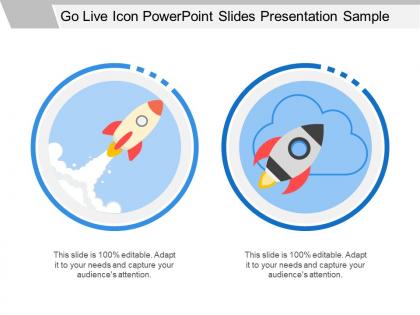
Go live icon powerpoint slides presentation sample




Try Before you Buy Download Free Sample Product
 Impress Your
 Audience
 100%
100% Editable
 Save Hours
 of Time


Assemble your ideas with our Go Live Icon Powerpoint Slides Presentation Sample. Create a completely credible image.
People who downloaded this PowerPoint presentation also viewed the following :
Go live icon powerpoint slides presentation sample with all 5 slides:
Our Go Live Icon Powerpoint Slides Presentation Sample pay rich dividends. They give due credit to your capital ideas.
FAQs for Go live icon powerpoint
Definitely go with red for the main color - people just know that means live. Add "LIVE" text in bold so it's super readable, plus a circular broadcast-style button. I'm obsessed with adding a little pulse animation because honestly, static icons look boring as hell. White and black work great with the red too. Oh, and throw in a "NOW" or timestamp somewhere to really drive home that it's happening right now. Simple is better here. Just make sure you test it on whatever screen you're actually presenting on first - things look different once you're up there!
Honestly, red or orange are your best bets - they scream "live" like every streaming platform does. Dark slides? Go bright with neon green or electric blue. Light background? Deep red or bold orange will pop. I swear, half the presentations I sit through have icons that just... disappear into the background. Super annoying. Add a white outline or subtle drop shadow to make it really stand out. Oh, and definitely test it on your phone first - what looks good on your laptop might be tiny on someone else's screen!
Oh dude, pulse animation is your best bet - totally gives off that "live broadcast" vibe. Grow & Turn works nice for the entrance too, then maybe throw a subtle Teeter on repeat so it keeps moving. Fade-in with bounce is solid as well, though I'm probably overthinking this lol. Pulse just feels the most... authentic? Like it actually says "hey we're live right now!" Set whatever you pick to loop until the next slide so it doesn't just die halfway through your presentation. That'd be awkward.
Your audience gets distracted by visual mess instead of focusing on what you're actually saying. I'd pick one Go Live icon style and stick with it - same size, same spot on each slide. Nobody notices when everything matches, but man does it look weird when one slide has a totally different icon! It makes the whole thing feel more professional somehow. People trust presentations that look put-together. The consistency also helps viewers follow along easier since they know where to look. Honestly, it's one of those small details that makes a bigger difference than you'd think.
So you'll want to match your Go Live icon to whatever industry you're presenting to. Tech companies dig sleek designs with circuit patterns or code stuff. Healthcare? Go with pulse lines or medical crosses. Finance people are obsessed with growth imagery - seriously, throw in some upward arrows or chart elements and they eat it up. Gears work great for manufacturing presentations. Retail needs shopping carts or storefront vibes. The whole point is making it look like it actually belongs in your deck instead of some random template you downloaded five minutes before the meeting.
Oh, definitely use high contrast colors - bright red or orange on white backgrounds works great, or flip it with white on dark slides. Don't shrink it down too small either, even if space is tight. I've watched so many people squint trying to find these things! Give it some breathing room with 20-30 pixels of white space around it. A subtle drop shadow helps too if your background's busy. Pick one spot and stick with it across all slides - top right corner's usually a safe bet. Honestly, if people have to hunt for it, you've already lost them.
Dude, your font choice is basically the voice telling people "hey, we're going live!" Bold sans-serif fonts work best - they're clean and people can actually read them from the back. Skip the fancy decorative stuff, it'll just muddy things up. Make your headlines punchy and keep font weights consistent so there's clear hierarchy. Oh and definitely test how it looks at actual presentation size first! I learned this the hard way when my text looked perfect on my laptop but totally vanished on the projector. Trust me, you don't want that surprise.
Dude, definitely get feedback on that Go Live icon before you ship it. You've been staring at it so long you're probably missing obvious stuff - like whether it's readable when tiny or if the colors are totally off-brand. Fresh eyes catch things you can't anymore. I always run mine by 2-3 people minimum because everyone notices different stuff about spacing and contrast. Your teammates will also tell you if it actually makes sense to regular users (not just us who obsess over every pixel). Trust me, better to hear "this is confusing" now than deal with fixing it after launch. Plus some people just have better design instincts than others, honestly.
Don't use the Go Live icon unless you're actually streaming something live - that's the worst mistake I see people make. Your audience will be so confused. Size matters too - too tiny and nobody notices it, too huge and it's just annoying to look at. Also, please use a crisp version, not some blurry mess that looks ancient. If you're putting it on multiple slides, stick to the same spot each time. Oh and definitely test it on whatever screen you'll actually be using for your presentation first!
Dude, throw some charts or live dashboards right next to that Go Live icon! Show conversion rates, user numbers, system stats - whatever proves you're actually ready. A simple bar chart with milestone percentages works great, or maybe a live counter ticking up. Honestly, people eat this stuff up because it's not just "hey we're launching" - it's "look, we have our shit together AND the data to prove it." Short sentences hit different too. The combo makes your announcement feel way more legit than just the icon alone.
Honestly, just stick it in the top-right corner - that's where people naturally look for status stuff anyway. Don't move it around between slides or you'll drive everyone crazy (learned that the hard way). Give it some breathing room too, like 20-30 pixels from your headers and other junk. Oh, and definitely don't put it over busy backgrounds where it'll get lost. I always test mine on a few slides first to make sure it's not covering up anything important. Short version: top-right, consistent placement, clean background. You'll be good.
So for your Go Live icon, definitely go with high contrast colors - people with visual issues need to actually see the thing. Make it big enough for different screens too. Don't just rely on color though, throw in some text or maybe those broadcast wave symbols. Oh and heads up - red means "live" here but in some places people think danger first. Keep it simple and recognizable. Honestly I'd test it out on a few people before you finalize anything. If they can't figure out what it means right away, you'll know to tweak it.
Honestly? Just use Canva for this. They've got a ton of icon templates and you can mess with the colors to match your brand stuff. Takes maybe 10 minutes tops and you can export as PNG. If you're feeling fancy, Adobe Illustrator will give you the cleanest results but there's definitely a learning curve there. Figma works too and won't cost you anything for basic stuff. Hell, I've even seen people make decent icons in PowerPoint using their built-in shapes - not gonna win design awards but it gets the job done. Start with Canva though, seriously.
Look at how engaged people get during your live moments - are they asking questions or just staring blankly? That Go Live button either wakes everyone up or puts them to sleep, honestly no in-between lol. Check if your calls-to-action actually worked afterward too. Count the real stuff: downloads, signups, meetings booked. But here's what really matters - do people bring up specific things from your live segments later? Like in follow-up emails or conversations? That's when you know it actually stuck with them instead of just being another presentation they sat through.
Honestly, those Go Live icons are genius for grabbing attention. People see that red "LIVE" badge and instantly think something important is happening - nobody wants to miss out, you know? It's the same reason we all stop scrolling when we see live content on Instagram or whatever. Your slides immediately feel more urgent and interactive, even if you're just clicking through PowerPoint. I always throw them in when I'm doing live polls or demos. They break up boring text blocks too, which... let's be real, most slides need that. Works especially well for any breaking news or real-time updates you're sharing.
-
Great designs, Easily Editable.
-
Excellent Designs.