

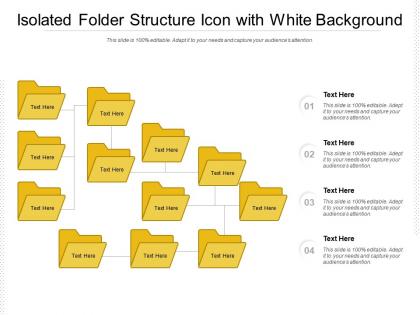
Isolated folder structure icon with white background




Try Before you Buy Download Free Sample Product
 Impress Your
 Audience
 100%
100% Editable
 Save Hours
 of Time


Our Isolated Folder Structure Icon With White Background are topically designed to provide an attractive backdrop to any subject. Use them to look like a presentation pro.
People who downloaded this PowerPoint presentation also viewed the following :
Isolated folder structure icon with white background with all 2 slides:
Use our Isolated Folder Structure Icon With White Background to effectively help you save your valuable time. They are readymade to fit into any presentation structure.
FAQs for Isolated folder structure icon
The isolated folder icon typically signifies file organization, data storage, document categorization, content management, and digital filing systems. In user interface design, this icon enables intuitive navigation through digital assets, streamlines content organization across platforms, and enhances user experience by providing clear visual hierarchy, with many applications finding that isolated folder icons improve workflow efficiency and reduce user confusion.
Isolated folder icons are most commonly used in digital interfaces, file management systems, website navigation menus, mobile applications, and presentation templates. These versatile visual elements streamline user experience by providing immediate recognition for organizational structures, document storage, and content categorization, with many businesses finding that clear folder iconography enhances navigation efficiency and reduces user confusion across platforms.
The isolated folder icon enhances user interface design by providing clear visual hierarchy, improving navigation efficiency, and creating intuitive organizational systems that users instantly recognize. Through strategic placement and consistent styling, designers streamline content categorization, reduce cognitive load, and enhance overall user experience, with many applications finding that simplified iconography ultimately delivers faster task completion and improved user satisfaction.
Best practices for incorporating isolated folder icons in presentations include ensuring consistent sizing, using appropriate color schemes, maintaining visual hierarchy, positioning strategically within slides, and selecting high-resolution formats. These design elements enhance audience comprehension by clearly organizing content sections, improving navigation flow, and creating professional visual consistency, with many presenters finding that well-implemented folder icons significantly streamline complex information delivery.
The color scheme of an isolated folder icon significantly impacts its effectiveness by influencing visual hierarchy, brand recognition, user comprehension, and emotional response. Strategic color choices enhance readability against various backgrounds, streamline navigation through intuitive categorization systems, and reinforce brand identity, with many organizations finding that consistent, accessible color palettes ultimately deliver improved user experiences and operational efficiency.
Common mistakes when designing isolated folder icons include using overly complex details that become unclear at small sizes, choosing poor color contrast that reduces visibility, creating inconsistent proportions that look unbalanced, and neglecting scalability across different display contexts. These design pitfalls ultimately compromise user recognition and interface functionality, with many applications finding that simplified, high-contrast designs with consistent proportions deliver better usability and professional appearance across digital platforms.
The isolated folder icon conveys organization and clarity by symbolizing structured information storage, systematic categorization, and intuitive navigation pathways. This visual element streamlines content presentation in corporate training materials, software interfaces, and digital documentation systems, enabling viewers to quickly understand hierarchical relationships and locate specific resources, ultimately enhancing user experience and operational efficiency.
Isolated folder icons feature transparent or removed backgrounds, allowing seamless integration across different design contexts, while standard folder icons include fixed backgrounds and surrounding elements. These isolated versions enhance design flexibility by enabling clean placement on varied backgrounds, presentations, and interfaces, with many designers finding that transparent icons deliver better visual consistency and professional appearance across multiple platforms.
Cultural perceptions significantly influence folder icon interpretation through varying organizational metaphors, reading patterns, and technological familiarity across different societies. While Western users typically associate folders with hierarchical file systems, other cultures may interpret spatial relationships, visual symbolism, and digital concepts differently, with many international organizations finding that localized icon design enhances user comprehension and workflow efficiency.
**INPUT**: What tools or software are best for creating custom isolated folder icons? **OUTPUT**: Professional design tools for custom isolated folder icons include Adobe Illustrator, Sketch, Figma, Canva Pro, and GIMP, each offering vector capabilities and transparency controls. These platforms streamline icon creation by providing customizable templates, scalable formats, and export options, with many design teams finding that vector-based tools ultimately deliver consistent branding and seamless integration across digital platforms. **Word count: 58 words**
Yes, isolated folder icons can be animated using PowerPoint's built-in animation effects, motion paths, and morph transitions, or through CSS animations and JavaScript for web presentations. These animations enhance visual storytelling by creating opening folders, file transfers, progress indicators, and organizational workflows, with many presenters finding that subtle motion effects significantly improve audience engagement and information retention while maintaining professional aesthetics.
The design of isolated folder icons varies through color schemes, dimensional styling, and visual metaphors across operating systems. Windows typically uses yellow manila folder aesthetics with subtle shadows, macOS employs blue gradient folders with clean minimalist design, and Linux distributions often feature customizable folder icons, with many organizations finding that consistent folder iconography enhances user navigation and operational efficiency.
The isolated folder icon serves as a visual organizational tool in digital file management systems, enabling users to categorize, navigate, and locate documents efficiently through intuitive hierarchical structures. This standardized symbol streamlines workflow processes by providing instant recognition of storage containers, with many organizations finding that consistent iconography reduces training time, minimizes user errors, and ultimately enhances productivity across teams.
User feedback shapes isolated folder icon design by revealing usability issues, accessibility needs, visual clarity preferences, and contextual recognition challenges across different user groups. Through surveys, A/B testing, and usability studies, designers can refine color contrast, sizing, metaphorical elements, and visual hierarchy, ultimately delivering more intuitive navigation experiences that enhance user satisfaction and reduce interface friction.
Current icon design trends for isolated folder icons include minimalist aesthetics, subtle gradients, rounded corners, micro-interactions, and accessibility-focused color contrast. These design approaches enhance user experience by improving visual clarity, reducing cognitive load, and ensuring seamless navigation across platforms, with many digital interfaces finding that simplified, universally recognizable folder icons ultimately deliver better usability and brand consistency.
No Reviews