

Powerpoint template and theme with white and pink floral frame abstract background




Try Before you Buy Download Free Sample Product
 Impress Your
 Audience
 100%
100% Editable
 Save Hours
 of Time


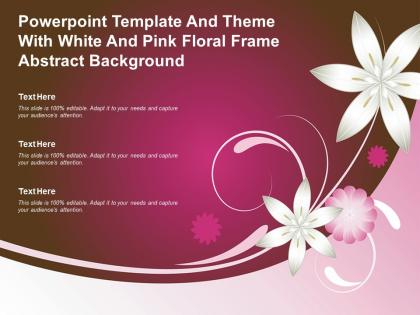
Utilize the following PowerPoint image slide titled Powerpoint Template And Theme With White And Pink Floral Frame Abstract Background. This PowerPoint template is entirely editable and is available in both, standard and widescreen sizes. A wide range of topics can be targetted which include Image slides, Frame using this PPT background. The other elements of PPT can also be modified if required.
People who downloaded this PowerPoint presentation also viewed the following :
Powerpoint template and theme with white and pink floral frame abstract background with all 2 slides:
Use our Powerpoint Template And Theme With White And Pink Floral Frame Abstract Background to effectively help you save your valuable time. They are readymade to fit into any presentation structure.

FAQs for Powerpoint template and theme with white and pink floral
Honestly, just pick 2-3 colors and call it a day - more than that looks messy. Stick with boring fonts like Arial or Calibri because they actually work. Build a few template layouts: title slides, regular content, section breaks. That's it. Don't overthink it. Skip the fancy animations unless you really need them. I learned that the hard way after watching someone's text fly around for 30 seconds straight. Make your font big enough so people in the back can see, and don't cram everything together. Oh, check if your company has brand stuff first - might save you some time.
Look, your template basically controls whether people actually listen to you or get distracted trying to decode your messy slides. Clean fonts and consistent colors create this flow that just works - nobody's squinting at weird text or getting assaulted by random neon colors. Honestly, polished presentations just hit different - people trust them more for some reason. The real win is when your design supports what you're saying instead of fighting against it. Your audience can focus on your actual message. Start simple and tweak it slightly for your topic. Don't overthink it.
Minimalist designs are huge right now, plus everyone's doing dark mode themes. Data visualization templates are everywhere too - makes sense since presentations need more charts these days. Oh and gradient backgrounds with bold fonts, though honestly I'm kinda over the whole "tech startup" aesthetic at this point. Corporate blue still works if you want to play it safe. Geometric patterns are pretty popular, and I've noticed more sustainability-themed designs lately. Definitely grab something with animated charts since that's where things are heading. Just match your brand colors and you're set!
So color psychology is actually huge for presentations! Blue's your go-to for business stuff - makes you look trustworthy and professional. Green works great if you're talking about growth or anything eco-related. Red definitely grabs attention but can come off aggressive (probably skip it for quarterly reports lol). Purple screams creativity and luxury. Orange's super energetic but might be too casual depending on your crowd. Honestly, stick to 2-3 colors max or it'll look like a rainbow threw up on your slides. Just think about what vibe you want first, then pick colors that match that energy.
First thing - swap those template colors for your brand palette in the design tab. Biggest bang for your buck right there. Replace the fonts too, and honestly don't overthink this part. Boring consistency beats "creative" fonts every time. Your slide master needs your logo and any repeating stuff like footers. Oh, and update all the icons and graphics so they actually match your vibe. Takes forever but worth it. Save the whole thing as a custom template when you're done - your teammates will thank you later for not making them start from scratch.
Font choice can make or break your whole presentation, honestly. Go with clean sans-serif ones like Calibri or Arial - they're readable from the back row. Trust me, I've sat through presentations where people used some swirly font and nobody could read anything. Keep it to 2-3 font types max or it gets messy. Size-wise, you want 24pt minimum for regular text and 36pt+ for titles. Oh, and avoid Comic Sans unless you're presenting to kindergarteners! Your content might be amazing, but if people can't read it easily, what's the point?
High contrast is your best friend - dark text on light backgrounds works great. Go with sans-serif fonts like Arial, 18pt minimum. Your heading structure should actually make sense (shocking concept, I know). Alt text for images is super important since screen readers depend on those descriptions. Skip the flashy animations that give people headaches. Keep layouts consistent so people can navigate predictably. Oh, and grab Microsoft's accessibility checker add-in first - it catches most problems automatically and saves you tons of time figuring out what's wrong.
Oh man, don't cram a million words on each slide - nobody wants to read a novel up there. Pick fonts people can actually see (and please, never Comic Sans). Colors matter too - avoid anything that makes people squint or gives them headaches. Those crazy animated backgrounds? Skip them, they're just distracting. Test everything with real content first because what looks good empty might be terrible with actual text and charts. Pro tip: check how it looks projected since colors get weird sometimes. Oh and make sure it works for different stuff - not just text but images and bullet points too.
Stick with subtle stuff - gentle fades or slides work way better than crazy spins that'll give everyone a headache. I usually do "Fade In" for bullet points with like a 0.5 second delay between each one. Pretty clean look. Use the same transition for every slide too. "Push" or "Fade" are solid choices. The whole point is making it flow nicely without the animations stealing the spotlight from what you're actually saying. Oh, and definitely check everything in Slide Sorter view first - sometimes the timing feels weird until you see it all together. Save a backup version without any animations just in case the projector acts up.
Honestly, I'd start with maybe 5-6 basic layouts - title slides, bullet point ones, image-heavy stuff, and comparison slides. Stick with simple fonts that won't make students squint. High contrast colors are your friend here. I always add placeholder text so you remember what goes where later. Don't forget alt text spots for images (accessibility stuff). Oh, and leave room for your school's logo or whatever branding they require. Keep design elements super subtle - flashy backgrounds just distract from actual content. You can always create more layouts once you figure out what you actually need.
Go to View > Slide Master - seriously, this thing will save you so much time. Set up all your fonts, colors, and logo stuff there. Whatever you change automatically hits all your slides using that layout. One thing though - stick with the placeholder boxes instead of throwing text boxes everywhere (trust me on this one). You can make different master layouts too if you need a title slide vs regular content slides. Once it's done, just pick the right layout for new slides and boom, everything matches without you doing anything. Way easier than fixing each slide individually.
Make sure your images are high-res - 300 DPI minimum. But compress them or your file will be massive. Honestly, I've seen presentations crash because someone went overboard with giant images. Stick to your brand colors and fonts throughout. Don't just throw in graphics because they're pretty - they should actually support what you're saying. Give everything room to breathe with white space. Oh, and create a little library of approved graphics your team can use. Super helpful when someone needs to swap things out quickly. Always have a backup plan for text-heavy slides too.
Yeah, so companies totally switch up their PowerPoint game depending on the crowd. Tech startups go super clean and minimal for investors - all that white space makes them look legit. Healthcare folks load up on charts and medical photos for conferences (honestly can get pretty intense). Banks and finance companies? They're stuck with boring navy and gray because apparently bright colors make people nervous about their money. Creative agencies get to have all the fun though - crazy fonts, wild layouts, whatever. My advice? Just peek at what others in your space are doing first. You don't want to be the weirdo with Comic Sans at a board meeting.
Honestly, templates are such a lifesaver. You get professional-looking stuff without spending forever messing with fonts and colors. Your slides will look decent right away, and you won't fall into that trap where you spend three hours adjusting one stupid text box (guilty as charged lol). They keep everything looking consistent too, which is nice when you're working with other people. The downside? Less room to get creative. But unless you're presenting to like, the CEO or big clients, most templates do the job just fine. I'd start there and only go custom if you really need something special.
So I've been playing around with this stuff lately - hyperlinks and action buttons can totally transform your presentations. You can set up clickable navigation that jumps between sections, throw in some polls or quiz slides, even add video thumbnails that play when clicked. The hyperlink thing is honestly amazing for when you don't want to go slide by slide. Try adding hover effects with animations too. Oh, and that "click to reveal" approach for bullet points? Perfect for controlling the pace. Start with just navigation buttons on your master slides - trust me, people notice the difference right away.
-
I discovered this website through a google search, the services matched my needs perfectly and the pricing was very reasonable. I was thrilled with the product and the customer service. I will definitely use their slides again for my presentations and recommend them to other colleagues.
-
Commendable slides with attractive designs. Extremely pleased with the fact that they are easy to modify. Great work!
-
Easily Understandable slides.
-
Really like the color and design of the presentation.
-
Professional and unique presentations.