

Important notes ppt powerpoint presentation ideas gridlines
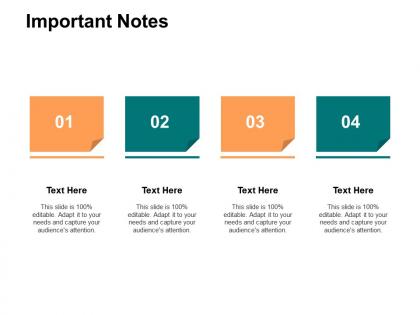




Try Before you Buy Download Free Sample Product
 Impress Your
 Audience
 100%
100% Editable
 Save Hours
 of Time


You will find our Important Notes Ppt Powerpoint Presentation Ideas Gridlines to be the best bargain. You will get the deal of your dreams.
People who downloaded this PowerPoint presentation also viewed the following :
Important notes ppt powerpoint presentation ideas gridlines with all 5 slides:
Include all the incentives folks could expect with our Important Notes Ppt Powerpoint Presentation Ideas Gridlines. Capture the imagination of your clients.
FAQs for Important notes ppt powerpoint
Gridlines in PowerPoint presentations are invisible alignment guides that create a structured layout system, helping designers position elements precisely, maintain consistent spacing, ensure visual balance, and achieve professional symmetry across slides. These design tools streamline the creation process by enabling faster object placement, reducing alignment errors, and delivering polished presentations, with many corporate teams finding that gridlines significantly enhance their visual consistency and design efficiency.
Gridlines assist in aligning objects by providing invisible reference points that enable precise positioning, consistent spacing, and professional symmetry across slide elements. These visual guides streamline the design process by automatically snapping text boxes, images, and shapes into perfect alignment, ultimately delivering polished presentations with enhanced visual coherence and reduced formatting time.
**INPUT**: Are there specific best practices for using gridlines to maintain visual consistency? **OUTPUT**: Best practices include establishing consistent spacing intervals, aligning all text boxes and visual elements to grid intersections, maintaining uniform margins across slides, and using the same grid density throughout your presentation. These techniques streamline design workflows by ensuring professional alignment, reducing visual clutter, and creating cohesive layouts, with many presenters finding that consistent gridline usage ultimately delivers more polished presentations and enhanced audience engagement. [Word count: 60 words]
Gridlines improve accessibility by creating consistent visual structure, enhancing text readability through proper alignment, and providing clear navigation paths for viewers with visual impairments. These alignment tools enable presenters to organize content systematically, reduce cognitive load through predictable layouts, and ensure screen reader compatibility, with many organizations finding that structured presentations deliver better comprehension rates and more inclusive audience experiences.
Gridlines are fixed horizontal and vertical lines that create a uniform grid across slides for consistent alignment, while guides are customizable reference lines you can position anywhere to align specific elements. Gridlines provide overall structural consistency for layouts, spacing, and object placement, whereas guides offer precise control for aligning particular content blocks, with many presenters finding that combining both delivers professional, visually balanced presentations.
Yes, PowerPoint gridlines can be fully customized for color, spacing, and style through the View tab's gridline settings and slide master options. Users can adjust grid spacing by modifying ruler measurements, change colors through design themes or custom formatting, and control line thickness and transparency, with many presenters finding that subtle, branded gridlines enhance visual consistency while maintaining professional slide layouts across complex presentations.
Gridlines help establish effective visual hierarchy by providing consistent spacing, alignment, and proportional relationships between elements, ensuring organized content placement and balanced slide layouts. Through systematic alignment and spacing, presenters create professional-looking slides with clear information flow, enhanced readability, and strategic emphasis placement, ultimately delivering more engaging presentations with improved audience comprehension and retention.
Common pitfalls include using overly prominent gridlines that distract from content, creating cluttered layouts with too many grid divisions, ignoring alignment consistency across slides, and failing to adapt grid systems for different content types. Many presentation designers find that subtle, purposeful gridlines enhance visual hierarchy and professional appearance, while excessive or misaligned grids can overwhelm audiences and reduce message clarity.
Gridlines can significantly enhance presentation flow by creating visual consistency and guiding audience attention through structured content alignment, while also improving readability through organized layouts and clear information hierarchy. However, excessive or poorly designed gridlines may distract viewers, with many presenters finding that subtle, strategically placed gridlines ultimately deliver better audience engagement and professional credibility.
Gridlines should be disabled when presenting to audiences, creating final marketing materials, designing client-facing documents, and developing polished templates where visual aesthetics take priority. These scenarios benefit from cleaner layouts that eliminate visual distractions, with many organizations finding that removing gridlines enhances professional appearance, improves audience focus, and delivers more impactful presentations.
Gridlines facilitate collaboration by creating consistent alignment standards, enabling uniform spacing across slides, and establishing shared design frameworks that multiple team members can follow seamlessly. When teams use gridlines, designers maintain visual coherence while working on different sections, reduce revision cycles through standardized positioning, and accelerate the review process, ultimately delivering polished presentations with professional consistency.
Yes, Alt + F9 toggles gridlines on and off in PowerPoint, providing quick access without navigating through menus. This keyboard shortcut streamlines presentation design workflows, enabling faster alignment and positioning of elements, with many presenters finding that efficient gridline management significantly enhances their slide creation productivity and overall design precision.
Gridlines typically don't appear in exported PDFs since they function as design aids visible only during editing mode, ensuring clean final outputs without visual clutter. However, presentation creators should verify export settings and preview PDFs before distribution, as certain PowerPoint configurations or third-party export tools may occasionally include gridlines, ultimately affecting professional document quality and recipient experience.
Gridlines contribute to professionalism by ensuring precise alignment, consistent spacing, and visual harmony throughout presentation elements. These invisible guides enable presenters to create polished layouts with balanced text boxes, charts, and images, while maintaining uniform margins and proportional designs, ultimately delivering credible presentations that enhance audience trust and speaker authority.
Gridlines ensure precise alignment and consistent spacing when positioning multimedia elements like videos, audio clips, images, and interactive graphics across slides. They enable presenters to create professional layouts by maintaining visual hierarchy, proper proportions, and balanced compositions, with many corporate trainers and marketing teams finding that gridline-assisted multimedia integration significantly enhances audience engagement and message clarity.
No Reviews