

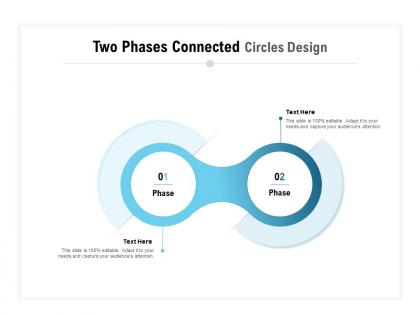
Two phases connected circles design




Try Before you Buy Download Free Sample Product
 Impress Your
 Audience
 100%
100% Editable
 Save Hours
 of Time


Cut through the freeze with our Two Phases Connected Circles Design. The audience will definitely melt.
People who downloaded this PowerPoint presentation also viewed the following :
Two phases connected circles design with all 2 slides:
Melt the freeze with our Two Phases Connected Circles Design. They will warm everyone's hearts.
FAQs for Two phases
Honestly, it's all about making complex stuff way easier to follow. You break everything into two clear phases, and the circular design just naturally pulls people's eyes around - no confusion about what comes next. Way better than those boring bullet point lists everyone uses. The cool part is how you can really show the connection between phases, like when you're doing planning-to-execution stuff or problem-solving workflows. Oh, and definitely use different colors for each circle - makes it stick in people's heads better. Your audience will actually get it instead of zoning out halfway through.
Honestly, that two-phase circle thing is brilliant for showing how stuff connects and flows together. Your audience can actually *see* the progression instead of just hearing about it. Works great for before/after situations or when you're explaining cause and effect. I probably overuse it for project timelines lol. But seriously, the visual connection between circles tells a story way better than random bullet points ever could. You can even color-code each phase to make it super obvious. Next time you need to show some kind of transformation, definitely try it out.
Dude, go with vector software for sure since you need those clean geometric shapes. Illustrator's probably the gold standard for this stuff - handles overlapping circles like a dream. Figma's solid too and free, which is nice. Works right in your browser. If you're feeling adventurous, Inkscape is surprisingly good for geometric work and won't cost you anything. Hell, I've even seen people pull off decent mockups in PowerPoint when they're in a bind. Just make sure whatever you pick has decent snap-to-grid tools. Figma's where I'd start though - way less intimidating than Illustrator and there's a million tutorials if you get stuck.
Honestly, color choice can totally make or break this kind of design. You need solid contrast between your two main colors so people can actually tell the phases apart - I've seen way too many where everything just mushes together because the colors are too similar. But they should still look good together, you know? Your background matters more than you'd think too since it affects how much each circle pops. Oh, and definitely run it through a colorblind accessibility checker before you call it done. Trust me on that one.
Use two-phase connected circles when your data has some kind of relationship between two separate groups. Before/after stuff works great here. So does cause/effect or when you're comparing groups that overlap somehow. Customer journeys are perfect for this - also process flows with feedback loops or demographic overlaps. Honestly though? People try cramming everything into this format and it looks weird. It really works best when there's that natural two-stage thing happening or bidirectional connections. Simple comparisons or basic categories? Just go with something easier instead.
Make sure the connection between your circles actually makes sense - don't just slap them together because it looks cool. The overlap needs to work for both design flow AND how users actually navigate. I've watched so many projects crash because the circles were pretty but nobody could figure out how to get from step one to step two. Your colors should contrast enough for accessibility without making the phases feel totally disconnected. Oh, and definitely wireframe this stuff first before you fall in love with some fancy aesthetic. Test those transition points early - users need to intuitively get it.
Oh man, the biggest thing is not rushing between those two phases - you need clear visual cues so people actually know where to look next. And please don't make the circles super similar in size or color, that's just asking for confusion. Your connecting elements need to be obvious enough to actually work. I see people cramming way too much text into each circle all the time instead of keeping it simple. Honestly? Sketch it out on paper first to see if the flow makes sense - saves you so much headache later when you're building the actual thing digitally.
Try animating the circles to grow or pulse - it really draws attention to each phase transition. A smooth arrow reveal between them works perfectly for guiding eyes. Don't go crazy with bouncy effects though, they look ridiculous honestly. Subtle fade-ins are way better. Text appearing inside each circle builds the story nicely too. I'd stick to 0.5-1 second timing per element so it doesn't drag. Oh and definitely test one full cycle first before you animate everything else - learned that the hard way!
Honestly, user engagement is everything with this design approach. Your circles won't do much without people actually using them and giving you real feedback. I mean, you could have the most elegant transitions between phases, but if nobody's testing them or telling you what sucks, you're basically flying blind. Get a small group involved from day one. They need to experience both phases and tell you where stuff feels weird or breaks down. The connection points only start making sense when real people are poking at them and complaining about what doesn't work. It's like - you can plan all you want, but users will always find the things you missed.
Start with your brand colors - that's the easiest swap. Then mess around with circle sizes to show which phase matters more. Typography and icons should match your vibe too, obviously. Layout-wise, you've got options - vertical, horizontal, or diagonal depending on what flows better. Some people go overboard with animations but subtle gradients actually look pretty good. Honestly, proportions matter more than you'd think. Just keep tweaking the sizing until it doesn't look generic anymore. The connecting elements between phases are key for maintaining that relationship while making it yours.
Circles just hit different psychologically - people see them as complete and harmonious, way more than angular stuff. There's some cool gestalt psychology research on this (total rabbit hole if you're into that). But basically your brain processes those two connected circles as showing progression and relationship, which feels natural. Sharp edges? Kind of threatening. Curves feel safer, so viewers actually stick around longer. I've noticed this with my own designs too. If you want people to engage more or connect concepts together, definitely go with those curved elements. Your audience won't even realize why it feels more trustworthy.
Oh totally, that design translates great to digital! I'd animate the circles appearing one by one - shows that nice flow between your phases. PowerPoint handles it fine, but honestly Figma makes it look way cleaner. You can make each circle clickable too if you want people drilling into specifics. Just keep your circle sizes consistent and stick with the same colors throughout. Otherwise people get confused about how the phases relate. Hover effects are pretty slick if you're feeling fancy, though don't go overboard with them.
Start with your smallest critical feature and work backwards. Circle diameter should be 2-3x your minimum linewidth for proper phase separation. Spacing between circles needs to match your stepper's overlay - usually 100-200nm for decent tools. The math gets messy with proximity effects, but that's what sim software is for, honestly. Your pitch density gets limited by resist resolution and process window anyway. Oh, and definitely run test patterns with different size ratios first. Way easier to dial in what actually prints well on your stack before committing to the full design.
Oh, you'll notice these connected circle diagrams literally everywhere now! Companies use them for customer journeys - showing how people go from hearing about a product to actually buying it. Schools do the same thing with curriculum stuff, mapping how students move from basics to advanced topics. I actually sketch these out all the time when I'm trying to explain any two-step process. Like, even random things - could be useful for explaining how my morning routine connects to my work productivity (weird example, but whatever). They're just really good at showing when two things are separate but still connected. Super simple but effective.
Honestly, feedback is a game-changer for your two-phase circles thing. People will straight-up tell you when the connections don't make sense - and trust me, they're way more honest than you'd expect! You'll probably find out your transitions aren't nearly as obvious as you thought. The logic gaps between phases? That's what trips people up most. Next time, tackle the biggest complaints right away. Maybe throw in some transition slides or use colors to make the phase connections pop more. I learned this the hard way - what seems crystal clear in your head can be total gibberish to everyone else.
No Reviews