

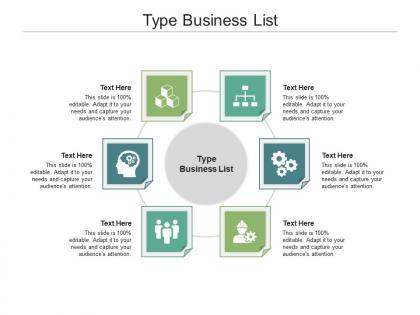
Type business list ppt powerpoint presentation slides design ideas cpb




Try Before you Buy Download Free Sample Product
 Impress Your
 Audience
 100%
100% Editable
 Save Hours
 of Time


Our Type Business List Ppt Powerpoint Presentation Slides Design Ideas Cpb are topically designed to provide an attractive backdrop to any subject. Use them to look like a presentation pro.
People who downloaded this PowerPoint presentation also viewed the following :
Type business list ppt powerpoint presentation slides design ideas cpb with all 2 slides:
Use our Type Business List Ppt Powerpoint Presentation Slides Design Ideas Cpb to effectively help you save your valuable time. They are readymade to fit into any presentation structure.
FAQs for Type business list ppt powerpoint presentation slides
For your business list template, throw in clear headers - company names, contact details, industry types, revenue/employee counts. Don't forget columns for status updates and priority levels. Honestly, the "last contact date" field will save your butt because you'll totally blank on when you talked to someone last. Add notes sections too since context is everything when you're managing tons of prospects. Keep it clean and sortable so you can filter however you need. Oh, and start basic - you can always make it fancier later once you figure out what actually works for your workflow.
Lists are honestly a game-changer for presentations because nobody wants to sit through someone just rambling on forever. They break everything into bite-sized pieces that actually make sense. Your audience can follow along way easier, and they'll remember what you said later too. I always start each point with action words when I can - makes it feel more dynamic. Oh, and here's the cool part: you can reveal each item one at a time to keep people guessing what's next. It's like giving your whole presentation some structure so it doesn't fall apart.
Honestly, any business tracking contacts or leads can use these templates, but sales and marketing teams get the most out of them. Real estate agents are obsessed with them - makes sense when you're juggling tons of leads and properties. Manufacturing companies use them for supplier stuff constantly. I swear, how did anyone manage vendors before Excel? Professional services like lawyers and accountants depend on them too for client management. My advice? Grab a basic template first, then tweak it for whatever weird data points your industry actually needs. Way easier than starting from scratch.
Start with typography and spacing - that's where you'll see the biggest impact. Alternate your row colors or throw in some subtle borders so people can actually scan through without getting lost. Icons are solid for showing business types, just don't get carried away with like 20 different pizza variations (I've seen this happen lol). Your contact info needs good contrast and readable fonts. Give everything room to breathe - cramped directories look terrible. Oh, and definitely check how it looks on mobile since that's probably where most people will see it. Build simple first, then add the fancy stuff.
Dude, adding stats to your business list is a total game-changer. Nobody wants to dig through just company names - that's useless. Include stuff like revenue, growth rates, or employee counts so people can actually filter and find what they're looking for. Makes it way more valuable. Like, if I'm an investor, I want to see annual revenue right away. For buyers, maybe customer satisfaction scores work better. Pick 2-3 metrics that matter to whoever's using your list. Trust me, the data turns a boring directory into something people will bookmark and come back to.
Don't go overboard with too many companies - it just confuses people. I learned this the hard way when I crammed like 50 businesses into one presentation and everyone's eyes glazed over. Check that your companies are actually still around too. Nothing worse than featuring a place that closed two years ago. Group them smartly - by size, location, whatever makes sense for your point. Double-check names and details because typos make you look sloppy. Oh, and maybe have some backup options ready? You never know when you'll need to swap something out last minute.
Look at your customer data first - who's actually buying your stuff? Find the patterns there. Age, income, where they live, what industry they're in. That's your starting point. Break your lists into separate groups after that. Tech startups need completely different messaging than, say, retail stores. Pretty obvious but you'd be surprised how many people blast the same email to everyone. Try different platforms too. LinkedIn works great for B2B executives, Facebook's better for local businesses. Oh, and definitely test small batches before you go all-in on something. I learned that one the hard way! Scale up whatever's actually working for each group.
Honestly, I'd start with customization - you need something where you can easily tweak fields and add your own columns. Excel's probably your best bet since it works everywhere, though Google Sheets is solid if your team needs to collaborate. Make sure it has the basics covered: contact details, industry types, revenue brackets, that kind of stuff. Built-in sorting is clutch because you'll definitely want to filter things later. Oh, and definitely preview before downloading - some templates look decent but are actually a pain to work with. Trust me on that one.
Look, business lists are way more powerful than people think. You can actually create a story arc with them instead of just throwing random facts at people. Start with the problem, build tension, then hit them with your solution at the end. Or go chronological - show where you are now versus where you could be. It's like plotting out a story but with bullet points instead of characters (which sounds weird when I put it that way, but whatever). The order matters so much. Each point should set up the next one. Try organizing your next list by impact level and you'll see what I mean.
Oh totally, colors actually make a huge difference! Blue and green are your friends for anything clients will see - they scream "professional." Red's tricky though. Creates urgency but honestly? I went overboard with it last year and people hated it. For internal stuff, stick with black or gray since you'll be staring at those lists forever. Match the vibe to who's using it, you know? Start neutral, then throw in one accent color for the important stuff. Trust me, it's worth thinking about.
Dude, visual hierarchies are a game changer for business lists. Make company names bigger than contact info, use bold headers, maybe throw in some indented bullet points. Different font weights help too - whatever makes the important stuff pop first. Honestly, I'm probably overthinking this but it's like... your brain just flows better from main details down to the smaller stuff. Short sentences work. Longer ones with actual rhythm keep people reading instead of giving up halfway through those awful wall-of-text lists we've all suffered through.
Honestly, just use tiny footnote numbers next to your data points - keeps things clean. I'd put sources either at the bottom of each slide or dump them all on a reference slide at the end. Citations in the middle of content are the worst, they totally break up your flow. When you're actually presenting, casually drop in "McKinsey found this in their 2024 report" or whatever. Format should stay consistent though: company, report name, date. The whole point is letting people check your sources later without boring them to death during your actual pitch. Oh and use asterisks sometimes instead of numbers - breaks up the pattern a bit.
Honestly, just make everything bigger and simpler for virtual stuff. Dense text looks terrible when you're screen sharing - I learned this the hard way. Break everything into bullet points with more white space between sections. Maybe throw in some color coding or basic icons to separate different business types? Also check that your template actually fits normal screen sizes. Oh, and definitely test it first by screen sharing with someone because what looks good on your monitor might be totally unreadable on theirs. Trust me on this one.
Look at your click-through rates first - that's where the real magic happens. Track how long people spend on each list item and conversion percentages too. Honestly, I'm weirdly obsessed with bounce rates because they don't lie about whether your content actually connects. Engagement rates matter, obviously. But also watch for follow-up meeting requests and feedback scores since those show genuine interest, not just polite nodding. Compare everything before and after you tweak your lists - that's how you'll know what's actually moving the needle. Start with maybe 2-3 metrics that match your main goals, then build from there once tracking becomes second nature.
Your boring text lists need some life, trust me. Icons and charts make data way more digestible. Videos work amazing for explaining tricky stuff - I've seen engagement jump like crazy when people add them. Interactive elements are huge too, like clickable sections. Audio clips hit different for testimonials (something about hearing actual voices). Don't just randomly throw multimedia everywhere though - match it to what you're actually trying to say. Honestly, pure text feels pretty outdated now. Start with one element that genuinely helps explain your content better and see how people react to it.
-
Innovative and attractive designs.
-
Designs have enough space to add content.
-
Great designs, Easily Editable.
-
Out of the box and creative design.
-
Very unique, user-friendly presentation interface.
-
Helpful product design for delivering presentation.