

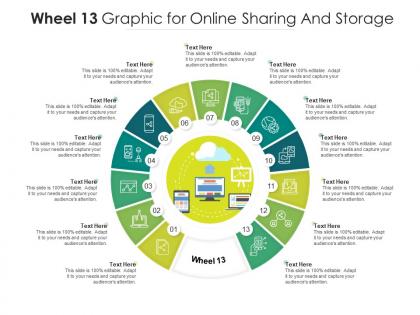
Wheel 13 graphic for online sharing and storage infographic template




Try Before you Buy Download Free Sample Product
 Impress Your
 Audience
 100%
100% Editable
 Save Hours
 of Time


Professionals belonging to any sector can use this set titled Wheel 13 Graphic For Online Sharing And Storage Infographic Template. From managers, executives to lower level employees, every individual can use this tool to present insightful details and implications in a well structured format. Various charts and graphs are added to this infographic design that makes it a resourceful set. Not only will this add to the informative qualities of this template, but it also makes it an instant attention grabber. Apart from this, it offers at a glance view of the topics, thus simplifying complex concepts. This helps in retaining the information presented for a long time. The biggest quality of this template is its visual elements, all added to elevate the aesthetic appeal of the presentation. Therefore download this template and present a customized version of it without any trouble.
People who downloaded this PowerPoint presentation also viewed the following :
Wheel 13 graphic for online sharing and storage infographic template with all 2 slides:
Use our Wheel 13 Graphic For Online Sharing And Storage Infographic Template to effectively help you save your valuable time. They are readymade to fit into any presentation structure.

FAQs for Wheel 13 graphic for online sharing and
Honestly, I love the Wheel 13 template because it breaks that boring even-number pattern most templates follow. You get 13 segments instead of the usual 8 or 12, which is oddly refreshing. Each segment's big enough to actually read but won't overwhelm people with too much info. The center works perfectly for your logo or main theme. You can customize colors and icons for each section too. It's solid for quarterly reviews, project timelines, or really anything where you need to show connected elements. Sometimes the odd number throws people off at first, but they get used to it.
Okay so Wheel 13 is actually pretty cool - it makes boring content way more engaging. Instead of just listing stuff with bullet points (which honestly puts people to sleep), you can break down complicated processes or show how different ideas connect. The whole circular thing naturally draws your eye around, and you can reveal pieces one by one for that dramatic effect. People remember visual stuff way better too. I've been using it for strategy presentations and process walkthroughs lately. Works really well when you want that "oh I get it now" moment from your audience.
Oh totally! Start with changing up the colors and fonts - that's usually the biggest visual impact. The segments are super flexible too, you can throw in icons or images instead of boring text. Background stuff is easy to swap out for logos or whatever theme you're going for. Honestly the font choices make a huge difference, way more than you'd think. You can mess with borders, add seasonal graphics, basically make it look however you want. I'd probably tackle the color scheme first since that affects everything else, then just work through the other elements so it doesn't look totally random.
So Wheel 13 is perfect when you've got like 8-13 things that all connect to one main idea. Business processes, team structures, project phases - that kind of stuff. I've seen people use it for marketing strategies too, which actually looked pretty slick. The trick is your center concept has to be solid enough to hold everything together. Otherwise it just looks messy. Definitely sketch it out first though - you'll know pretty quick if your content fits that hub-and-spoke thing or if you should try something else instead.
Honestly, that Wheel 13 thing is pretty clever - it breaks everything into 13 chunks so you're not drowning in info. Your main idea sits right in the center, then all the supporting stuff radiates out from there. It's way easier to follow than those boring linear layouts. Each segment gets its own space, which is nice because our brains love that kind of organization. Oh, and definitely use different colors for each section - makes it pop and helps people track where they are. The circular flow just feels more natural somehow.
Before you buy it, make sure Wheel 13 works with whatever software you're using. Adobe Creative Suite handles most formats fine - AI, PSD, EPS, SVG. But if you're on Figma or Canva, hunt down the PNG or SVG versions specifically. Some templates are weirdly picky about software versions too, which is annoying. Oh, and check what fonts they used - nothing worse than opening a file and seeing that ugly font substitution message. I always grab the preview files first to test things out. Saves you from buyer's remorse later.
Yeah, totally! I've used Wheel 13 in both places and it works really well. Corporate folks love it for project phases or quarterly stuff. Teachers use it for curriculum planning all the time. What's cool is how people get creative with it - I saw someone use it for team roles once and it looked amazing. Both audiences just get circular visuals, you know? Makes everything less overwhelming. Just switch up the colors and words to match whoever you're presenting to. Oh, and don't overthink it - the template does most of the work for you.
Okay so with Wheel 13, stick your main theme or character right in the center hub. Then spread your 13 biggest plot points or story beats around the outside segments. Honestly this template is genius because it makes you see how everything ties back to your core story. Quick tip though - don't jam-pack some segments while barely filling others. Try to balance it out. Oh and use the same colors or little icons for related stuff so you can spot connections easily. I'd sketch out what your 13 key pieces are first, then make it look pretty after.
The Wheel 13 thing is actually pretty smart - it splits messy data into 13 clean chunks so people don't get overwhelmed. Each slice can be different categories, time periods, whatever you need. What's cool is how the circular shape helps you spot connections between data points that you'd totally miss in boring spreadsheets. I always color-code mine to group similar stuff together. Oh, and pro tip - put your most important info at the top (12 o'clock spot) since that's where people look first. Honestly beats staring at rows of numbers any day.
So far people are really liking Wheel 13! The drag-and-drop thing is super intuitive, and everyone's into the color customization. Main gripes are about text formatting - they want way more font choices. Export quality for print stuff could be better too. Mobile editing is kinda rough from what I'm hearing. But honestly? Most of the feedback's been pretty good. Oh, and definitely peek at those user reviews in the dashboard before you pitch it to clients - gives you the real scoop on what you're getting into.
Dude, try the Wheel 13 template - it's super flexible. Works for timelines, processes, comparisons, whatever you need really. Most templates lock you into one specific layout but this one lets you mess with the segments however you want. I've literally seen people use it for project phases AND customer journey maps (random combo but it worked). Perfect when your data doesn't flow in a straight line. The circular thing just makes sense for interconnected stuff or anything that cycles back on itself. Definitely worth testing out next time you're presenting complex concepts that need to connect.
Don't cram too much text in each section - the font gets tiny and nobody can read it. Two colors max, maybe three if you're feeling fancy. Otherwise it looks like a kid's art project gone wrong. Your central idea needs to actually connect to all 13 segments too. I learned this the hard way when mine looked completely random lol. Oh, and test the text size! Print it out first or you'll be squinting at your own work later. Start with the main concept in the middle, then build outward with stuff that actually relates.
So the Wheel 13 template is basically a lifesaver when you need to organize complex stuff into 13 sections around a center point. Instead of staring at a blank slide forever, you just dump your content into the existing framework. Super helpful for processes or timelines that need to look professional but you're pressed for time. It handles all the spacing automatically – honestly, I used to spend way too much time fiddling with alignment. Just swap the colors to match your brand and you're done. Saves literally hours of design headaches.
Keep each part super short - like 3-5 words max. Use colors that actually contrast so people can see the difference. Put your biggest points in the larger sections, smaller details in the tiny ones. Don't stuff everything in there or nobody in the back will read it! Icons work way better than just text - they stick in people's heads. Oh, and start from the middle then work out. One thing I learned the hard way: check how it looks at actual presentation size first. What seems fine on your laptop screen can look ridiculously small when projected.
Honestly, color choice makes a huge difference in how people read your data. Warm colors like red grab attention first - blues and greens just sit there looking neutral. Use high contrast between segments so they don't blur together. If you've got brand colors, throw those on your most important data points. The default palette isn't terrible, but... I dunno, I always end up tweaking it. You'll get way better results if the colors actually match what you're trying to emphasize instead of just using whatever's there.
-
Unique and attractive product design.
-
Great experience, I would definitely use your services further.
-
Colors used are bright and distinctive.
-
Awesomely designed templates, Easy to understand.