


12 Functions Of Computer Operating System





Try Before you Buy Download Free Sample Product
 Impress Your
Audience
 100%
Editable
 Save Hours
of Time


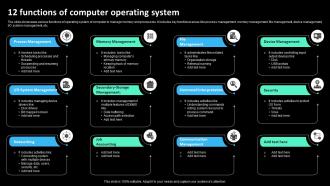
The slide showcases various functions of operating system of computer to manage memory and processors. It includes key functional areas like process management, memory management, file management, device management, I O system management, etc.
People who downloaded this PowerPoint presentation also viewed the following :
12 Functions Of Computer Operating System with all 6 slides:
Use our 12 Functions Of Computer Operating System to effectively help you save your valuable time. They are readymade to fit into any presentation structure.




FAQs for 12 Functions Of
So your OS does four big things: manages hardware like CPU and memory, runs all your programs without them crashing into each other, gives you that interface to actually use the computer, and handles security stuff. It's basically the translator between you and all the computer's guts. Also deals with networking and drivers - honestly pretty impressive when you think about it. When your computer's being slow? Usually means the OS is trying to juggle way too much at once. Without it you'd just have expensive paperweight basically.
So basically your OS is like a bouncer deciding who gets what resources. Programs can't just grab CPU time whenever they want - the OS schedules everything so nothing crashes into each other. Same deal with memory and file access. Without it? Total chaos, honestly. Everything would be fighting for the same stuff and your computer would be a mess. It uses interrupts and system calls to keep things organized, which sounds boring but it's actually pretty clever. Otherwise you'd have programs hogging all the RAM while others just die.
Think of your OS as that friend who's really good at organizing parties - it's constantly deciding which apps get to use the CPU and when. New programs? It creates processes for them. Multiple things running? It switches between them crazy fast so you don't notice. Honestly, the whole priority system is pretty smart - your system stuff gets handled before Netflix starts buffering. When your computer's being sluggish, that's usually the scheduler going nuts trying to balance everything. It also cleans up the mess when programs crash, which happens more than we'd like.
Your OS basically has a bunch of security layers working together. User authentication and file permissions control who can access what files. There's also encryption for sensitive stuff and memory protection so programs can't mess with each other. Honestly, newer operating systems are pretty obsessive about security - which is good! Features like secure boot and app sandboxing limit what programs can actually do. Oh, and definitely keep your system updated. Those security patches fix vulnerabilities that hackers are constantly finding. It's annoying but worth it.
So basically, single-tasking systems can only handle one program at a time - like old DOS where you'd literally have to quit your word processor just to open calculator (so annoying lol). Multi-tasking systems are way smarter though. They use time-slicing to bounce between different programs super fast, which makes it seem like everything's running together. Your phone does this constantly - music playing while you text, browse, whatever. Unless you're doing some really basic embedded stuff, everything today is built for multi-tasking. Makes life so much easier honestly.
So basically your OS is like a translator between apps and hardware. Your program wants to read a file? It asks the OS through system calls, then the OS deals with all the complicated hardware stuff. There's buffering and queuing happening too so your computer doesn't completely die every time you save something. Pretty cool system honestly. Oh and here's a debugging tip - when you're dealing with I/O problems, figure out if it's your app being weird or if the OS is actually throwing errors first. Saves you from going down random rabbit holes for hours.
So system calls are basically how your app talks to the operating system kernel. Your program can't just access hardware directly (that'd be chaos), so it has to politely ask the OS to handle stuff like file operations, memory allocation, network requests. The OS acts like a bouncer - checks if your request is legit, runs it in kernel mode, then sends back the results. Pretty neat setup honestly. When you're trying to figure out why your code is slow, looking at what system calls it's making can reveal some serious bottlenecks. Way more useful than you'd think.
So basically, your OS is doing all the behind-the-scenes work for UI stuff. It talks to display drivers, manages how apps draw things on screen, handles your mouse clicks and keyboard input. Honestly it's kinda crazy how much has to happen just so you can drag a window around - like there's SO much coordination going on. The OS also gives developers those standard components you see everywhere (file browsers, dialog boxes, etc.) which is why apps on Mac all look "Mac-ish" if that makes sense. Bottom line though, when you're building software the OS handles most of the UI headaches for you.
So basically your OS uses this layered system to keep track of everything. It's got file allocation tables (or inodes) that know exactly where your stuff sits on the disk. Everything gets organized in those folder tree structures we're used to. The cool part? You don't have to think about disk sectors or any of that technical mess when saving files. Different systems like NTFS or ext4 handle things their own way, but they all give you the same simple interface. Honestly, it's like having a super organized digital filing cabinet that just works. Pretty neat how much complexity gets hidden from us.
So basically, device drivers are like translators for your computer. Your OS has no clue how to talk to your graphics card or printer without them - it's kinda like needing an interpreter between two people who speak different languages. Hardware all has its own "language" and drivers convert your computer's commands into stuff the hardware actually understands. That's why you gotta install drivers when you plug in new stuff sometimes. Oh and definitely keep them updated or your computer might start acting weird or crashing on you.
So basically your OS does all the heavy lifting with network stuff through these layered protocol stacks. The kernel manages your TCP/UDP connections, routing tables, all that jazz. Apps can just use simple APIs instead of dealing with messy packet details - which honestly saves everyone's sanity. Buffer management and error correction? Handled automatically. Security policies too. Most systems throw in firewalls and monitoring tools as well. Oh, and if something's acting weird with your connection, check the network config tools first before you go down any rabbit holes. System logs are your friend there.
So your computer basically tricks programs into thinking they have way more memory than they actually do. It breaks RAM into these chunks called pages and maps them to virtual addresses. There's also segmentation which groups similar stuff together - like keeping code separate from data. But here's the really clever bit: when you're not using certain pages, the system quietly moves them to your hard drive. That's why sometimes your laptop suddenly starts chugging - it's probably swapping memory back and forth like crazy. The OS also uses different algorithms to decide where to put new stuff so it doesn't waste space.
So basically it's about where stuff runs. Monolithic kernels throw everything into kernel space - drivers, file systems, memory stuff, all of it. Super fast but yeah, one bad driver kills everything (classic Windows moment lol). Microkernels are the opposite - they keep most services in user space, only core basics stay in kernel mode. Way more stable since things are separated, but you get slowdown from all the components talking to each other. Linux is monolithic, QNX is microkernel. Really depends if you care more about speed or not crashing constantly.
So the main issue is resource contention - when you add more cores or users, everything starts fighting over the same stuff. Memory allocation gets messy. Lock contention becomes brutal when threads compete. Cache coherency? Total headache honestly. Traditional sync methods that work great on small systems will absolutely destroy performance at scale. I/O scheduling starts choking too. The trick is planning for this mess early on. Pick architectures that actually scale sideways instead of just cramming more hardware in and hoping it works. Way better than dealing with bottlenecks later.
So your OS basically acts like the middleman here. It runs hypervisors (KVM, Hyper-V) that trick VMs into thinking they have their own hardware. Containers work differently though - Docker uses kernel tricks like namespaces to keep processes separated without needing fake hardware. VMs are like having separate apartments, containers are more like roommates with really good boundaries. Honestly, Docker's way easier to wrap your head around when you're starting out. VMs eat up more resources but you get total isolation. Play with containers first, then maybe mess with VMs later.
-
I was really impressed with the presentation I created with their templates. I’ll be using their services moving forward.
-
Content of slide is easy to understand and edit.