

Service Process Flow Chart To Resolve Customer Complaint




Try Before you Buy Download Free Sample Product
 Impress Your
 Audience
 100%
100% Editable
 Save Hours
 of Time


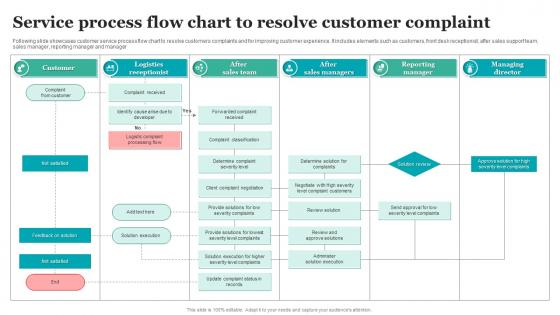
Following slide showcases customer service process flow chart to resolve customers complaints and for improving customer experience. It includes elements such as customers, front desk receptionist, after sales support team, sales manager, reporting manager and manager.
People who downloaded this PowerPoint presentation also viewed the following :
Service Process Flow Chart To Resolve Customer Complaint with all 6 slides:
Use our Service Process Flow Chart To Resolve Customer Complaint to effectively help you save your valuable time. They are readymade to fit into any presentation structure.


FAQs for Service Process Flow Chart To
So you'll need start/end points, decision spots, and all the handoffs between teams. Map the customer's actual journey - where they come in, what happens to them, where they bail out. Wait times are huge (seriously, people lose their minds over waiting). Also grab the failure points because those bite you later. Oh, and mark who owns each step plus what systems they're using. The trick? Start from the customer's view and work backward - makes way more sense that way. Be specific enough that someone could actually follow your map and not screw it up.
Honestly, process flow charts are game-changers for catching bottlenecks and useless steps. You can actually see where things get stuck or where you're wasting time on stuff that doesn't matter. Training new people becomes so much easier too - they just follow the visual instead of memorizing a million steps. The best part? Your team will spot automation opportunities and figure out what can be cut or simplified. I'd start with whatever process is driving you crazy right now. You'll probably find some obvious fixes immediately that'll make you wonder why you didn't do this sooner.
Ugh, the worst thing you can do is overcomplicating it. Like seriously, don't dump every single detail into one flowchart - people will just check out immediately. Keep those boxes specific too. I hate when I see something like "handle stuff" because what does that even mean? Oh, and here's the thing - map what actually happens, not what's supposed to happen in a perfect world. Those are totally different processes half the time. Best test? Grab someone who's never seen it before and watch them try to follow along. If they're scratching their head, you need to dial it back.
Honestly, flow charts are amazing for finding bottlenecks. Map out your process step by step and you'll see exactly where things get jammed up. Time each stage - I bet you'll find the same spots always cause delays. Maybe it's that approval step that takes forever, or handoffs between departments that create chaos. The visual aspect makes it super obvious where you're losing time. It's kinda like looking at traffic from above and spotting where cars always back up. Once you identify your biggest time-wasters, you can actually do something about them instead of just wondering why everything takes so long.
Draw.io is probably your best bet - it's free and pretty solid for flowcharts. Lucidchart's another good option with nice templates, though you'll pay for it eventually. If your company has Microsoft stuff already, Visio works but honestly feels kinda dated compared to newer tools. Miro's awesome for team collaboration if that's what you need. I mean, even Google Drawings works for basic charts. Oh, and I'd definitely try Draw.io first since it won't cost you anything - then upgrade if you need fancier features.
Honestly, it's all about what your team actually does day-to-day. Customer service flows need those emotional beats - acknowledgment, empathy checks, follow-ups - since you're dealing with pissed off people who mainly want to feel heard. Tech support is way more diagnostic. Decision trees for troubleshooting, escalation based on how complex the issue is, clear handoffs between tiers. Here's the thing though - customer service is relationship-focused while tech support prioritizes solving problems fast. I'd start by mapping what your team's current workflow looks like, then tweak a template from there.
Okay so basically you've got ovals for start/end points, rectangles for any process steps, and diamonds when there's a decision to make. Circles are for connectors or waiting around. Oh, and triangles show storage stuff, plus those weird little "D" shapes for delays (which honestly happen way more than anyone wants to admit). Just connect everything with arrows so people know which direction things flow. Don't overcomplicate it though - your team needs to actually understand what they're looking at. These basic shapes will handle pretty much any service process you're trying to map out.
Honestly, you really need your team's input on this. They're doing the actual work every day, so they'll spot stuff you totally missed - like shortcuts people take or where things always get stuck. I've seen so many flowcharts that look perfect on paper but don't match what actually happens. Your team will tell you "oh we stopped doing step 3 months ago" or "there's this extra approval we always need." Start with the people who live in that process daily. Get their feedback first, then clean up your flowchart. Trust me, it'll save you from looking silly later.
Honestly, flow charts are a game-changer for training new people. You can show them step-by-step how everything connects instead of dumping a massive manual on their desk. Way less overwhelming. They'll actually see where departments hand things off to each other and figure out their role in the whole process. During those first couple weeks when everything feels chaotic, they can just glance at the chart to get back on track. I'd put laminated copies right at the workstations - sounds old school but it works. You can also point out the tricky spots during training sessions where people usually get confused.
Honestly, I'd say update it whenever something actually changes in your process - not just on some rigid schedule. Big stuff like new software or policy changes? Yeah, definitely update right away. For smaller tweaks though, you can probably wait and bundle a few together. I set a quarterly reminder just to glance at mine, even when nothing's changed. Trust me, you don't want to be that person handing someone a flowchart that's completely wrong. The whole point is that someone should be able to follow it without getting lost or missing steps. Three months feels about right for a check-in.
Look, flowcharts are honestly lifesavers for keeping your service quality on track. You document each step so everyone does things the same way - auditors eat that stuff up. When things go sideways (which happens more than we'd like), you can trace back through the chart to spot exactly where it broke down. New hires love them too since they don't have to guess the "right" process. Just don't be one of those teams that creates them once and forgets about them. Update regularly or they'll become useless wall art that doesn't match what you're actually doing.
Honestly, flowcharts work great as your main visual guide - then just connect each step to your detailed SOPs or work instructions. I'm obsessed with using hyperlinks in digital versions because you can instantly jump to the specifics. You could also drop flowcharts right into your process manuals as navigation tools. Think of it like this: the flowchart is your roadmap, while everything else fills in the details. Oh, and try making a master process map that ties all your existing docs together - sounds fancy but it's actually pretty straightforward once you get going.
Honestly, start with cycle time - that's your easiest win and shows you exactly how long each step drags on. Then look at bottlenecks (where stuff gets stuck) and error rates per stage. Customer handoff points are huge too since that's where things usually go sideways. You can literally watch your process bleed money, which is both depressing and helpful. Track completion rates and how often you're redoing work. Resource utilization matters but don't go crazy - pick maybe 2-3 metrics max at first. I made the mistake of tracking everything once and just ended up ignoring all the data. Focus on what you'll actually use.
Honestly, it totally depends who you're writing for. New team members? Give them everything - every single decision point and step. But executives just want the big picture stuff. I always start broad first, then add detail where people actually mess up (trust me, you'll figure out those spots pretty quick). Here's what works: aim for like 5-7 main steps initially. Then beef it up wherever there's a handoff or someone has to make a call. Best test? Hand it to someone who's never done the process. If they're not texting you questions, you nailed it.
Honestly, flowcharts are a game changer because people can actually *see* the process instead of wading through boring written procedures. No more "wait, what comes next?" confusion. The visual format instantly shows decision points and handoffs - way better than dense manuals nobody wants to read anyway. I've noticed they're great for catching bottlenecks that you'd totally miss in text descriptions. My advice? Start with your messiest, most confusing process first. Once everyone's looking at the same picture, alignment happens surprisingly fast. It's like suddenly speaking the same language.
-
Making a presentation has never been this easy for me. Thank you SlideTeam for offering a splendid template library.
-
If you have visited their site and failed to find the products, try reaching the customer service because it will be the case that you didn't use the search bar well.