

3 level vertical flow chart powerpoint templates





Try Before you Buy Download Free Sample Product
 Impress Your
 Audience
 100%
100% Editable
 Save Hours
 of Time


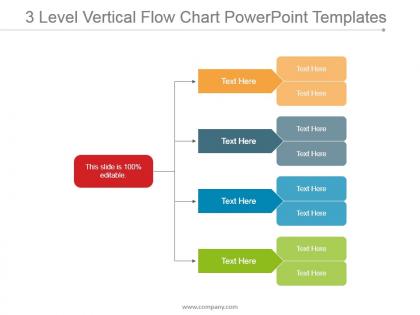
Showcase an effective workflow presentation using our readymade 3 level vertical flow chart PowerPoint templates. This slide can be put to use alone or in a full presentation deck. The workflow diagram PPT design is an important tool for simplifying complex business operations. Many times, there are some operations that cause conflicts which ultimately leads to decrease in productivity. You can use this template to make presentation on related topics such as flow process chart, activity diagram, flow control diagram, deployment flowchart, block diagram, process architecture, flow growth, algorithm, graphical shapes, visual logic. This will help an organization teach its new employees the instructions for new processes. The best part is that you can even add or reduce number of levels as per your need. Moreover, the boxes can be replaced with other shapes also. Download 3 level vertical flow chart presentation visual to make a swift and accurate decision in no time at all. The crowd feels like dancing with glee due to our 3 Level Vertical Flow Chart Powerpoint Templates. It inspires them to do the jig.
People who downloaded this PowerPoint presentation also viewed the following :
3 level vertical flow chart powerpoint templates with all 5 slides:
Do not let convention tie down your thoughts. Emancipate them with our 3 Level Vertical Flow Chart Powerpoint Templates.
FAQs for 3 level vertical flow
Honestly, vertical flowcharts are a game-changer for presentations. People naturally read top to bottom, so your audience won't get confused trying to follow some weird zigzag pattern. Complex stuff becomes way easier to digest when you break it down step by step. I've noticed they just fit better on slides too - horizontal ones always look cramped and awkward. Put your main idea at the top and let each step flow down naturally. Way fewer "can you go back?" questions from the audience. Trust me, it's like the difference between giving clear directions vs. making someone solve a puzzle.
Honestly, vertical flowcharts are so much better because we read top to bottom anyway. Your brain doesn't have to work as hard following the logic. They're perfect for showing processes step-by-step or any kind of hierarchy - each level builds naturally on the last one. Also fits way better on screens and when you print stuff out (horizontal ones always look weird). I'd use them for anything with clear stages. People actually get it instead of staring at your chart looking confused. Trust me, your stakeholders will thank you.
Look for templates where the shapes and connector lines actually line up - honestly, so many are just poorly designed. Good ones let you add or remove steps without everything going haywire. Text formatting matters too since nobody wants to squint at tiny unreadable labels. Multiple color schemes are nice, plus being able to resize stuff easily. Here's the thing though - some templates look amazing but are absolutely brutal to edit depending on your software. I'd grab a few free ones first to mess around with before spending money on the fancy versions.
Honestly, you'll find vertical flowcharts pretty much everywhere - manufacturing, healthcare, software, project management. Manufacturing teams use them for production lines and quality stuff (makes total sense given how assembly lines work). Healthcare's always mapping patient protocols and diagnostic steps with them. Software devs are constantly using vertical templates for workflows and debugging - though debugging flowcharts can get messy fast. Project managers love them for timelines and deliverables across basically every industry. My advice? If you're documenting any step-by-step process, just grab a vertical template first and see how it feels.
Honestly, vertical flow charts are game-changers for getting everyone aligned. No more awkward meetings where half the team is like "wait, what step are we on?" They're so much cleaner than horizontal ones - I hate having to scan left and right constantly. Your team can actually see where stuff gets stuck or handed off between people. That's usually where projects fall apart anyway. I started using them for our workflows last month and wow, the difference is huge. Everyone just gets it faster now. You should definitely try one on your next project!
Honestly, I'd go with Lucidchart first - the interface just makes sense and sharing stuff with teammates is painless. Visio's solid too if you're already using Microsoft everything. Canva works great for prettier charts that don't need to be super technical. Oh, and definitely check out Draw.io since it's free and actually pretty decent (I was surprised). Microsoft's probably overkill if you just need something simple though. Try the free versions first - you'll know pretty quickly which one feels right for how you work.
Yeah, totally! Most template platforms make it pretty easy to swap colors, fonts, and shapes to match your brand. You can change icons, spacing, connector styles - basically everything. Honestly, templates are way better than starting from zero because of this flexibility. Just don't go crazy with changes that mess up readability. Oh, and throwing your logo on there is usually straightforward too. I'd pick a template that's already close to what you want though. Saves you from doing a complete redesign, which can be a pain.
Dude, don't cram a novel into each box - like 5-7 words max or people just bounce. Too many arrows branching everywhere? Total nightmare. I learned this the hard way lol. Keep your spacing clean and stick to maybe 2-3 colors. Same box sizes too, otherwise it looks messy. Short sentences work better than long ones. The real test? Show it to someone who's never seen your process before. If they squint or look confused, you've got more work to do. Simple beats clever every time with flowcharts.
Honestly? I usually go vertical since that's how we naturally read stuff. Works great for processes or anything with steps. But horizontal can be clutch when you've got wordy boxes - nobody wants to squint at tiny text crammed into narrow vertical spaces. Plus if you're presenting on a wide screen, horizontal just looks better. Vertical prints nicer on regular paper though. I'd say stick with vertical for most decision trees and basic processes, then flip to horizontal when your text gets heavy or you're doing landscape slides. Really just depends on what feels right for your specific thing.
Okay so color schemes totally make or break vertical flowcharts. Use consistent colors to group related stuff together - like all decision points in red or whatever. Max 3-4 colors though, otherwise it's chaos. High contrast is key so people can actually read it. Oh and don't forget about colorblind folks! If it's for clients, throw in your brand colors. For internal stuff I usually just do a blue-to-green thing because it looks clean and nobody complains. Trust me, I've seen some truly horrific rainbow flowcharts that made zero sense.
Totally! Start with consistent shapes for the same types of actions - makes it way easier to scan. Brief text in each box helps too. White space is clutch here, don't jam everything together or people get lost immediately. Try sticking to one main path instead of creating some crazy web of branches. Decision points are fine but make the yes/no super obvious with clear labels. Honestly, the best test? Have someone else walk through it. If they're confused, you probably need to simplify more. I learned this the hard way after making some ridiculously complicated flows that nobody could follow.
Vertical flowcharts are honestly the way to go for mapping project phases. Way easier to follow than horizontal ones - your brain just naturally reads top to bottom, you know? Drop in your key milestones, approval gates, and spots where things usually get messy. Super helpful when you're presenting to stakeholders since they can instantly spot dependencies and bottlenecks. I always grab a basic template first, then customize it with my actual project stages. Saves me from having to explain the same workflow twenty times to different people on my team.
So vertical flowcharts are great when your data follows a clear sequence - like step-by-step processes, decision trees, or org charts. Perfect for showing top-to-bottom flow. I'm always using them for project timelines because people can easily follow the logical progression without getting confused. But honestly? If you've got multiple parallel paths or crazy interconnections, you'll probably want something else. I'd start by just mapping out your main steps first - then see if they naturally flow downward. Makes sense for most approval processes and troubleshooting stuff too.
Yeah, so you can totally drop vertical flowcharts right into your e-learning modules. Most platforms like Articulate or Captivate will let you make them clickable - learners just work through each step. The top-to-bottom thing works great on screens anyway. Perfect for processes or decision trees, honestly. Oh, and definitely check they work on mobile since everyone's on their phones now. I'd start simple and maybe add some hover effects later? They're also solid as progress trackers if you want to show people where they are in a module. Way better than those boring bullet point lists.
Honestly, vertical flowcharts are way more useful than just work stuff. I love using them for personal goals - like mapping out career moves or workout plans step by step. They're perfect for troubleshooting too (seriously, make one for when your printer decides to be evil). Recipe tweaks, event planning, weekend decision trees - whatever needs organizing. The downward flow just makes sense to our brains, you know? Even something random like your morning routine works great as practice. Once you start, you'll probably find weird excuses to make them for everything.
-
Commendable slides with attractive designs. Extremely pleased with the fact that they are easy to modify. Great work!
-
Amazing product with appealing content and design.