


4 stages linear process flow powerpoint templates





Try Before you Buy Download Free Sample Product
 Impress Your
 Audience
 100%
100% Editable
 Save Hours
 of Time


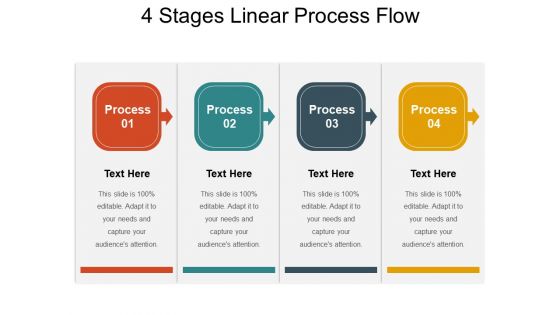
Show a process that progresses from one stage to another using 4 Stages Linear Process Flow PowerPoint Templates. Describe the continuous flow of work using a linear process flow chart. Show a series of four steps that are needed for the completion of a task with the help of the workflow PPT diagram. Use this process flowchart PPT template to improve the functioning of your business or organization. Enhance your organization's efficiency and boost its productivity with a well-organized process chart. Provide your employees with a streamlined functional process chart. Help your audience including investors, stakeholders and employees get a better understanding of a complex workflow with this process model PPT template. Effortlessly determine the sequence of the tasks with a business flow diagram PPT slide. Offer your audience a profound idea of your strategic plan and its streamlined execution with an impactful PowerPoint presentation made using process flow diagram PPT template.
People who downloaded this PowerPoint presentation also viewed the following :
4 stages linear process flow powerpoint templates with all 5 slides:
Ensure the existence of adequate back up with our 4 Stages Linear Process Flow Powerpoint Templates. Be able to create a fail safe design.
FAQs for 4 stages linear process
You need arrows or lines showing left-to-right flow, plus numbered boxes for each stage. Make them evenly spaced - wonky layouts look terrible. Each stage gets a clear title and maybe some icons or brief text underneath. Colors should either gradient across stages or stick to your brand colors consistently. Oh, and spacing matters more than people think! Your audience has to follow the sequence without scratching their heads about what comes next. Keep the visual hierarchy consistent so nothing jumps out weirdly. Sequential stages with directional indicators are basically the foundation here.
Honestly, 4-stage templates are a game changer because they force you to chunk everything down into bite-sized pieces. Your audience can actually follow along instead of drowning in info overload. It's like giving someone turn-by-turn directions rather than just tossing them a crumpled map. People's brains love that step-by-step flow - we're wired for stories, not data dumps. Plus your audience knows exactly where they are in your presentation. I used to ramble through complex processes until I tried this approach. Now my explanations actually make sense. You should definitely test it out next time you're explaining something complicated.
Honestly, manufacturing and project management teams get the most out of these 4-stage templates. Software development too - they're perfect for those step-by-step processes. Healthcare uses them all the time, and consulting firms are obsessed with them (probably because they love any structured framework). Finance teams rely on them for approval workflows. Your audience already thinks in stages anyway, so they'll follow along naturally. Oh, and education - curriculum design is basically built for this format. Short version: if your work has clear phases, these templates are gold.
Pick one main color and stick with it throughout - maybe add some accent colors that look good together. Your text needs high contrast so people can actually read it, and don't make the font tiny. Simple icons work best, honestly I waste so much time hunting for the "perfect" one when basic shapes do the job just fine. Short, snappy titles are your friend. Add the detailed stuff underneath in smaller text. Oh, and definitely walk through the whole thing out loud before you finalize it - you'd be surprised how many flows sound logical in your head but make zero sense when you actually say them.
So you want visuals above each stage - arrows, gears, checkmarks, whatever makes sense for your thing. Progress bars work too, or those numbered circles. Charts are solid if you've got actual data to show. Honestly? Most people dump way too much text when a simple visual would do the job. Keep everything the same style and size so it doesn't look like a hot mess. Oh, and use your brand colors to tie it all together - makes it feel way more professional than random colors everywhere.
Don't cram a novel into each step - people zone out quick. Short bullets work way better. Also make sure each stage feels equally important, otherwise the whole thing looks lopsided. Visual consistency matters too. I swear, some people use different fonts for every single box and it looks like a mess. Same colors, same spacing - just keep it clean. Oh and definitely run it by someone first! You'd be surprised how many "logical" processes make zero sense to fresh eyes.
So there's a few ways you can do this! Trigger animations are honestly the best - click on each stage and boom, details pop up right below it. Keeps everything clean on one slide. You could also set up hyperlinks that jump to detail slides, then link back to your main flow. PowerPoint's got built-in animation tools that make this pretty easy. Oh and hover effects are cool too if you want to get fancy with it. Just... definitely test everything first because I learned the hard way that broken links during a presentation are the worst.
So those 4-stage flows are honestly a game changer. Complex stuff becomes way easier to digest when you break it down like that. People won't zone out as much because they can actually track where you are in the process. Short sentences work great here. Then you can build into longer explanations when needed. The visual progression keeps everyone engaged - they know what's coming next instead of feeling lost. I always throw in some icons or different colors for each stage. Makes it stick better. Oh, and you get natural stopping points to check if people are following along, which is clutch for those marathon presentations that nobody wants to sit through.
Oh man, colors totally make or break process flows. I'd go with something that naturally progresses - maybe light to dark or colors that just feel like they belong together? Don't do what I did and pick random bright colors that made everyone's eyes ping-pong around the slide lol. Your brand colors work great if each step still looks different enough. Honestly, the gradient approach usually looks pretty clean. Just run it by someone else first - what makes sense to you might be confusing to them. Trust me on that one.
Honestly, just treat each stage like a chapter in a story. Pick a main character or problem to follow through the whole thing. Stage 1 is where they hit the problem, stages 2-3 show them struggling through obstacles and figuring stuff out, then stage 4 wraps it up. I've done this with customer journey presentations before - way better than those awful bullet point slides everyone hates. Keep your colors and icons consistent so it all feels connected. The trick is making sure people can actually follow one story from start to finish instead of just... four random steps thrown together.
Honestly, Google Slides is probably your best bet - it's free and everyone knows how to use it. Canva has some really nice templates that make PowerPoint look kinda dated. If you need something more heavy-duty, Lucidchart is solid for diagrams, or there's Draw.io which is free too. Keynote's great if you're on Mac. Oh, and Figma works surprisingly well for this stuff, though it's technically a design tool. Miro's another option but might be overkill for just a simple 4-stage flow. I'd just start with Google Slides and see how it goes.
Yeah, this stuff actually matters more than people think. Western audiences expect left-to-right flow, but flip that for Middle Eastern or some Asian cultures who read right-to-left. Color choices can totally backfire too - red screams danger to some people but means good luck to others. Top-down layouts work great for hierarchical cultures, while horizontal flows feel more natural for egalitarian ones. I'd definitely check your audience's background first. Oh, and arrow directions should match their reading patterns or it just looks weird. Small tweaks to orientation and colors make a huge difference.
Honestly, the typography can make or break your whole flow chart. Make your stage headers big and bold, then use smaller text for the details below. I'd stick with clean fonts like Arial - serif ones get messy on slides. Keep everything large enough so people can actually read it from the back (learned that one the hard way). Don't go crazy with font variations either - 2 or 3 max or it'll look like a ransom note. Quick test: stand across the room and see if you can read everything before you present.
Honestly, just toss a quick survey slide at the end asking which stage hit different and what confused people. I always do a casual "Questions? Thoughts?" thing - works pretty well. Follow up with an email later, maybe 2-3 questions about how each stage flowed visually. Oh, and have colleagues watch for awkward transitions during your actual presentation. That's clutch. The whole trick is making feedback super easy to give, you know? Create a simple form that matches your four stages so you'll know exactly what needs fixing next time. Way better than guessing what went wrong.
Oh definitely go minimalist - white space makes everything look so much cleaner and your steps won't feel cramped together. Bold colors are perfect for separating each stage. Geometric shapes are everywhere right now (honestly getting a bit overdone but they still work). Try mixing fonts too - maybe bold headers with simple body text. Subtle animations can guide people through your flow naturally, which is pretty cool. But seriously, don't use all of these at once. I've seen way too many designs that looked like someone threw every trend at the wall. Pick two max or it'll just be visual chaos.
-
Much better than the original! Thanks for the quick turnaround.
-
Awesomely designed templates, Easy to understand.