

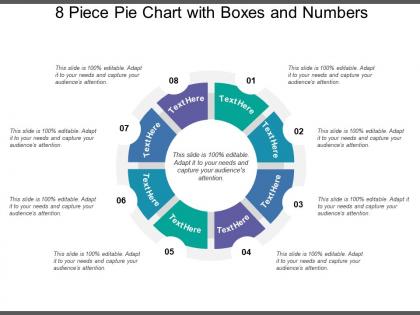
8 piece pie chart with boxes and numbers




Try Before you Buy Download Free Sample Product
 Impress Your
 Audience
 100%
100% Editable
 Save Hours
 of Time


Identify delay causing elements with our 8 Piece Pie Chart With Boxes And Numbers. Inefficiency will automatically end.
People who downloaded this PowerPoint presentation also viewed the following :
8 piece pie chart with boxes and numbers with all 6 slides:
Convince them of your concern with our 8 Piece Pie Chart With Boxes And Numbers. They will appreciate your handling of complaints.
FAQs for 8 piece pie chart with
Honestly, pie charts are perfect for showing how different pieces add up to make the whole thing. People get it right away - no math required, which is clutch when you're presenting to busy executives who want the quick version. I'd stick to maybe 5-7 slices max though, otherwise it gets messy. The visual hits different too - everyone understands the pie slice idea instinctively. Just double-check your percentages actually hit 100% (embarrassing when they don't!) and use colors that actually contrast so each section stands out. They're solid when you've got clear differences between your categories.
Stick to like 5-7 segments tops. More than that? Your audience won't be able to process it all. Honestly, I've seen pie charts with 15 tiny slivers and they're just painful to look at. Group your smaller stuff into "Other" instead of showing a million microscopic pieces nobody can read. Each slice needs to be big enough that you can actually see it and slap a label on there. Look at your data first, see what jumps out naturally, then smoosh together categories that are kinda similar. The whole point is people should get it immediately without squinting at your chart for five minutes.
Use pie charts when your data adds up to 100% - like budget breakdowns or survey results. Each slice should be a decent chunk that people can actually see (no tiny slivers). Don't go over 5-6 categories or it looks ridiculous. Your categories can't overlap either. I learned this the hard way in a presentation once. Skip them if you're showing trends over time - that's what line charts are for. Market share? Perfect. Demographic splits? Great. Comparing quarterly performance across regions? Nope, wrong tool entirely.
Honestly, colors can totally make or break your pie chart. High contrast between slices is key - nobody wants to squint at three different shades of blue that basically look identical. I'd stick with 6-7 colors tops because anything more gets chaotic fast. Try grouping related stuff in similar colors, or make your most important slice pop with something bold. Here's something most people skip: check how it looks in black and white. Seriously helps catch issues for colorblind folks or when someone inevitably prints it out on that ancient office printer.
Don't go crazy with too many slices - 5-7 max or people's eyes will glaze over. Skip the 3D effects too, they're honestly just distracting and mess with how the data looks. Put your biggest slice at 12 o'clock and work clockwise from there. Make sure the slices are different enough sizes that you can actually tell them apart. Oh, and use colors that contrast well - none of that light blue next to slightly lighter blue nonsense. If you can label right on the slices instead of making people hunt through a legend, you'll save everyone a headache.
Honestly, 3D pie charts are kind of a trap. They make some slices look way bigger or smaller than they actually are just because of where they sit in the "perspective." The ones in front seem more important while the back ones get weirdly minimized - it's like an optical illusion messing with people's heads. Your audience ends up getting the wrong idea about your actual data. Also, they just scream early 2000s PowerPoint vibes. Stick with regular flat charts instead. People will actually understand what you're showing them, and you won't look outdated.
Donut charts are honestly way better - they give you that clean center space and just look more modern. Half-pie works great too when you've only got a few categories to show. Oh, and if your data has layers to it, nested donuts or sunburst charts can be pretty slick for showing those hierarchies. Really depends on what story you're trying to tell though. I'd probably just mock up a couple different versions with your actual data and see which one makes the important stuff jump out. Sometimes you don't know what works until you actually see it, you know?
Honestly, pie charts can be pretty frustrating for a lot of people. First thing - use high contrast colors but don't rely on color alone. Add patterns or textures too. I always throw in data labels with actual percentages because expecting people to decode a legend is kinda annoying. Screen readers need those labels badly. Also, include a simple table with the same data alongside your chart. Some folks just prefer numbers laid out plainly. Oh, and definitely run your colors through one of those colorblind checker tools online - there are tons of free ones that'll save you headaches later.
Dude, you HAVE to label pie charts properly or people will have no clue what they're looking at. Put the category name plus the percentage right on each slice when possible. For tiny slices, those little lines pointing to labels work fine. Honestly, I hate when charts just have a legend off to the side - nobody wants to play the "match the color" game. Without clear labels, you're basically showing people a colorful circle and expecting them to figure it out. That's not helpful for anyone.
So here's the thing - pie charts actually work way better when you pair them with other chart types. Like, show market share with a pie chart, then throw in a line graph to track how each slice changed over time. Side-by-side layouts are perfect for this. Dashboards are honestly your best friend here since you can mix different chart types easily. Just don't go overboard with the pie charts (I've totally been guilty of this before). Each chart needs its own job in telling your story. Small multiples work great too if you're comparing different time periods. The pie handles the "what portion" question while bar or line charts tackle the "how it's changing" part.
Honestly just use Excel if you've got it - works great for basic pie charts and looks totally professional. Tableau's amazing but kind of a pain to learn unless you're really into data viz. Google Sheets is perfect when you need to share stuff quickly with people. Oh, and if your workplace already has Power BI, might as well use that. Canva's surprisingly good too if you want something prettier than the usual spreadsheet look. Really though, any of these will work fine once you fix the colors and make the labels not terrible. Start with whatever's already on your computer.
Yeah so if your pie slices look super similar, you've gotta put the actual percentages on there. I made this mistake once - had three sections that looked exactly the same but were actually 31%, 33%, and 36%. Total disaster. Sort them biggest to smallest and don't go crazy with the colors or you'll accidentally make one pop more than others. Honestly though? If you're dealing with like 6+ segments that are all close, just ditch the pie chart entirely. Bar charts are way easier to read than squinting at identical slices.
Keep it simple on mobile - 3-5 categories tops so your slices aren't tiny. High contrast colors are clutch since phone screens can look totally different depending on lighting. Make labels big enough that people don't have to zoom in (external ones work way better than stuffing text inside small slices). Honestly? If you've got a bunch of categories, just ditch the pie chart and go with horizontal bars instead. Way more readable on small screens. Oh, and definitely test it on your actual phone first - what looks fine on your laptop might be a mess on mobile.
Honestly, pie charts mess up when you cram too many tiny slices in there - like, who can actually tell if one sliver is bigger than another? They're also useless for showing changes over time or when your data doesn't represent a real "whole." Try to stick with maybe 5-6 categories tops. Always throw the actual percentages on there too, because eyeballing 23% vs 21% in pie form is basically impossible. If you're showing trends or need people to make precise comparisons, just go with a bar chart instead. Way clearer and your audience won't squint at your slides trying to decode tiny wedges.
Dude, interactive pie charts are so much better than static ones. People actually engage when they can hover over slices to see exact numbers or click to drill into subcategories. Your audience remembers stuff they can play with, you know? Like when someone hovers and sees "wow, 34% of customers are from the Northeast" - suddenly they're asking real questions instead of zoning out. Honestly, I always thought pie charts were kinda boring until I started adding filters where people can toggle different datasets. Start with hover tooltips though - they're super easy and instantly make everything feel more dynamic.
-
Presentation Design is very nice, good work with the content as well.
-
Wonderful templates design to use in business meetings.