

Three Layers Powerpoint PPT Template Bundles




Try Before you Buy Download Free Sample Product
 Impress Your
 Audience
 100%
100% Editable
 Save Hours
 of Time


Our Three Layers Powerpoint PPT Template Bundles are topically designed to provide an attractive backdrop to any subject. Use them to look like a presentation pro.
People who downloaded this PowerPoint presentation also viewed the following :
Three Layers Powerpoint PPT Template Bundles with all 16 slides:
Use our Three Layers Powerpoint PPT Template Bundles to effectively help you save your valuable time. They are readymade to fit into any presentation structure.

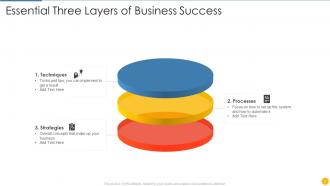
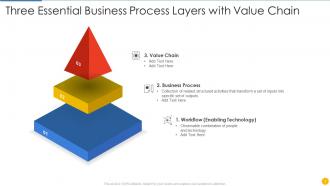
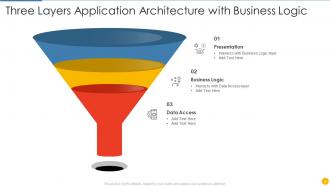



FAQs for Three Layers Powerpoint
Dude, you get so much more flexibility than those boring flat slides. With three layers, you can mess around with backgrounds, content, and accent stuff separately - no more breaking your whole layout when you change one thing. Honestly? It's pretty clutch for keeping presentations consistent. Your boss asks for "tiny changes" and you won't want to scream anymore since each layer works independently. Way faster edits. Plus everything looks more professional automatically, which is nice I guess. Definitely snag a bundle and try it on your next presentation.
So basically three layers create this cool depth thing that keeps people actually paying attention. Put your context stuff in back, main content in the middle, then your big highlights or CTAs up front. It's kinda like how movies do that focus thing - you know what I mean? Your eye naturally follows the path instead of getting hit with everything at once, which is honestly genius. Oh and pro tip - start with your most important stuff in the foreground then build backwards from there. Way more effective than just throwing everything on one flat layer.
So three-layer templates are solid when your content has natural levels - like strategic frameworks, process breakdowns, or org charts. Perfect for revealing info step-by-step without dumping everything on people at once. Business strategies work well, product features too. Also good for educational stuff where each layer builds on the last one. Here's the thing though - don't force it if your content doesn't actually need that structure. I've seen people overcomplicate things just because layered templates look fancy. Map out what you're trying to say first and see if it breaks into three meaningful chunks naturally.
Oh totally! Consulting and project management people swear by these three-layer templates. Tech companies use them constantly for product stuff and software presentations. They're perfect when you need to show how things connect hierarchically or break down messy processes - honestly, that's where they really work best. Healthcare, finance, manufacturing all love them for compliance docs too. Finance presentations can be so dry otherwise. Try it on your most complicated topic first and see how much easier it gets to organize everything in your head.
First thing - swap out those template colors for your brand ones. Go to Design > Variants > Colors > Customize Colors. Same spot for updating fonts to match your brand stuff. Oh, and the three-layer thing actually works pretty well for customizing, which is honestly nice since some templates are such a pain. Drop in your real logos instead of the placeholder ones. Update all that sample text with your actual content - make sure it sounds like you, not some corporate robot. Pro tip: save it as a custom template when you're finished so you don't have to redo this whole process next time.
So for three-layer slides, think visual hierarchy. Your background should be super subtle - just setting the mood. Content layer is where your main stuff lives, and accents just add some polish. High contrast is crucial or your text becomes unreadable (learned this the hard way lol). I'd start with your most important content first, then build everything else around it. Don't overcrowd any single layer - spacing matters way more than people think. Each layer needs a job: background sets tone, content delivers info, accents guide where people look. Honestly, alignment across all three layers will make you look way more professional than most people's messy slides.
Yeah, three-layer templates are awesome for animations! Each layer can move independently, so you get way more control over timing. Like, your background stays fixed while content slides in at different speeds - looks super clean. The whole setup makes adding buttons and navigation so much easier too since everything isn't crammed together. Oh, and definitely preview in presentation mode because I've learned the hard way that smooth editing doesn't always mean smooth presenting. Sometimes it gets glitchy for no reason. But overall, the layered approach is totally worth it for interactive stuff.
Dude, three-layer templates are honestly a game changer for presentations. Background stuff, your main content, then interactive bits on top - it stops people from zoning out on boring text walls. What's cool is you can reveal info bit by bit instead of dumping everything at once. Keeps them actually listening to you rather than reading ahead (which I totally do all the time, oops). Try one layer for context, main message in the middle, highlights on top. Your audience will actually pay attention for once. Short sentences work great too.
Yeah, they totally work! Just bump up your font sizes first - trust me, tiny text on a laptop screen is the worst. The layered thing is actually pretty smart for keeping people engaged during those never-ending Zoom calls. I'd maybe tone down the super detailed layers though, especially if people have sketchy internet. Oh, and definitely do a test run in presentation mode beforehand. You don't want to discover your slides look like garbage when you're already live. The structure helps break things up nicely instead of just dumping everything on one slide.
Don't stuff everything into one layer - that's like missing the whole point of layering in the first place. Also, tiny text is the worst. Nobody should need a magnifying glass for your slides. Colors that clash between layers? Hard pass. Simple animations work way better than those flashy transitions that make people dizzy (learned that the hard way). Each layer needs its own job, and they should flow together naturally. Oh, and start with your basic template structure before you mess around with colors and fonts to match your brand. Way easier that way.
Okay so here's what works for me - start with your big picture first, then add your main supporting points, then get into the weedy details and examples. Each layer should focus on just one core idea though, don't try to cram everything in at once. I always do this weird test where I imagine someone spacing out for like a minute - could they still follow along? If not, I need better transitions between sections. Oh and definitely preview what's coming in each layer so people aren't caught off guard. Honestly, the visual consistency thing matters more than you'd think - it helps people track where they are in your whole story.
Canva or Adobe Creative Suite are your best friends for custom graphics and icons. PowerPoint's SmartArt and Designer tool are honestly way better than people give them credit for - I use them all the time. The Morph transition in PowerPoint makes layer reveals look super smooth, which is clutch. Grab consistent imagery from Unsplash or your company's brand library. Oh, and Coolors.co is amazing for keeping your color palette cohesive across layers. Just start with one tool first though, don't overwhelm yourself trying to use everything at once.
Yeah, they're actually great for academic stuff! You can split things into methodology/findings/conclusions or theory/analysis/implications. The layered thing helps you build arguments step by step instead of dumping everything at once. We've all been in those brutal 50-slide presentations where you zone out after slide 3, right? Students stay way more engaged when you break complex concepts down this way. Just tweak the design to match whatever your school requires. Oh, and the progressive structure really works well for research presentations - keeps everything logical.
Break your content into three layers - overview, details, then specifics. Your main concept goes first, supporting details second, granular stuff last. Nobody wants to get hit with everything at once (seriously, I've seen people's eyes glaze over). Each layer should build on the one before it, creating a flow that walks people through step by step. The cool thing is each layer can work on its own while still fitting the bigger picture. I'd test it by explaining each layer separately first - you'll quickly see what works.
So basically you've got three layers working together - background for context, your main content in the middle, then foreground stuff for highlights. It creates this nice visual depth that just looks way more professional than flat designs. The cool thing is how it automatically guides people's eyes to the important stuff without you having to think too hard about it. Like, the hierarchy kinda builds itself? Just don't get crazy with layer animations though - learned that one the hard way. Keep those subtle or you'll end up looking amateur instead of polished.
-
Awesome presentation, really professional and easy to edit.
-
“I always have a wonderful experience with SlideTeam. It's my ""go to"" when I need a template.”