


Power Bi Powerpoint PPT Template Bundles





Try Before you Buy Download Free Sample Product
 Impress Your
 Audience
 100%
100% Editable
 Save Hours
 of Time


Our Power Bi Powerpoint PPT Template Bundles are topically designed to provide an attractive backdrop to any subject. Use them to look like a presentation pro.
People who downloaded this PowerPoint presentation also viewed the following :
Power Bi Powerpoint PPT Template Bundles with all 17 slides:
Use our Power Bi Powerpoint PPT Template Bundles to effectively help you save your valuable time. They are readymade to fit into any presentation structure.
-

Power BI Collection of 10 PowerPoint Templates
-
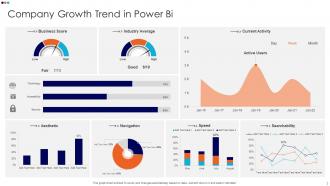
Company Growth Trend in Power BI
-
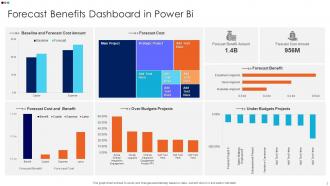
Forecast Benefits Dashboard in Power BI
-
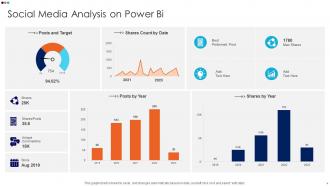
Social Media Analysis on Power BI
-

Employee Sick Data Represented by Power BI
-
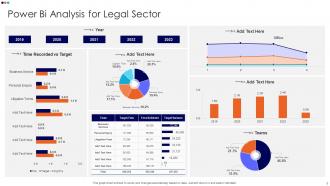
Power BI Analysis for Legal Sector
-
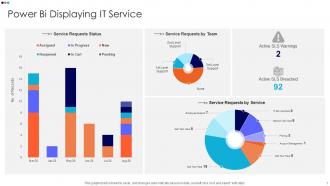
Power BI Displaying IT Service
-
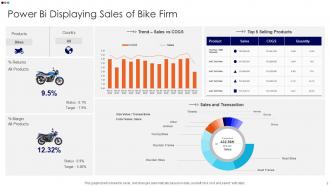
Power BI Displaying Sales of Bike Firm
-
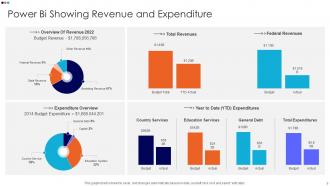
Power BI Showing Revenue and Expenditure
-
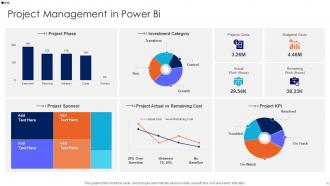
Project Management in Power BI
-
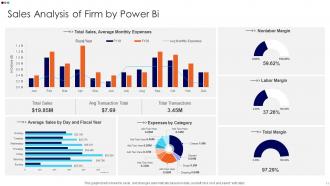
Sales Analysis of Firm by Power BI
-

Power Bi
-

-
-

-

-
FAQs for Power Bi Powerpoint
You'll get slides that automatically sync with your Power BI data - no more copying charts or dealing with stale numbers. Honestly, this alone is worth it. When you refresh, everything updates with the latest data, which saves me like an hour each time. Your company branding stays consistent too without rebuilding slides from zero. The template does all the annoying formatting stuff so you can actually focus on the story you're telling. Oh and you don't have to mess with fonts and colors every damn time. I'd probably start with just one template for whatever presentation you do most and test it out.
Honestly, templates are game-changers for Power BI presentations. Your data actually stands out instead of getting lost in messy formatting. Clean layouts keep people focused on your story rather than being distracted by random slide chaos. I used to waste so much time rebuilding designs every single presentation - never again. Templates give you proper visual hierarchy so key insights pop, plus consistent branding makes you look way more professional. Find one with dedicated spots for charts, KPIs, and your commentary. Trust me, you'll wonder how you ever presented without it.
Okay so for your PowerBI template, definitely start with a solid title slide - date range, what the dashboard actually covers, all that. I'd set up consistent layouts with spots for visuals and key takeaways. Oh, and always include where your data's coming from because someone will ask. Trust me on that one. Add an exec summary slide, maybe methodology if it's complex, plus next steps. The placeholder text thing is clutch when you're prepping last minute. Honestly, having this structure down will make your presentations way smoother and you won't be scrambling to organize your story every time.
So basically you can totally customize these Power BI PowerPoint templates for different groups. Change up the colors, fonts, chart styles - whatever works. Executives want those clean, high-level KPIs while your tech people need all the detailed breakdowns. Sales teams care about completely different stuff than operations, you know? The template thing is actually pretty flexible - you can switch up how you tell the story too. I'd start by figuring out your main audience types, then maybe build like 2-3 different versions that actually make sense to each group. Same data, just presented differently.
Dude, simplicity is everything with Power BI in PowerPoint. Your charts need to tell one clear story - don't cram everything in there. Make sure your colors match the presentation theme, and seriously, bump up that text size. I can't tell you how many times I've squinted at microscopic labels from the back of conference rooms lol. For big presentations, just export static images so you don't get screwed by wifi issues. Live connections are great for internal stuff when you need current data though. Oh, and screenshot your key visuals as backup - trust me on this one. Nothing's worse than your connection dying right when you're about to make your point.
Oh definitely start with the master slides before you add any Power BI stuff. Update your company colors, fonts, and logo in the slide master view first. I literally always skip this step and regret it later lol. Set up your brand colors as the default palette and lock in your standard fonts. Save it as a template so you don't have to redo this every single time. Smart move is creating different layouts for charts and data viz too. Your whole team can use the same template then, which keeps everything looking consistent. Trust me, it's way easier than fixing formatting after the fact.
Dude, Power BI templates will save your life with non-tech presentations. Instead of drowning people in spreadsheets, you get clean charts that actually tell a story. The templates do the heavy lifting - they break down your messy data into bite-sized pieces automatically. I always throw in text boxes to explain what the numbers mean for their specific team. Way better than watching people squint at raw data trying to figure out the point. Oh, and start basic with their simplest template first. You can always jazz it up later once you get the hang of it.
Honestly, I'd say monthly updates are a good starting point. But it really depends on your data - if you're tracking daily sales or live metrics, weekly makes way more sense. Monthly works fine for quarterly reviews though. Set a calendar reminder or you'll totally forget (learned that the hard way). Match your update schedule to how fast your data actually changes and what your audience expects. There's literally nothing more awkward than realizing mid-presentation that you're showing last month's numbers. Trust me on that one.
First thing - don't cram too much stuff on each slide. Your audience will just zone out. Also, pick your fonts and colors and stick with them throughout the whole thing. I swear, nothing looks more amateur than random formatting everywhere. Make your placeholder text actually useful too, not just "insert chart here" garbage. Oh, and here's something that bit me once - always check how it looks after you export from Power BI to PowerPoint. The formatting can get weird sometimes. Simple and consistent wins every time.
So there's this Power BI add-in you can grab from the Office store that lets you embed actual live reports right into your slides. Game changer, honestly. People can click around and filter stuff like they're in the real Power BI dashboard. If that doesn't work, you could always go with static visuals that link back to full reports, or just use PowerPoint's basic interactive stuff - clickable shapes, hyperlinks between slides, whatever. Oh, and heads up - your audience needs access to the Power BI workspace for the live stuff to actually work. I'd test it with something simple first.
Hey! So for Power BI presentations, bar charts and line graphs are definitely your go-to. Simple pie charts work too. Just avoid cramped tables - nobody can read those from the back row, trust me on this one. KPI cards are perfect for showing your main numbers right up front. Make sure your text is actually readable (if you're squinting at your laptop, forget about it on the projector). Oh and keep your colors consistent throughout. I always test everything beforehand because there's nothing worse than realizing mid-presentation that half your charts look like garbage on the big screen.
Honestly, your color choices can totally tank a presentation if you're not careful. I've watched people squint at red-green charts they literally couldn't read - super awkward. Stick with your company's colors and make sure there's enough contrast between elements. Your data will actually be readable, plus it'll look way more professional. Oh, and definitely check how it looks on different screens first! I learned that one the hard way when my "perfect" blues turned into muddy grays on the projector. Consistent colors keep people focused on what you're saying instead of wondering why everything looks like a rainbow threw up.
Honestly, font choice makes or breaks your Power BI template. Go with something clean like Segoe UI or Calibri - trust me, comic sans isn't doing anyone favors in data viz. Your audience needs to read this stuff on different screens, so sans-serif fonts work best. Keep everything consistent across slides and match your brand colors if you've got them. Oh, and make sure there's good contrast between your headers and body text. People should be able to scan quickly and actually understand what they're looking at without squinting.
Honestly, templates are a game-changer for team stuff. Everyone starts from the same place, so you don't get that weird mix where one person's charts look super fancy and another's are... well, basic. Been in meetings like that - it's distracting. Your team can actually focus on the important part (the data) instead of wrestling with fonts and colors. When someone needs to jump in and edit Sarah's deck or build off Mike's work, everything just clicks because it's all familiar. Set it up once, share it around, and boom - way less back-and-forth confusion.
Get a Power BI template with responsive layouts that work on phones and tablets. Make sure all your charts are big enough to actually read - there's nothing worse than everyone squinting at microscopic text. Go for high contrast colors since mobile screens wash everything out. Your buttons and filters need to be finger-friendly, not mouse-sized. Honestly, half the templates out there ignore this completely. Test it on your actual phone first because what looks fine on your laptop might be a disaster on mobile. Simple color schemes work way better than fancy gradients too.
-
I never had to worry about creating a business presentation from scratch. SlideTeam offered me professional, ready-made, and editable presentations that would have taken ages to design.
-
Really like the color and design of the presentation.