




 0 Comment
 Customer Reviews

Chain Links designs you may like
Chains
Let us show you how you can create Chain links in PowerPoint.
What you will learn in this tutorial:
 Steps to create chain links in PowerPoint:
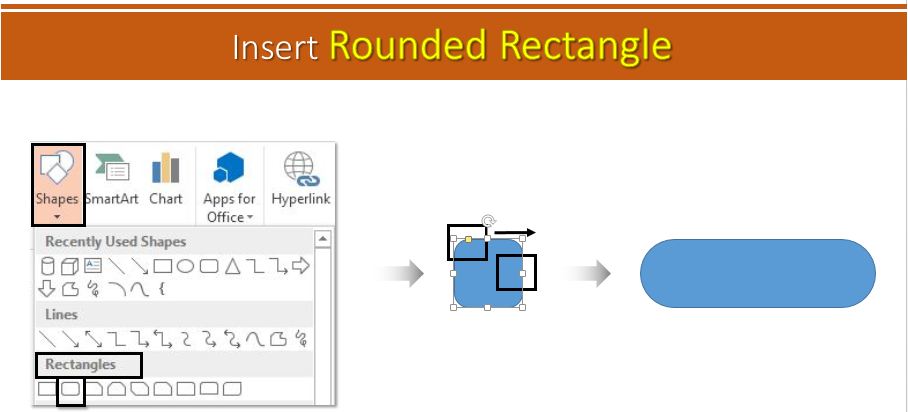
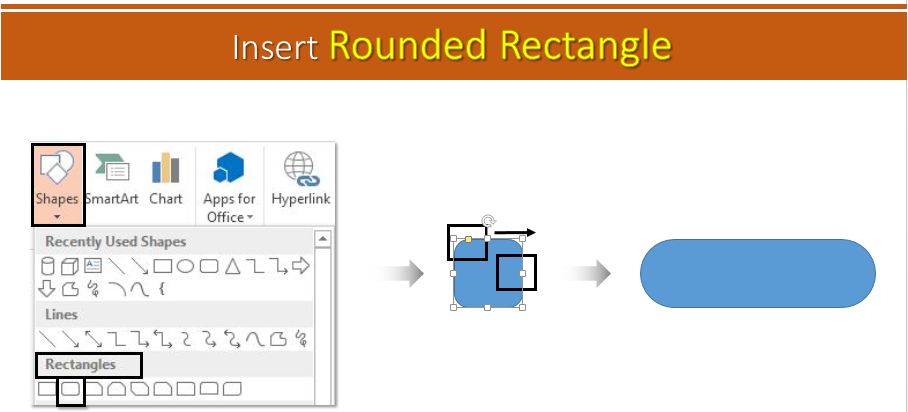
- Insert a Rounded Rectangle. Go to Insert> Shapes> Rectangle> Rounded Rectangle. Adjust its size and shape with the help of the cursors. (See the below image).
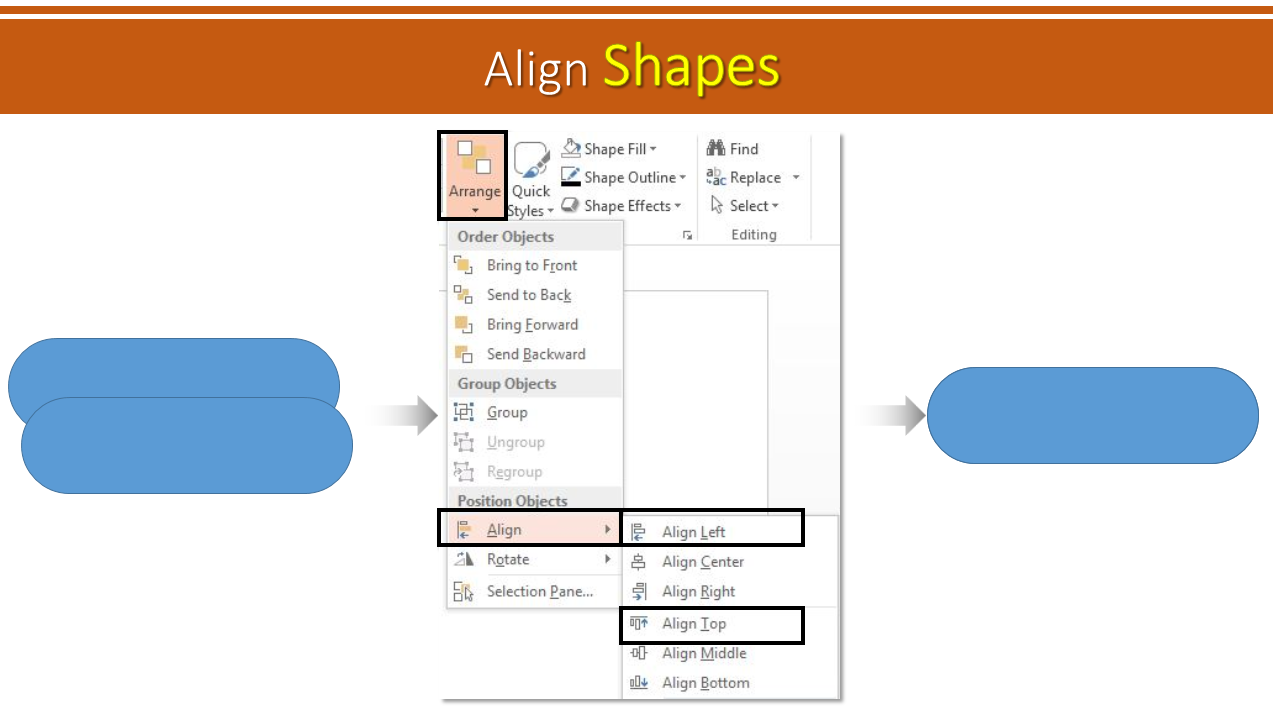
- Duplicate the original shape and align both the shapes. Select both the shapes> Arrange> Align> Align Left> Align Top.
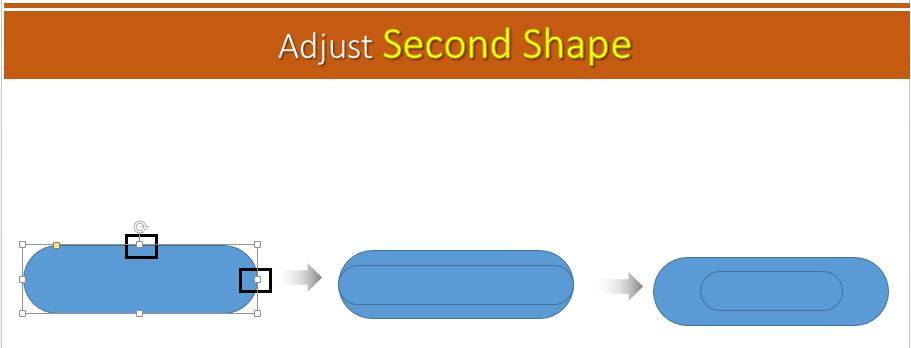
- Adjust the shape of the second shape by holding Control key and selected cursor. Take a look at the below image.
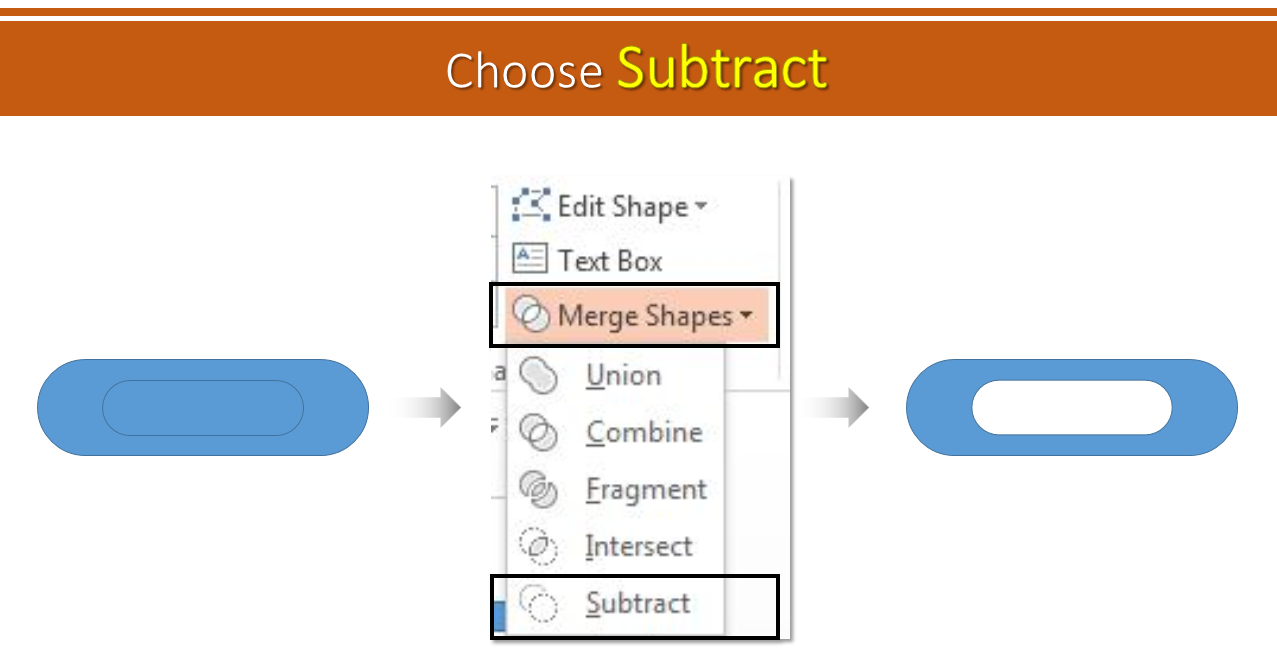
- Select the original shape then the duplicate one, go to Format> Merge Shapes> Subtract.
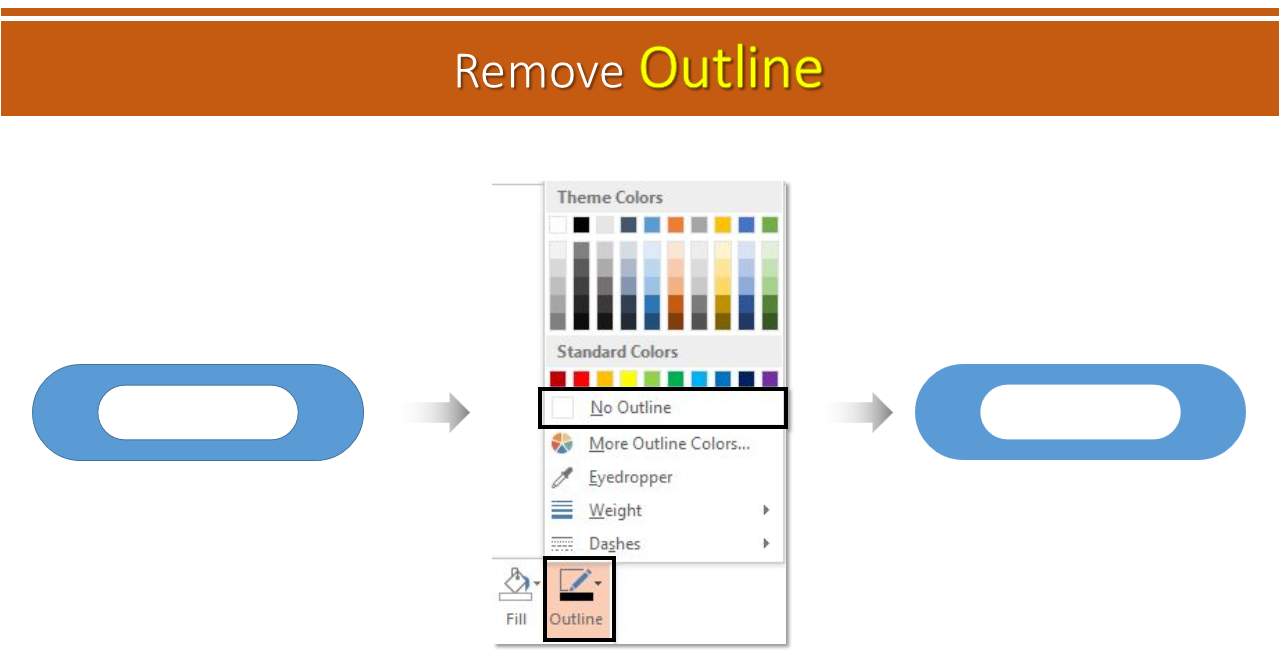
- Right click the shape> Outline> Remove Outline.
- Duplicate the original shapes by pressing Control C and Control V. Rotate the shapes by holding Alt and left and right arrow keys. (Depending upon which direction you want to place them).
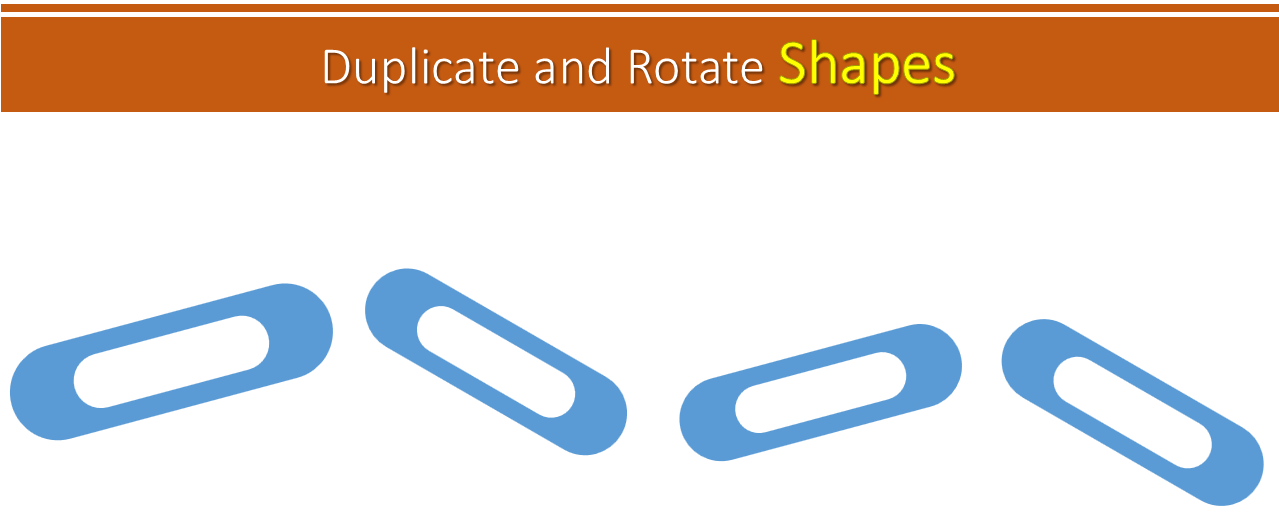 Design is half ready. Now we need another shape to link the chain together.
- Again, insert Rounded Rectangle. Go to Insert> Shapes> Rectangle> Rounded Rectangle. Adjust its size and shape with the help of the cursors.
- Again adjust its size by pressing Control and selected cursor.
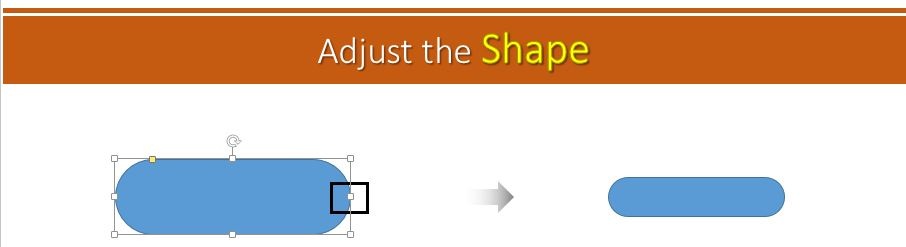
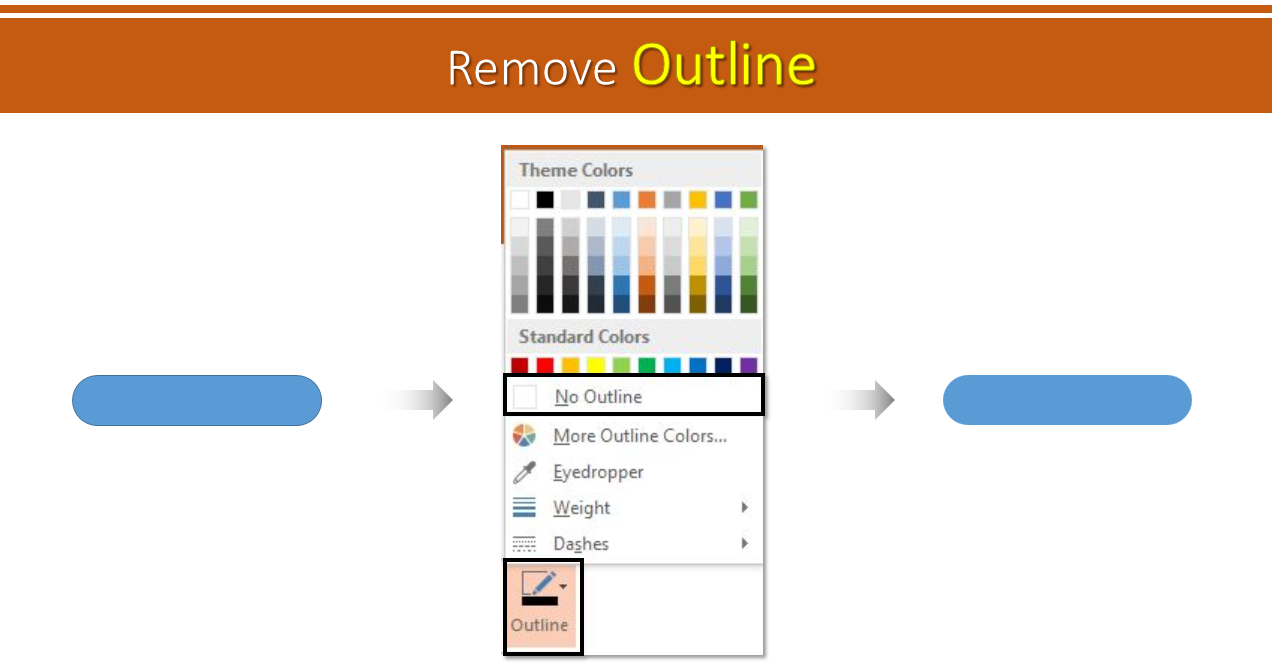
- Right click the shape, Outline> No Outline.
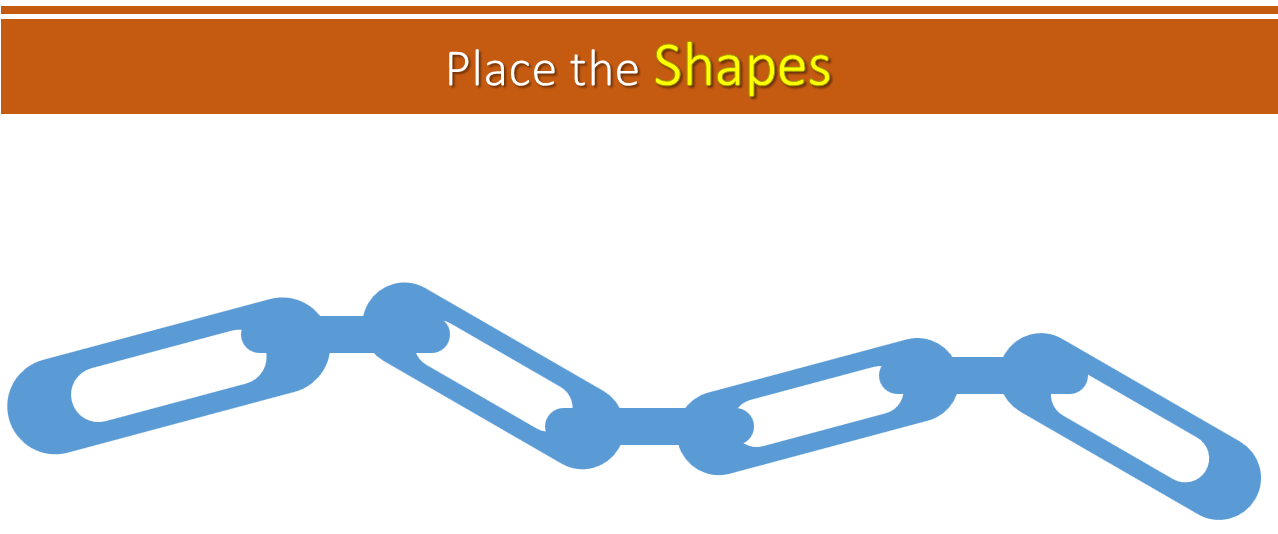
- Duplicate the shape by pressing Control C and Control V. Place them over the chain you have created earlier.
- Right click the shapes, Fill> Color of your choice.
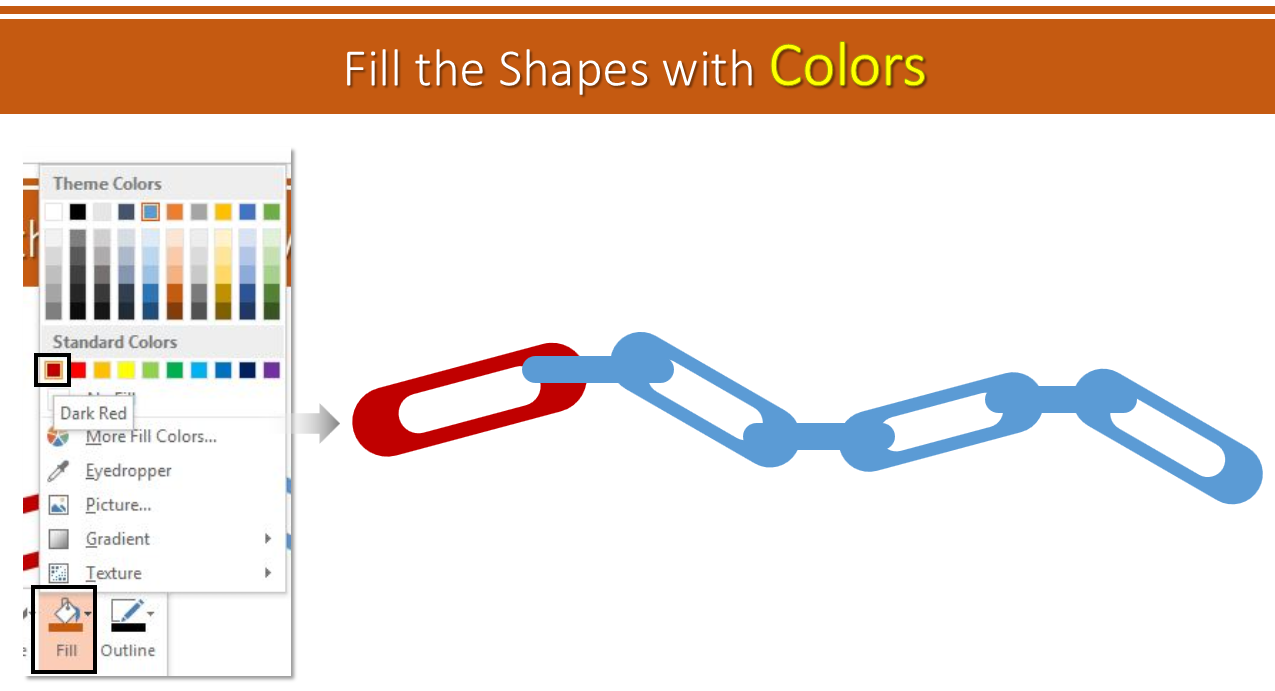 Add these simple yet creative design and stun your audience.
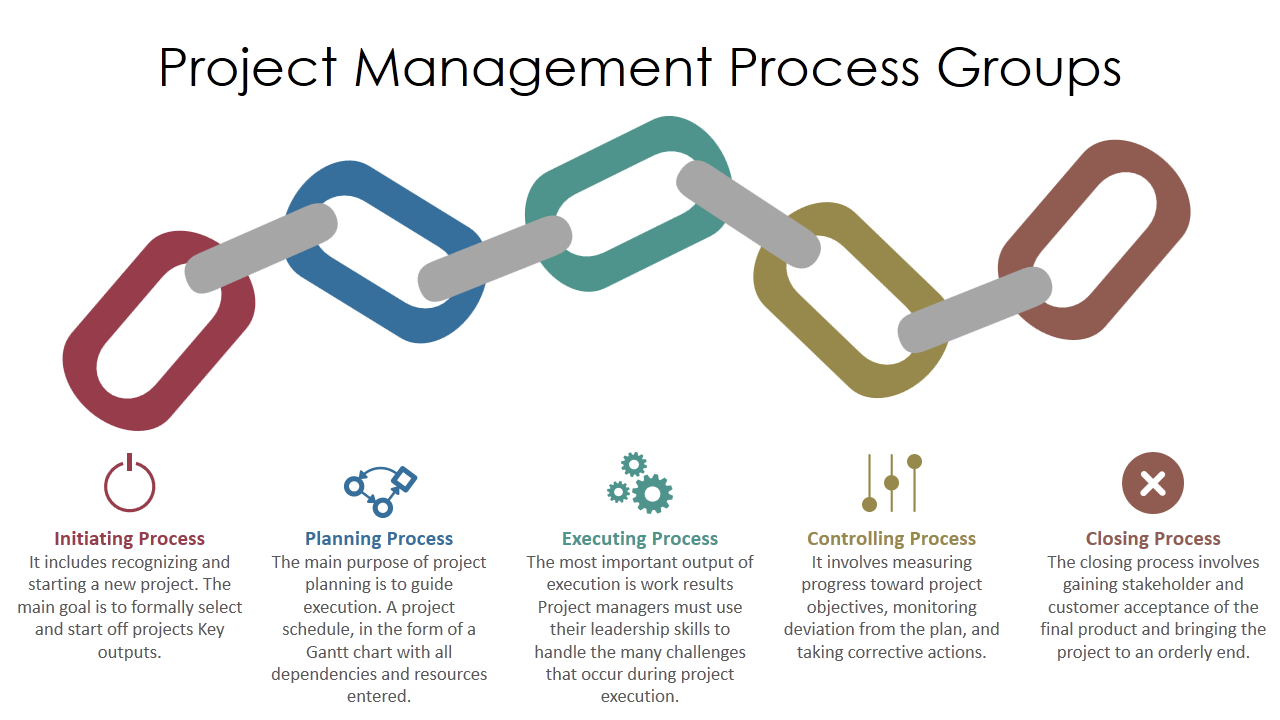 Easy to create, right? In case you are juggling with too many things at a time. Don’t worry. You can go through our awesome collection of chain links PowerPoint templates.
Professionally Designed Chain Links Templates:
Professional PowerPoint Template #1
Easy to create, right? In case you are juggling with too many things at a time. Don’t worry. You can go through our awesome collection of chain links PowerPoint templates.
Professionally Designed Chain Links Templates:
Professional PowerPoint Template #1
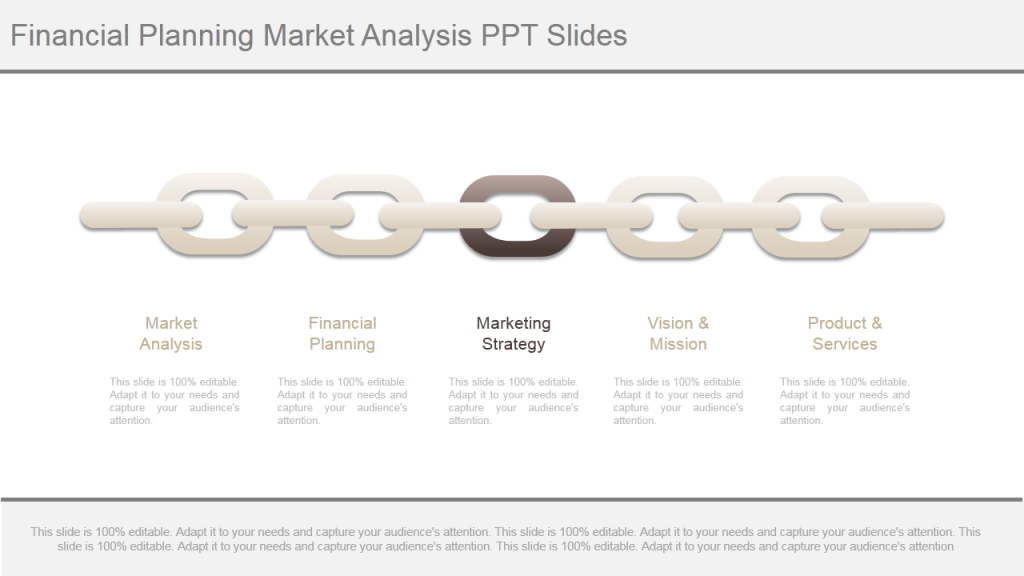 Click here to download this awesome Chain link PowerPoint Template.
Professional PowerPoint Template #2
Click here to download this awesome Chain link PowerPoint Template.
Professional PowerPoint Template #2
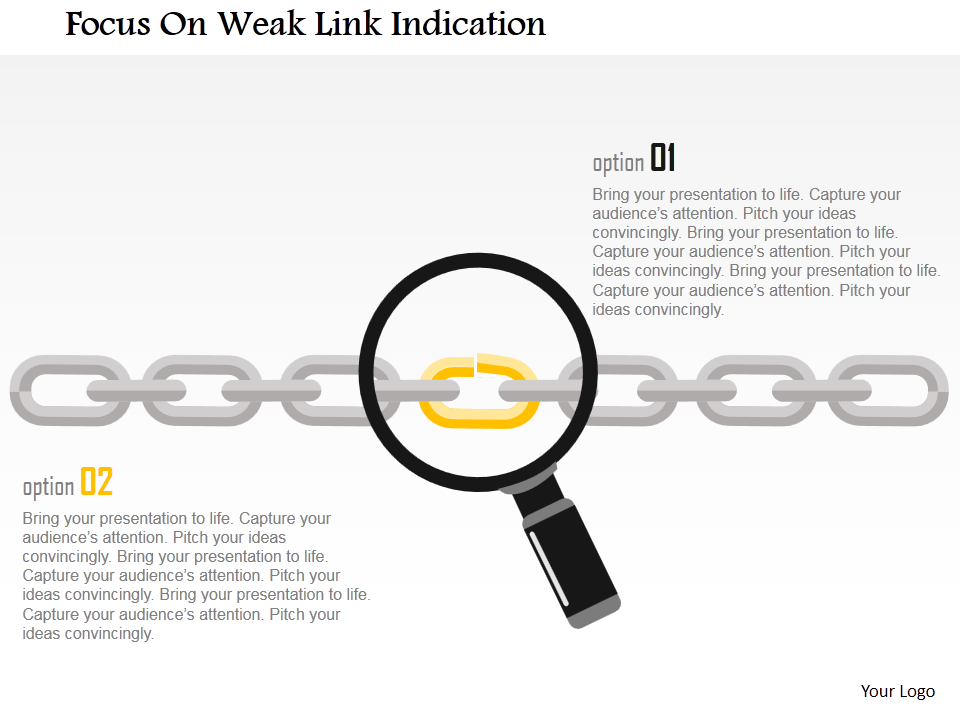 Grab this awesome template by clicking here.
Professional PowerPoint Template #3
Grab this awesome template by clicking here.
Professional PowerPoint Template #3
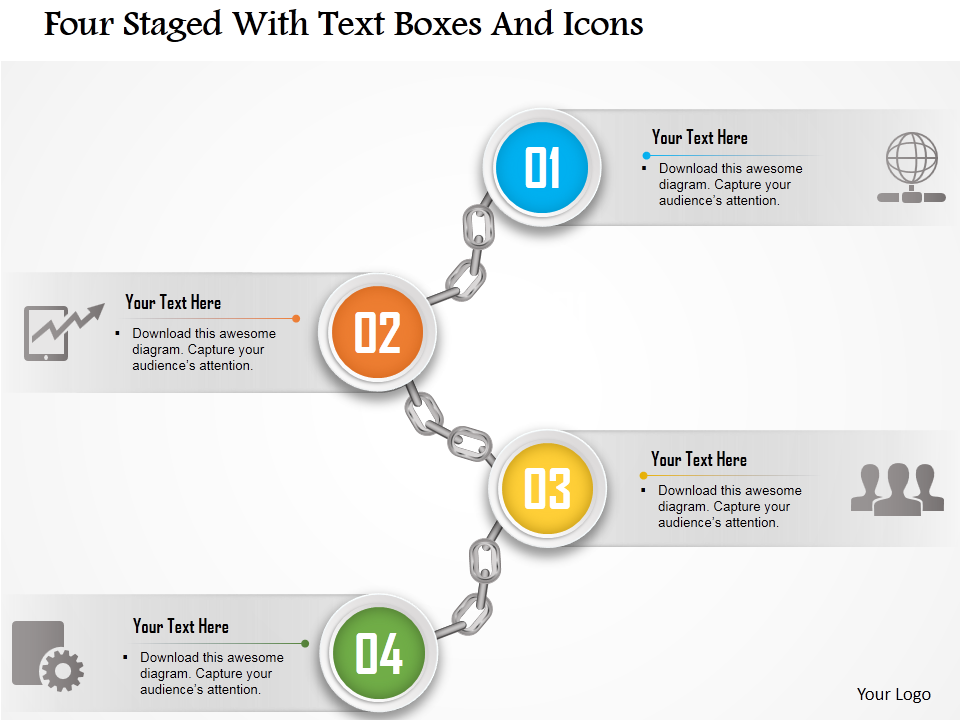 Download this professionally designed Chain link PowerPoint Template and stun your audience.
Professional PowerPoint Template #4
Download this professionally designed Chain link PowerPoint Template and stun your audience.
Professional PowerPoint Template #4
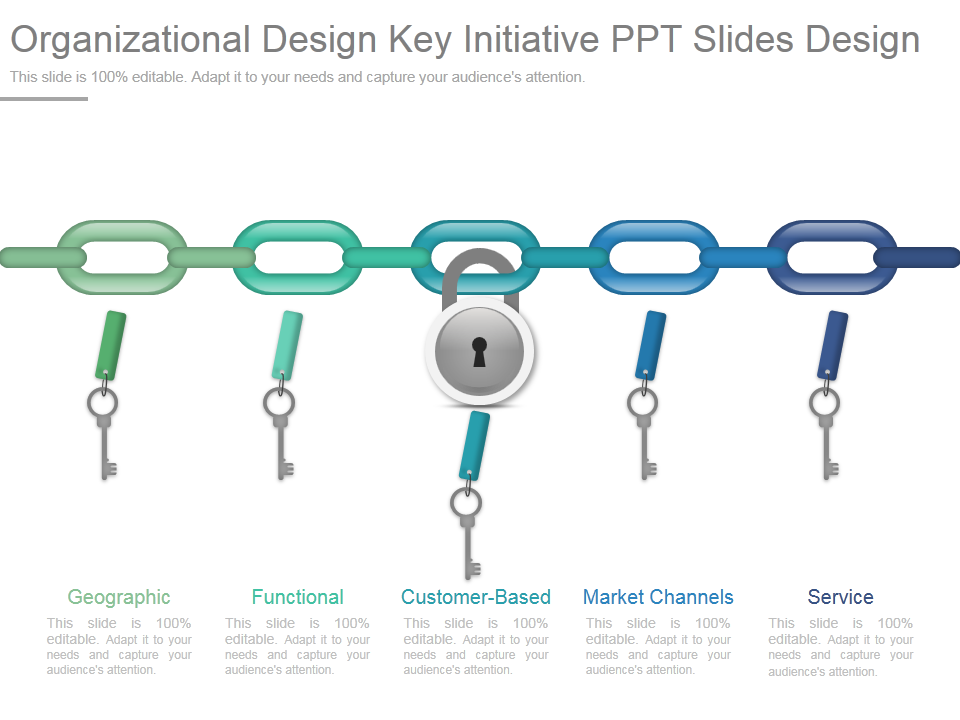 Click here to download this professionally designed Chain link PowerPoint Template.
Professional PowerPoint Template #5
Click here to download this professionally designed Chain link PowerPoint Template.
Professional PowerPoint Template #5
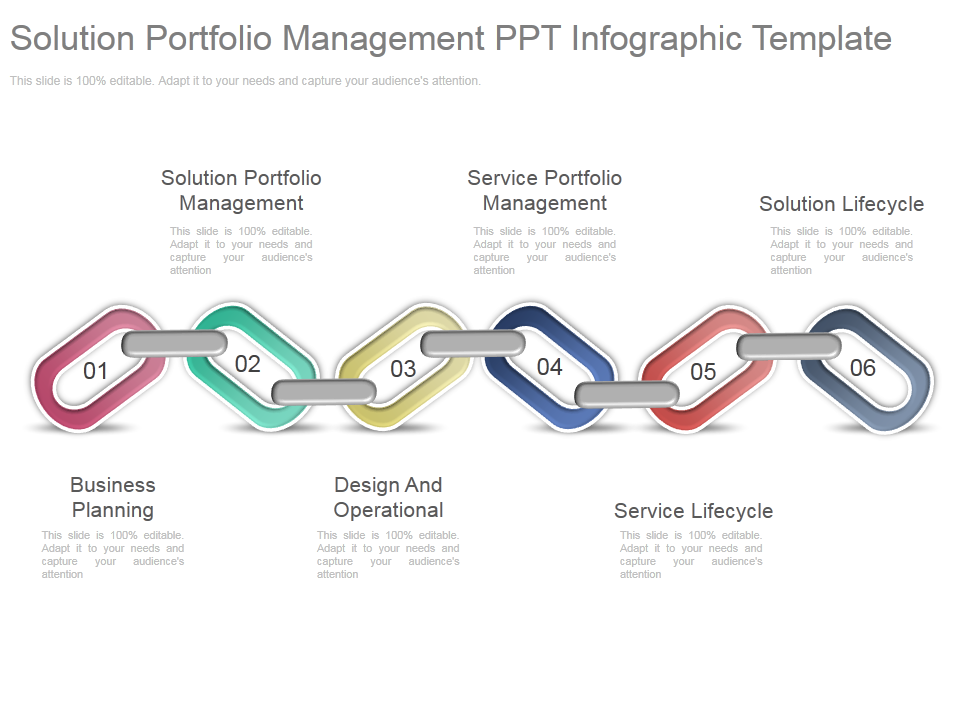 Grab this awesome template right here.
Professional PowerPoint Template #6
Grab this awesome template right here.
Professional PowerPoint Template #6
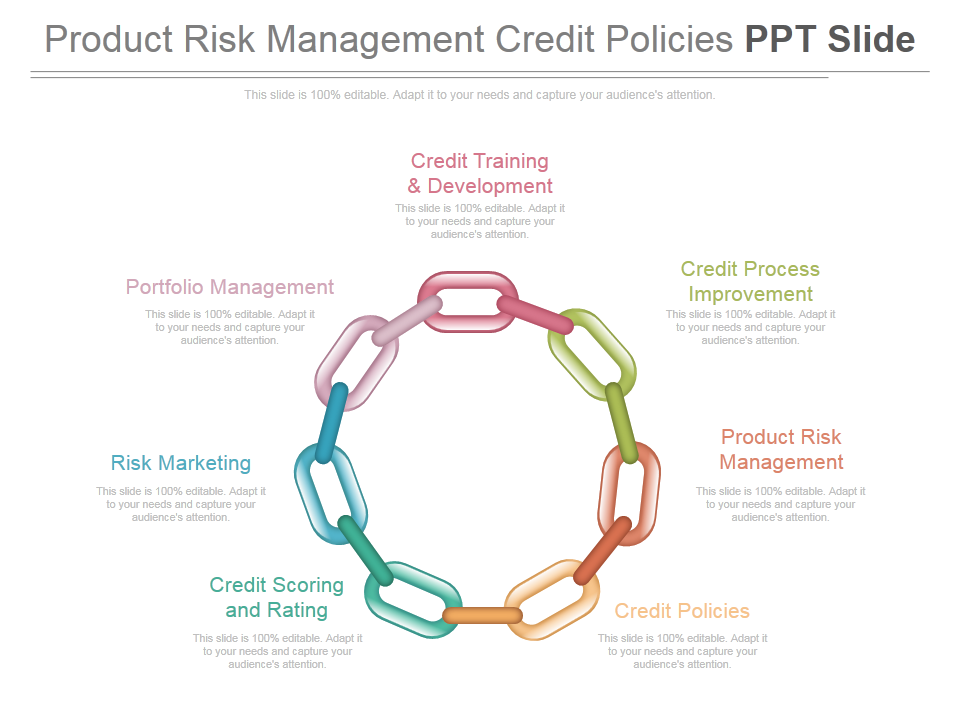 Download this creatively designed Chain link PowerPoint Template, add your content and leave our audience amazed.
Professional PowerPoint Template #7
Download this creatively designed Chain link PowerPoint Template, add your content and leave our audience amazed.
Professional PowerPoint Template #7
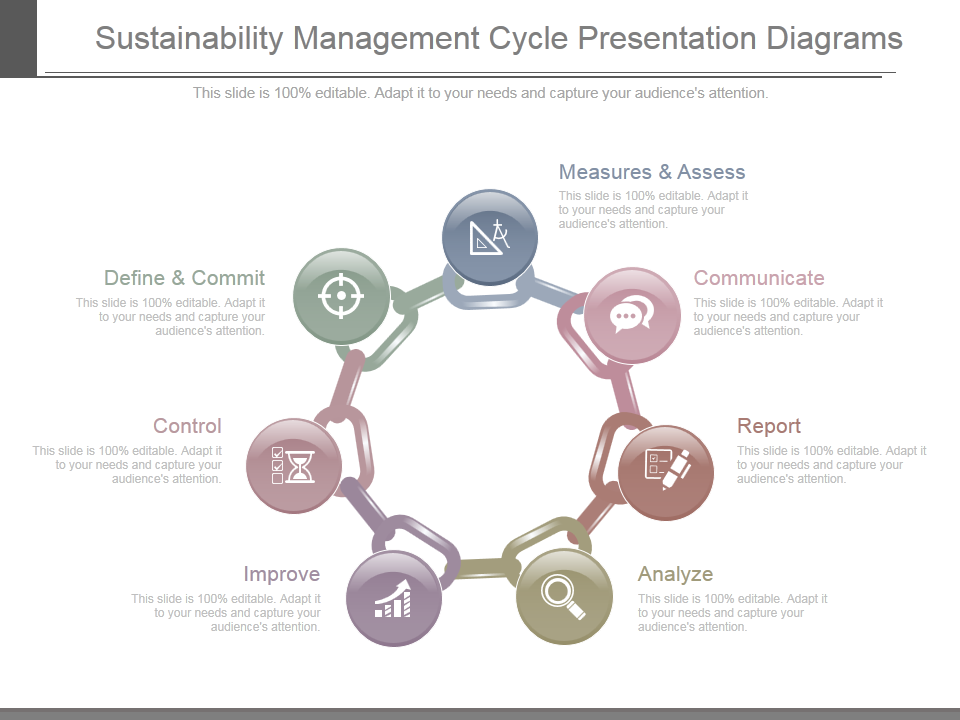 Click here to download this awesome Chain links PowerPoint Template.
Some more Chain Links diagrams
Chains
Choose the one you like.
Share your feedback with us. Stay tuned for more awesome PowerPoint Tutorials.