

UI And UX Designer Proposal Powerpoint Presentation Slides




Try Before you Buy Download Free Sample Product
 Impress Your
 Audience
 100%
100% Editable
 Save Hours
 of Time


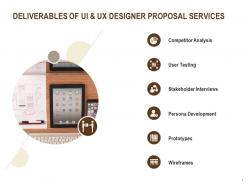
Pitch your work and services to land more customers by using our topic-specific UI And UX Designer Proposal PowerPoint Presentation Slides. With the help of this visually attractive UI/UX designer project PPT layout, you can highlight your previous accomplishments and certifications to make your proposal even more impactful. Take the assistance of our interactive UI UX designed PowerPoint presentation slides to state the merits of your services that provide benefit to your clients. Included here is the table of contents that covers the sections such as project overview, the scope of work, project timeline, deliverables, investment, case study, client testimonials, and terms and conditions. There are various high-grade icons present in the slide with which you can make your proposal more informative and precise. Use a UI and UX designer proposal PPT layout to display your deliverables that include competitor analysis, persona development, user testing, prototypes, stakeholder interviews, and wireframes. Employ this professionally designed UI/UX proposal PowerPoint presentation slides to outline your scope of work that includes client interviews, competitive analysis, requirements, user flows, conceptual modeling & ideation, wireframes, UX testing, and resolving issues. Take advantage of our knowledgeable UI and UX designer proposal presentation template and talk about your advanced technologies that hold the grip of your customers. Take the help of UX designer proposal PPT layout to emphasize on what additional services and capabilities your company possesses that prove your worth in the client's eyes. With the help of this visually attractive UI/UX designer proposal PPT theme, you can explain the values and work ethics of your company that make customers choose your services over your competitors. Download our fully customizable practical and precise UX/UI designer project proposal PowerPoint presentation slides to leave a lasting impression on your customers.
People who downloaded this PowerPoint presentation also viewed the following :
Content of this Powerpoint Presentation
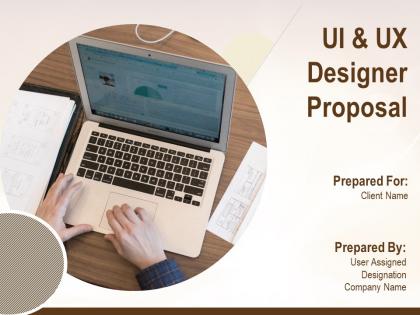
Slide 1: This slide introduces UI & UX Designer Proposal. State Company name, Client name and User name.
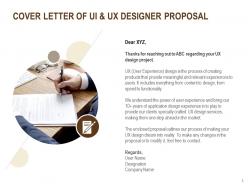
Slide 2: This slide displays Cover letter.
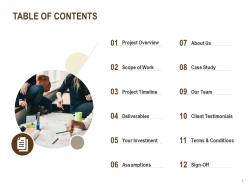
Slide 3: This slide displays Table Of Contents.
Slide 4: This slide showcases Project Overview.
Slide 5: This slide shows Scope Of work.
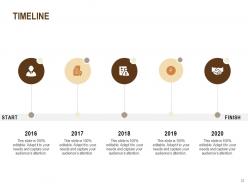
Slide 6: This slide represents Project Timeline.
Slide 7: This slide showcases Deliverables Of UI and UX Designer Proposal Services.
Slide 8: This is your investment slide.
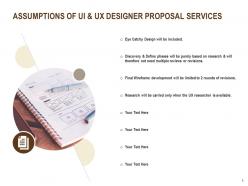
Slide 9: This slide displays Assumptions.
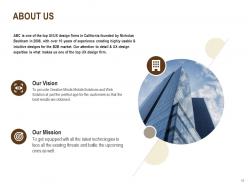
Slide 10: This is About us slide to showcase Company specfications.
Slide 11: This slide displays Case Study.
Slide 12: This is Our Team slide with Names and Designations.
Slide 13: This is Our Team slide with Names and Designations.
Slide 14: This slide displays Client Testimonials.
Slide 15: This slide depicts Terms and Conditions.
Slide 16: This slide is continued with Terms and Conditions.
Slide 17: This is Sign-Off slide.
Slide 18: This is Contact us slide with Address, Contact number and Email address.
Slide 19: This slide is titled as Additional Slides for moving forward.
Slide 20: This is About us slide to showcase Company specifications.
Slide 21: This is Our Mission slide with Vision, Mission and Goals.
Slide 22: This is 30 60 90 Days Plan slide.
Slide 23: This slide showcases Timeline process.
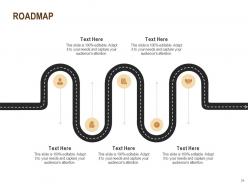
Slide 24: This slide shows Roadmap Process.
UI And UX Designer Proposal Powerpoint Presentation Slides with all 24 slides:
Use our UI And UX Designer Proposal Powerpoint Presentation Slides to effectively help you save your valuable time. They are readymade to fit into any presentation structure.








FAQs for UI And UX Designer Proposal
Okay so basically you want better engagement and more conversions, right? Your signup flow is bleeding users - that's priority one. Also your navigation is honestly a mess (sorry but it needed saying). We're fixing the whole information structure and creating a design system your team can actually stick with long-term. Oh, and boosting conversion rates at all your main touchpoints obviously. Check out the wireframes when you get a chance, then we can talk numbers and specific targets we're aiming for.
So you're looking at busy professionals, 25-40ish, who are basically drowning in projects and need info fast. Speed is everything here - they'll bounce if they can't find what they want in like 30 seconds, no joke. Keep clicks minimal and make navigation super obvious. Mobile-first is crucial since they're always jumping between their phone and laptop. Honestly, these people are stressed and have zero patience for anything clunky. Two taps max for key stuff, clear visual hierarchy, and don't overthink the design. Simple beats pretty every single time with this crowd.
So I'm thinking user analytics from our platform first - that's the obvious starting point. Those usability recordings from last quarter? Pure gold for seeing where people actually hit walls. Customer support tickets are another treasure trove I haven't dug into yet. Nielsen Norman Group has solid industry benchmarks I can reference, plus we really need to weave in those new accessibility guidelines anyway. Might throw together a quick survey if there's any gaps, but honestly we've got tons of data already sitting there. Once I pull it all together I'll shoot you the research doc - sound good?
We're following WCAG 2.1 AA standards from the start - high contrast, keyboard navigation, screen reader support, all that good stuff. Scalable text and colorblind-friendly colors are built right in. Building accessibility upfront saves you SO much headache later (learned that the hard way on my last project). Testing with actual disabled users, not just our internal team. Short sentences work better. The cool thing is when you design for accessibility, it actually improves the experience for everyone. Way better than trying to slap it on at the end.
Figma's gonna be our go-to since we can both jump in and mess with designs at the same time. Super handy for getting your feedback right on the mockups. I'll probably throw Miro into the mix for user flows and those brainstorming sessions where we map everything out. Honestly, Figma's prototyping has gotten really solid lately - way better than it used to be. Might need Principle for fancy animations, but that's probably overkill here. Oh, and make sure you've got a Figma account ready so you can actually see the files and leave comments.
So basically you want to build a design system - like a style bible for your brand. Document everything: colors, fonts, component libraries, the works. That way nobody's second-guessing "wait, is this the right blue?" Set up reusable UI components with clear naming so your team can stay consistent without you babysitting every decision. Figma or Storybook work great for this since everyone can access it easily. Honestly, the hardest part isn't creating it - it's getting people to actually use it consistently. But once it's there, you'll save so much time on those back-and-forth revisions.
So I'll check out your 3-5 main competitors and dig into how their sites actually work. Looking at user flows, design patterns, conversion stuff - the whole deal. Their onboarding, navigation, key features. Trust me, you'd be surprised how many of these sites look decent but are total disasters when you actually try to use them. I'll also run tests on load times, mobile experience, accessibility - all that impacts whether people stick around or bounce. You'll get a full breakdown with screenshots showing what's worth copying, what to avoid, and where we can totally crush them in your redesign.
Look, build user feedback right into every design phase - don't work in a bubble. Set up testing after wireframes, prototypes, and before you ship anything. Trust me, this has saved my ass so many times from "why did I think this was brilliant" moments. Put user recordings and feedback in a shared folder they can actually access. Also throw a quick feedback form on your staging site so people can complain in real-time (they will anyway). After each testing round, block out 30 minutes together to go through what broke and what needs fixing first.
You'll want to track both user behavior and business impact. Click-through rates and task completion show if people can actually navigate your design. Time on page matters too, but honestly conversion rates are what really count - that's your money metric right there. Don't just rely on numbers though. User satisfaction surveys catch the stuff analytics miss, and support tickets spike when something's broken. I'd set up a weekly dashboard to watch for trends. Oh, and retention rates are huge - way cheaper to keep existing users than find new ones.
So I'd go mobile-first - start with phone screens then work up to bigger stuff. Most people are on their phones anyway, right? Testing on different devices constantly because honestly, sites that work great on desktop but suck on mobile are the worst. The breakpoints need to actually make sense, not just random width changes. Touch targets are huge too - you don't want people stabbing at tiny buttons. Loading speed matters more on mobile obviously. Oh and gestures work totally differently than mouse clicks. Want me to sketch out a few screens at different sizes first so you can see how it'd look?
Here's what I'd focus on for your UI/UX proposal: Start with user journey stories - like "Sarah's hunting for tax docs at 11pm" scenarios that show how your design actually helps. Progressive disclosure works great too, where you reveal info like story chapters so people stay curious. Oh, and those little micro-interactions are honestly underrated - the satisfying button animations that make boring tasks feel rewarding. You want users feeling like the hero, not just mindlessly clicking around. I'd pick 2-3 main user scenarios and build everything around those specific journeys. Way more compelling than just showing features.
Here's my take: always figure out what users actually need before worrying about making it pretty. I wireframe the basic functionality first - keeps me focused on what matters. Then I add visual stuff, but here's the thing: good aesthetics should make things work better, not just look nice. Clean fonts help people scan content faster. White space guides users through tasks without them even realizing it. Though honestly, I've learned the hard way that something can look amazing and still confuse the hell out of people. That's why I test constantly with real users. Sounds boring but it saves you from those "wait, why did everyone click the wrong button" moments.
Honestly, scope creep will kill you - suddenly everyone's a designer once they see your mockups. Developers always find some technical issue that wasn't obvious during design, which screws your timeline. User testing is brutal too because people will hate what you thought was genius. Getting consistent time with subject matter experts is like herding cats. Oh, and stakeholder alignment? Good luck with that mess. Build in way more buffer time than you think you need and make people sign off at every step. Trust me on the written approvals thing.
So we're doing this modular thing where all the design pieces work like building blocks - colors, fonts, spacing, the whole deal. You can mix and match them for different screen sizes without starting over each time. Honestly, it's pretty smart because when you want to add features later, you're not stuck redesigning everything. The component library becomes your go-to reference for keeping things consistent. Oh, and you'll probably want to check the style guide every few months as things grow - just to make sure nothing's getting weird.
First thing - figure out who actually matters and what they want to see. Some people need wireframes, others just care about the bottom line impact. Yeah, you'll want regular check-ins every sprint, but honestly? The best feedback comes from random Slack conversations when people aren't in "meeting mode." Share your messy work-in-progress stuff early - annotated screenshots, quick Figma links, whatever. Don't wait for it to be perfect. Make giving feedback super easy and always connect your design choices back to real user problems. Trust me, that last part saves you from so many pointless revisions.
-
Use of different colors is good. It's simple and attractive.
-
Easy to edit slides with easy to understand instructions.
-
Top Quality presentations that are easily editable.
-
Unique design & color.
-
like