

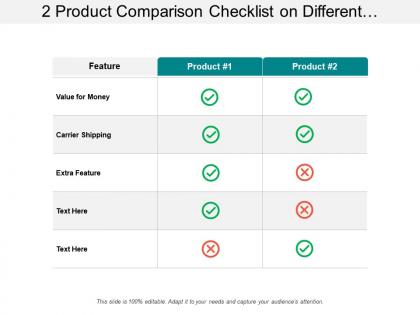
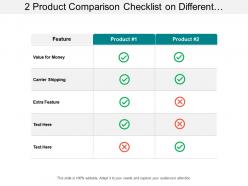
2 product comparison checklist on different features




Try Before you Buy Download Free Sample Product
 Impress Your
 Audience
 100%
100% Editable
 Save Hours
 of Time


Cater for economic fluctuations with our 2 Product Comparison Checklist On Different Features. Be able to handle financial instability.
People who downloaded this PowerPoint presentation also viewed the following :
2 product comparison checklist on different features with all 5 slides:
Our 2 Product Comparison Checklist On Different Features ensure you are never helpless. They are always at hand to give all assistance.
FAQs for 2 product comparison checklist
Go with something clean and simple - you don't want investors getting distracted by flashy stuff when they should be listening to your pitch. Most templates are honestly way too cluttered anyway. Make sure it's got the basics covered: problem/solution slides, market data, financials, team bios. Typography should look consistent and colors easy to swap out for your brand. Oh, and definitely grab some free samples first to see how annoying they are to actually edit. You'll probably need decent chart options too since there's always data to show. Trust me, boring beats busy every time with this crowd.
Okay so design stuff really matters more than people think. Clean, modern templates keep your audience actually paying attention instead of scrolling Instagram under the table. Colors and fonts create that instant first impression - we're all pretty visual creatures, let's be real. Messy or dated designs scream "this will be painful to sit through." Good aesthetics make your content feel more trustworthy too. I learned this the hard way after bombing a presentation with Comic Sans (don't ask). Match your template to your audience and content vibe. It honestly makes or breaks engagement.
Oh man, this is super important - file formats are the biggest pain. PowerPoint templates often look terrible in Google Slides, and don't even get me started on how Keynote handles things. Your fonts will probably change to something hideous if the other platform doesn't have them. Animations? They'll either disappear completely or look weird. SmartArt and fancy charts are basically platform-specific, so those might break too. Honestly, I learned this the hard way during a client presentation once. Test everything beforehand on whatever they're actually using, or just go with simpler designs that work everywhere.
Dude, support matters way more than you'd think. I got burned once by a company that ghosted me for like 3 days when I had a deadline breathing down my neck. Templates always have weird quirks - formatting gets messed up, licensing questions pop up, or they just don't play nice with your PowerPoint version. Look for live chat and fast response times. Also good help docs are clutch. Honestly? Before you buy anything, shoot them a quick question during business hours just to see how fast they get back to you. Trust me on this one.
Honestly, it depends on how much time you've got. Custom gives you total control over your branding and messaging - you can structure everything around your specific talking points. Templates are obviously faster but they're pretty generic. I've sat through way too many presentations where the template just didn't match what they were trying to say, super awkward. If this is for something big or you'll use it multiple times, definitely customize it. You can nail your brand colors, fonts, the whole visual thing. But if it's just a one-off? Grab a decent template and swap out the colors. That'll do the job.
Definitely go for high-res images - anything under 300 DPI looks terrible when projected. Brand colors should actually match yours, not some random stock template vibe. Keep your icons consistent throughout too. Mixing flat design with 3D stuff just looks sloppy, honestly. You'll want charts that are editable in your software or you're basically stuck with their boring sample data forever. Oh, and test a few slides by actually presenting them first! What looks perfect on your laptop screen can look completely different once it hits a projector or client's monitor. Trust me on that one.
Look for flexible layouts and neutral colors first. Modular sections are your best friend - you can move stuff around or delete what you don't need. The good templates honestly look kinda plain at first, but that's what makes them work for everything. Pick ones with placeholder spots for different content types... charts, images, whatever you're throwing in there. I always test mine with totally random topics before deciding - like if it works for both a sales pitch and a project update, you're golden. Clean typography and lots of white space matter too. Skip anything with industry-specific graphics.
Colors hit people way before they read anything - it's wild how much they matter. Blues and greens feel trustworthy, you know? But oranges and reds scream urgency (though they can come off pushy). I once saw this comparison template with baby pink for enterprise software and... just no. Tech stuff needs darker themes usually. Lifestyle products? Go lighter. The trick is matching what your audience expects. Like, you wouldn't use neon colors for a retirement planning comparison, right? Pick whatever mood helps people actually make the decision.
Look, you definitely want templates that don't make you want to throw your laptop out the window. Simple layouts are your friend - stuff you can actually edit without a design degree. I made the mistake once of picking this "gorgeous" template that took me 3 hours just to change the colors. What a nightmare. Go for ones with clean text boxes and color schemes that won't fight your brand. The good templates basically disappear - they just make your content look better without being annoying. Quick test: try editing a few slides first. If it's frustrating right away, skip it.
First thing - check if your main goals actually match what the template covers. Does the flow make sense for how your audience thinks? Executive types love heavy visuals, but if you're presenting to detail people, that might backfire. Make sure the comparison stuff works for what you're selling. Honestly, some templates just try to be everything to everyone and end up being nothing special. If the structure fights you more than it helps, ditch it. You shouldn't spend forever wrestling with slides when you could be focusing on your actual message.
Honestly, built-in animations are a lifesaver when you're in a crunch. Takes like 5 minutes vs hours of trying to figure out timing and easing curves (which I'm terrible at). The movements look way more polished than anything I'd make. Downside? You're kinda stuck with whatever style they picked, and sometimes it clashes with your brand vibe. Templates without animations give you total freedom but man, the learning curve is steep. I'd say go with built-ins for now and just tweak the colors to match your stuff. You can always get fancy later when you have more time.
Honestly, I just think about my hourly rate and how long it'd take me to build slides from scratch. If a $20 template saves me 3+ hours, that's already paying for itself. The real win though is when you can reuse it multiple times - I've gotten tons of mileage out of a few good ones. Just don't go super cheap because those amateur-looking templates can actually make you look worse than basic PowerPoint defaults (learned that the hard way). I'd say find ones you'll realistically use 2-3 times this year and do the math from there.
Honestly, just go with something super basic like Arial or Calibri. Those sans-serif fonts are way easier to read when you're presenting - trust me on this one. Don't get fancy with script fonts or anything decorative because people will be squinting trying to figure out what you wrote instead of listening to you. Pick two fonts max: one for your headers, another for everything else. Oh, and make your text at least 24pt or bigger. I learned this the hard way when someone in the back couldn't read my slides at all. Test it by standing across the room first - saves you from that awkward "can everyone see this?" moment.
Honestly, user reviews are where you'll find the real deal about templates. People will straight up tell you if something crashes PowerPoint or if you can't actually edit the slides like they claim. I always check what people in similar fields are saying - way more useful than those polished product descriptions that hide all the problems. Look for recent reviews first since compatibility stuff changes. Focus on comments about customization, whether fonts look good, and if animations actually work during presentations. Trust me, reviewers mention all the annoying stuff that companies don't want you to know about.
Honestly, start with clear learning objectives upfront - students need to know where you're headed. Make your fonts huge because squinting kills engagement faster than anything. White space is your friend here, don't cram everything together. I always throw in discussion prompts or quick polls to keep people from zoning out. Your template should have spots for examples and key takeaways built right in. Oh, and use transition slides between big sections - makes it way easier to follow your thinking. Simple colors work best, nothing too flashy.
No Reviews