

4 point hexagon slides sample of ppt




Try Before you Buy Download Free Sample Product
 Impress Your
 Audience
 100%
100% Editable
 Save Hours
 of Time


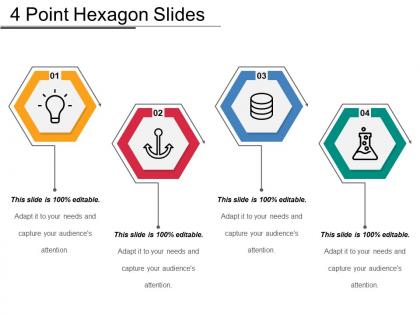
Deliver a commendable presentation for your organization using 4 Point Hexagon Slides Sample of PPT. This hexagonal slide sample is a four-step linear diagram that includes the matrices of business. This slide sample is made with four hexagons placed in a linear manner that depict different steps, ideas, or concepts to be covered with respect to the growth and development of the business organization. In this 4 point hexagon slides, related factors can be shown through 4 hexagons. This sample consists of a model that is multifaceted in nature and which can save time and effort and enables the presenter to deliver the information in a simple way. A simple and easy to understand PowerPoint presentation leads to the 100% attentiveness of the audience. The linear diagram used in the template shows a continuous process of four steps. Download this highly professional hexagon slides sample PPT to cover up maximum topics in one model.
People who downloaded this PowerPoint presentation also viewed the following :
4 point hexagon slides sample of ppt with all 5 slides:
Expose them to daylight with our 4 Point Hexagon Slides Sample Of Ppt. Answers will begin to dawn on them.
FAQs for 4 point hexagon slides
So hexagon slides are basically using six-sided shapes instead of boring bullet points or rectangles. They're perfect for breaking down complicated stuff or showing how ideas connect. The shape naturally draws people's eyes around your content - honestly way better than standard PowerPoint templates that everyone's seen a million times. You can throw them into timelines, comparisons, or just displaying key points. I'd definitely try swapping out your next bulleted list with hexagons. Your audience will actually pay attention for once.
Okay so hexagon slides are perfect when you've got concepts that all connect to each other - like strategy frameworks or those messy workflow diagrams. Regular slides make you go A to B to C, but hexagons let people see how everything links up at once. They're kinda having a moment right now (probably because they look cool), but honestly they work great for systems-type stuff. Use them when the relationships between ideas matter more than telling a story in order. Just don't force it - your content needs to actually benefit from that web layout or you'll look ridiculous.
So with hexagon slides, visual hierarchy is everything. Each one needs a clear purpose - data points, process steps, whatever. I'd stick to a consistent color palette but throw in some contrast where you want people to look. Honestly? I've watched so many presentations where someone discovers hexagons and just goes absolutely nuts with them. Super distracting. Make your text readable first - don't stuff paragraphs into those shapes. Figure out your main message, then see if hexagons actually help tell that story. Sometimes they're just... unnecessary decoration, you know?
So hexagon slides are actually pretty genius for breaking down complicated stuff. You split everything into six chunks, which forces you to organize better. Each section can be a different step or category - way easier for people to follow than dumping everything at once. I love how you can reveal each piece as you go instead of overwhelming everyone upfront. Your audience won't get lost since they can see exactly where you are. Honestly, just pick any messy topic and try fitting it into six parts. You'll be surprised how much cleaner it gets.
Honestly, just start with PowerPoint - it's got hexagon shapes built right in that you can resize however you want. You can group a bunch together for those honeycomb patterns too. If you're feeling lazy (no judgment), Canva has pre-made hexagon templates that look pretty decent. I've used both and they work fine for most stuff. For anything super complex though, Figma or Illustrator will give you way better control over spacing and all that nitpicky alignment stuff. But seriously, try PowerPoint first - might save you time.
Oh totally! Hexagons actually pair really well with other shapes. I'm obsessed with mixing them with circular profile pics - that combo just hits different. You could do hexagons for stats or data points, then stick with regular rectangles for your text blocks. Circles work great too. Just keep your colors and spacing consistent so it doesn't look like a hot mess. Pro tip: start with just hexagons plus one other shape first. I learned the hard way that using too many shapes at once makes everything look chaotic. Trust me on this one.
Honestly, stick to 2-3 colors tops or it'll look like a mess. Dark blue hexagons with white text works great - high contrast is your friend here. I've watched so many people bomb presentations because they went nuts with rainbow colors and nobody could read anything. Different shades of the same color look super clean, or try complementary pairs. Oh, and test your slides beforehand since projectors love to wash everything out. Pick one accent color for the stuff you really want people to notice. Trust me, your audience will thank you for keeping it simple.
Okay so hexagon slides are pretty cool - they turn your whole presentation into like a visual story map. Each hexagon is basically a chapter or key point. You can arrange them chronologically or show cause-and-effect stuff, even branching stories where different paths lead to different endings. Works great for hero's journey type narratives or case studies. The layout helps people actually see how everything connects, which honestly beats the hell out of bullet points. Oh, and try putting your main message in the center hexagon, then branch out with supporting details around it.
Don't cram a novel into each hexagon - nobody can read tiny text anyway. Stick to 2-3 colors max unless you want it looking like a kid's art project. I learned this the hard way when my slide looked absolutely chaotic with 6 different colors. Make sure your text actually shows up against the background (seems obvious but you'd be surprised). Keep hexagons big enough for mobile since people always end up viewing presentations on their phones. Oh, and test it on different screens first - spacing gets weird sometimes and you don't want to discover that mid-presentation.
Hey! So for hexagon slides, start with contrast - dark text on light hexagons or flip it. Font size needs to be way bigger than you'd think (trust me on this one). Simple fonts work best, and don't stuff too much text in those weird shapes. If you're sharing digitally, add alt text for screen readers. Oh, and definitely test them on your phone first - I learned this the hard way when my "perfect" slides looked terrible projected. Different lighting can mess with visibility too. Short sentences help when you're working with unconventional shapes like hexagons.
Honestly, hexagon slides are a game changer for keeping people awake during presentations. They break up all that visual sameness that makes audiences zone out. Six-sided shapes just feel more interesting than the same old rectangles we're all used to seeing. You can tile them together too, which looks sick when you're showing how concepts connect - way better than those mind-numbing bullet points. The shape naturally chunks info into smaller pieces, so complex stuff becomes easier to digest. I'd swap out maybe 2-3 rectangular slides next time and see the difference. People actually pay attention.
Yeah, those hexagon slides work for basically anything! Marketing teams throw campaign elements in each section. Project managers use them for workstreams or risk stuff. I've seen healthcare people do patient care protocols with them - honestly, even restaurants use them for menu categories which seems random but whatever works. The trick is making sure your six things actually connect somehow. Don't just randomly stuff content in there. You can swap the labels for whatever your audience needs. Software teams love them for sprint planning too. They're pretty flexible once you get the hang of it.
You should totally check out McKinsey's strategy decks - they're obsessed with hexagons for showing how business pillars connect. TED talks do this well too, especially the climate change ones. Honestly, consulting firms are your best bet for examples since they use this format constantly. Product launch presentations sometimes nail it when they're mapping feature ecosystems. The sweet spot is 4-6 concepts that all relate to each other, not just step-by-step processes. Oh, and avoid hexagons for linear stuff - it'll look forced. Case studies from big consulting firms are goldmines if you can find them.
Dude, hexagons are perfect for this stuff! Each one becomes like a little data container - way better than boring tables. Map your main stats to individual hexagons, then play with colors or sizes to show how they connect. The shape naturally guides people's eyes around your data, which is honestly pretty smart design-wise. Plus they look modern as hell in presentations (your boss will think you're some design genius or whatever). Break down complex numbers into these bite-sized pieces. Trust me, it's like turning a dense spreadsheet into something people actually want to look at.
Okay so for hexagon transitions, try the Morph one in PowerPoint first - seriously it's amazing when it actually works. You can do the morphing thing where one hexagon reshapes into the next, or have them slide in from different sides. Fade transitions work too if you keep the hexagon positions consistent across slides. Oh and zoom effects are cool - focus on one hexagon then expand out to show the whole next slide. Just make sure you test everything beforehand because I've learned the hard way that smooth transitions on your laptop can turn into a laggy mess during the real presentation.
-
Amazing product with appealing content and design.
-
Top Quality presentations that are easily editable.