

Introducción a las diapositivas de presentación de PowerPoint de git





Try Before you Buy Download Free Sample Product
 Impress Your
Audience
 100%
Editable
 Save Hours
of Time


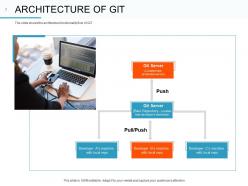
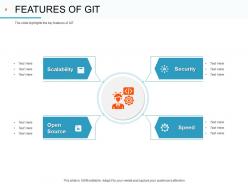
Obtén esta Presentación de Diapositivas de PowerPoint Introducción a Git totalmente personalizable. Explica de manera efectiva el software de control de versiones GIT con la ayuda de la presentación de diapositivas del sistema de control de versiones. Incorpora nuestra presentación de PowerPoint visualmente atractiva para dar a tu audiencia una idea sobre el sistema de gestión de versiones. Explica la necesidad de GIT por parte de tu organización. Describe las ventajas de la aplicación de control de versiones distribuido GIT utilizando nuestro diseño de presentación de software de control de versiones. También puedes transmitir las características de esta herramienta de control de revisión distribuida. Las visualizaciones de datos que se presentan en este conjunto de plantillas de PPT facilitan una mejor explicación de la arquitectura de GIT. También puedes presentar los comandos comunes utilizados en GIT con una facilidad apreciable con la ayuda de nuestra presentación de diapositivas de PPT disponible. Aprovecha la ventaja de este conjunto de diapositivas de PPT visualmente llamativo y presenta información vital sobre el sistema de control de revisiones, como trabajar con repositorios remotos. Así que, haz clic en el icono de descarga ahora y comienza a construir una impresionante presentación de software del sistema de inmediato.
People who downloaded this PowerPoint presentation also viewed the following :
Contenido de esta presentación de Powerpoint
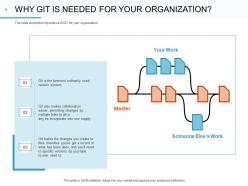
Cómo colaborar de manera efectiva e independiente ha sido un problema fundamental para las empresas durante décadas.
Por ejemplo, cómo asegurar que el departamento de marketing sepa los descuentos reales que el departamento de ventas está ofreciendo al consumidor final. Quizás, la instancia más precisa de un departamento que necesita que las personas se desempeñen al máximo, pero que también necesita colaborar, es el negocio del desarrollo de software.
Aquí, cada programador necesita trabajar, pero es fundamental que otros programadores que trabajan en otra parte del mismo proyecto comprendan y vean el trabajo de los demás en tiempo real.
Para resolver este problema, Linus Torvalds, un ingeniero de software finlandés-estadounidense, creó el sistema de control de versiones GIT para el desarrollo del kernel Linux en 2005.
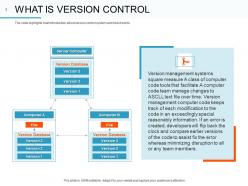
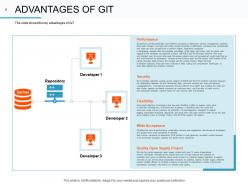
Es el sistema de control de versiones distribuido (DVCS) más utilizado para gestionar el código fuente. El sistema de control de versiones distribuido significa que la copia de trabajo de cada desarrollador también es un repositorio con toda la capacidad de historial o seguimiento de versiones. Esto facilita que los desarrolladores colaboren de manera efectiva e independiente.
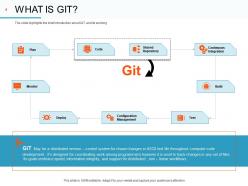
Otra característica de GIT es que simplifica el proceso de cambiar entre nuevas ramas y fusionarlas en el código base principal. Con la ayuda de GIT, el equipo puede trabajar sin conexión y aún así confirmar los cambios localmente cuando tengan una conexión activa. GIT también incluye un área de preparación donde los desarrolladores pueden excluir o incluir selectivamente los cambios antes de confirmarlos.
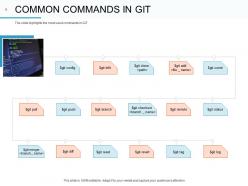
También, consulta esta diapositiva de PowerPoint sobre los comandos más comunes en GIT.
La introducción de GIT en una organización es un paso esencial para el funcionamiento fluido del proceso de desarrollo de software y para promover la colaboración y el control de versiones. Al emplear estas diapositivas de presentación de PowerPoint diseñadas profesionalmente, las empresas pueden comunicar los beneficios y características de GIT. Esto asegura una adopción fluida de la herramienta. Estas plantillas 100% editables y personalizables proporcionan un marco para presentar las ramas, fusiones, historial de confirmaciones, repositorios remotos y más.
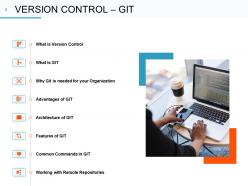
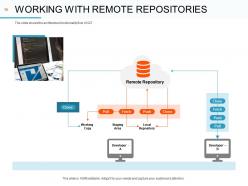
Slide 1: Introducción a Git Slide 2: ¿Qué es Git? Slide 3: Características de Git Slide 4: Conceptos básicos de Git Slide 5: Repositorios de Git Slide 6: Comandos básicos de Git Slide 7: Trabajando con ramas Slide 8: Fusionando ramas Slide 9: Resolviendo conflictos Slide 10: Etiquetas en Git Slide 11: Trabajando con repositorios remotos Slide 12: Clonando repositorios Slide 13: Enviando cambios a repositorios remotos Slide 14: Actualizando repositorios locales Slide 15: Colaborando con otros desarrolladores Slide 16: Bifurcando repositorios Slide 17: Creando solicitudes de extracción Slide 18: Revisando solicitudes de extracción Slide 19: Integrando cambios Slide 20: Flujos de trabajo de Git Slide 21: Flujo de trabajo centralizado Slide 22: Flujo de trabajo de ramificación de funciones Slide 23: Flujo de trabajo de GitHub Slide 24: Recursos adicionales
Utiliza nuestras Diapositivas de Presentación de Introducción a Git para ahorrar tiempo valioso. Están listas para adaptarse a cualquier estructura de presentación.

FAQs for Introduction to git
So Git is basically this distributed version control system that tracks all your code changes. Every developer gets the full project history on their machine - no constant server connection needed like with SVN and those older systems. The branching is where it really shines though. You can mess around with new features without worrying about breaking everything. Honestly took me forever to wrap my head around it at first, but once you get `git add`, `git commit`, and `git push` down, you're golden. Way better than trying to coordinate code changes through email or whatever nightmare people used before.
Basically Git saves snapshots of your code called commits - way better than those "final_version_FINAL_v2" folders we used to make lol. Everyone gets their own copy to work on. When you're ready, Git merges everyone's changes together and flags conflicts if two people edited the same stuff. Honestly, branches are a lifesaver for working on different features without breaking anything. Pull updates from the main repo regularly so you don't fall behind. Start with `git add`, `git commit`, and `git push` - you'll get the hang of it pretty quick.
Honestly, Git is amazing because it's distributed - everyone gets the full project history on their machine. You can work offline no problem. The branching thing though? Total game changer. Experiment all you want without screwing up the main code, then just merge it back. I love how it handles conflict resolution automatically and keeps detailed histories of everything. Easy rollbacks when you inevitably break something (we've all been there). Works great with GitHub, GitLab, whatever. Your team really should switch if they haven't already - it'll save you tons of headaches later.
So basically Git branches let you make separate copies of your code to mess around with. You can try new features or fix bugs without worrying about breaking the main stuff. Honestly, once you start using them you'll wonder how you ever coded without branches - they're that useful. Multiple people can work on totally different things at the same time. No more accidentally overwriting each other's work. Keep your main branch clean and stable. Even for tiny changes, I'd say make a feature branch. Your workflow will be so much less chaotic, trust me.
Think of commits like save points in a video game - they're snapshots of your code at specific moments. Each one captures what changed plus a message explaining why. For the messages, use present tense like "Fix login bug" or "Add user authentication." Keep that first line under 50 characters. Need more space? Add a blank line, then explain the reasoning behind your changes rather than just what you did. Honestly, the biggest thing is writing them so future you won't hate past you. Your teammates will thank you too when they're not hunting through code trying to figure out what the hell "misc updates" actually meant.
Oh man, merge conflicts! So basically Git freaks out when two branches change the same code lines and can't figure out what to do. You'll get those ugly `<<<<<<<` markers everywhere - they look terrifying but aren't that bad. Just open the messy files, pick which changes you want (or mash them together), delete all those markers, then stage and commit. Pro tip: pull changes often so you don't end up with massive conflicts later. Also talk to your teammates about who's touching what code. Smaller commits help too. When conflicts do happen, don't rush it or you'll definitely introduce bugs.
So a .gitignore file basically tells Git what to skip when tracking your code. Just drop a plain text file called `.gitignore` in your project root. Then list patterns for stuff you don't want committed - things like `*.log`, `node_modules/`, `.env` files. Honestly, it's a lifesaver for keeping build junk and dependencies out of your repo. I learned this the hard way after pushing my entire node_modules folder once (nightmare). GitHub has solid gitignore templates you can grab for whatever language you're using. Just make sure you add the .gitignore before you commit the files you want it to ignore, otherwise Git's already tracking them.
So `git log` shows you the whole commit history - who changed what and when. I'd start with `git log --oneline` since it's way cleaner and less overwhelming. The `--graph` option is actually pretty neat if you want to see how branches merge together (kinda looks like subway maps).
For specific changes, `git diff` compares different versions, or use `git show
So Git is basically the version control thing that lives on your computer - tracks changes, handles branches, all that stuff. GitHub is where you stick your repositories online. Honestly, I used to think they were the same thing for way too long lol. You can totally use Git without GitHub if you want, but GitHub adds all the collaboration features like pull requests and issue tracking. Pretty much everyone uses them together though - Git does the heavy lifting locally, then you push everything to GitHub so other people can actually see and work on your code. Makes sharing projects way less painful.
Git LFS is definitely what you want here. It stores pointers instead of the actual files, so your repo won't turn into a bloated mess. First install Git LFS, then run `git lfs track "*.psd"` for whatever file types you're using. Videos, huge images, all that stuff works way better this way. One thing though - set it up *before* you commit those big files. I learned that the hard way and had to do a bunch of cleanup after. Trust me, it's worth doing it right from the start.
Think of Git tags like sticky notes on specific commits - they mark stuff you'll want to find later. Most people use them for releases (v1.0.0, v2.1.3) or big milestones. They're different from branches because once you stick a tag somewhere, it never moves. Perfect for tracking "this exact code went to production." Pro tip: I always mess this up and forget to push tags after making them locally. Use `git tag -a v1.0 -m "Release version 1.0"` then `git push origin --tags` to actually share them with your team.
Two ways to do this: `git revert
Make small commits that focus on one thing. Write commit messages explaining *why* you changed something - I learned this the hard way after leaving myself cryptic notes like "fix stuff" lol. Use branches for new features, then delete them once merged. Pull from main regularly or you'll end up in merge hell. Never commit passwords or build files - .gitignore is your friend here. Oh, and commit often but only push clean code. If you screw up locally, just use git reset to fix it. Trust me on this one.
Honestly, Git is amazing for remote work because everyone gets their own full copy of everything on their laptop. Work offline all you want, commit stuff locally, then sync when you're back online. No more "server's down" drama. Feature branches are a game-changer too – each person can mess around with their own branch without breaking anyone else's work. Oh, and if your main server crashes? Anyone's local copy can just become the new master. Trust me, once you get the hang of branching for different tasks, collaborating becomes so much cleaner.
Think of forking like making a photocopy of someone's project - you get your own version to mess around with. The original stays untouched while you make whatever changes you want. Once you're happy with your edits, you can submit a pull request asking them to merge your stuff back in. It's honestly genius for open-source work since you don't need special permissions to contribute. Most maintainers are pretty cool about reviewing contributions too. Just pick a project that interests you and hit that fork button to start experimenting!
-
Presentation Design is very nice, good work with the content as well.
-
Colors used are bright and distinctive.
-
Topic best represented with attractive design.
-
Content of slide is easy to understand and edit.
-
Best way of representation of the topic.
-
Visually stunning presentation, love the content.
-
Great product with effective design. Helped a lot in our corporate presentations. Easy to edit and stunning visuals.
-
Informative design.
-
Awesome presentation, really professional and easy to edit.
-
Topic best represented with attractive design.