

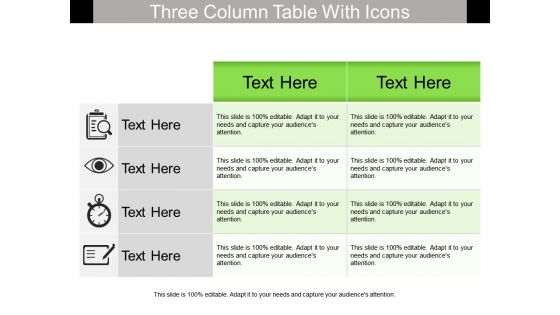
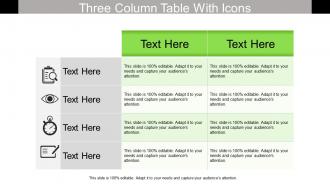
Three column table with icons





Try Before you Buy Download Free Sample Product
 Impress Your
 Audience
 100%
100% Editable
 Save Hours
 of Time


Make a difference with this simple yet artistically designed PowerPoint presentation slide with three column table with icons. This PPT template can be used in a variety of presentations like comparison, contrast, differentiation, analysis, categorization, school / college projects, science projects, educational slides, business analysis reports, marketing analysis, production strategy plans, sales technique analysis and also for managing the workforce in your organization. The vector icons add to the visual appeal of the slide. The template will add a professional touch to your PPT. By adding different colors and specially designed icons, we have given an innovative look to the slide. This subtle design retains the simplicity that you are looking for but at the same time, it gives you an edge over the other dull three column table templates. Hence, this will make your presentation stand apart. So click the download button now! Our Three Column Table With Icons are upgraded on adaily basis. They like to keep ahead of it all.
People who downloaded this PowerPoint presentation also viewed the following :
Three column table with icons with all 5 slides:
You can safely bank on our Three Column Table With Icons. They will provide a growth factor to your valuable thoughts.
FAQs for Three column
Dude, table icons are a game changer. Your data suddenly becomes way less intimidating and people actually look at it instead of zoning out. Icons work like little signposts - viewers can scan through and find what they need super fast. I swear, some presentations go from boring to brilliant just by throwing in a few simple icons. They're perfect when you've got tons of categories or want certain numbers to pop. Oh, and they keep everything looking clean too. Seriously, try it on your next deck - you'll notice people following along way better.
Honestly, icons are game-changers for tables. Your brain processes a red warning triangle way faster than reading "high priority issue" - it's just how we're wired. People can instantly spot patterns instead of slogging through rows of text. Plus they make dense data feel less overwhelming, which is huge if you're presenting to people who aren't total data nerds. I'd start simple though - throw in some green checkmarks and red X's for status stuff. You'll be amazed how much quicker people "get it" when they can scan visually instead of reading everything.
Just keep it simple - pick icons people actually recognize without squinting. Don't mix styles (like outlined with filled ones), and honestly? Skip the rainbow colors. I learned that the hard way when my boss couldn't tell what half my tables were about. Size matters too - test how they look projected, not just on your screen. Everything should match stroke weight and stay consistent throughout. Oh, and make sure they don't steal attention from your actual data. That's the whole point, right? Clean, simple icons work way better than fancy ones.
Icon style totally affects how people engage with your data. Go minimal and clean - it keeps focus on what matters instead of creating visual noise. Detailed icons look nice but honestly just pull attention away from your actual points. You'll want everything consistent though. Mixed styles make presentations look sloppy (learned that the hard way once). Pick either outlined or filled icons, not both. Limit colors to 2-3 tops. Also make them big enough so people in back can actually see them. Nothing worse than squinting at tiny graphics during a presentation.
Colors totally change how people read your table icons. Bright contrasting ones grab attention and scream "this matters!" Muted colors? They fade into the background like supporting details. Red always feels like bad news or warnings, green says "good stuff here," and blue comes across pretty neutral. I've watched presentations bomb because someone picked awful colors that sent mixed messages. People automatically assign meaning to colors whether you want them to or not. If your scheme's all over the place, you'll confuse everyone about what's actually important. Just pick a consistent palette that matches your data's vibe.
Use table icons when you're comparing stuff across multiple products or categories - like features, pricing, specs, that kind of thing. Way better than making people read through paragraphs to figure out what's different. Your readers can actually scan and spot patterns instantly instead of getting lost in text walls. Perfect for yes/no comparisons too. I mean, anytime you catch yourself writing "Product A has this but Product B has that," just stop and make a table with icons instead. Trust me, spreadsheet data doesn't have to look boring when you make it visual.
First thing - check what icons are already in your template so everything matches. Don't mix outlined with filled icons, trust me it looks terrible. I usually stick with 24-32px sizing to keep things consistent with other elements. Here's what saves me tons of time: make a master slide with your go-to table icons, then just duplicate and tweak when needed. Also keep a little icon stash in your template folder - way better than scrambling to find the same damn icons every time you're building a new presentation. The consistency thing really makes a difference in how polished everything looks.
Don't mix a bunch of different icon styles - it'll look like a hot mess. Small or super complex icons are terrible too since nobody can see them from the back. I've seen people just throw in random icons because they think they're cute, but make sure yours actually match your data! Also (and this happens way too often), people forget to add a legend explaining what everything means. Short sentences work better than long ones. Your audience shouldn't have to play guessing games about what you're showing them.
Dude, cultural differences will mess with your table icons big time. Western users see fork/knife and instantly think "restaurant," but chopsticks work way better for Asian markets. Colors are tricky too - red means luck in China but screams danger here in the US. Even reading direction matters since some cultures go right-to-left. Religious stuff and hand gestures can backfire hard if you're not careful. Honestly? Just test with actual users from wherever you're launching. Or play it safe with boring universal symbols like arrows and basic shapes.
Dude, Canva's probably your easiest bet for custom table icons - crazy user-friendly and has tons of templates you can mess around with. Adobe Illustrator's obviously more powerful if you want to go all out, but honestly? That might be overkill. Figma's solid too and completely free, plus your whole team can collaborate on it which is pretty sweet. I actually forgot PowerPoint has some decent built-in table icons now - not amazing but they'll do the job. Start with Canva though, you can pump out professional-looking stuff fast and just export whatever you make.
Hover effects are your best friend here - just scale icons slightly or shift the color when someone mouses over. Loading animations look super clean too, especially when your data's refreshing. I always do gentle fade-ins when tables first load, makes everything feel way smoother. Short transitions between different states work really well also. Honestly, CSS transitions are probably the easiest starting point since they're simple to code up. Just keep everything under 300ms or it starts feeling sluggish. Focus on making it functional, not just pretty. Your tables will instantly feel more responsive once you add even basic hover states.
Honestly, table icons are like breadcrumbs for your audience - they help people follow along without getting lost in all the numbers. I'd stick to maybe 3-4 icons tops and keep them consistent throughout. Different styles can show progression or group similar info together, which is pretty helpful. They're kind of like those little breaks between TV show segments, you know? Gives people a second to process before moving on. The key is picking icons that actually support your story instead of just being random decorations. Trust me, less is more here.
Three things to nail: alt text, contrast, and size. Your alt text should explain what the icon *does* - like "Sort column ascending" not just "up arrow." Most people mess this up honestly. Color contrast needs to hit 3:1 minimum, and make icons at least 24px so they're actually clickable. Adding text labels helps too when you've got room. Here's my quick test - cover up the colors and see if you still get what each icon means. If you're squinting or guessing, the visual cues aren't strong enough. Oh, and bigger is usually better for table icons since people are often scanning quickly.
Yeah, everything's going super minimal now - clean lines, subtle shadows, that whole flat design vibe. Geometric shapes are way better than those clunky spreadsheet grids anyway. Nobody wants their slides looking like a data dump, you know? Color-wise, people are doing these muted palettes with gradients that actually look good together. Oh and designers are getting more abstract with it - less literal table graphics, more conceptual data symbols. I've been really into Feather and Phosphor lately for icons that don't scream "2015 PowerPoint template." They've got some solid options.
Honestly, getting feedback on your table icons is super helpful - shows you what's actually working vs what you think is working. Watch people's faces during your presentation or ask direct questions in Q&A sessions. Post-presentation surveys work too, though they're kinda formal. People will straight up tell you if icons are too small or just confusing clutter. Sometimes you'll get surprised by which ones they loved most. Don't ask vague stuff like "any feedback?" - be specific: "Did those icons help clarify the data?" Then build a little library of the ones that worked for next time.
-
Design layout is very impressive.
-
Great quality slides in rapid time.