

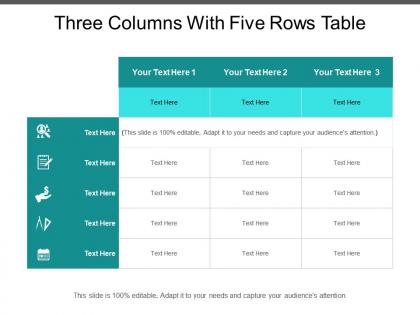
Three columns with five rows table




Try Before you Buy Download Free Sample Product
 Impress Your
 Audience
 100%
100% Editable
 Save Hours
 of Time


The Three Columns with Five Rows is a generic PowerPoint template that can be easily used when designing diverse organizational presentations. Its tabular format can be used to organize and present data, record figures, and perform comparisons on every sort of data. Therefore, you can use this PowerPoint template for project planning, managing everyday tasks, comparing performances, and assigning departmental roles, among other purposes. Due to the editable nature of this PPT slide, you can add or delete rows or columns and input data at will. The adjacent icon feature in this PowerPoint presentation adds to the graphical visibility, making it more interesting. The fine HD graphics in this presentation ensure that information does not pixelate when on display. You can employ this PPT for management, scheduling, organizing, and comparing data. Start the process here by clicking the download button.
People who downloaded this PowerPoint presentation also viewed the following :
Three columns with five rows table with all 5 slides:
Honour your audience with a grand parade of your thoughts. Shower on them the confetti of our Three Columns With Five Rows Table.

FAQs for Three columns with
Dude, white space is your best friend here. Don't cram everything together like some crazy spreadsheet. Stick to 3-4 columns if you can swing it - anything more gets messy fast. Bold those headers so they pop, and maybe alternate your row colors if there's tons of data. Heavy borders? Skip 'em, they're just visual noise. Oh, and round your numbers! Nobody needs to see 47.3847 when 47.4 works fine. Keep decimals consistent too. Here's a weird trick that actually works - squint at your table when you're done. Can you still grab the main points? Then you're golden.
Honestly, color coding is a game changer for tables. Green for done, red for overdue - that kind of thing. People's eyes just naturally pick up on those patterns without thinking about it. I usually stick to 2-3 colors max though, otherwise it gets messy looking. The trick is being consistent with what each color means. Oh and don't make color the only way to show info since some folks are colorblind. But yeah, it's such a simple thing that makes data way less overwhelming to look at. Your brain doesn't have to work as hard.
Honestly, just start with whatever presentation tool you're already using - PowerPoint or Google Slides both have table features that work fine for most stuff. Canva's got prettier templates if you want something that doesn't look super basic (though their interface kinda annoys me sometimes). For anything complex with lots of data, I'd probably build it in Excel first then copy it over. Way easier to format there. The built-in tools are usually good enough though, and you won't have to jump between different apps.
Honestly, table formatting is huge for keeping people's attention. Messy tables = instant turnoff. I've watched entire presentations bomb just because someone's data looked like a spreadsheet threw up on the screen. You want clean headers, alternating row colors, tons of white space. Put your most important stuff on the left side where eyes naturally go first. Keep columns narrow so people can actually scan them quickly. Oh, and group related data together - seems obvious but you'd be surprised how many people don't do this. Test it on your phone first. If you can read it there, you're golden.
Okay so for accessible tables, you'll want proper `
So basically you want to add charts right into your table cells or make separate columns for them. Sparklines work great for showing trends in each row - they're like tiny line graphs that don't take up much space. Bar charts and progress bars are solid options too. Just don't go crazy with it because I've seen tables that look like a hot mess when people add too many visual elements. Keep everything aligned properly and stick with one chart type at first. You can always add more later once you see how it looks. The spacing matters more than you'd think.
Dude, whitespace is like the difference between a readable table and a hot mess. Your cells need breathing room - cramped text is the worst. I always start with 8-12px padding, though honestly I eyeball it half the time. Consistent spacing between rows helps people actually scan your data instead of getting lost. You don't want it huge obviously, but better too much space than everything smooshed together. It's wild how many tables I see where the content's practically touching - makes my eyes hurt just looking at it.
Honestly, animations can totally transform boring tables. Start with basic fade-ins when rows load - CSS transitions handle that easily. For sorting/filtering, smooth slides look way better than jarring jumps. Hover effects highlighting whole rows are nice too. If you need something fancier, Framer Motion's solid, or even jQuery works. Just... please don't make it look like a disco ball exploded. I've debugged tables where every click triggered five different animations and it was nauseating. The goal is helping users follow what's changing with their data. Begin simple, then add more if it actually improves the experience.
Start with alternating row colors and consistent padding - it makes a huge difference. Bold your key data points and don't crowd everything together (white space is your friend here). Group related columns and throw in some dividers between major sections. Your headers should be descriptive but short. If it's a long table, freeze those headers so people don't get lost scrolling. Oh, and please limit decimal places to what actually matters - seeing 8 digits after the decimal is just annoying. Test it with someone else if you can. What makes perfect sense to you might be confusing as hell to everyone else.
So for tables, you basically want everything lined up nicely - left-align your text, numbers go on the right, headers in the center. Gives it structure that's actually readable. Don't cram everything together either, add some padding around cells (like 8-12px minimum). Cramped tables are the worst honestly. Keep your row heights consistent too. Oh and if it's a long table, those alternating row colors help a ton - makes it way easier to follow across. Just be consistent with whatever spacing you pick so people aren't hunting around trying to figure out your system.
Don't cram everything into tiny cells - people shouldn't need a magnifying glass to read your stuff. Keep formatting consistent too, otherwise it looks messy. Round those decimals (seriously, 47% is way better than 47.3333%). Make headers bold and right-align your numbers. Never mix units in the same column - that's just confusing. Zebra striping helps people follow rows without getting lost. I learned this the hard way after watching someone struggle through my terrible spreadsheet in a meeting once. Your table should make sense at first glance, not give people headaches.
Okay so first thing - group your data into categories that actually make sense. Show the important stuff first, like a movie trailer instead of the whole film. Headers help tons, maybe throw in some light shading so it doesn't look like one giant wall of numbers (seriously, those spreadsheets are brutal). Round your numbers when you can and add summary rows at the good stopping points. Here's the thing though - you don't need to cram everything onto one view. Link out to detailed breakdowns for people who want to dig deeper into the weeds.
Honestly, I always go with tables when I need to compare stuff or show how different pieces of info relate to each other. You can set up rows and columns that make it super easy to scan and compare values - way better than just listing everything vertically in bullets. That gets messy fast! Tables give you actual structure, which is perfect for things like pricing comparisons or feature breakdowns. Basically any time your content has natural groupings that need side-by-side comparison, tables win. Bulleted lists are fine for simple stuff, but they just can't handle complex data well.
So tables need `` for your column labels and `
` for totals or whatever summary stuff you've got. Screen readers love this structure - helps them figure out what's actually going on. Your headers should be clear enough that people can scan and immediately get it, you know? Oh and `` is pretty neat because it'll stick to the bottom when users scroll through tons of data. For really complex tables, throw in some `scope` attributes on header cells so they're explicitly connected to their data. Honestly makes a huge difference for accessibility, even though most people don't think about it.Make one perfect table first, then copy that format everywhere. Seriously, pick your fonts, column widths, colors - the whole thing. I always do the same header color and alternate the rows because it looks clean. Numbers go right, text goes left, no exceptions. Write down your rules somewhere though! I can't tell you how many times I've forgotten my own system and had to figure it out again later. Sounds boring but when you need to update 20 slides at once, you'll thank yourself.
-
Very well designed and informative templates.
-
Graphics are very appealing to eyes.