

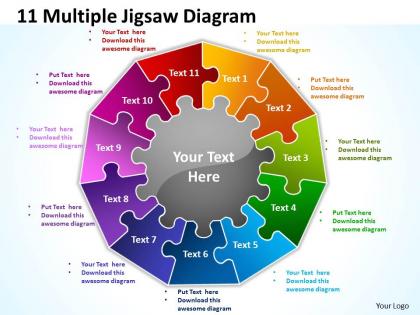
11 multiple jigsaw diagram 4




Try Before you Buy Download Free Sample Product
 Impress Your
 Audience
 100%
100% Editable
 Save Hours
 of Time


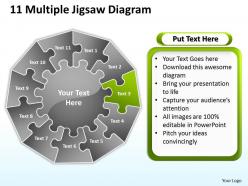
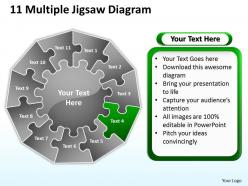
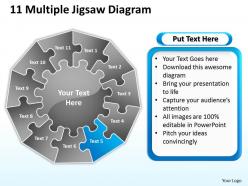
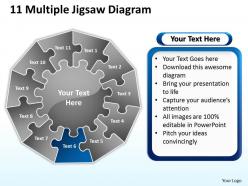
Experience the kaleidiscopic effect of our 11 Multiple Jigsaw Diagram 4. They will give your thoughts a composite form.
People who downloaded this PowerPoint presentation also viewed the following :
11 multiple jigsaw diagram 4 with all 15 slides:
Get a good bargain with our 11 Multiple Jigsaw Diagram 4. We gaurantee more than your moneys worth.
-
11 Multiple Jigsaw Diagram
-
Multiple Jigsaw Diagram
-
11 Multiple Jigsaw Diagram
-
Multiple Jigsaw Diagram
-
11 Multiple Jigsaw Diagram
-
Multiple Jigsaw Diagram
-
Multiple Jigsaw
-
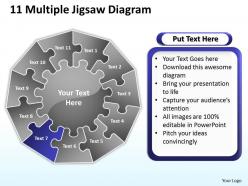
Multiple Jigsaw
-
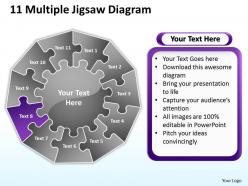
11 Multiple Jigsaw Diagram
-
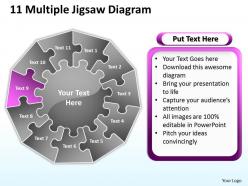
Multiple Jigsaw Diagram
-
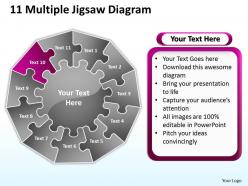
Multiple Jigsaw
-
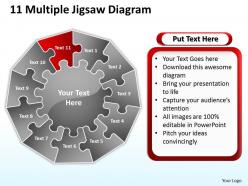
Multiple Jigsaw Diagram
-
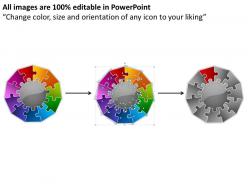
Multiple Jigsaw
-
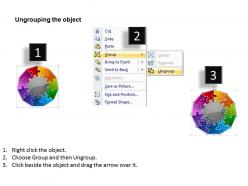
Ungrouping the object
-
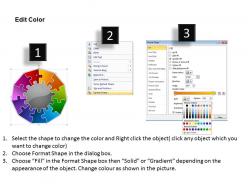
Edit Color
FAQs for 11 multiple
Your jigsaw diagram works best when you reveal pieces one by one instead of dumping everything on screen at once. Trust me, I've watched way too many presentations die because people showed the whole thing immediately. Each puzzle piece should represent a different concept or department - keep your colors consistent so it doesn't look like a mess. Everyone gets how puzzles work, which is why this metaphor hits differently than other visuals. Build it up gradually so your audience can follow along. Then boom - show the completed picture at the end to drive home how everything connects. Works every time.
Dude, jigsaw diagrams are seriously underrated for business reports. They show how your four main points actually connect instead of just dumping them in a boring list. People get this instant "oh I see it now" moment when they realize how marketing, sales, product dev, and research all fit together. Short sentences work too. I started using them for quarterly breakdowns and honestly? Way better engagement than bullet points - though maybe I'm just sick of seeing the same formats everywhere. Try swapping out your next four-point section with a puzzle piece layout. You'll probably notice people actually pay attention for once.
Jigsaw diagrams are perfect for stuff that's all interconnected - workflows, org charts, basically anything where pieces overlap. I'd sketch your main categories first, then figure out where they naturally connect before diving in. They're honestly amazing for complex project mapping! Best use case? When your data shows relationships that aren't just top-down hierarchical. Like different departments working together on projects, or customer journeys that cross paths multiple times. Way better than trying to force everything into separate boxes when it doesn't actually work that way.
Dude, jigsaw diagrams are seriously underrated! They're perfect for revealing info piece by piece instead of dumping everything at once. People actually pay attention because they're trying to figure out how each piece fits together - it's like our brains are wired to love puzzles or something. Way better than those boring bullet point slides everyone uses. Plus they make complicated stuff feel less overwhelming. I'd definitely use them for process flows or when you need to break down complex strategies. Your audience will actually follow along instead of zoning out halfway through.
Ugh, the worst thing people do is cram way too much text into those puzzle pieces. Nobody wants to read a novel in each section - it's honestly painful to look at. Also, half the time the four parts don't even connect logically? Like you could swap them with random topics and it'd make the same amount of sense. Flow matters too. Don't put your second step in some weird corner if people naturally read left to right. Keep things short and actually test it on someone before you finalize it. Trust me, what makes sense to you might be confusing as hell to everyone else.
Make sure each puzzle piece pops with contrasting colors - dark blues with bright yellows, deep greens with oranges, that kind of thing. I learned this the hard way after creating a diagram where half the pieces basically disappeared into each other lol. Your most important pieces should get the boldest, most saturated colors. Keep related stuff in the same color family but use different shades. Oh, and here's a trick that actually works - convert your whole thing to grayscale first. If you can still tell the pieces apart, you're golden. Saves so much headache later!
Oh, these are perfect for project management and software dev stuff. Education too - students actually get it when concepts look like puzzle pieces clicking together. Business consultants are obsessed with them (honestly, anything that makes their presentations look fancier). They're clutch for mapping out workflows with tons of moving parts. I use them all the time when I'm trying to show how different teams or processes connect. Way better than explaining everything verbally in meetings - people zone out after like 30 seconds anyway. If you've got complex systems to break down, definitely try them.
PowerPoint's actually pretty decent for basic puzzle pieces - just use their shapes and copy them around. Lucidchart and draw.io have puzzle templates already made, which saves time. If you want something fancier, Illustrator gives you total control but honestly it's probably more than you need. Oh, and Canva has some puzzle stuff too that's really straightforward to use. I'd go with PowerPoint first since you probably already have it. Lucidchart's worth checking out if PowerPoint feels too limited. Both let you copy pieces between diagrams easily enough.
Dude, jigsaw diagrams are seriously underrated. Your brain processes info way better when it's broken into chunks that connect to each other. People can focus on one piece without losing track of how everything fits together. It's like - instead of rattling off directions, you hand them an actual map, right? Way less overwhelming. The visual thing really helps too because we remember connected stuff better than random facts floating around. Honestly, I think they work better than bullet points half the time. You should try one next time you're explaining complicated processes to stakeholders.
So basically color-code everything by skill level - blue for newbies, green for the middle ground folks. Visual icons help too (way better than those soul-crushing corporate flowcharts). Switch up your language depending who you're talking to. Technical jargon works for experts, but keep it simple for beginners. Honestly, I sometimes just make two versions of the same thing when my audience is all over the place experience-wise. Oh, and don't make anyone feel stupid or bored - that's like the kiss of death for any presentation.
Hotspots work really well - just make each piece clickable to show details or trigger little animations on hover. Drag-and-drop is super satisfying too, even for adults honestly. Let people actually assemble the pieces so they get how everything connects. Progressive disclosure is another route - click one piece and it highlights how it relates to the others. You could add toggle states for before/after scenarios. Really depends what you're going for though. Teaching a process? Showing dependencies? Just letting people explore data however they want? Match the interaction to whatever story you're trying to tell.
Jigsaw diagrams are way more fun than regular charts, honestly. They actually show how pieces connect instead of just dumping data at you. Bar charts tell you "what" and "how much" - that's cool for numbers. But jigsaws? They're perfect for showing relationships and how stuff flows together. People get weirdly drawn to them too, like they need to solve the puzzle or something. Only problem is they turn into a hot mess if you cram too much in there. Regular charts stay clean no matter what. I'd use jigsaws when you're explaining processes that actually link together, not just comparing random data points.
Look at where all your puzzle pieces connect - that's where you'll find your bottlenecks and see which parts actually matter most. Sometimes the obvious links aren't the important ones, which honestly took me forever to figure out when I first started doing this stuff. Short segments usually mean quick wins. Longer connection chains? Those are your critical paths that'll break everything if they fail. Missing gaps show you what's not talking to each other properly. Focus on the areas where tons of pieces meet up first - that's usually where you'll get the biggest bang for your buck when optimizing.
Get people looking at your diagram ASAP and ask what's working. Colors, layout, how you've grouped things - test all of it because your brain fills in gaps that others can't see. I learned this the hard way when my "perfectly clear" diagram left everyone scratching their heads. Watch how their eyes move between sections. Are they getting lost? Can they follow the connections between pieces? Honestly, people will roast unclear visual flow faster than anything else. Don't get defensive about their feedback - just fix what's broken and try again.
Keep your labels super short - like 1-3 words tops. Either put text inside each puzzle piece or use those little callout lines if space is tight. Font size is tricky though - you don't want it competing with the actual diagram. I hate when text just dominates everything! Make sure all four sections match formatting-wise, and maybe color-code if that makes sense. Flow should go clockwise or however people naturally read it. Oh, and definitely test it on someone first. If they're squinting or look lost, you know the labels aren't working.
-
Wonderful templates design to use in business meetings.
-
The content is very helpful from business point of view.