




 0 Comment
 Customer Reviews

"The aim of art is to represent not the outward appearance of things, but their inward significance." - Aristotle, Greek Philosopher
Art has always been the most expressive and powerful medium through which humanity communicates its profound thoughts, emotions, and experiences. From prehistoric cave drawings to modern digital installations, art is a global language that crosses cultural boundaries and speaks to the core of the human experience.
In today's digital world, art evolves and adapts to new technology and means of expression. SmartArt incorporates technology into the artistic process and opens up intriguing new opportunities for interactive interaction, immersive narrative, and collaborative production.
Are you curious about how to create puzzle pieces in PowerPoint? Check out our blog on The Simplest Way to Create Puzzle Pieces in PowerPoint.
What is SmartArt?
SmartArt, a growing trend in the contemporary art world, combines conventional creative expression with current technical breakthroughs. It uses an array of technologies, including interactive installations, digital media, augmented reality (AR), virtual reality (VR), robots, and artificial intelligence (AI), to break down traditional barriers and reinvent the creative experience.
One distinguishing element of smart art is its interactivity, which allows viewers to actively engage in and impact the artwork's narrative or aesthetic presentation. Aside from its visual appeal, smart art can address severe social, cultural, and environmental challenges, serving as a catalyst for discussion, contemplation, and advocacy.
SmartArt in PowerPoint Presentations
With the introduction of SmartArt tools in PowerPoint, you can build stunning and engaging presentations that connect with audiences while conveying complicated concepts with clarity and impact.
Smart art in PowerPoint is a collection of pre-designed, customizable graphics that allows users to quickly and simply create professional-looking diagrams, charts, and visual representations. These smart art images come in a range of formats, including organizational charts, process flows, cycle diagrams, pyramid diagrams, and more. Users may turn dull points into visually appealing graphics that improve comprehension and retention by simply picking a smart art design and inserting text or data.
One of the primary benefits of smart art in PowerPoint is its range and ease of usage. Whether you're an experienced presenter or just starting, SlideTeam's SmartArt PowerPoint Templates allow you to generate crisp and eye-catching graphics without the need for advanced design skills or program knowledge. With a few clicks, you can customize SmartArt graphics' colors, shapes, and layouts to match the brand identity or theme, ensuring a consistent and professional appearance across your slides.
Let’s explore!
Template 1: SmartArt Showing Set Goals Assign Goals and Support Goals
This PowerPoint Template highlights components like setting goals, assigning goals, supporting goals, and checking progress using smart art:
"Set Goals" helps you to define your objectives, which promotes alignment and attention.
"Assign Goals" allows you to allocate duties while maintaining responsibility and teamwork.
"Support Goals" emphasizes giving resources and support to attain established goals, hence promoting growth and achievement.
Using these components, you can create a framework for success that aligns efforts, encourages responsibility, and facilitates movement toward desired results.

Template 2: Smart Art Showing Question Mark and Hash Symbol
SmartArt diagrams such as question marks and hashtags assist you through the text, encouraging critical thinking and boosting comprehension of complex information. The question mark sign helps emphasize areas of ambiguity or questions that need to be addressed, which aids in problem-solving and decision-making processes. On the other hand, the hash symbol is useful for identifying distinct components or features of thought, making complicated concepts easier to absorb and maintain. This PowerPoint illustration also highlights smart art for messaging and volume. These SmartArt are visually appealing and make every presentation eye-catching.

Template 3: Smart Art Showing Plan Write Edit Review and Publish
SmartArt depicting "Plan, Write, Edit, Review, and Publish" helps writers structure material, draft, refine, evaluate, and distribute their work. Before publishing, the information is reviewed and edited to ensure its correctness and coherence. This iterative method encourages thoroughness and excellence in written communication, laying the groundwork for effective content production and distribution. It guides authors, reviewers, and editors through the content development process, guaranteeing a disciplined and productive approach.

Template 4: Smart Art Showing Network Radial Having Four Text Boxes
The PowerPoint Template features a circular diagram with four interconnected text boxes. This radial design highlights how interconnected and dependent each of the four parts, that are displayed in each text box, is. It reflects a separate notion, department, or network element. The circular pattern implies a cyclical or continuous flow of information, ideas, or processes via the network. This graphic depiction helps to organize and communicate complicated relationships or systems efficiently.

Template 5: SmartArt Having Four Text Boxes with Icons
This PowerPoint SmartArt with four text boxes and icons is a striking method of organizing and conveying information. Each text box is accompanied by an icon that depicts its content, which improves clarity and retention. This layout is good for presenting processes, phases, or stages in a simple manner. It may be used in a variety of scenarios, including business presentations, instructional materials, project planning, and procedure manuals. Download now!

Template 6: SmartArt Graphic Showing Text Boxes in Zigzag Manner
This PowerPoint SmartArt graphic with zigzag text boxes creates a visually engaging and flow-oriented presentation of information. This layout can be utilized in various situations, including timelines, processes, and sequential phases, in which the zigzag pattern represents progression or alternation between distinct stages or parts. For example, it can represent a project schedule with milestones, a multi-step process with alternating activities, or a comparison of alternate concepts.

Template 7: SmartArt Graphic Showing Four Text Boxes in a Square Shape
This PowerPoint SmartArt illustration with four text boxes grouped in a square form demonstrates related concepts, actions, or categories. Each text box symbolizes a different piece or notion contributing to a unified whole. This arrangement is widely used to display four essential points, process phases, or system components. It is adaptable and may be used in a number of scenarios, including project management, strategic planning, instructional presentations, and organizational charts.

Template 8: SmartArt Graphic Showing Bulb in Center
This PowerPoint Template with a bulb in the center represents a primary thought or concept from which additional ideas sprout. This visual metaphor portrays creativity, innovation, and the development of new ideas. It may be used in brainstorming sessions, project planning, or presentations about idea development, issue-solving, and innovation projects. The core bulb serves as a focus point, with branches radiating outward to symbolize the development and expansion of ideas.

Template 9: SmartArt Cycle in Five Steps Showing Target Icon
This SmartArt target icon depicts a continuous process that includes discrete stages to accomplish a specific goal or purpose. Each phase helps to move the cycle closer to its goal, symbolizing its iterative nature. This PowerPoint Template can be used in various scenarios, including project management, marketing tactics, and goal-setting procedures. It demonstrates the cyclical nature of jobs, emphasizing the significance of constant development and refining in achieving a desired result.

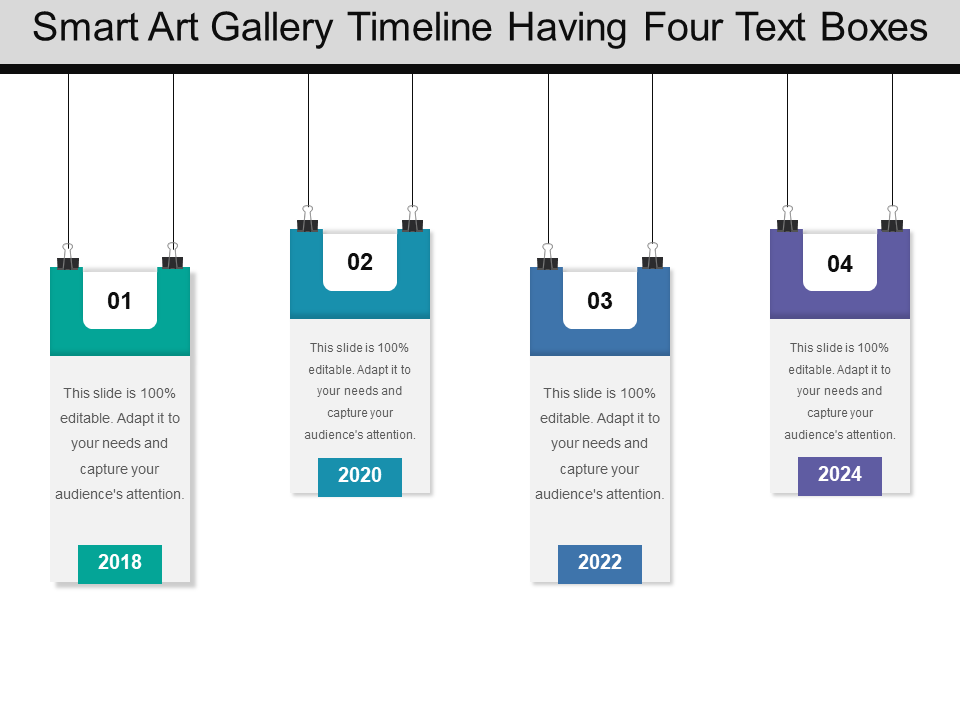
Template 10: SmartArt Gallery Timeline Having Four Text Boxes
This PowerPoint Template graphically represents chronological information or events in a linear fashion, which improves understanding and retention. Each text box represents a particular time or milestone, providing brief explanations or information. It can be used in an array of situations, including project management to demonstrate project schedules, historical presentations to highlight significant events, and marketing strategies to define product development stages. This SmartArt is beneficial for organizing and expressing sequential information effectively, making it great for reports, presentations, and instructional products that require chronological context.
Template 11: Three Different Directions Arrows SmartArt
This PowerPoint Template is color-coded, with green, pink, and blue arrows indicating different pathways or alternatives. Each color represents a distinct direction, resulting in visual clarity and distinctiveness. This adaptable template may be used in several scenarios, including decision-making processes, project planning, and strategic analysis. For example, corporate presentations represent alternate plans or development opportunities. In educational contexts, it may represent several learning pathways or study methods. The color-coded arrows make complicated subjects more straightforward to understand and communicate with audiences, making them valuable tools in professional and academic settings.

Elevate Your Expression with Smart Art
Smart art is an assertive visual communication and storytelling tool, allowing you to develop effective and memorable presentations that connect with your audiences. Whether making a sales presentation, training session, or academic lecture, smart art visuals can enhance clarity, engagement, and comprehension, allowing you to communicate confidently and confidently.
With our PowerPoint templates, you can control the timing, duration, and style of animations to draft engaging and eye-catching presentations that leave a lasting impression. PowerPoint's smart art feature, with its user-friendly interface, customizable features, and interactive capabilities, continues transforming how we produce and deliver presentations in the digital age.