





 Customer Reviews

Idea 1) Change the Size and Color of the Bullet Point
- Add text on the slide. Create the text in the form of bullet points.
- Go to the Paragraph group section.
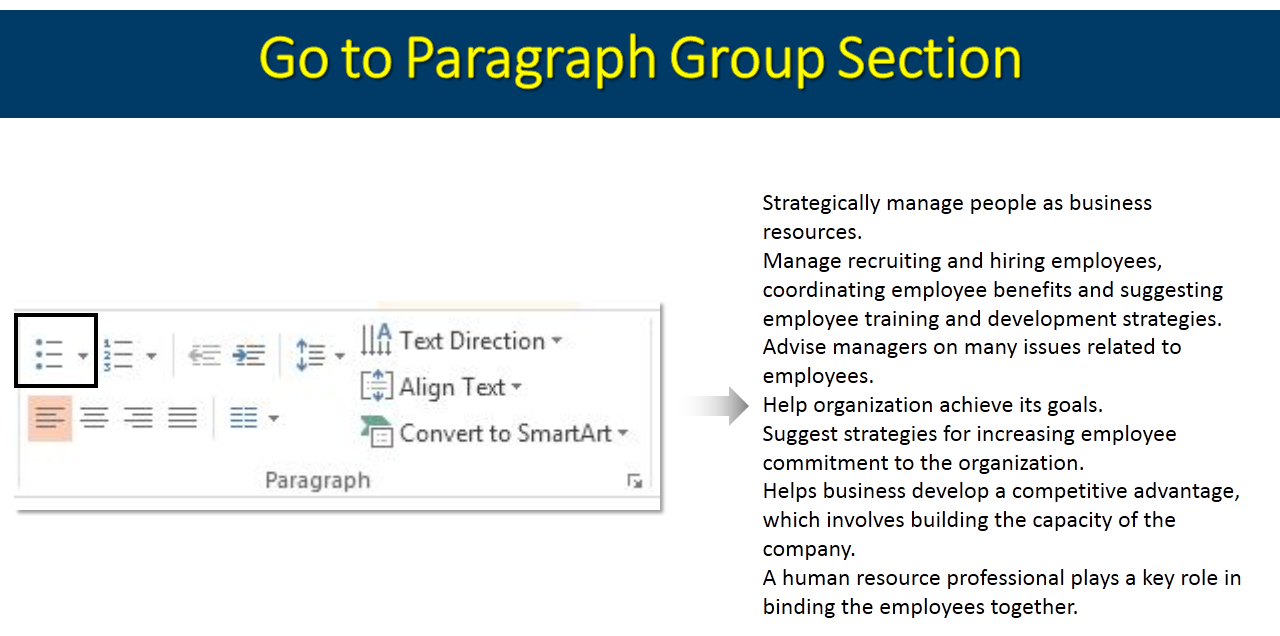
- Choose Bullets drop down. You will get various options of bullet points to choose from.
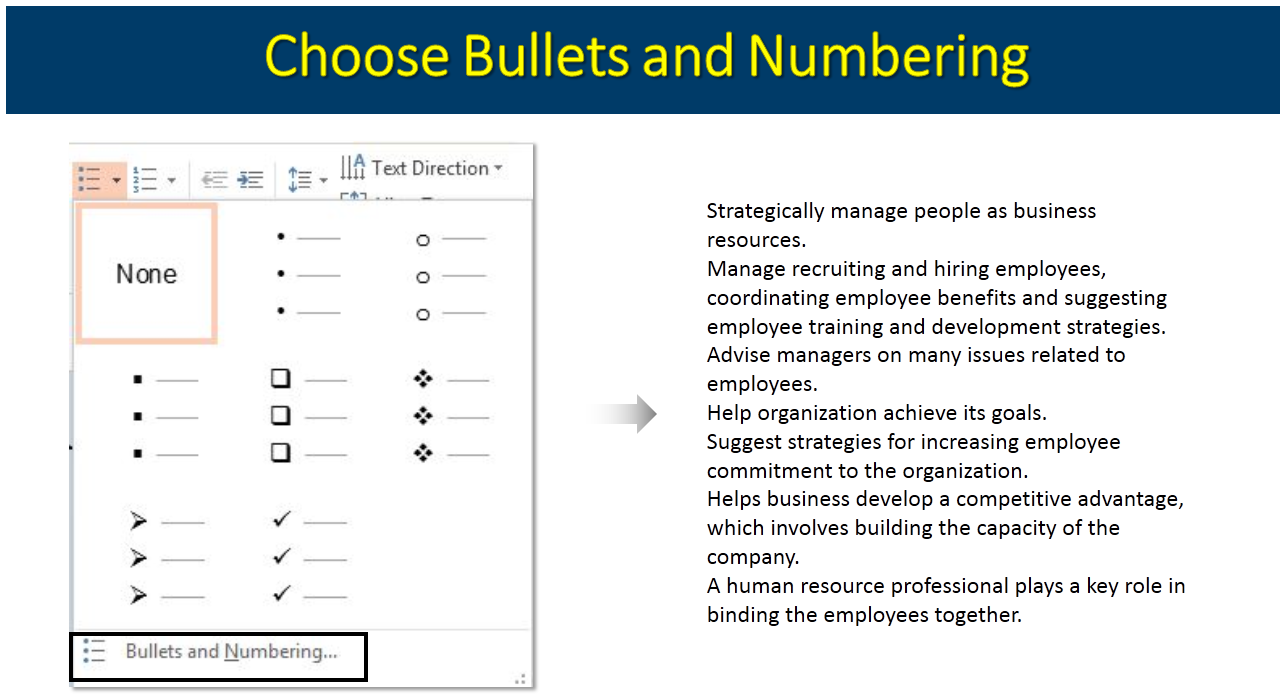
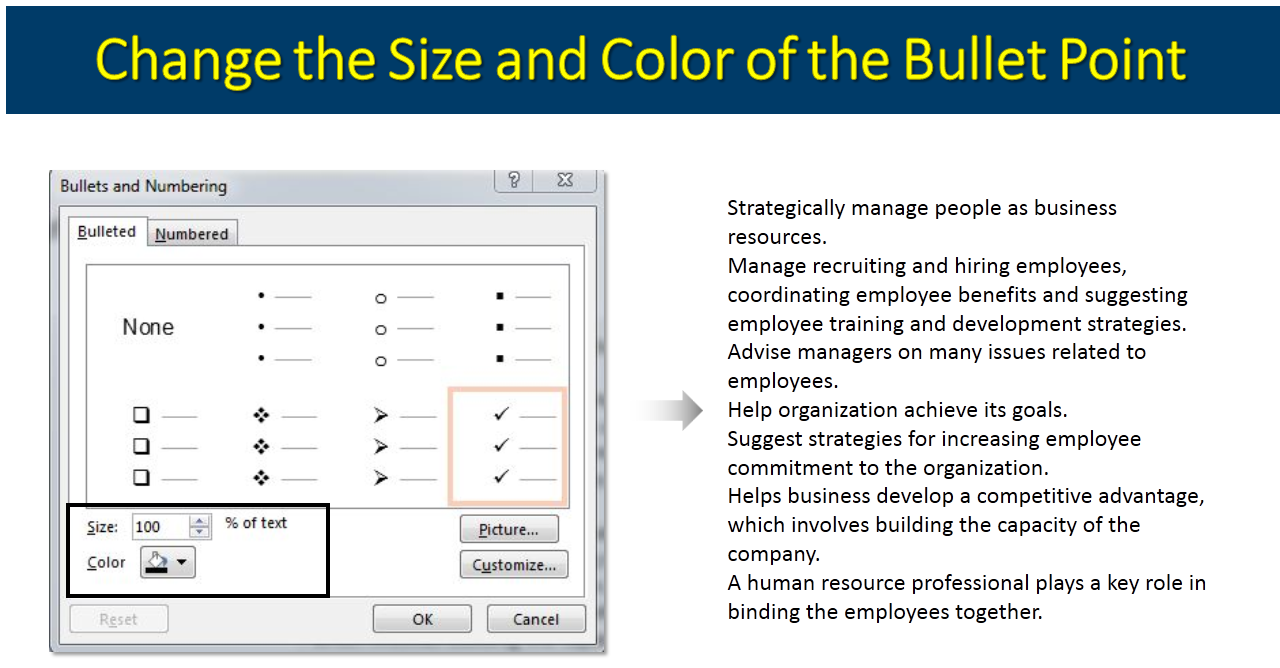
- A Bullet and Numbering window appears onscreen. You can select any of the styles.
- After selecting the style, go to the Size and Color option and make changes according to the requirement.
 See the result.

Idea 2) Make Picture a Bullet Point
- Add text on the slide. Create the text in the form of bullet points.
- Go to the Paragraph group section. Choose Bullets drop down.
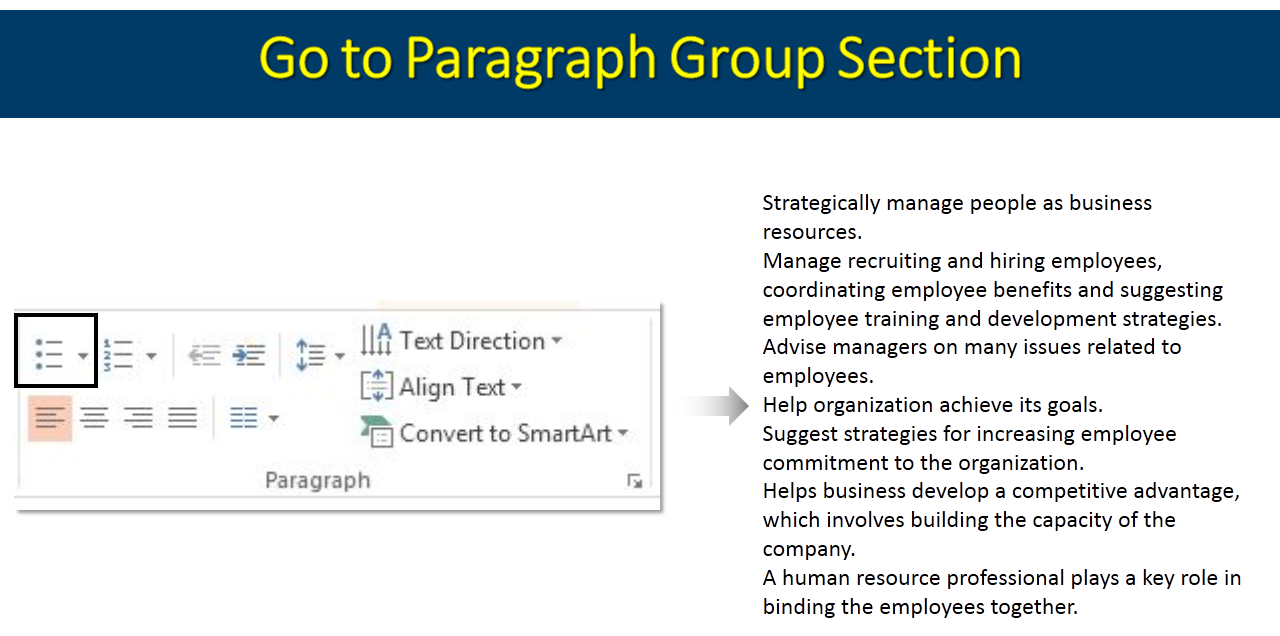
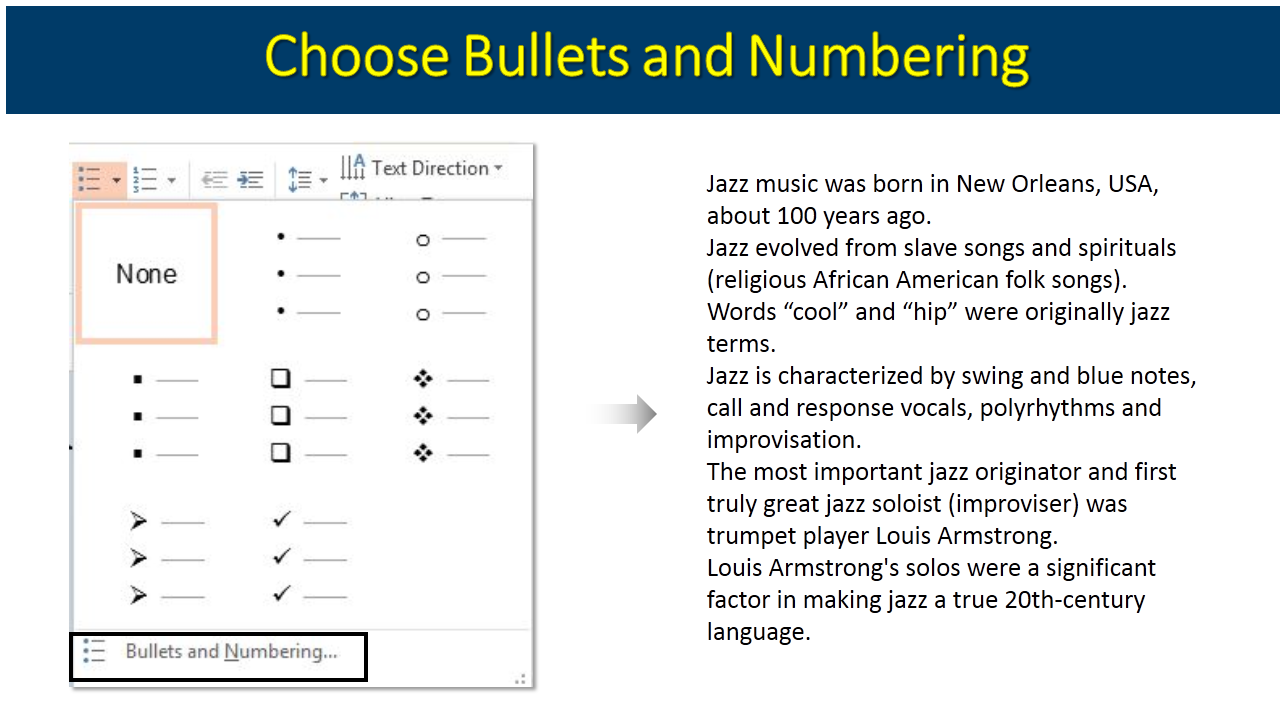
- Choose Bullets and Numbering. A Bullet and Numbering window appears.
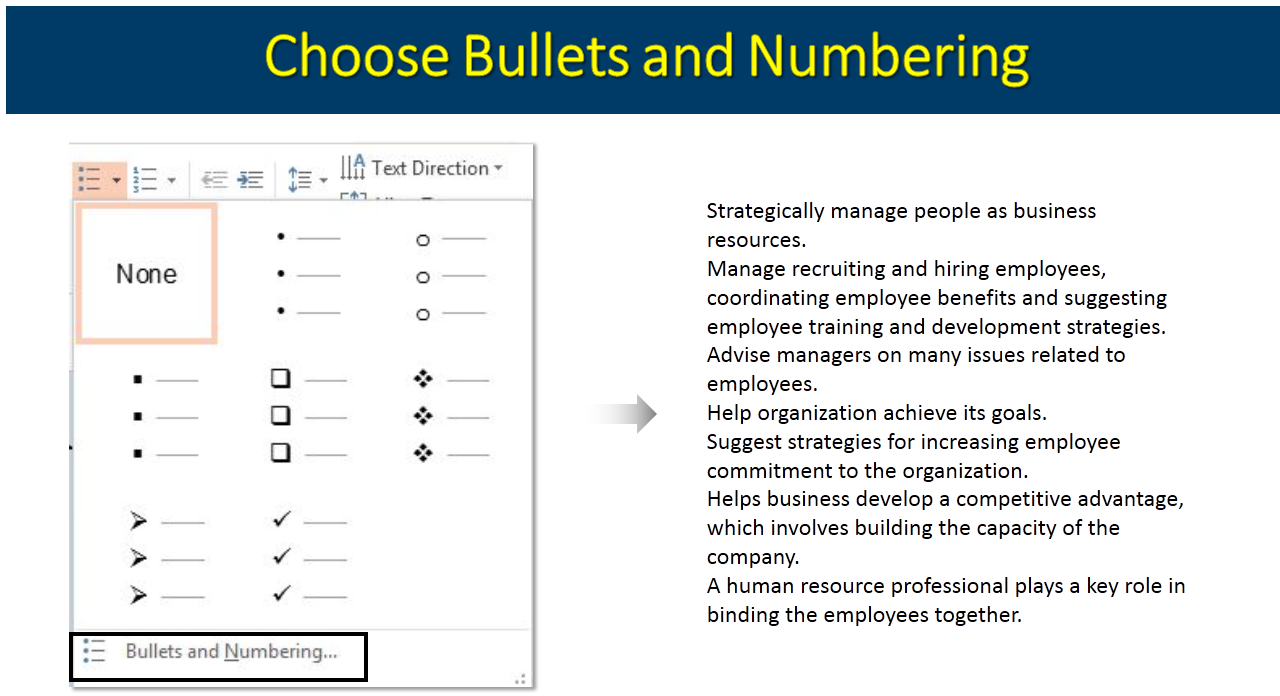
- Select option Picture.
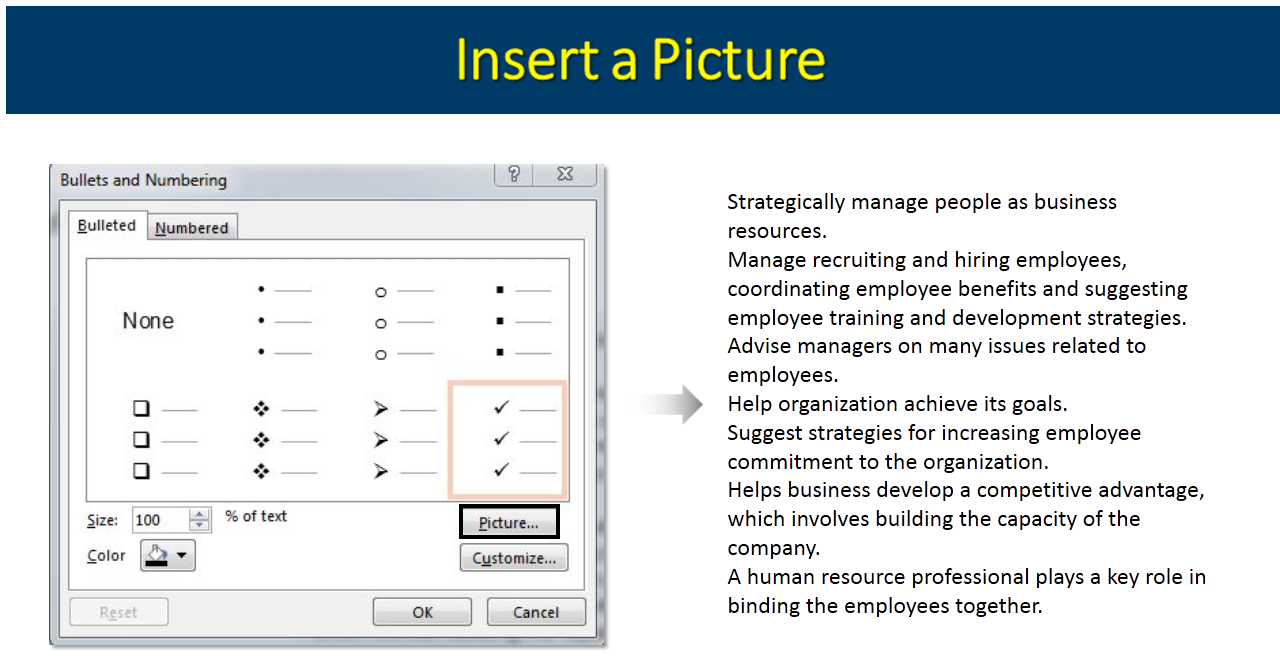
- Add picture you want to.
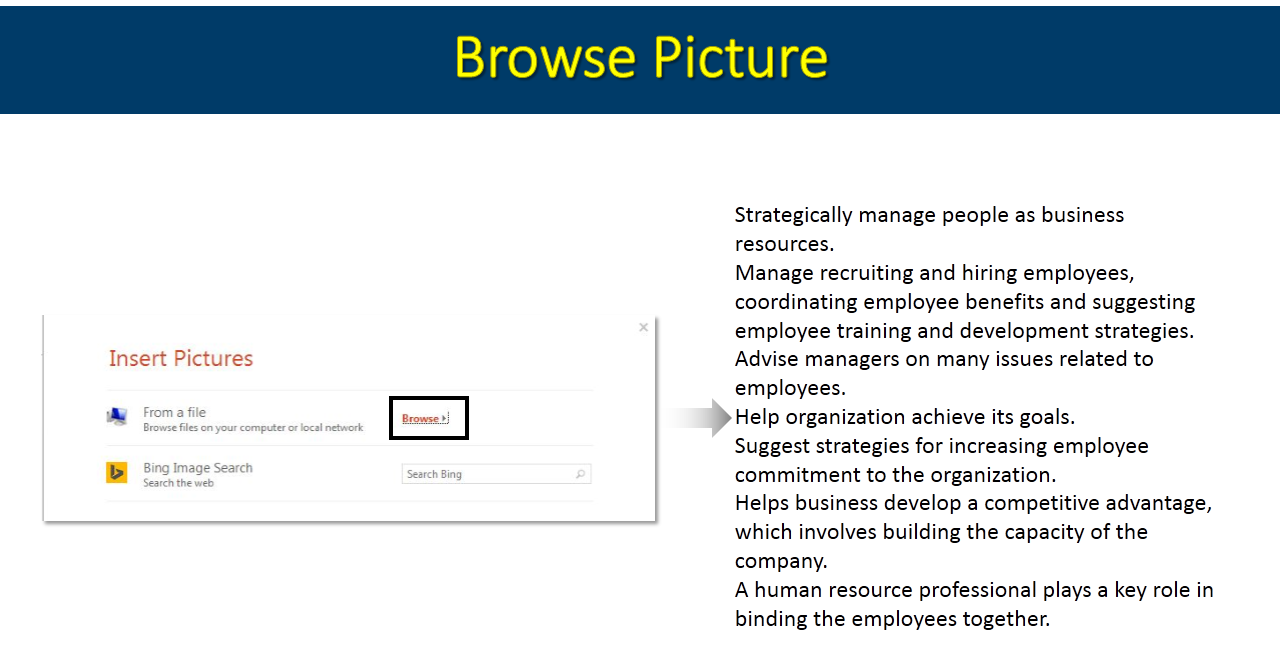
- Insert a picture of your choice. Alternatively simply insert the picture icon using the Insert Picture feature (Insert tab).

- Emphasize on the points by putting a picture as bullet points in the presentation.

Idea 3) Customize the Bullet Points
- Add text on the slide. Create the text in the form of bullet points.
- Go to the Paragraph group section. Choose Bullets drop down.
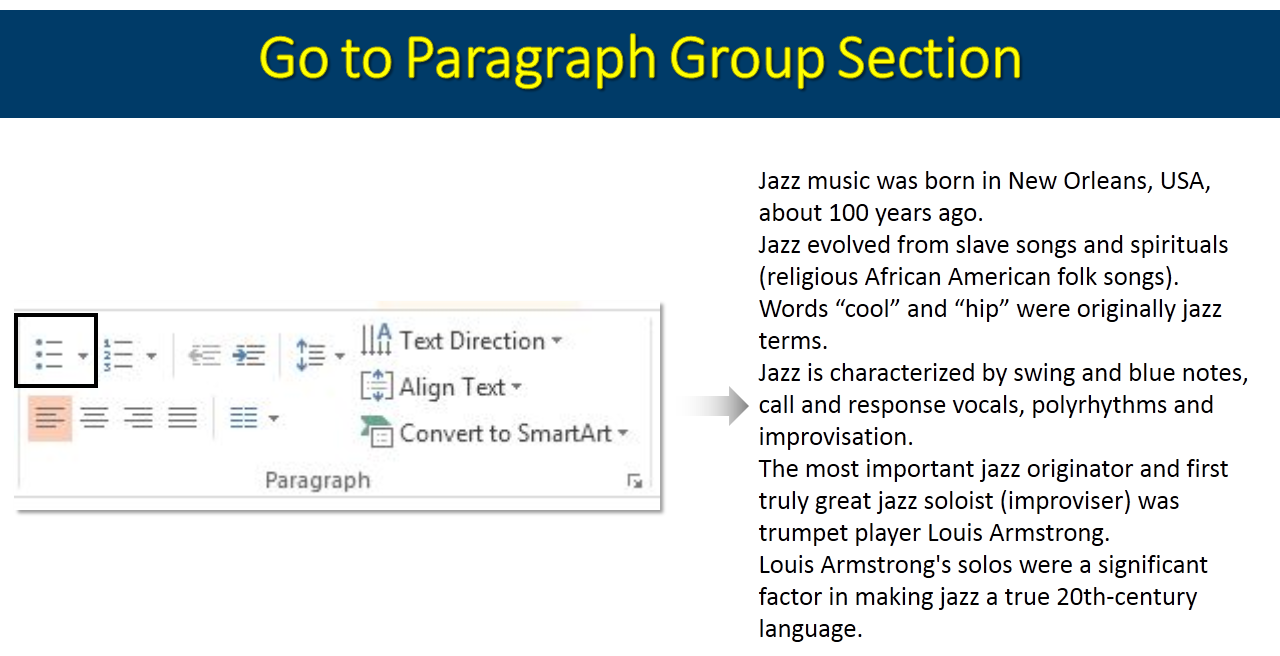
- Choose Bullets and Numbering. A Bullet and Numbering window appears.
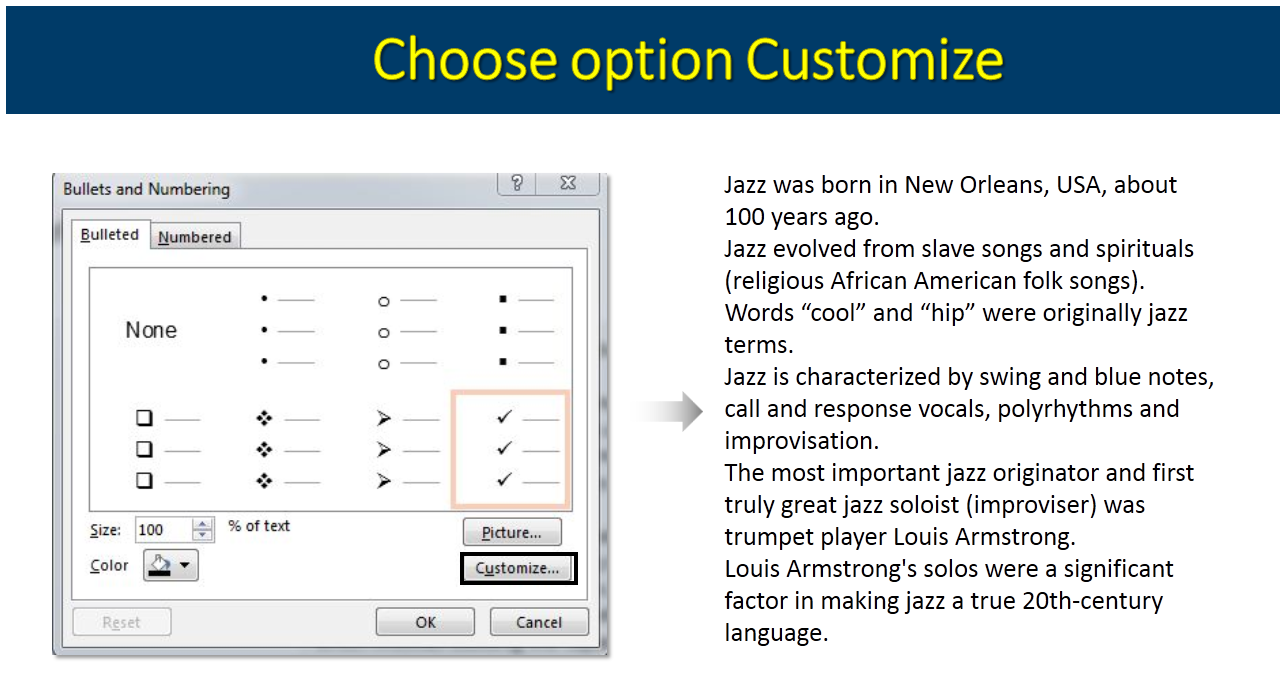
- Go to the option Customize.
- Select any Font at the top. Various different innovative icons will appear on screen.
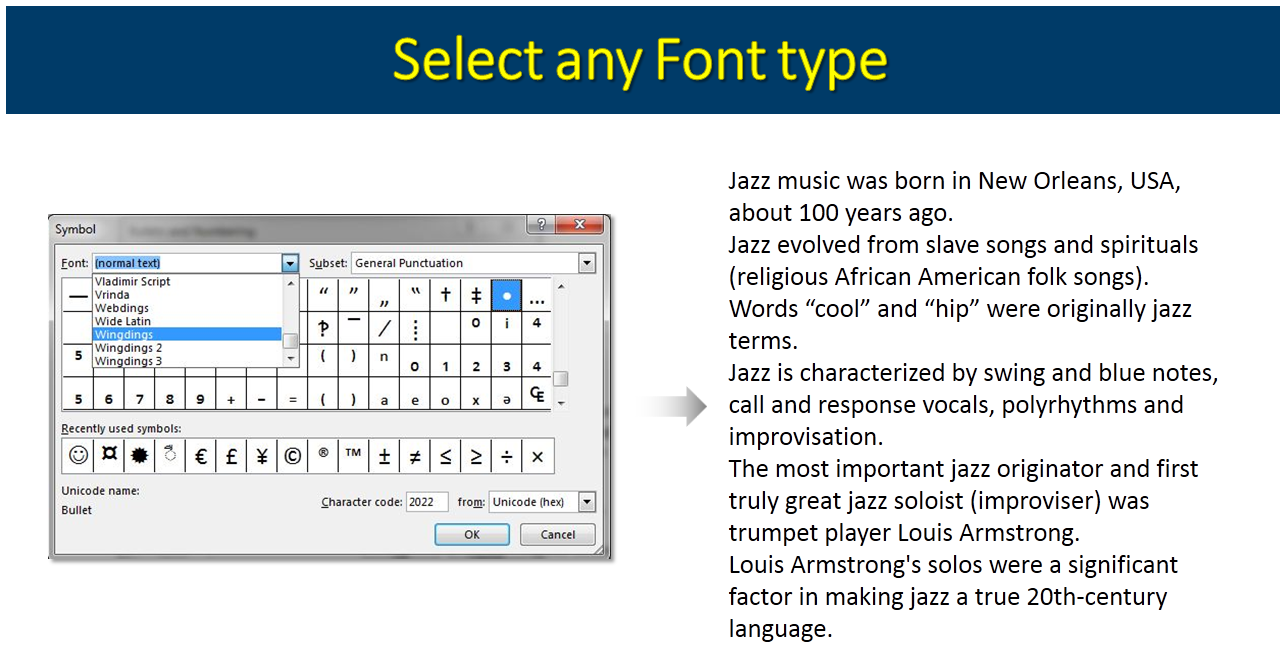
- Select the one that goes with your text.
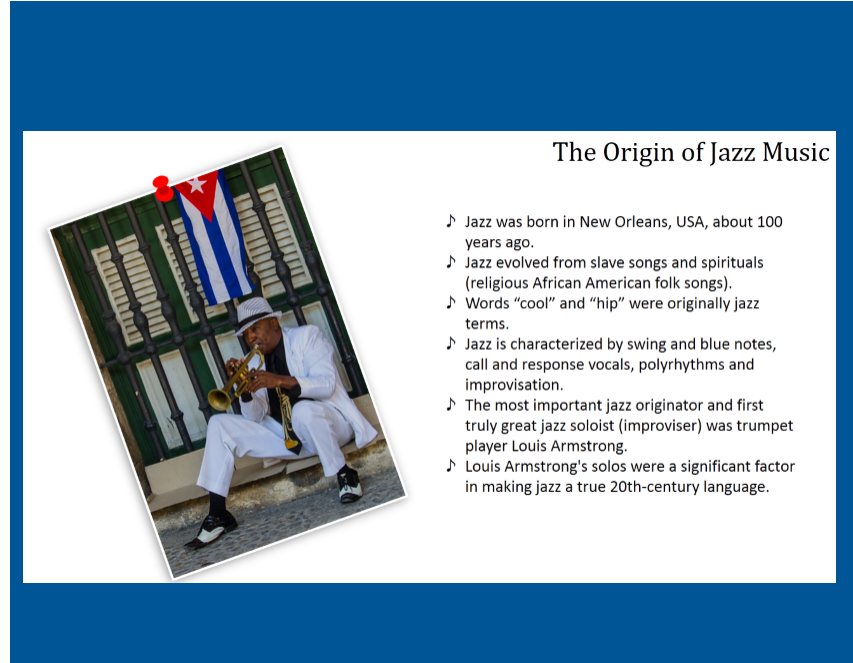 Talking about Customizing the Bullet points, there is one more way to use this step.
- Open a slide, type any letter.
- Go to the option Font. Select Wingdings and Wingdings 3.
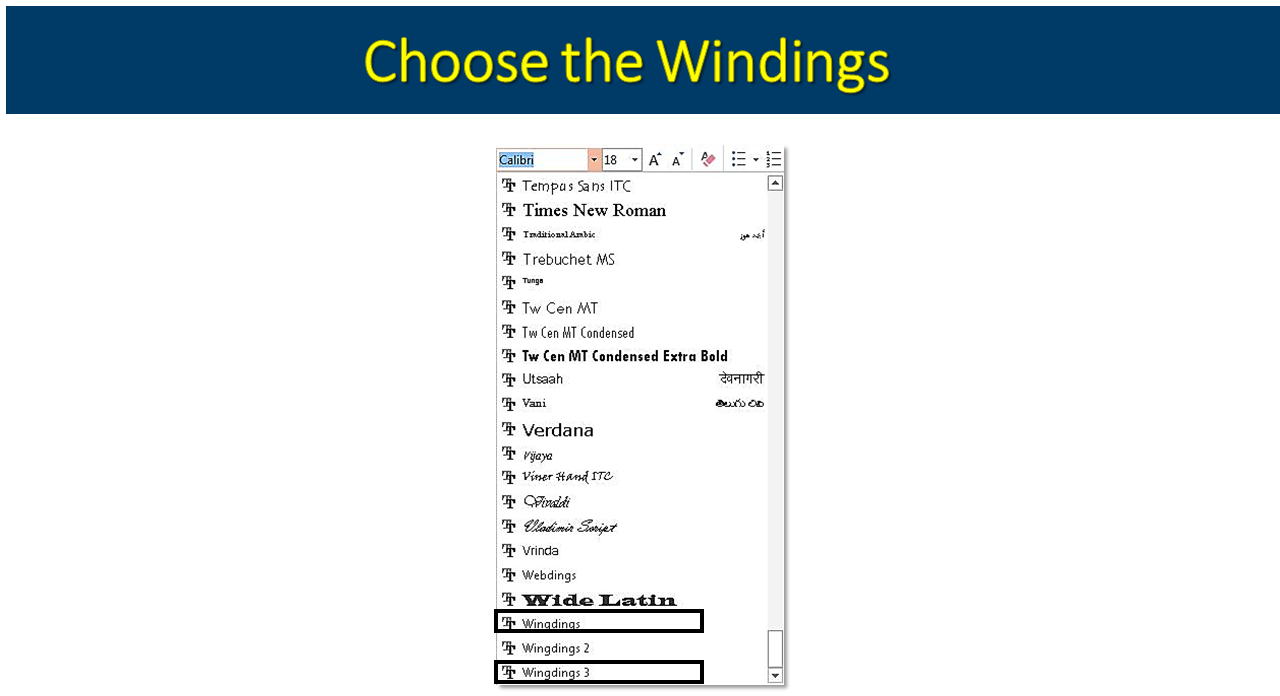
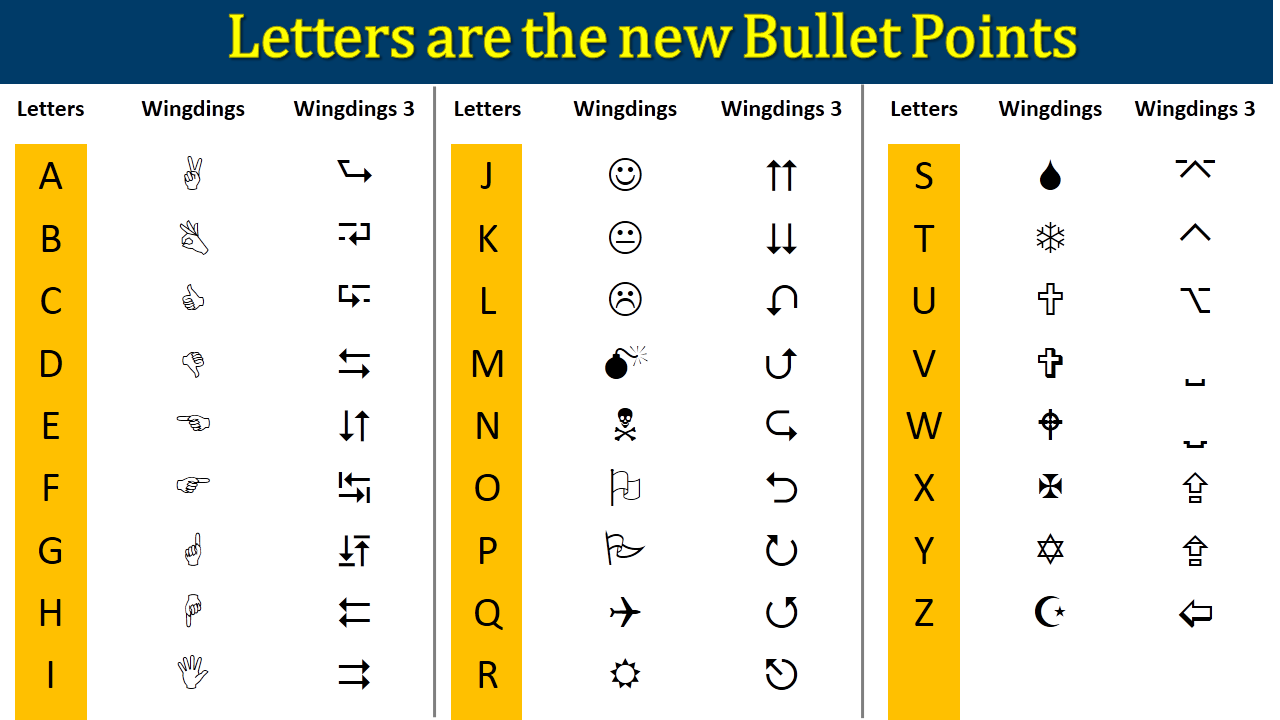
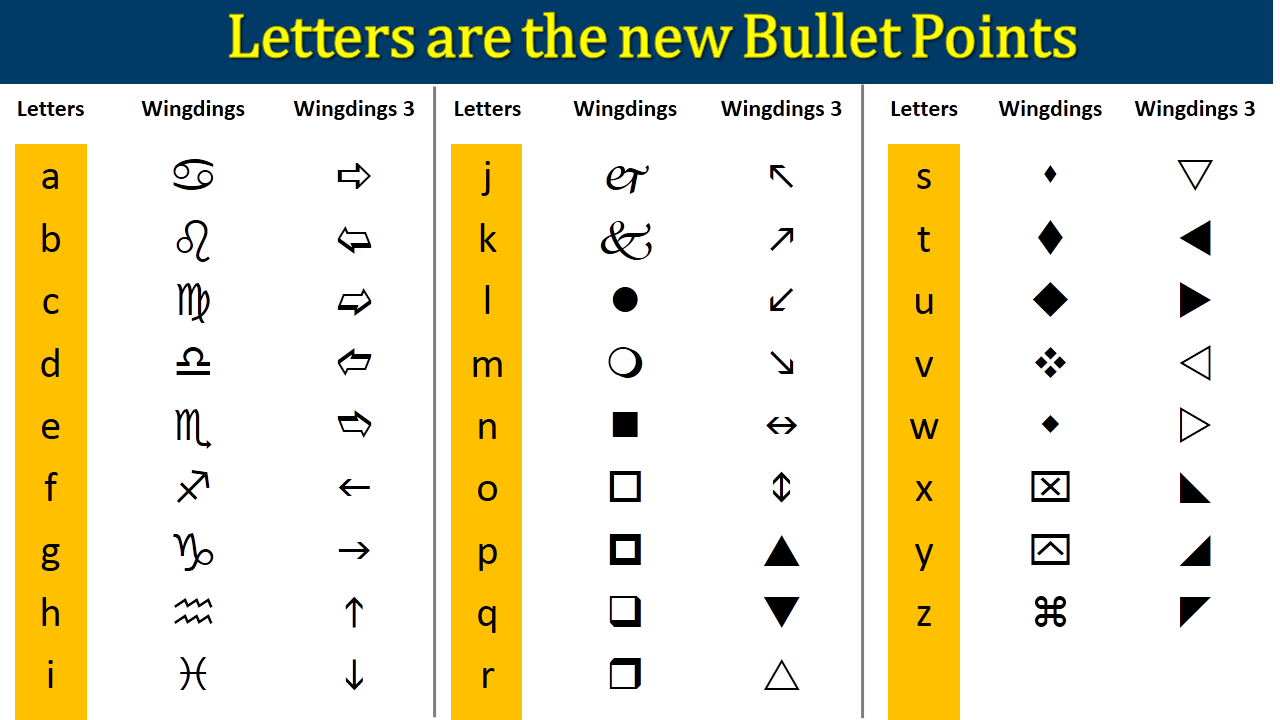
- You will get different types of awesome icons which can be used as the bullet points.
- Bullet points from Capital Letters:
- Bullet points from Small Letters:
 You can also download innovative icons online. Make sure you don’t save them as PNG because then you will not be able to make the changes in the icon.
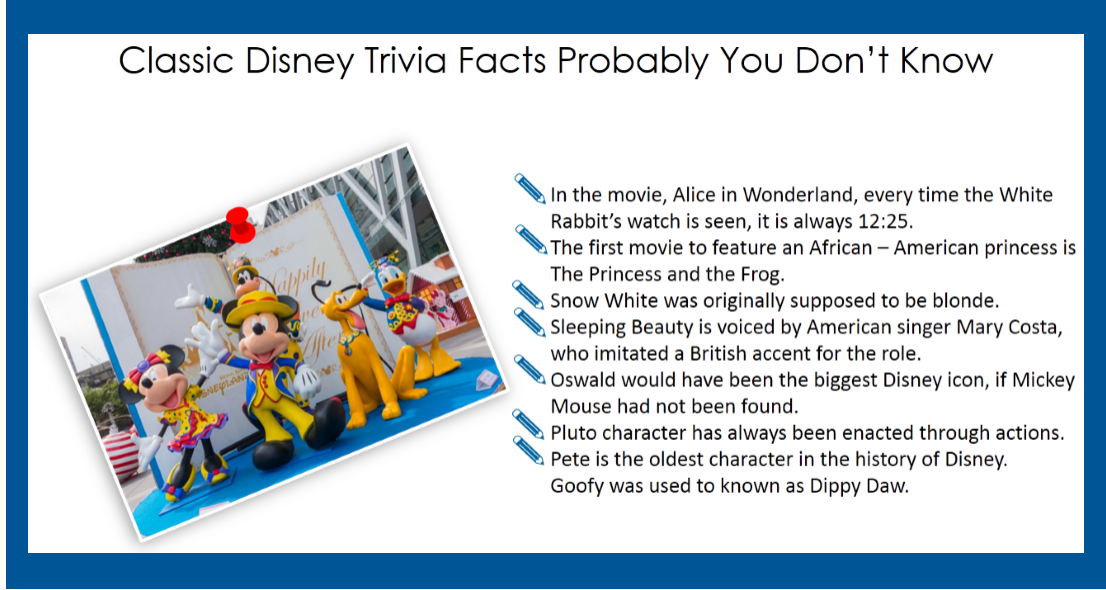 Go ahead and try out adding fun bullet points to your text and make your presentation look attractive.



![Game Changing PowerPoint Design Hack: Icons are the New Bullet Points [Part 1]](https://www.slideteam.net/wp/wp-content/uploads/2016/04/PowerPoint-Icons-are-the-best-Subtitute-to-Bullet-Points1.png)
![Game Changing PowerPoint Design Hack: Icons are the New Bullet Points [Part 2]](https://www.slideteam.net/wp/wp-content/uploads/2016/04/Use-Icons-to-Create-Iconic-Presentation-Slides.png)


2017-04-28 13:34:52 at