

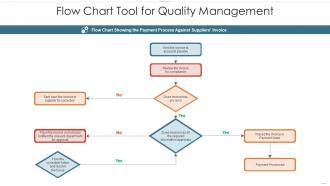
Flow chart tool for quality management





Try Before you Buy Download Free Sample Product
 Impress Your
 Audience
 100%
100% Editable
 Save Hours
 of Time


Our Flow Chart Tool For Quality Management are topically designed to provide an attractive backdrop to any subject. Use them to look like a presentation pro.
People who downloaded this PowerPoint presentation also viewed the following :
Flow chart tool for quality management with all 2 slides:
Use our Flow Chart Tool For Quality Management to effectively help you save your valuable time. They are readymade to fit into any presentation structure.
FAQs for Flow chart tool
You'll need ovals for start/end points, rectangles for processes, and diamonds for decisions. Arrows show the flow direction - pretty straightforward stuff. Labels should be clear and simple because nobody wants to decode mysterious text boxes, trust me. Mark your yes/no paths clearly at each decision point. Keep symbols consistent throughout (this trips people up more than you'd think). If it gets messy, use connector circles to jump around the page. Bottom line: another person should follow your flowchart without texting you a million questions about what you meant.
Honestly, flowcharts are like having a GPS for complicated stuff. Your brain doesn't have to juggle all these steps at once - everything's just laid out with boxes and arrows so you can actually follow along. Way better than trying to parse through walls of text, you know? You'll spot where things get stuck or where you're doing redundant work much faster when it's visual. I always end up drawing things out when I'm explaining processes to people anyway - might as well start there. Plus no more of those "wait, what was I supposed to do next?" moments that drive you crazy.
Okay so for flowcharts you basically need four main shapes. Ovals are your start and end points. Rectangles show process steps. Diamonds are for decisions - like yes/no questions. Parallelograms handle input and output stuff. Oh and circles work as connectors when things get tangled up (trust me, it happens). Arrows just show which direction everything flows. There are other symbols like cylinders for databases but honestly? Don't worry about those yet. These four will handle pretty much everything you need. Keep it straightforward and you're golden.
So basically, look for what kicks things off - could be a customer hitting you up, some system doing its thing, whatever gets the ball rolling. That's your start. For endings, think about where stuff naturally wraps up. Sometimes there's one clear finish line, but honestly most processes branch out into different endings depending on what happens along the way. I kinda think of it like mapping out a story, you know? Where's it begin and how's it wrap up? Just sketch out your whole process first - you'll spot those natural start and stop points pretty easily once you see the big picture laid out.
Totally! Flowcharts work great in agile. During sprint planning, map out your user stories and spot dependencies between tasks. They're super helpful for retrospectives too - I've watched teams realize their actual workflow was completely different from what they assumed. Keep them simple though, since agile prioritizes working software over heavy documentation. Process flows are perfect, or decision trees for tricky features. Your deployment pipeline's another good one to visualize. Oh, and don't forget to update them as things change each sprint. Otherwise you'll end up with outdated diagrams that confuse everyone.
Honestly, I'd start with draw.io (they renamed it to diagrams.net for some reason). It's completely free and way better than you'd expect. Lucidchart is probably the most polished option - their templates are clean and the collaboration stuff actually works well. You'll pay for it though. Visio feels pretty outdated at this point, even if you're already using Microsoft everything. Oh, and Miro's cool if you want something more creative and less rigid. Try draw.io first since there's no risk, then maybe upgrade to Lucidchart if you need fancier features.
Ok so for flowcharts in presentations - first thing, don't go crazy with colors. Like 3-4 max or it'll look messy. Keep your text short and make it big enough so people in the back can actually see it. Flow should go top-to-bottom or left-to-right, whatever feels natural. Honestly the biggest mistake I see is cramming everything together. Give your elements some breathing room! And here's what really helps - practice explaining it out loud first. If you're stumbling over your own flowchart, that's a red flag. I learned this the hard way when I completely bombed a presentation because my diagram looked like someone threw shapes at a wall. Clean and simple wins every time.
Honestly, flowcharts are game-changers for messy decisions. They show you every possible path visually, so you can catch problems early instead of scrambling later. No more confusion in meetings where everyone remembers different things - the whole team sees exactly what's happening. I've found they're clutch when you've got multiple people involved because it's crystal clear who handles what. Oh, and you don't need to get fancy right away. Just grab a pen and map out the main decision points first. Trust me, even a rough sketch beats trying to keep everything straight in your head.
Honestly, manufacturing and healthcare get the most out of flowcharting - like, you can actually prevent serious mistakes that could hurt people. Software teams are totally obsessed with them too (we really do love our diagrams lol). But really, any field with complicated workflows benefits. Finance uses them a ton, plus logistics and quality control - basically anywhere that bottlenecks and errors cost you money. If your processes are repeatable and screw-ups are expensive, flowcharts will save your butt. I'd start with whatever process gives you the most headaches first.
Definitely use swimlanes - basically separate sections for each process. I always put the main one in the center first, then add the others around it. Colors help a ton too, like blue for one process, green for another. Trust me, I've made those messy spaghetti charts before and nobody can follow them! Keep your arrows clean and try not to have them crossing everywhere. Oh, and label each section at the top so people know what they're looking at right away. Grouping similar steps together makes everything way easier to read.
Oh man, don't overcomplicate them right off the bat - that's mistake
-
Enough space for editing and adding your own content.
-
Graphics are very appealing to eyes.
-
Awesome presentation, really professional and easy to edit.
-
It saves your time and decrease your efforts in half.