

Master plan schedule powerpoint slide designs




Try Before you Buy Download Free Sample Product
 Impress Your
 Audience
 100%
100% Editable
 Save Hours
 of Time


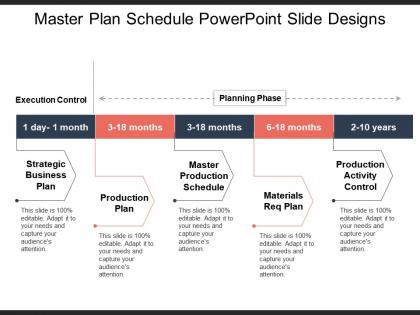
Introducing, master plan schedule PowerPoint slide designs developing your yearly business plan. We have shown a linear graph her in the PPT with two major segments as, execution control which is covered up under strategic business plan; shown in the span of 1 day to 1 month, representing the initial phase and second segment is planning phase which is divided into four sections which are, production plan with the span of 3-18 months, master production schedules under the span of 3-18 months, material requirement plan developed under the period of 6- 18 months and final, production activity plan with the span of 2-10 years. Modify the data according to your company analytics. Include your key points and get your ideas across through the help of a PowerPoint template by editing the text boxes shown here. Just download this alluring PPT slide master plan schedule PowerPoint slide designs developing your yearly business plan and present your thoughts with confidence. Click download and get started now. Highlight causes for celebration with our Master Plan Schedule Powerpoint Slide Designs. Enlighten folks about creditable achievements.
People who downloaded this PowerPoint presentation also viewed the following :
Master plan schedule powerpoint slide designs with all 5 slides:
Our Master Plan Schedule Powerpoint Slide Designs give an elaborate touch. Each segment recieves adequate attention.
FAQs for Master plan schedule
Start with a solid timeline - Gantt chart or roadmap works great. Add your major milestones, dates, and who's doing what. Dependencies matter too so people get what's blocking progress. Way too many of these slides look fancy but are completely useless, honestly. Highlight critical path stuff and risky areas that could mess things up. Keep text short, use colors for different work streams. Oh, and always slap a "last updated" date on there. Nothing worse than outdated project info floating around confusing everyone.
Dude, color psychology is such a game changer for timelines. Blue builds trust, so use it for your foundation stuff. Green screams progress - perfect for milestones. Red? Save it for the truly urgent deadlines or you'll stress everyone out. Orange works amazing for creative phases, but honestly I've sat through way too many presentations that look like a unicorn exploded. Stick to 3-4 colors max. Think about what you want people to *feel* when they look at each section. Map your colors to those emotions. It sounds simple but it actually works really well.
Put your biggest milestones right at the top - that's what people actually care about. Then go chronological and use colors to separate different teams or workstreams. Keep descriptions super short because no one wants to read tiny text in a meeting room. Progress bars and arrows help show dependencies without cluttering things up. Build in buffer time with your dates (learned that one the hard way). Oh, and always have a detailed backup slide ready. Someone will inevitably ask for specifics you didn't include.
Dude, Gantt charts are seriously a lifesaver for schedule presentations. People can actually see what's happening instead of trying to decode a wall of text and dates. You'll instantly show them task overlaps, critical paths, bottlenecks - all that stuff that's impossible to track otherwise. I swear, nothing kills a meeting faster than reading through endless bullet points while everyone zones out. The visual format lets stakeholders grasp dependencies without doing mental gymnastics. Oh, and definitely use color coding for different work streams. Makes such a huge difference in clarity.
Ugh, the worst thing you can do is cram everything onto one slide. People's eyes just glaze over immediately. I always stick to major milestones only - save the tiny details for later slides or handouts. And please, actual dates instead of vague "Q1" nonsense. People need real timelines. Don't make your fonts microscopic either - half the room won't be able to read it anyway. Color-wise, keep it simple. Two or three colors tops. I've seen way too many rainbow disasters that hurt to look at. Oh, and start with your biggest milestones first, then squeeze in supporting stuff if there's room left over.
Honestly, less is more with animation. Just reveal timeline phases one at a time or highlight key milestones as you talk through them. I've sat through presentations where spinning charts literally made people dizzy - not kidding! Simple fade-ins work great for guiding attention to whatever you're discussing. Skip anything that loops or bounces constantly since it'll distract from your actual message. Your audience should focus on understanding the schedule, not getting mesmerized by effects. Animation should support what you're saying, not turn your presentation into some weird light show.
Dude, just go with Calibri or Arial for those schedule slides - serif fonts look terrible when you're showing timelines. Make your text at least 18pt, bigger is better. Honestly, I've sat through way too many presentations where I couldn't read anything past row three. Bold the important deadlines but skip italics, they get all weird on projectors. Two fonts max or it'll look messy. Oh and definitely do the across-the-room test before you present - saved my butt so many times when I realized my text was basically invisible from the back.
Templates are honestly a game-changer for schedule presentations. You don't have to build everything from zero each time - the timeline layouts, milestone markers, and styling are already there. Just drop in your dates and deliverables. Everything stays looking professional without the hassle. Your team can all use the same one too, which keeps things consistent across projects. I always forget how much time this saves until I'm scrambling before a deadline! You'll probably want like 2-3 different versions for different project types.
Dude, consistency makes such a huge difference in PowerPoint. Your audience will actually take you seriously when everything matches - same fonts, colors, spacing throughout. I learned this the hard way when my boss called out mismatched bullet points between slides (so embarrassing). People get distracted by wonky formatting instead of listening to what you're saying. Honestly, inconsistent design just screams "I threw this together last minute." Set up a master template right away with your colors and fonts locked in. It'll save you so much headache later, trust me.
Make your big milestones pop with bold colors or bigger fonts - honestly, boxes around key dates work really well too. Put the most important stuff in the top-left since people look there first. I used to cram way too much text on these slides (rookie mistake), but white space is your friend here. Timeline formats beat dense tables every time - so much easier to scan. Oh, and stick to 3-5 critical milestones max per slide. Any more than that and everything just blends together into noise.
Honestly, start with other tools first - way better results. Canva's perfect for custom graphics and backgrounds that actually look good. For complex timelines, I swear by Lucidchart (though Visio works too) - just export and drop into PowerPoint after. Excel's surprisingly clutch for clean charts you can copy over. Even Google Drawings does the job for basic stuff. The trick is making all your visual pieces elsewhere first, then assembling in PowerPoint. Takes longer but your slides won't look like every other boring corporate deck out there.
Honestly, custom graphics are a game-changer for master schedules. Your boring timeline becomes something people actually want to look at. Use visual metaphors that match your project - like construction stages for building phases, or roadway-style progress bars for infrastructure stuff. People process visuals way faster than text anyway. When you add custom icons or themed graphics, stakeholders get visual anchors. They'll understand not just the timing but what the whole journey looks like. Oh, and pick one consistent theme that matches your end goal - don't go crazy mixing styles.
Look, schedule presentations are boring as hell and everyone knows it. People's eyes glaze over the second you pull up a Gantt chart. But here's the thing - if they zone out, they'll miss deadlines that actually matter to their work. Break it up with polls or just ask "what worries you about this timeline?" Every 5-7 minutes, throw in something interactive. Honestly, even a simple Q&A pause works. When people feel involved instead of lectured at, they'll remember the important stuff and actually care about hitting those dates.
Honestly, visual tools will save your sanity here. Gantt charts are perfect for showing how tasks connect and depend on each other. Color-coding helps too - like red for urgent stuff, green for completed. I've been obsessed with timeline infographics lately, they just make everything click. Progress bars show completion status at a glance. Break your massive schedule into digestible visual chunks that tell the story. PowerPoint's SmartArt works fine if you're on a budget. Tableau's amazing but pricey. Lucidchart's solid too. Trust me, stakeholders actually look at pretty visuals instead of ignoring wall-of-text schedules.
Color-code everything - green for done, yellow for ongoing, red for trouble. Always pad your timelines because stuff *always* takes longer than you think (learned this the hard way). Don't use vague dates like "Q2" - actual names and specific deadlines work way better. I'd throw in a risks slide upfront so people aren't blindsided later. The key thing though? Schedule regular check-ins where you actually update people on real progress, not just show them the same pretty timeline from three months ago.
-
Graphics are very appealing to eyes.
-
Thanks for all your great templates they have saved me lots of time and accelerate my presentations. Great product, keep them up!