

Process workflow presentation images





Try Before you Buy Download Free Sample Product
 Impress Your
 Audience
 100%
100% Editable
 Save Hours
 of Time


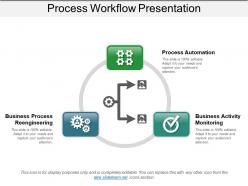
The workflow process diagram presentation template design displays an organized sequence of steps or stages of a specific process, operation, task or activity. The process workflow PPT template design acts as an incredible tool to convey your message in an effective way. By using our professionally designed process workflow presentation slide, you can display most of the industrial as well as business-related processes or activities that follow a sequential path to reach its final level or get completed. Though explaining these paths is a difficult task, with this pre-made process workflow PowerPoint template, your job becomes easy. Moreover, you can use this workflow design PPT slide to explain how to handle a certain process or task as well as how to reach to the final outcome. The process workflow tool presentation slideshow is ideal for all industries or businesses regardless of their type. A user can summarize the process steps as well as depict the flow process through this process workflow modeling template for PowerPoint. The process workflow diagram template highlights the important pathway or flow process for the successful initiation as well as completion of industrial, administrative, and other related processes.
People who downloaded this PowerPoint presentation also viewed the following :
Process workflow presentation images with all 5 slides:
Our Process Workflow Presentation Images help in cementing their belief. They will soon be eating out of your hands.
FAQs for Process
Start with clear beginning/end points and use arrows that actually make sense. Rectangles for regular steps, diamonds for yes/no decisions - pretty standard stuff. Keep your colors simple (nobody needs a rainbow workflow). Make the text big enough to read without squinting - honestly, half the ones I see are basically unreadable. Each step should spell out who's doing what and when so there's zero confusion about who owns it. The whole thing needs to tell the story quickly. Oh, and test it on someone fresh to the process first. If they're lost, you need to simplify.
Dude, color coding is a game changer for workflows. Makes everything so much clearer when you can actually see the different steps instead of staring at a wall of text. I usually do green for approvals, red for stops, blue for reviews - that kind of thing. Different departments get different colors too. Honestly, once your team gets used to whatever system you pick, they'll scan docs way faster. Just stick with the same colors across everything or people get confused. It's wild how much easier it is to spot what you need when it's not all black and white, you know?
Honestly, I'd just start with Draw.io (they renamed it to diagrams.net or something). It's free and does way more than you'd expect. Lucidchart is solid too if you want more polish. Visio's still around if your company has Microsoft stuff, but ugh - feels so dated now. Miro's actually pretty sweet for workflows, especially if you're already messing around with it for other projects. Same with Figma. But yeah, seriously just try the free one first. No point paying for fancy features until you figure out what you actually need, you know?
Honestly, consistency is everything - same shapes, colors, fonts throughout. Don't try cramming complex stuff into one giant diagram (learned this the hard way making total spaghetti charts lol). Break things into smaller pieces instead. White space is your friend! Crowded diagrams are the worst. Action words beat vague labels every time - "review document" vs just "review." Oh, and test it on someone who doesn't know the process. If they're confused, you'll know real quick what needs fixing. Simple diagrams actually work way better than fancy ones anyway.
Dude, avoid cramming everything into one messy diagram - I've literally seen some that look worse than those crazy Tokyo subway maps lol. Keep your labels super clear and make sure decision points are simple yes/no stuff. The flow should actually make sense from beginning to end (shocking concept, right?). Also, test it on someone fresh who didn't help build it. They'll spot the confusing parts real quick. Don't try fitting every tiny detail in there. Simple beats comprehensive when people actually need to follow the thing.
So basically, you gotta figure out what makes your industry tick first. Healthcare throws in all these patient privacy checks and compliance hoops. Manufacturing is obsessed with quality gates and safety stuff. Tech bros love their sprint cycles and code reviews (seriously, they review everything to death). Finance adds audit trails everywhere because... well, it's finance. The trick is spotting your specific headaches and rules, then baking those right into your workflow visuals. Don't overthink it - grab a basic template and just pile on what you actually need. Way easier than starting from scratch.
Honestly, icons are total game-changers for workflows. You know how you can spot a diamond shape and instantly think "decision point"? That's the power right there. People don't want to wade through paragraphs when a simple arrow shows direction. The trick is staying consistent - pick your symbols and stick with them so people can actually learn your visual language. Standard flowchart stuff works great as a foundation. Then maybe throw in some industry-specific ones if they actually make things clearer (not just because they look fancy). Your brain processes these way faster than text anyway.
Lottie's probably your best bet for animations, though After Effects works too if you're feeling fancy. Animated arrows showing flow direction are super helpful. Pulsing elements work great for decision points - honestly, people miss those way too often without some kind of visual nudge. Even basic hover effects can keep folks engaged instead of zoning out. Don't go crazy though. Pick the stuff that actually matters - bottlenecks, critical handoffs, those pain points everyone complains about. I'd start with just one animated thing and see how it lands with your team before adding more. Simple step-by-step reveals beat flashy effects every time.
Don't overthink the labels - just say "Customer Approval" instead of some cryptic "Process A" nonsense. I'd stick with readable fonts and put your annotations close to what they're actually describing. You'll want consistent colors too, like blue for processes and yellow for decisions or whatever makes sense to you. Number everything sequentially so people can follow along. Oh, and definitely test it with someone who wasn't involved - they'll catch confusing stuff way faster than you will. I've honestly seen workflows that look like a text explosion happened, so keep it clean!
For feedback loops, I draw curved arrows going backward from later steps to earlier ones. Dotted lines work great - way cleaner than solid arrows everywhere. Honestly, color coding saves your sanity if you've got multiple feedback types happening. Drop little labels next to the arrows too, like "needs revision" or whatever. Short sentences help. The main thing is making sure people can actually follow where the feedback starts and where it plugs back in. Nobody wants to stare at some tangled mess trying to figure out your process flow, you know?
So two big things are happening right now - minimalism and interactive stuff. Clean designs with icons and white space instead of messy flowcharts everywhere. Interactive workflows are pretty cool too, like clickable steps and hover effects that actually walk people through instead of just sitting there. Some animated ones are way overdone though, honestly. But the good ones? Super effective. Color coding helps a ton, and oh - definitely simplify what you've got now. Strip out extra text and just focus on making the visual flow really clear. It makes such a difference.
Oh this is actually pretty easy! You can throw clickable hotspots or hover tooltips right on top of your workflow images. Figma and Miro are great for this - even PowerPoint works if that's what you've got. I'm obsessed with expandable text boxes honestly, they keep everything looking clean but let people dig deeper when they want to. You could also link each step to separate pages or little pop-up windows. Just make sure people know what's clickable - add some outline highlights or make the cursor change on hover. Nothing worse than clicking around randomly trying to find the interactive bits!
Honestly, workflow images are total lifesavers for getting your team on the same page. No more guessing who's supposed to do what or when things should happen. New people especially love them - way easier than trying to decode some ancient process doc that nobody updates. I always tell people to start with whatever process confuses everyone the most, that's where you'll actually notice a difference. They're super helpful for catching bottlenecks too, which you'd totally miss in a regular text document. Once you see everything laid out visually, handoffs become so much clearer.
So for presentations, stick with 72-96 DPI and RGB since screens can't really show higher resolution anyway. Make your text bigger too - projectors are weirdly dim sometimes. Print stuff is totally different though. You need 300 DPI minimum and switch everything to CMYK or your colors will look weird (learned that the hard way). People hold printed things closer so you can actually add more detail. Oh, and definitely save separate files for each - I used to try making one work for both and it was a nightmare. Way easier to just make two versions.
Honestly, templates are a lifesaver. You get all the common steps and best practices already figured out for you - no more staring at a blank screen wondering what comes next. I learned the hard way that building from scratch usually means forgetting something important or screwing up the error handling. Custom workflows are cool if you want total control, but man, they take forever to set up right. My advice? Find a template that's pretty close to what you need, then tweak it. Way faster and you're not reinventing the wheel.
-
Attractive design and informative presentation.
-
Qualitative and comprehensive slides.