Ever thought of adding a crawling line of text in your presentation?
First of all, it sounds interesting. Secondly, it is an unusual way of sharing an information with your audience. Thirdly, it will keep your audience hooked to your presentation, minute they enter the hall.
News ticker is a text based display resides in the lower third of the screen space on television station.
Share a tip, motivational lines, welcome lines, address, your name or anything you would like to share in the form of a news ticker, also commonly known as crawler or slide.
Take a look at the below video.
Learn how to create news ticker in PowerPoint:
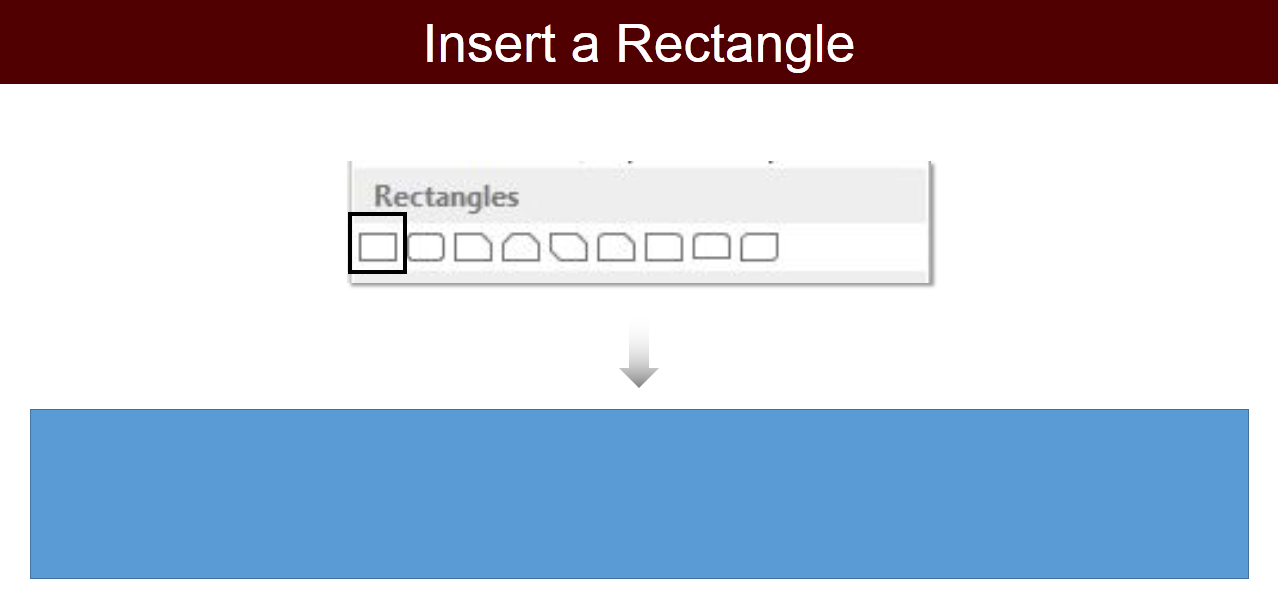
Insert a Rectangle. And place the rectangle from left end to right end. Go to Insert> Shapes> Rectangles> Rectangle.
Right click the rectangle, remove its outline and fill it with the color of your choice.
Now insert a text box, and write your text. Once you are done adding your content in the text box, place the text box outside the slide area in front of the shape.
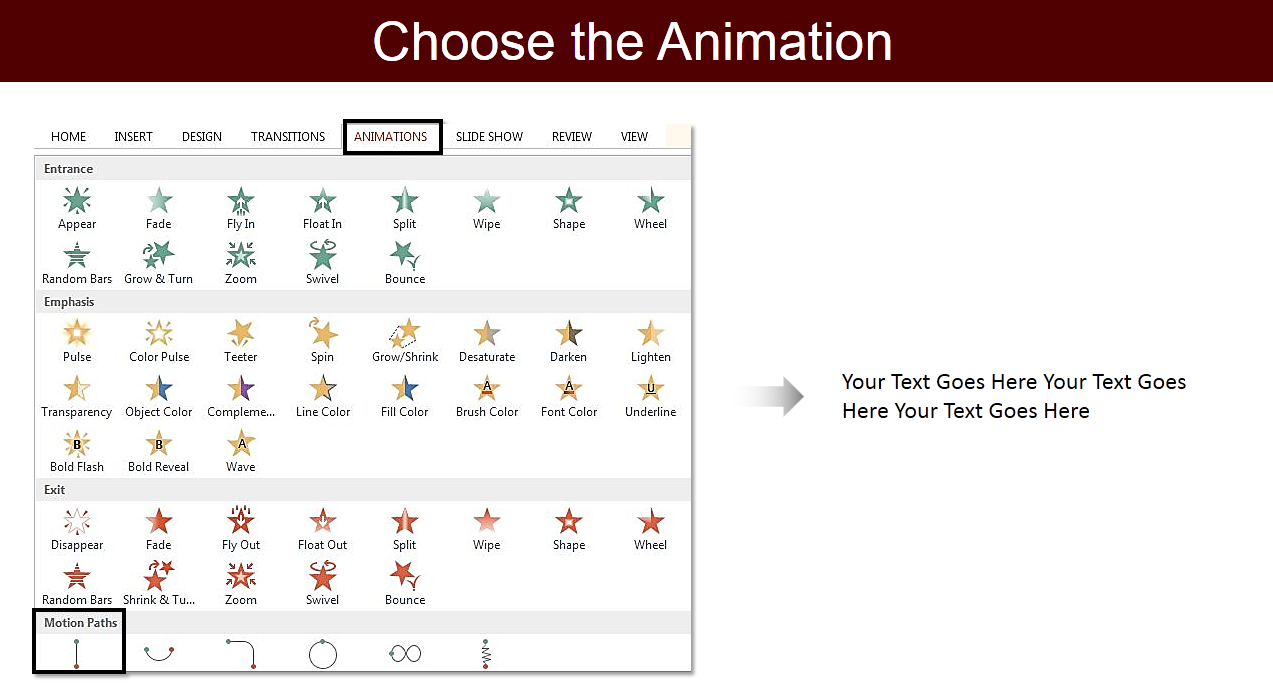
Let’s apply the animations. Select the text box, go to the Animation> Motion Paths> Line.
Once you choose the Line Animation, go to the Effect option, change the direction of the line to Left.
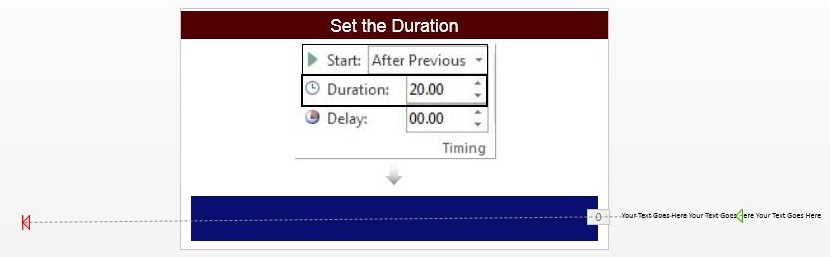
Select and drag the Red arrow outside the slide area (to the left), to increase the length of your motion path.
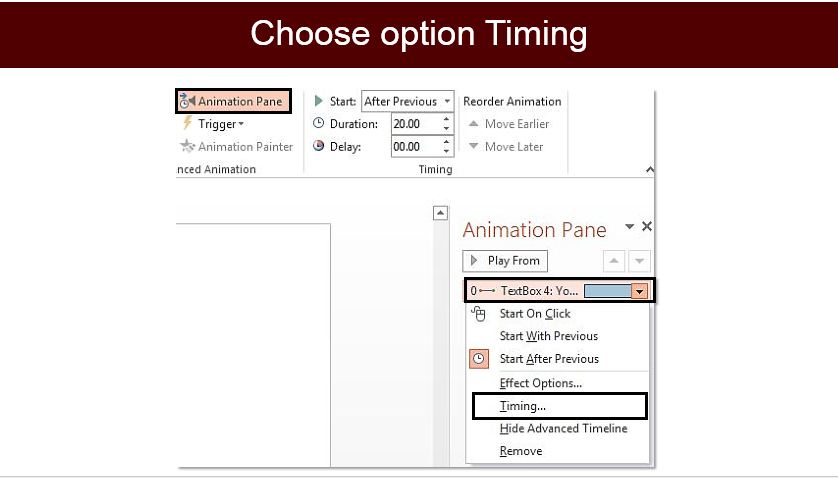
Under Animation tab, select Animation Pane, change the settings to After Previous from Start drop down list and set the duration of 15 to 20 seconds.
Again click the Animation Pane, window of animation pane will open on the right side. Click the motion path animation in Animation window, choose option Timings.
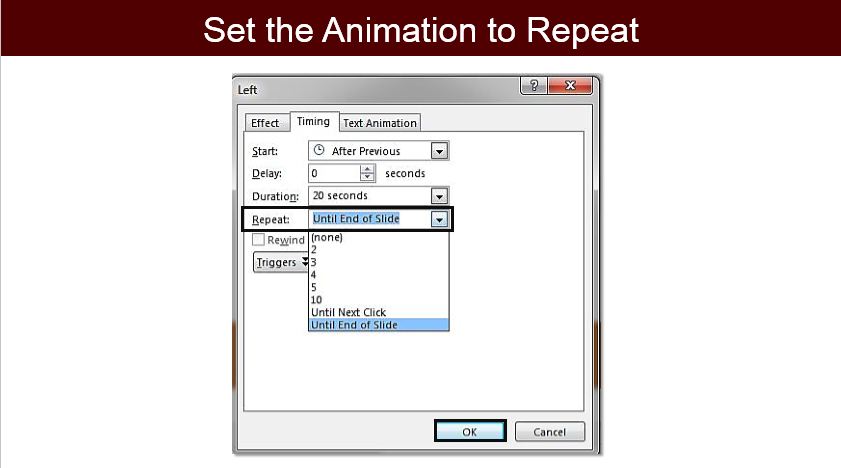
Under the Timings tab, set the animation to repeat, “Until End of Slide.”
Save the presentation and see the news ticker running on your slide and share the important facts you want your audience to remember.
We will be coming with more ideas to make your presentation look interesting. Till then, give it a try and share your feedback in comments below.
Do you need professional PowerPoint Designers to help you nail your next presentation? Get in touch with our Presentation Design Agency.
The SlideTeam Blog
All About PowerPoint, Presentations & Life
Hi Greg, you can make the line as lengthy as possible. The length is not a problem. You will simply have to Zoom Out the slideshow screen to 10% (at the bottom right) and keep adding your text to the line. Keep dragging the text box so that your line does not split into two. Hope this answers your query.
Hi Andy, thank you for liking the post. You can adjust the timings under the animation pane option. Set the timings from 15-20 seconds in order to avoid the breaks. Or reduce the timings more. Hope it helps.
How do I make the text ticker/crawl inside a teeter totter animated rectangle? The rectangle would go up and down like a teeter totter with the text crawling with the teetering. I did not use the teeter effect option, I used the spin and set it to 10 degrees. Thank you.
Hi Juanita, we applied teeter animation to the rectangle for the teeter totter effect and applied the same animation to the text given in the blog. This way you will have the text crawling inside the totter rectangle. Hope it helps.






 Customer Reviews





 Save the presentation and see the news ticker running on your slide and share the important facts you want your audience to remember.
We will be coming with more ideas to make your presentation look interesting. Till then, give it a try and share your feedback in comments below.
Save the presentation and see the news ticker running on your slide and share the important facts you want your audience to remember.
We will be coming with more ideas to make your presentation look interesting. Till then, give it a try and share your feedback in comments below.





2017-02-06 15:14:22 at