

 0 Comment
 Customer Reviews

Parallel designs you may like
Parallel
What you will learn in this tutorial:
 Steps to create Parallel Arrows in PowerPoint:
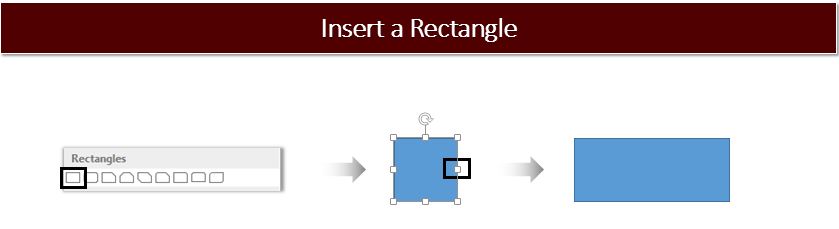
- Insert a Rectangle. To do so, go to Insert> Shapes> Rectangles> Rectangle. Adjust its shape with the help of the marked cursor. (See the below image).
- Duplicate the original shape by pressing Control C and Control V. Right click the duplicate the shape. Go to Format Shape> Shape options> Effects> 3-D Rotation> Presets> Parallel> Off Axis 2 Right.
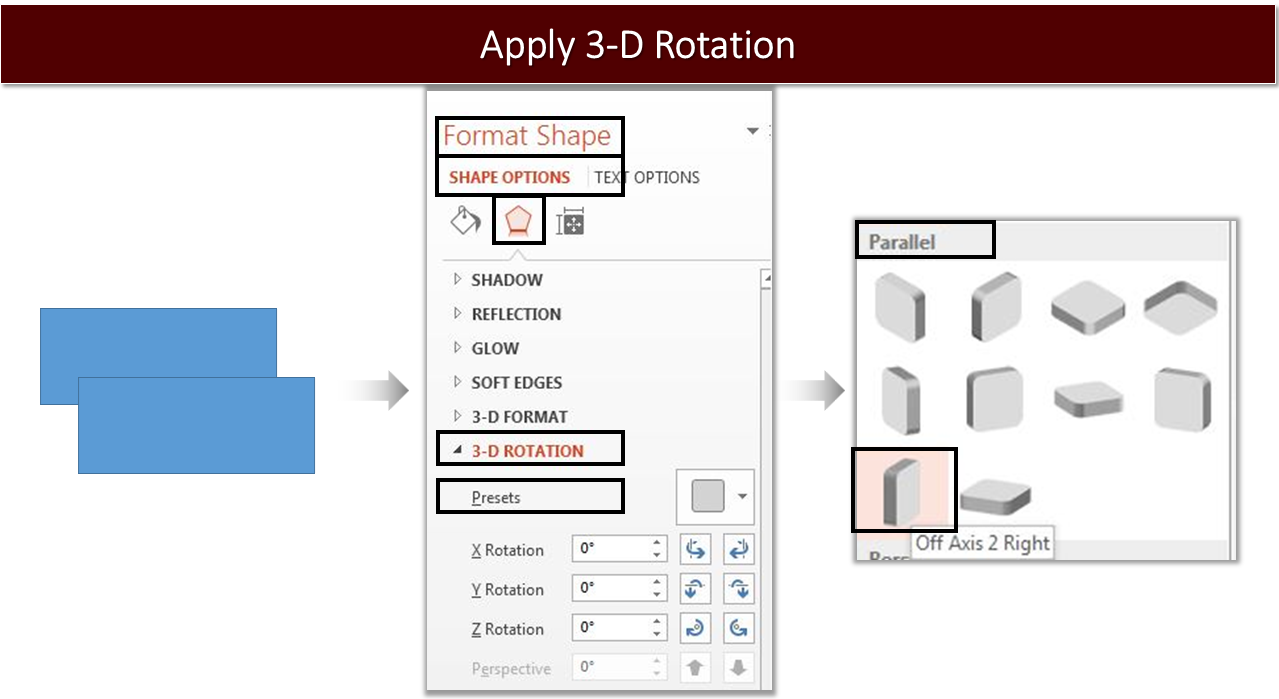
- Once the 3- D Rotation is applied to the duplicated shape, place it next to the original shape. (Take a look the below image).

- Insert a Pentagon. Choose Insert> Shapes> Block Arrows> Pentagon. Adjust its shape with the help of the marked cursor. (See the below image).
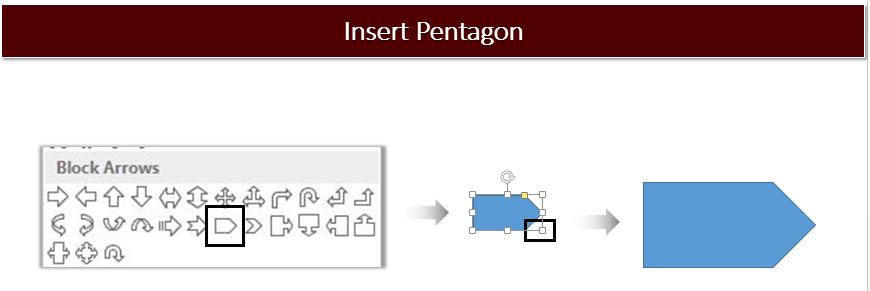
- Place the Pentagon next to the shape you have created earlier. Look at the below image for your reference.

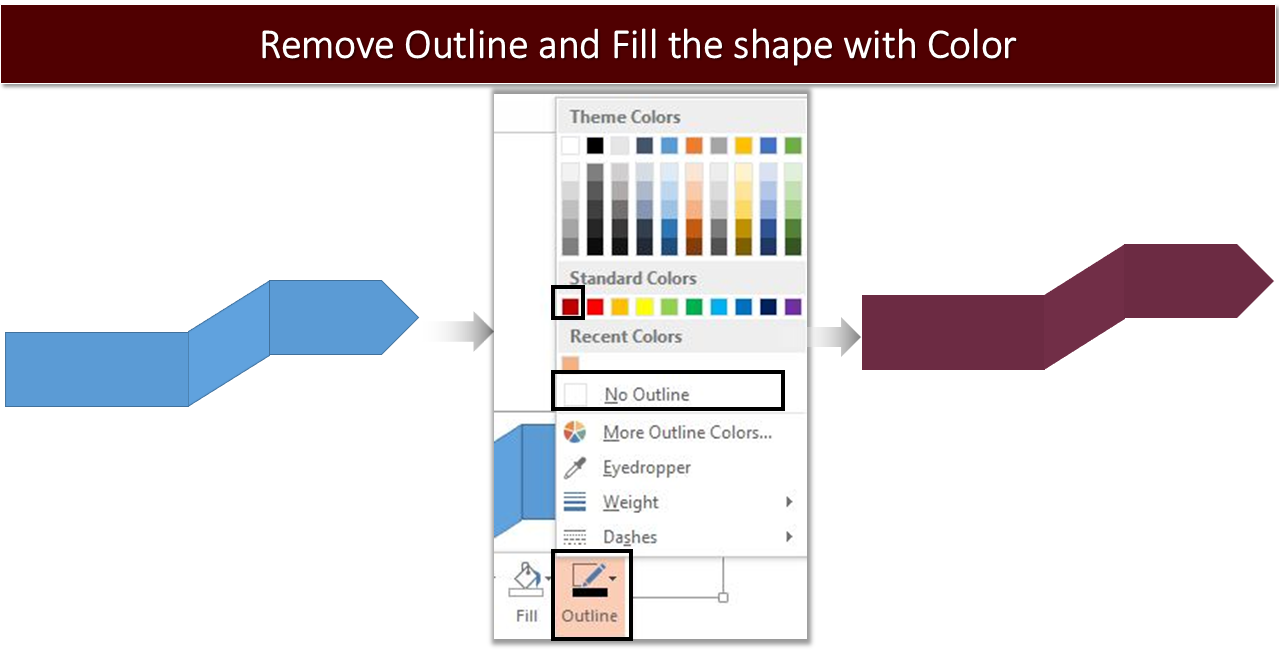
- Now Group all the shapes by pressing Control G. Right click the shape> Outline> No Outline> Fill the shape with the color of your choice.
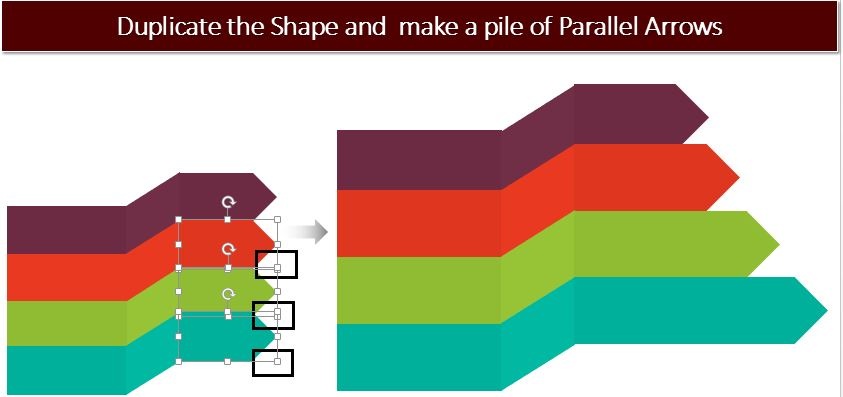
- Copy paste the original shape by pressing Control C and Control V. Keep increasing the size of the each Pentagons by holding the marked cursor and make a pile of Parallel Arrows.
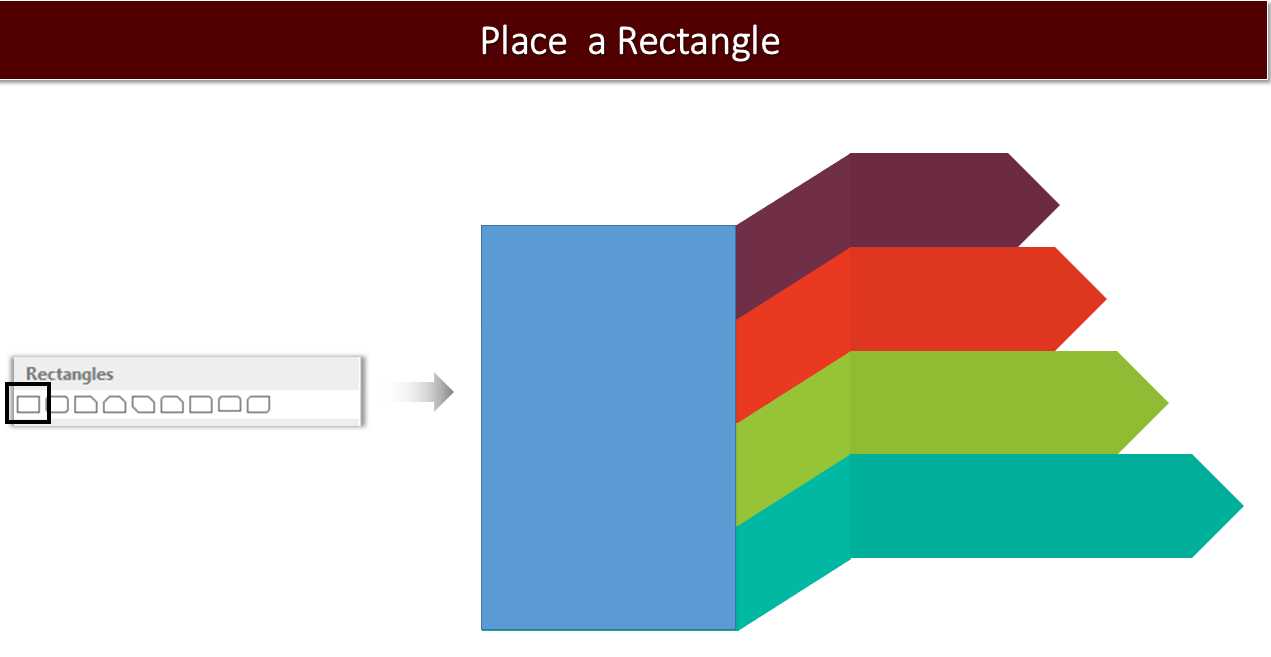
- Place a Rectangle. (See the below image). Choose Insert> Shapes> Rectangles> Rectangle.
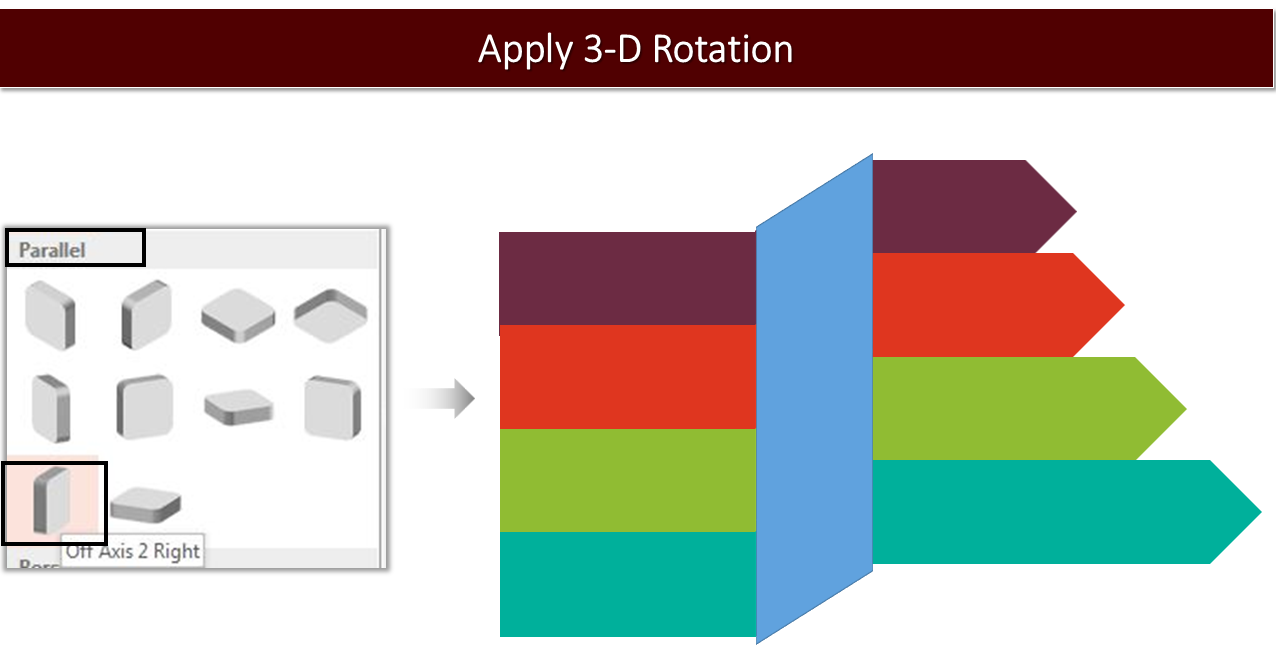
- Apply 3-D Rotation to the shape. Go to Format Shape> Shape options> Effects> 3-D Rotation> Presets> Parallel> Off Axis 2 Right. (See the below image).
- Right click the shape. Choose Format Shape> Shape Options> Fill and Line> Fill> Solid Fill> Gray. Increase its transparency to 55%. Choose Line> No Line.
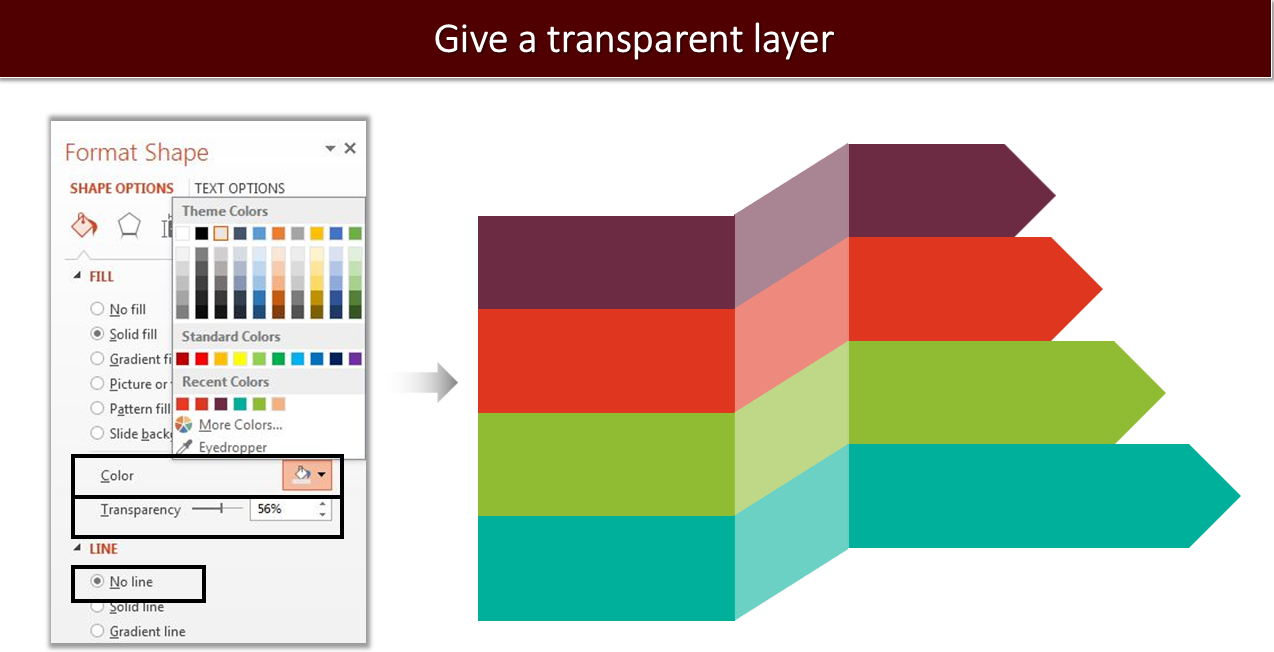 Create this simple and innovative design and leave your audience amazed.
 To make your work easy, we have handpicked some professionally designed Parallel Arrows PowerPoint Templates from our awesome collection.
Take a look.
Professionally Designed Parallel Arrows Templates:
Professional PowerPoint Template #1
To make your work easy, we have handpicked some professionally designed Parallel Arrows PowerPoint Templates from our awesome collection.
Take a look.
Professionally Designed Parallel Arrows Templates:
Professional PowerPoint Template #1
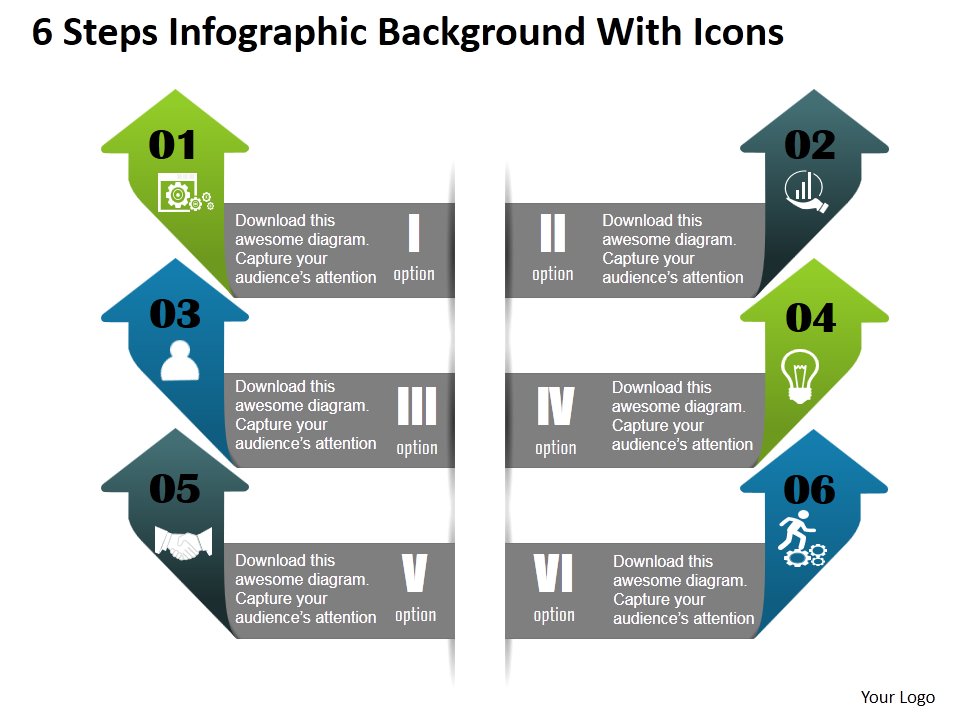 Click here to download this awesome Parallel Arrows PowerPoint Template.
Professional PowerPoint Template #2
Click here to download this awesome Parallel Arrows PowerPoint Template.
Professional PowerPoint Template #2
 Grab this awesome template by clicking here.
Professional PowerPoint Template #3
Grab this awesome template by clicking here.
Professional PowerPoint Template #3
 Download this professionally designed Parallel Arrows PowerPoint Template and stun your audience.
Professional PowerPoint Template #4
Download this professionally designed Parallel Arrows PowerPoint Template and stun your audience.
Professional PowerPoint Template #4
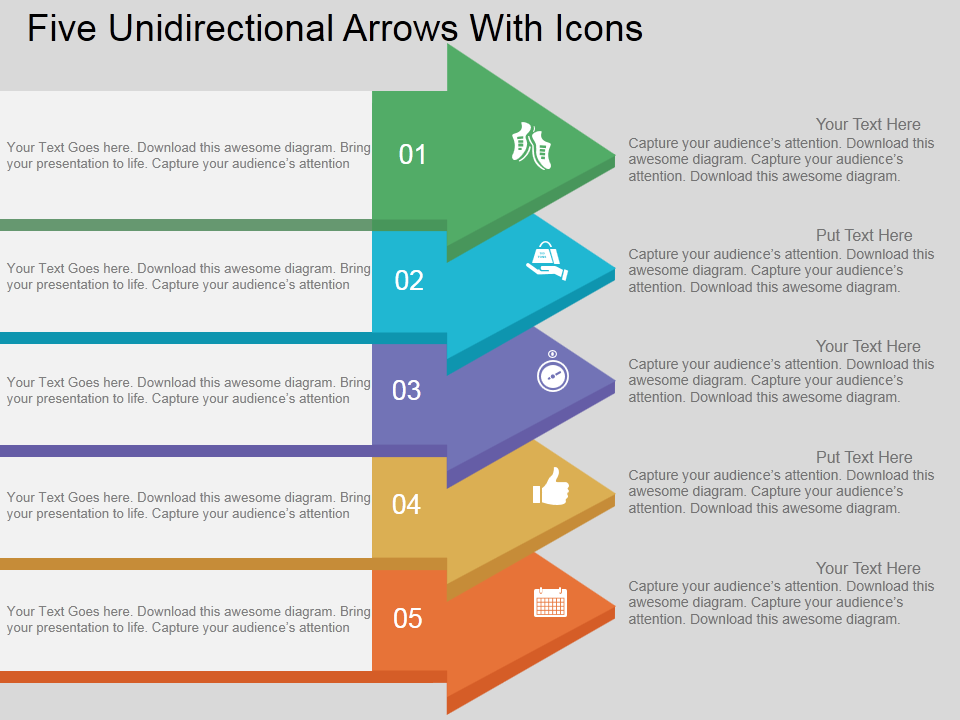 Click here to download this professionally designed Parallel Arrows PowerPoint Template.
Professional PowerPoint Template #5
Click here to download this professionally designed Parallel Arrows PowerPoint Template.
Professional PowerPoint Template #5
 Grab this awesome template right here.
Professional PowerPoint Template #6
Grab this awesome template right here.
Professional PowerPoint Template #6
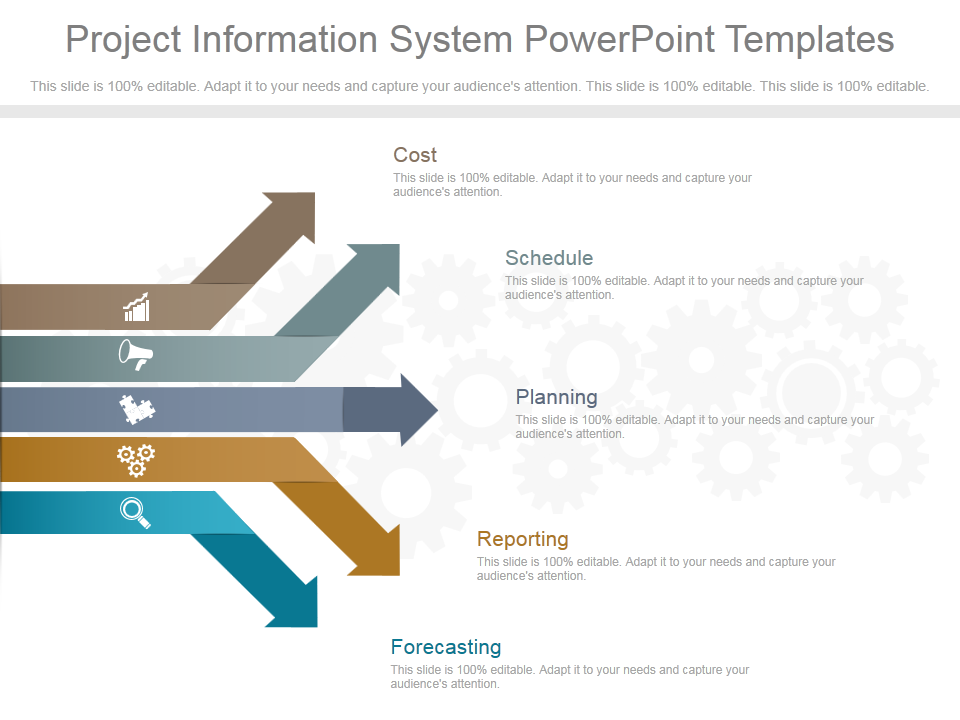 Download this creatively designed Parallel Arrows PowerPoint Template, add your content and leave our audience amazed.
Professional PowerPoint Template #7
Download this creatively designed Parallel Arrows PowerPoint Template, add your content and leave our audience amazed.
Professional PowerPoint Template #7
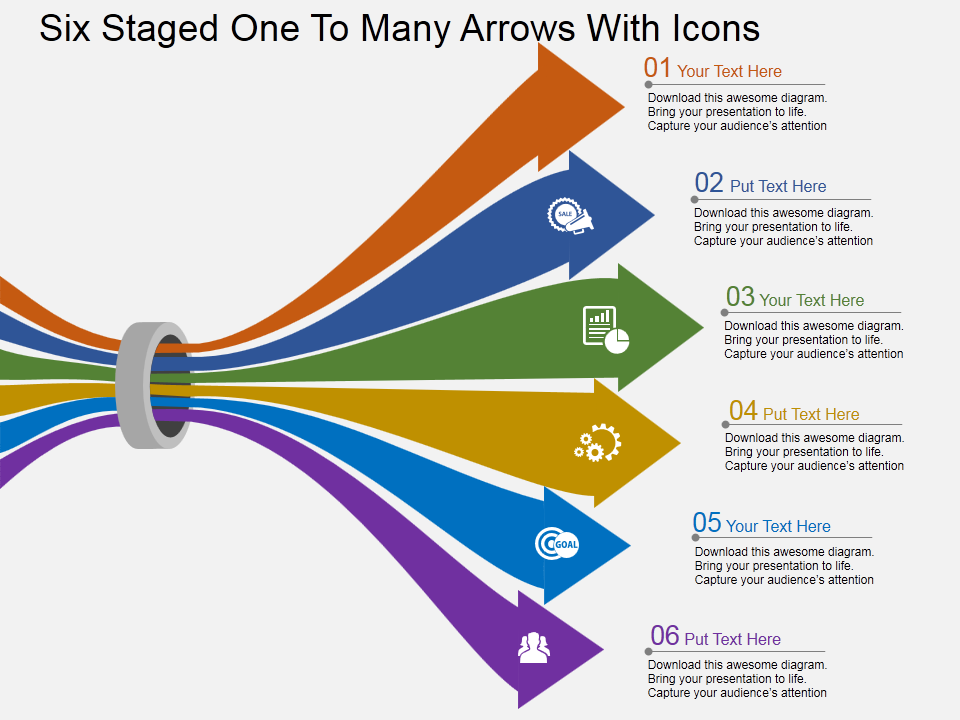 Click here to download this awesome Chain links PowerPoint Template.
Some more Parallel diagrams
Parallel
Pick your favorite one and create an amazing PowerPoint Presentation.
Share your feedback with us. Stay tuned for more awesome PowerPoint Tutorials.