

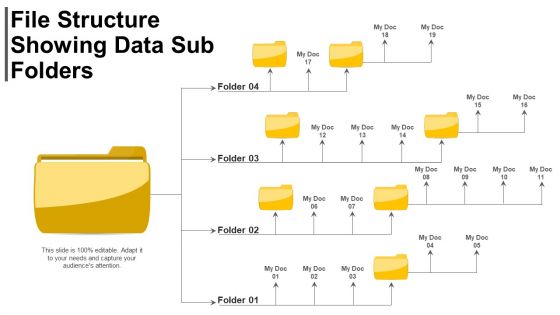
File structure showing data sub folders




Try Before you Buy Download Free Sample Product
 Impress Your
 Audience
 100%
100% Editable
 Save Hours
 of Time


Express at your best with our File Structure Showing Data Sub Folders. The audience will experience genius.
People who downloaded this PowerPoint presentation also viewed the following :
File structure showing data sub folders with all 5 slides:
The comfort of our File Structure Showing Data Sub Folders gets the energy flowing. They allow you to disregard the fatigue factor.
FAQs for File structure showing
So you've got NTFS for Windows - handles big files and decent security. Linux uses ext4, which honestly never gives me problems. Apple went with APFS for their newer stuff, works great on SSDs. Then there's good old FAT32 that every device can read, but ugh, that 4GB file limit is painful when you're moving videos around. Most of the time just stick with whatever your OS wants unless you're constantly sharing files between different systems.
Think of it like organizing your closet - you wouldn't just throw everything in a pile, right? Folders work the same way. Group related stuff together so you're not digging through random files later. I learned this the hard way after losing a presentation once (ugh). You can drill down from broad categories to specific ones, which just makes sense. Like Photos > 2024 > Vacation. Short folders work better than super long names too. Trust me, spend 10 minutes setting this up now and you'll save hours of frustration later when you actually need to find something important.
FAT32 can only handle files up to 4GB - super annoying if you're dealing with big video files or whatever. NTFS doesn't have that problem at all. Plus NTFS has all the good stuff like file permissions, encryption, and it recovers better if your computer crashes. FAT32 is basically just the simple option that works with old devices and game consoles. Honestly, for your main Windows drive you want NTFS every time. The security features alone make it worth it, and you won't hit those weird file size walls that FAT32 throws at you.
So basically file systems use permission bits and ACLs to control who can read, write, or execute stuff. Unix does the user/group/other thing, while Windows gets more complex with role-based access. Modern systems usually throw in encryption and logging too - honestly can't blame them with how crazy security's gotten lately. Every time you touch a file, the system checks if you're allowed. Oh, and if you're setting something up from scratch? Start restrictive and only give people what they actually need to do their job. Way easier than trying to lock things down later.
So fragmentation slows things down because your files get scattered all over the place instead of sitting together. The drive has to jump around collecting pieces - super annoying. Think of it like your book pages being shuffled randomly, you know? With old hard drives, this really kills speed since the read head physically moves around. Monthly defrags help if you're still using those spinning drives. Honestly though, SSDs don't really care about fragmentation since they access stuff differently. If you haven't upgraded yet, might be worth considering - way faster overall.
Okay so metadata and journaling are like your file system's backup plan when things go wrong. Your metadata keeps track of all the important file stuff - permissions, when it was created, where it lives on the disk. Journaling is different though - it's like writing a rough draft of changes before they actually happen. So if your computer suddenly dies while writing files, the journal can either finish what it started or undo the whole thing cleanly. Without these you'd be screwed way more often during crashes. I learned this the hard way once. Definitely turn on journaling for anything important.
So cloud storage basically dumps the whole folder hierarchy thing and goes with objects + metadata tags instead. Way more flexible than digging through C:\Users\Documents whatever. You get buckets and objects in this flat space, then organize with tags and prefixes rather than rigid folder trees. Honestly took me a while to wrap my head around it, but now I love it. Your stuff's accessible from anywhere with the right permissions, plus storage scales however much you need. Try thinking in terms of metadata instead of folders - it's a total game changer for how you manage files.
So SSDs totally change the game compared to old hard drives. Random access is almost as quick as sequential since there's no spinning disk to wait for. The downside? They wear out after so many writes, which is honestly kind of annoying. That's why newer file systems like ext4 and Btrfs focus on spreading writes around evenly and cutting down unnecessary ones. They also use TRIM commands to help your drive stay clean. If you're running an old file system meant for hard drives, you're definitely not getting the speed you paid for.
So basically your computer has built-in drivers that translate different file formats. Windows reads FAT32 and exFAT fine, but good luck with Linux ext4 unless you download extra software. macOS? It'll read NTFS drives but won't let you write to them - which honestly makes no sense in 2024. Linux actually handles everything pretty well right away. Each system works best with its own format but they all support the common ones. Oh, and if you're constantly moving files between different computers, just format your external drives as exFAT. Trust me on this one - it'll save you headaches.
Hey! So distributed file systems are pretty solid for scaling up - your data lives across multiple servers, so if one craps out you're still running. Performance gets a boost too since everything runs in parallel. Honestly though, network lag can be annoying when you're waiting on files. Plus the whole setup gets messy fast with all the sync issues you'll hit. Security's another headache since stuff's bouncing around networks. They're awesome for big applications but total overkill if you're just doing basic stuff. Really depends what you actually need, you know?
So there's a bunch of ways file systems protect your stuff when everything goes to hell. Most use journaling - basically tracking changes before they actually happen. Then you've got metadata backups and checksums that catch corruption. RAID setups spread your data across multiple drives which is smart. The fancy ones like ZFS do automatic snapshots which honestly saved my ass once. Turn on whatever backup features you have and learn the recovery tools now, not when you're panicking at 2am. Trust me on that one.
Dude, file systems are getting wild right now. NVMe and persistent memory are making everything crazy fast - like, way more IOPS than those old spinning drives could dream of. Cloud stuff is pushing distributed systems (think AWS, Google Cloud), and AI workloads need systems that can handle massive datasets running in parallel. Containers are shaking things up too with how we split ephemeral vs persistent storage. The whole hierarchical folder thing? Feels so 2005 sometimes lol. If you're building anything new, definitely think cloud-native and containerization first - they're basically the default now. Oh, and parallel processing optimization is huge if you're dealing with any ML stuff.
So basically, small files store their data addresses right in the inode - super fast that way. But when files get huge (like those 4K movies taking up half your drive lol), the system switches to indirect blocks. These point to other blocks that contain the actual data addresses. Creates this whole tree structure that can handle massive files without making inodes bloated. You'll get slightly slower access but way better for big stuff. Honestly might be worth tweaking your block size settings if you're always working with large files.
So basically, file systems compress your stuff using algorithms like LZ77 or DEFLATE - they find repeating patterns and swap them for shorter references. Pretty neat trick. NTFS has this built-in, plus newer ones like Btrfs and ZFS do it too. Some compress whole blocks, others work file by file. The catch? Your CPU works harder, so things might feel sluggish during heavy file operations. Honestly though, if you're running low on space, it's worth it - you can squeeze out 20-50% more room depending on what kind of files you've got. I'd say go for it if storage is tight.
So basically your file system affects how fast everything runs when apps are reading and writing data. NTFS crushes FAT32 for big files and handles metadata way better. On Linux, ext4 is pretty solid for most stuff you'd throw at it. Here's the thing though - if you've got an SSD, almost anything will feel fast. But man, HDDs really expose the weak spots. You'll sit there waiting forever for boot times and file transfers on older setups. Honestly? Just think about what you're actually doing. Tons of tiny files? Pick something built for that. Don't overthink it.
-
Awesomely designed templates, Easy to understand.
-
Easy to edit slides with easy to understand instructions.