

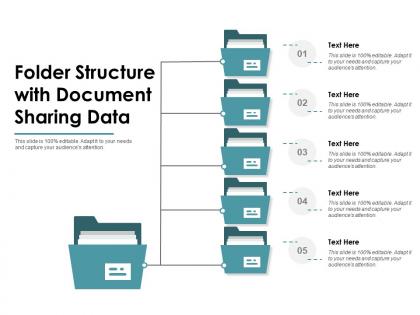
Folder structure with document sharing data




Try Before you Buy Download Free Sample Product
 Impress Your
 Audience
 100%
100% Editable
 Save Hours
 of Time


Our Folder Structure With Document Sharing Data are topically designed to provide an attractive backdrop to any subject. Use them to look like a presentation pro.
People who downloaded this PowerPoint presentation also viewed the following :
Folder structure with document sharing data with all 2 slides:
Use our Folder Structure With Document Sharing Data to effectively help you save your valuable time. They are readymade to fit into any presentation structure.
FAQs for Folder structure with
Start with main folders by template type - "Pitch Decks," "Reports," "Training Materials," etc. Under those, add subfolders for different versions or themes. Trust me, I wasted like 20 minutes last month looking for one specific blue template because I didn't organize properly! Name everything consistently with dates or version numbers. Oh, and create a "Master Templates" folder that only gets touched for official updates - nobody else messes with it. An "Archive" folder helps too for old versions you might need. The whole point is making it dead simple so anyone finds stuff in 30 seconds max.
Honestly, good folder structure is a total game-changer. No more "which version are we using?" panic or hunting through random files. Drop everything in the right spots from day one - drafts here, finals there, assets over here. Your teammates won't constantly bug you about where stuff lives, and nobody accidentally edits some ancient version (ugh, the worst). I always set up folders for drafts, finals, assets, and reference materials right away. Trust me, it saves so much headache later when things get crazy busy.
Honestly, naming conventions will save your sanity. Pick something consistent like "project-type_client-name_date" and actually stick to it. Your whole team needs to use the same system or it falls apart fast. Document the rules somewhere everyone can see them - maybe a shared doc or whatever you guys use. Short sentences work better than long complicated ones. I've watched so many folders turn into complete chaos because people just winged it. The system has to scale too, so think about what happens when you're dealing with 500+ templates instead of 50. Trust me on this one.
Honestly, I'd start with big general folders - "Sales," "Training," "Client Stuff," whatever makes sense for you. Then just add subfolders when you actually need them. Don't overthink it from the start or you'll end up like me with 50 random folders cluttering your desktop (what a mess that was). The whole point is keeping things broad enough that you're not scrolling forever, but specific enough that you can actually find your old presentation when your boss asks for it. You can always move things around later anyway. Better to start simple and see what sticks.
Honestly, **tree** command is probably your best bet - super clean and you can just copy/paste the output wherever. If you want something more visual though, **WinDirStat** or **DiskSight** are solid choices. Mac people usually love **Path Finder** for this stuff. Tree's what I always use because it's ridiculously fast. Takes like two seconds and boom, you've got your folder structure mapped out. **Lucidchart** works too if your whole team needs to see it online, but that feels like overkill for most situations. Start with tree if you don't mind command line - it'll do exactly what you need.
Make a `versions` subfolder in each template folder. Name them like `template-name_v1.0`, `v1.1`, whatever works. Date stamps help too if you're collaborating - learned that the hard way lol. Keep your current version in the main folder. Toss old ones into that versions subfolder so you can roll back without your workspace looking like a tornado hit it. Oh, and jot down what changed between versions in a simple doc. Doesn't need to be fancy - bullet points work fine. You'll thank yourself later when you can't remember why v1.3 even exists.
Definitely include name, description, version, and author for each template. Creation dates are clutch too. Oh, and supported file types - can't tell you how many times I've grabbed the wrong format. Tags will save your sanity when you're digging through tons of templates later. Dependencies matter a lot - note what software versions or plugins are needed. Brief usage instructions help future you remember how things work. I'd stick everything in a JSON or YAML file to keep it organized. Honestly, just start simple with the basics and add more fields as your collection grows.
Honestly, just make a "Templates" folder right on your desktop or main drive - don't overthink the location. I learned this the hard way after wasting tons of time hunting through random folders. Throw your everyday stuff in a "Daily Use" folder, then break out the rest by type like "Sales Decks" or "Reports." You know what's actually genius? Adding dates like "2024-Q4-Sales-Template" so the newest versions stay at the top. Oh, and create shortcuts on your desktop for maybe 3-5 templates you use constantly. Game changer for skipping all that clicking around.
Make an "Archive" folder at the top level, then break it down by year - way easier to remember than trying to recall project names from 2019. Use your same naming system so you don't lose your mind searching later. Seriously don't just throw everything into one giant folder though. I made that mistake once and spent an hour looking for one stupid template. Set a calendar reminder every few months to move old stuff over. Keeps your main folders from turning into a total mess.
Honestly, just make separate main folders for each team - Sales, Engineering, Marketing, whatever matches how your company actually works. Then keep the naming consistent within each one. Set permissions so people only see their relevant stuff, because nothing's worse than scrolling through endless folders that have zero to do with your job. I swear, most shared drives become complete disasters when everyone can access everything. Map it to how your teams actually talk to each other day-to-day. Makes finding files so much easier when the structure mirrors real workflow.
Don't go crazy with nested folders - you'll just lose stuff in a rabbit hole of subfolders. Keep naming consistent too, like "Client_ProjectName" format so everyone knows where things go. Skip the vague names like "Misc" because honestly that folder becomes a black hole where everything dies. Group similar projects together instead of making a new folder every single time. I'd say start with your main categories first, then add more as you actually need them. Oh and resist that urge to over-organize from day one - you'll just create empty folders that sit there judging you.
Okay so folder organization is seriously a lifesaver here. Break your templates into obvious categories - "Sales Pitches," "Team Updates," stuff like that. People need to find things fast without digging around forever. Then add subfolders for different industries or presentation types. I learned this the hard way when our team couldn't locate anything for months. Make the names super clear though - no fancy labeling that confuses everyone. Ask your coworkers how they usually search for templates first. Build around what makes sense to them, not some perfect system that only works in your head.
Make separate folders for each type - /images, /videos, /audio, /fonts at your main level. Within those, organize by project name. Trust me, I've wasted hours digging for one stupid stock photo before! Don't use spaces in folder names either, some software hates that. Keep file paths relative so nothing breaks when you move stuff around. Oh and definitely make a /templates folder separate from your media - makes it way easier to swap content without messing up links. Your whole team will actually be able to find things this way.
Honestly, inheritance is gonna save your sanity here. Set permissions at the top and let everything flow down naturally. I learned this the hard way after spending way too much time fixing individual folder mess-ups. Make security groups by job role instead of adding people one by one - way easier to manage. Don't go crazy with folder depth either, like 3-4 levels max or you'll hate yourself later. Throw together a basic spreadsheet tracking who gets what access. Oh and definitely review permissions every few months because they pile up like old emails nobody deletes.
Check it every 3-6 months, or honestly whenever you're spending forever looking for stuff. I wasted like 20 minutes last month hunting for one template - so annoying! If you're making 2-3 new folders monthly, that's your cue. Same goes for when filenames get stupidly long because nothing fits anywhere. Oh, and definitely when your team keeps asking where things are. Quarterly works if you're constantly making presentations. Just set a reminder and pretend it's organizing your closet or whatever. Trust me, it's worth it.
No Reviews