

Facts and figures powerpoint shapes




Try Before you Buy Download Free Sample Product
 Impress Your
 Audience
 100%
100% Editable
 Save Hours
 of Time


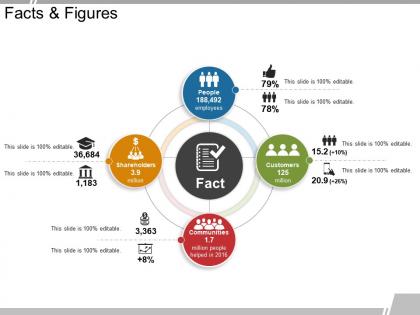
Presenting facts and figures PowerPoint shapes slideshow for availing the presenter to make use of it for putting forth the factors and bringing light on the key elements which are responsible for causing inconvenience in the organization. This information and graphs PowerPoint template has been specifically designed to investigate the cause of intolerance perpetrated in the business due to any reason whatsoever it may be and with this data and diagrams PPT slide and he / she can curb out the animosity which may has generated. Such kinds of slides can also be chosen by the business analysts regarding accountability and transparency which has to be maintained in any business or organization. The layout of the PPT has been designed illustratively and therefore, the data being presented through the components are comprehensible, indefeasible and grasable. So quickly click on this slide and download link provided below to identify the root of hurdles and curb the same accordingly with your action plan. Investigate the cause of intolerance with our Facts And Figures Powerpoint Shapes. Establish how animosity has been generated.
People who downloaded this PowerPoint presentation also viewed the following :
Facts and figures powerpoint shapes with all 5 slides:
Avoid any jaw jaw with our Facts And Figures Powerpoint Shapes. Address the argument at the first instance.
FAQs for Facts and
Stick with basic shapes - rectangles, circles, arrows. Don't go crazy with fancy stuff. Same colors throughout your whole deck, and use snap-to-grid so everything lines up nicely. I swear, some presentations look like someone just vomited shapes everywhere. Use them on purpose - guide where people look, show relationships between ideas, that kind of thing. Oh, and group related shapes together so when you move stuff around later you won't lose your mind trying to keep everything aligned.
Honestly, custom shapes are a game changer for making presentations that don't look boring. You can overlap circles with rectangles to show how things connect, or merge arrows with text boxes for those step-by-step processes. I'm always doing this for project timelines - way better than the basic templates. There's this "Merge Shapes" tool under Drawing Tools that's pretty handy. You can unite shapes, intersect them, or subtract parts to get exactly what you want. Start with just two simple shapes and mess around. You'll figure it out quick.
Honestly, color choice can totally make or break your slides. Contrast is everything - you need shapes that actually pop against your background instead of just... existing there awkwardly. I always test mine from across the room because what looks fine up close might be invisible to your audience. Brand colors are great as your base, but throw in some accent colors for the stuff you really want people to notice. Bright shades work perfectly for callouts. Keep supporting elements more neutral so they don't compete. Oh, and avoid that thing where everything blends into one boring mess - I've sat through way too many of those presentations!
Honestly, PowerPoint shapes are a game-changer for making complex stuff easier to digest. I'm obsessed with using arrows to show how processes flow - probably overdo it tbh. Circles and rectangles work great for grouping related ideas together, and different colors help categorize everything. You can build these mini infographics by mixing shapes with icons and keeping text super minimal. The trick is not going overboard though. Start simple with basic rectangles and triangles, then add more as people catch on. Way better than walls of text that nobody reads anyway.
Honestly, custom shapes are a game changer for presentations. They make your slides look way more professional than using the same boring circles everyone else does. I mean, you can match your brand colors perfectly and create icons that actually fit your content. Yeah, it's a bit of extra work at first - not gonna lie. But once you save them to reuse later? Total time saver. Your presentations will actually stand out instead of looking like every other PowerPoint deck. Just start with one custom shape per presentation though, don't go crazy right away.
Stick with simple stuff like "Fade" or "Wipe" - nobody wants to feel seasick from bouncing text, trust me. I usually do 0.5-1 second timing and group related shapes together so you're not clicking forever. Only animate things that actually help your point, not random decorations. Honestly, most slides work fine with just one animation max. Oh and here's what I learned the hard way - if it doesn't explain something better, just don't use it. You'll look way more professional keeping things clean.
Honestly, just use PowerPoint's Align tools - they'll save your life. Select whatever shapes you want to line up, hit the Format tab, then Arrange > Align. Super easy. You can do left, center, right, or distribute things evenly. One thing though - always align to the slide instead of just your selection. Way more consistent that way. Oh and turn on gridlines when you're dragging stuff around manually. Those smart guides help too. Seriously, even if your content sucks, good alignment makes everything look like you actually know what you're doing.
It really comes down to who you're presenting to. Boardroom stuff? Stick with clean rectangles, circles, basic arrows - anything that screams "professional." But informal presentations are where you can actually have fun with it. Speech bubbles, weird icons, whatever keeps people awake (trust me, quirky beats boring every time). Educational content needs those clear flowcharts and callout shapes that actually help people follow along. Oh, and diagrams - can't forget those. The whole thing is just about reading the room, you know? Conservative shapes when the suits are watching, creative ones when you're brainstorming with the team.
Shapes are actually perfect for this! Arrows work great for showing progression, and puzzle pieces literally coming together as you reveal your solution is *chef's kiss*. I'm totally obsessed with circles for any cyclical stuff - way more interesting than basic bullet points. Try animating them too - building blocks stacking up as you add story elements, or roads extending during a customer journey. The trick is matching what the shape naturally means to how your story flows. Oh, and start with just one main shape metaphor first. You can always get fancier later.
Shapes actually mess with people's heads in sneaky ways. Circles and curves make everything feel friendlier - that's why rounded buttons work so well. Sharp triangles? Total opposite. They scream danger or urgency (hello, warning signs). Rectangles are boring but trustworthy, perfect for charts and data stuff. I've noticed jagged edges make people weirdly uncomfortable, while flowy organic shapes chill everyone out. Your shape choices can totally support or sabotage your message without anyone knowing why. Quick tip - swap those harsh rectangles for rounded ones when you're dealing with sensitive topics. Works every time.
Ugh, don't mix like 5 different shapes on one slide - looks so chaotic. Also those default blue/orange colors? Total giveaway you didn't customize anything lol. I'm probably being picky but everyone uses those basic arrows now. Make sure text actually fits inside your shapes without looking cramped. Keep the same formatting throughout too - nothing worse than random shape styles. Oh and use those alignment guides! Stick to maybe 2-3 shape types max. Trust me on this one.
Hold Ctrl and click multiple shapes, then right-click to group them - makes moving stuff around so much easier. The "Arrange" menu is your best friend for layering. I'm always hitting "Send to Back" for background elements, honestly probably overuse it lol. Try overlapping shapes with different transparencies too. Shadows and 3D effects work great but don't go crazy with them. Oh and group your related stuff first, THEN worry about layering everything - trust me on this one, you'll thank yourself later when you're making changes.
Honestly, 3D shapes can be pretty cool for grabbing attention - especially when you're presenting something boring and need people to actually pay attention. I'd use them for exec presentations or sales stuff where you really need that visual pop. Just don't go overboard though, because they'll start looking cheesy real quick. Simple 3D effects work best. They're perfect for highlighting your key metrics or making slides more memorable. But here's the thing - they've gotta actually support what you're saying, not just be there because they look fancy. Traditional flat slides put people to sleep sometimes, so this helps.
Honestly, stick with basic PowerPoint shapes - they're way cleaner than those overdesigned graphics everyone uses. Circles are perfect for process stuff, rectangles work great for timelines, and arrows obviously show how things connect. Keep your colors consistent (this sounds boring but trust me). Group related info together using the same shapes. The alignment tools are your best friend here - use them constantly or everything looks messy. I know it seems too simple, but geometric shapes actually load faster and look more professional than fancy clipart. Oh, and don't overthink it - simple usually wins.
Merge Shapes in PowerPoint is honestly your best bet - that tool is way more powerful than people think. You can combine circles and rectangles into basically anything. For fancier stuff, Illustrator works great, but even free options like Inkscape let you make vector shapes and import them as SVGs. I probably waste too much time messing around with the merge tool, but whatever. Freepik and Flaticon have tons of free shape libraries too if you're feeling lazy. Start with merge shapes though. You'll be surprised what you can pull off with just the basics.
-
Easily Understandable slides.
-
Graphics are very appealing to eyes.