

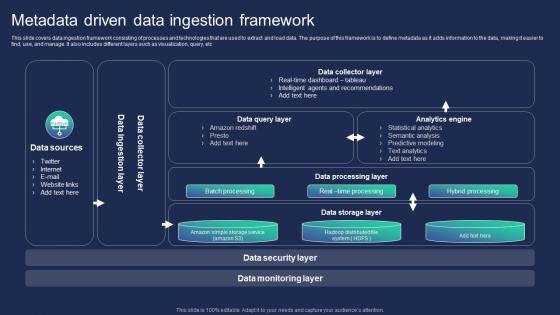
Metadata Driven Data Ingestion Framework




Try Before you Buy Download Free Sample Product
 Impress Your
 Audience
 100%
100% Editable
 Save Hours
 of Time


This slide covers data ingestion framework consisting of processes and technologies that are used to extract and load data. The purpose of this framework is to define metadata as it adds information to the data, making it easier to find, use, and manage. It also includes different layers such as visualization, query, etc
People who downloaded this PowerPoint presentation also viewed the following :
Metadata Driven Data Ingestion Framework with all 6 slides:
Use our Metadata Driven Data Ingestion Framework to effectively help you save your valuable time. They are readymade to fit into any presentation structure.



FAQs for Metadata Driven
Ugh, metadata is just the info that helps you actually FIND your templates later. You know those tags, descriptions, keywords - all that boring stuff nobody wants to fill out? Well, it's literally why you can't find anything when you're scrambling before a presentation. Search engines need that data to match what you're looking for. Categories, author names, descriptions of what's inside - it all matters. Honestly, I used to skip it too until I wasted like an hour hunting for one specific template. Now I just spend 30 seconds adding tags and a quick description. Trust me, future you will thank you.
Dude, metadata is a total game-changer for templates. You can actually search for stuff like "beginner marketing templates" instead of clicking through a million files hoping something works. I learned this the hard way after wasting way too much time hunting for the right template last month. Sort by creation date, filter by complexity level - whatever you need. Short sentences work. Longer ones help you find exactly what fits your project without opening every single file to check. Trust me, set up those metadata fields now. When you're scrambling to meet a deadline, you'll be so glad you did the boring organizational stuff upfront.
So metadata is basically like putting labels on everything in your template library. You tag each one with stuff like "sales pitch" or "quarterly review," plus visual details - colors, layouts, whatever. The system can auto-sort everything after that, which honestly saves so much time. It's like finally organizing your closet but for presentations lol. Search becomes way easier too. Just make sure you set up consistent tag fields from the start, otherwise people still won't find anything. Trust me, it's worth doing right the first time.
So for SEO on your presentation templates - title tags and meta descriptions are gonna be your best friends. Keep titles under 60 characters with your keywords. Meta descriptions are that 150-character preview people see in search results, so make them good. Alt text is super important since presentations are basically all images anyway. Oh, and schema markup is kind of a pain but honestly worth doing because it helps Google actually understand what your content is about. If people might share these on social, throw in some Open Graph tags too - they make your links look way better when posted.
Okay so basically treat those metadata fields - tags, categories, descriptions - like your best friends when template hunting. Most libraries let you filter by industry, design style, color schemes, all that stuff. Here's the thing though: don't just search obvious keywords. Sometimes the perfect template is hiding under some weird tag you'd never think of. I usually start super broad then get pickier with multiple filters. It's kinda like online shopping - the more specific you get, the better results you'll find. Trust me, it saves so much time versus scrolling through hundreds of random templates.
Okay, so first thing - set up categories that actually make sense. Department, presentation type, audience level, that kind of stuff. Then get more specific with colors, layouts, content focus. Seriously though, don't get cute with abbreviations only you'll remember six months from now. Use real words for your tags and be consistent about it. Dates are clutch too - creation date, when you last touched it, maybe how often you've used it. Oh and whatever system you pick? Stick with it. I learned this the hard way when I spent an entire evening before a client meeting desperately searching through a mess of randomly named files.
So metadata basically grabs all the juicy stuff - how long people watch, downloads, clicks, who's using what. You can see which templates are killing it and where people bail out (usually around slide 3, weirdly). It's honestly pretty cool having those insights without doing any manual work. The data shows you what's actually working vs what you think is working, which can be humbling lol. User patterns emerge pretty quick too. I'd start with tracking your top 5 templates first - don't overwhelm yourself trying to track everything at once.
Honestly? The worst part is when you've got thousands of templates and nobody can agree on how to tag anything. Scale becomes brutal - you'll have duplicate tags everywhere, descriptions that haven't been updated since 2019, and Bob from accounting thinks his naming system is revolutionary (spoiler: it's not). Multiple people editing templates makes version control a total mess. Search breaks when metadata's all over the place, and good luck figuring out who actually owns what. My advice: nail down naming standards early and make specific people responsible for keeping things clean. Otherwise you'll spend forever fixing everyone else's creative interpretations later.
So metadata is basically what makes your presentation templates actually usable for people with disabilities. Screen readers need that behind-the-scenes stuff like alt text and slide titles to navigate properly. Most people totally skip this step, which is kinda awful when you think about it. Alt text descriptions help visually impaired users understand images, while proper slide titles give structure. Language tags matter too - they tell assistive tech how to pronounce things correctly. Oh, and it helps with color contrast and reading order for cognitive differences. Honestly, just adding slide titles and alt text covers like 80% of accessibility issues right there.
So PowerPoint actually has decent built-in metadata tools - you can set default properties pretty easily. Adobe Acrobat Pro works great if you need to batch-process a bunch of files at once. There's also ExifTool and MetaZ, but honestly those can be a pain to learn unless you're already tech-savvy. Google Slides has API stuff that plays nice with Zapier if that's your thing. My advice? Start simple with whatever presentation software you're already using. Set up your templates with the metadata fields already filled in first, then worry about fancier automation later if you really need it.
Add metadata fields to tell your templates apart. Instead of "Sales Template 1" (useless, right?), try "audience: executives" vs "audience: prospects" or "type: quarterly review" vs "product demo." Creation date helps too, maybe complexity level. The trick is staying consistent with categories so your team doesn't waste time hunting around. Oh, and department tags work great if you've got multiple teams using the same system. Makes filtering actually useful instead of just scrolling through everything hoping you'll spot the right one.
So basically, metadata frameworks are like giving your templates proper tags that actually make sense. Dublin Core or Schema.org work great - they create this common language that search systems can read. Think of it as organizing your closet instead of just shoving everything in there (guilty as charged lol). These structured tags help both people and automated tools find stuff fast. Honestly, just pick one framework and stick with it across all your templates. You'll be amazed how much easier everything becomes to track down.
Dude, bad metadata management will absolutely wreck your template game. You'll have no clue which version is which, what depends on what, or where anything's actually being used. Teams end up wasting entire afternoons just trying to figure out which template is the "real" production version - it's honestly painful to watch. Updates become impossible to automate. Changes are a mess to track. You can't even tell which old templates are safe to delete without breaking something. Document that stuff now - version numbers, what depends on what, where it's used, who owns it. Trust me, template archaeology is not fun.
Dude, just get your designers and devs talking from day one. Seriously, the difference is night and day when they actually sync up on what each template's supposed to do. Designers can spell out the use cases and content needs, devs can point out any technical weirdness or suggest better ways to tag stuff. You'll end up with templates that actually make sense - proper categories, descriptions that aren't garbage, searchable keywords. I swear, most teams skip this step then wonder why everything's a mess later. Even a quick 15-minute chat during creation saves you hours of fixing things down the road.
Dude, AI metadata automation is blowing up right now - definitely worth watching. Schema.org is finally getting its act together too, so templates will actually work across different platforms without being a nightmare. The compliance stuff is honestly kind of scary though. Data governance rules keep getting stricter and everyone's scrambling to add real-time validation. Version control integration used to be optional but now? Not so much. I'd start building better metadata schemas ASAP. Maybe check out some AI tagging tools while you're at it - getting ahead of this curve seems smart.
-
The designs are super attractive. Me and my team love using SlideTeam’s presentations.
-
Really like the color and design of the presentation.