

Plan Useful Data Backup Schedule Improving Cyber Security Risks Management




Try Before you Buy Download Free Sample Product
 Impress Your
 Audience
 100%
100% Editable
 Save Hours
 of Time


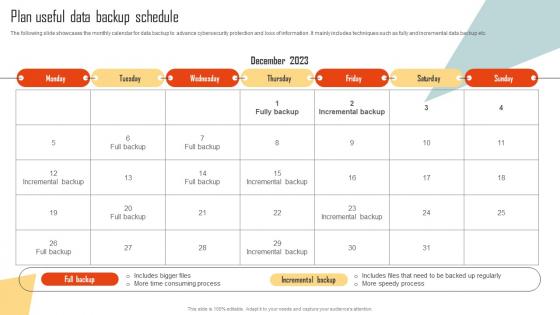
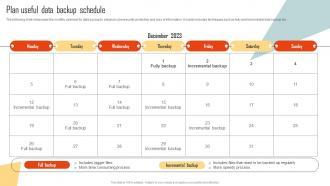
The following slide showcases the monthly calendar for data backup to advance cybersecurity protection and loss of information. It mainly includes techniques such as fully and incremental data backup etc.
People who downloaded this PowerPoint presentation also viewed the following :
Plan Useful Data Backup Schedule Improving Cyber Security Risks Management with all 9 slides:
Use our Plan Useful Data Backup Schedule Improving Cyber Security Risks Management to effectively help you save your valuable time. They are readymade to fit into any presentation structure.




FAQs for Plan Useful Data Backup Schedule Improving Cyber
So three main things you gotta nail down: how often you're backing up, how long you keep stuff, and actually testing it works. Daily backups for anything critical, weekly for the rest. Keep dailies for about 30 days, weeklies maybe 12 weeks - though honestly the retention thing gets expensive quick if you go crazy with it. But here's what'll bite you: never testing your restores. I've seen people find out their backups were garbage right when they desperately needed them. Pick some random files monthly and actually try restoring them. Trust me on this one.
Daily backups are a must for your important stuff - don't mess around with this. I learned that the hard way once. Databases, customer files, all that critical business data needs daily protection. Less important things like old archives? Weekly's fine. The 3-2-1 thing actually works: three copies total, two different storage types, one kept somewhere else or in the cloud. Definitely automate it though. Manual backups? You'll forget every single time when things get crazy busy.
Dude, you're basically gambling with all your stuff if you don't back up regularly. Hardware dies, ransomware hits, you accidentally delete things - or hell, someone spills a drink on their computer (happens more than you'd think). The gap between backups = how much work you'll lose when something inevitably goes wrong. Client work makes it even worse since you could be totally screwed business-wise. Honestly, just set up automated daily backups so you're never losing more than a day's worth of stuff. Way less stressful that way.
Honestly, just think about what would make you panic if it disappeared tomorrow - that's your daily backup stuff. Customer data, financials, whatever you're actively working on. For things that barely change like old documents or policies? Weekly backups work fine. I learned this the hard way when our sales CRM went down and we hadn't backed up in three days - nightmare. Look at how often stuff actually gets updated too. Your accounting software needs way more attention than that employee manual gathering dust. Sort everything by both "how screwed am I if this vanishes" and "how often does this change," then backup accordingly.
Honestly, just go with whatever fits your setup best. Time Machine on Mac is ridiculously easy - I've literally never had issues with it. Windows users can try Windows Backup or something like Acronis if you want full system copies. Cloud stuff like Backblaze or Carbonite runs in the background automatically, which is nice because you don't have to think about it. More techy people might prefer rsync scripts or Duplicati for custom control. Oh, and definitely test restoring something after you set it up - learned that one the hard way when my backup was corrupted for months without knowing.
So for cloud storage, I usually recommend the 3-2-1 rule - three copies of your stuff, two different storage types, one copy offsite (that's your cloud part). Most providers have auto-sync tools that'll back things up on whatever schedule you want. Honestly, the automated part is a lifesaver because I'm terrible at remembering manual backups. You could also use cloud as your second layer after local backups finish. Oh, and definitely encrypt anything sensitive before it goes up there - learned that one the hard way. Don't forget to actually test restoring files sometimes too.
Dude, test those backups at least every few months - monthly if you're not lazy about it. Random files, full restores, the works. Do it in a sandbox so you don't break anything real. I can't tell you how many horror stories I've heard where people found out their backups were trash right when disaster struck. Time your restores too so you know what you're dealing with. Don't just test the big crashes either - try recovering from weird stuff like file corruption or when someone accidentally deletes the wrong folder. Honestly, just start with something small this week.
Backup location makes a huge difference for scheduling. Local backups are super fast - you can run them hourly no problem since they don't touch your internet. Cloud backups though? Total pain. They take forever to upload, so you're stuck doing daily or weekly runs depending on your connection. Learned this when our "quick" backup took like 18 hours lol. I'd stagger them - hourly local ones, then sync to cloud overnight. Test your actual upload times first though, because that'll determine everything. Don't just guess or you'll be waiting around forever.
So encryption is basically like locking your backup files in a vault. Even if hackers grab your data, they can't read it without the key. Super important if you're using cloud storage or external drives that might get swiped. I learned this the hard way when my friend's laptop got stolen with unencrypted backups on it - yikes. AES-256 encryption is what you want to look for. Just don't lose your decryption key or you'll be locked out of your own files! Store it somewhere safe but where you can actually find it later.
From day one, build compliance checks directly into your backup schedule. Different regulations have totally different rules - some want you keeping data for years, others demand deletion after specific timeframes. Document absolutely everything because auditors are obsessed with paper trails (learned that the hard way). Set up automated alerts when backups fail and test your restores regularly - can't stress this enough. Map out which regulations actually apply to your data types first. Way easier than trying to retrofit compliance later. Honestly, just treat it like part of your normal backup routine instead of some separate headache.
Honestly, it comes down to three things: how fast you need to recover, storage costs, and how much your data changes. Full backups are rock solid but they're storage hogs and take forever to run. Incremental ones save tons of space, though recovery sucks because you need every single backup in the chain - lose one piece and you're toast. Differential backups sit somewhere in the middle, grabbing everything since your last full backup. Figure out how much downtime you can actually survive, then pick whatever you'll consistently stick with. That last part's more important than people think.
Monthly reviews are your best bet, but quarterly works too if you're swamped. Thing is, your data situation changes constantly - new apps, different storage needs, shifting priorities. Can't tell you how many times I've watched teams think they had everything covered only to find out months later they weren't backing up something crucial. Set a calendar reminder to check what's actually getting backed up and test some restores. Business stuff evolves faster than you'd expect. Way better to catch gaps early than scramble when something goes wrong.
Honestly, the worst thing you can do is set it and forget it. Most places just backup everything daily - total waste for temp files but whatever. Different data needs different schedules, ya know? Critical stuff maybe daily, other junk weekly or monthly. But here's the real kicker - nobody tests their restores until disaster strikes. I've watched teams panic when their backups were toast for months. Also, when you add new apps or your data explodes, suddenly your backup window doesn't fit. Test quarterly or you'll hate yourself later.
Start with real horror stories from your industry - companies that actually lost everything. Abstract warnings are boring, but concrete disasters get attention. Those lunch-and-learn sessions work great for showing how ridiculously fast ransomware spreads (honestly still gives me chills). Don't overwhelm people with complicated enterprise tools they'll never touch. Simple backup solutions they can actually use. Build it into onboarding so new folks start with good habits. Frame it around protecting their own work, not just company rules. Trust me, nobody wants to recreate three months of projects from scratch.
Okay so for remote work, you'll want that 3-2-1 thing - 3 copies, 2 storage types, 1 offsite. Cloud backup is honestly a lifesaver when everyone's scattered everywhere. Get automatic daily syncing going with OneDrive or Google Drive for your main stuff. Then do weekly full backups to an external drive when you're home. Yeah it's kinda old school but whatever, it works. Making it automatic is huge because people are terrible at remembering this stuff. Oh and start with your most critical files first - don't try to backup everything at once or you'll get overwhelmed.
-
Use of different colors is good. It's simple and attractive.
-
Huge collection of high-quality templates. Worth each penny.