

Traffic lights powerpoint template slide





Try Before you Buy Download Free Sample Product
 Impress Your
 Audience
 100%
100% Editable
 Save Hours
 of Time


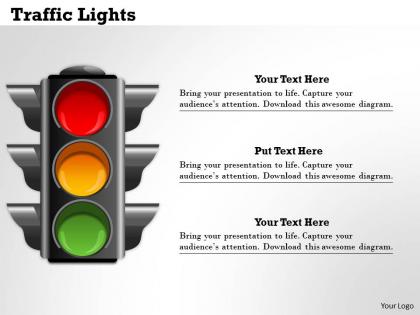
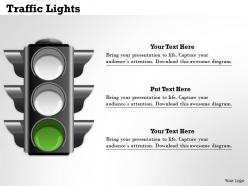
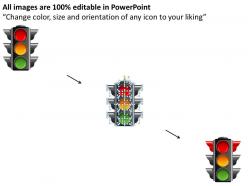
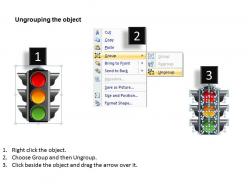
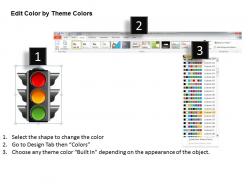
Decision making is a process of selecting the best course of action from among many alternatives. To make this concept more innovative and clear our team has designed this traffic lights PPT template slide. Our PowerPoint slide consists of an editable traffic lights visual which can be beneficial in your business presentations for making effective business decisions and strategies. All the managerial functions such as planning, organizing, directing and controlling are determined by the decision. Making effective decisions at all times is important for the successful operation of any business. Traffic lights - red, yellow and green colored visuals which you can see in dashboards and performance reports, tell us what type of attention we should give to our performance measures. Ensure that your team is responsive to making effective business decisions. That way, you can avoid any unwanted consequences to your business. This helps to ensure that your business operations continue in the right direction. So make worthy use of our slide now. Our Traffic Lights Powerpoint Template Slide are truly eye catching. Their visual appeal is magnetic in nature.
People who downloaded this PowerPoint presentation also viewed the following :
Traffic lights powerpoint template slide with all 8 slides:
Our Traffic Lights Powerpoint Template Slide bring in the funds. Everyone will begin to bet on you.

FAQs for Traffic lights
You'll want clear color coding - red for problems, yellow for at-risk stuff, green for on-track. Define what actually puts something in each category upfront, otherwise people will just randomly assign colors and it becomes useless. Include project names, owners, and next steps too. Honestly, I've watched so many teams botch this by being vague about the criteria. The whole point is that traffic lights are dead simple - everyone knows what they mean. Just don't overthink it. Oh, and leave space for quick explanations because sometimes context matters more than the color itself.
Honestly, color psychology is everything for traffic lights because you're basically tapping into what people already know. Red means stop/danger everywhere - it's just wired into our brains by now. Green equals go or safe. Yellow's that perfect warning zone in between. The smart move? Use those automatic reactions instead of working against them. People see the colors before they even bother reading your text! Just keep your color meanings the same throughout the whole template. That way users don't have to second-guess what each status actually means. Way smoother experience overall.
Honestly, these templates are everywhere once you start noticing them. Consulting firms love them for client updates, and IT teams use them constantly for those system health dashboards. Manufacturing, finance, healthcare - pretty much any industry where you need quick status checks. The red/yellow/green thing just clicks with people immediately, you know? No one's sitting there trying to figure out what your colors mean. Super handy for presenting project updates or KPIs to executives who don't have time for complicated charts. I started using them way more after realizing how much cleaner my presentations looked.
So you know how traffic lights work, right? Same concept but for your data. Red means "oh crap, fix this now," yellow is "keep an eye on this," and green is "we're good." People don't have to sit there wondering if 67% is actually decent or terrible - they just see the color and instantly know what's up. Way better than making everyone decode a bunch of numbers. Just set your thresholds once and boom, suddenly your whole team knows what needs attention first. Honestly saves so much time in meetings when everyone's looking at the same spreadsheet.
Oh man, I'd probably just use PowerPoint first - you can mess with colors, add animations, whatever. Google Slides is solid if you're sharing it with people or need it in the cloud. Canva makes stuff look pretty fancy without much work, but the free version kinda sucks with limitations. Honestly though? Just pick whichever one you already know how to use. I wasted so much time trying to learn new software when I could've just stuck with what I knew. Save it as a template once you get it looking decent!
So basically you just tweak the traffic light thing for whoever you're talking to. Executives? Hit them with the big picture stuff - money, strategy, outcomes they actually care about. Project teams are different though - they want all the nitty-gritty details and deadlines (honestly, sometimes I think they live for that stuff). With clients, throw in their industry jargon and mention the specific problems they're dealing with. You might even swap out the colors if there's cultural stuff to consider. The red/yellow/green idea stays the same, but everything else changes based on what makes sense to them. Just think about what keeps them up at night.
Don't mix up your color meanings - if red means "urgent" in one spot, it can't mean something else later or people get lost. Keep it to 3-4 colors max because nobody remembers what light orange vs medium orange means anyway. Add little icons next to colors for colorblind folks. Oh, and stop making everything yellow when you're not sure what status to pick! That drives me crazy and makes the whole thing useless. Pick your statuses once and never change them. Green = good, red = bad, yellow = caution. Done.
Focus on those smooth transitions between red, yellow, and green - that's where the magic happens. CSS transitions work great for gradual color changes and maybe some subtle scaling when lights flip on/off. Don't go overboard though, flashy stuff just gets annoying after like 5 seconds. Time everything to match your content flow too. If you're showing project updates, give each light change a moment to register before jumping to the next thing. I'd start with basic fades first, then get fancy later if you want.
Set clear criteria upfront for each color - red for critical stuff, yellow for watch-this-closely, green for we're good. Don't just wing it based on feelings (though honestly your gut instincts aren't totally worthless). The trick is not going overboard with red alerts or people stop caring. Always add a quick note explaining why you picked that color. Oh, and think about who's reading this - execs love the instant visual but they'll dig deeper if something looks sketchy. Basically, pick your rules and actually stick to them every single time.
Honestly, just go with the classic red-yellow-green thing. Super simple but it works. Green = all good, yellow = some hiccups or delays worth watching, red = major problems that need fixing ASAP. Way better than those massive status reports nobody wants to read through. I mean, who has time for that? Leadership can just glance at the colors and know exactly where to jump in. Set up a basic template with project names and the color codes. Update it weekly and you're golden. Your team will actually thank you for keeping it straightforward.
You know those basic traffic lights in presentations? The static red/yellow/green circles or rectangles? They look so outdated now. Digital versions are way better - you can add gradients, glowing effects, smooth animations between states. Plus your audience can actually click and interact with them instead of just staring at boring shapes. The lights can "illuminate" when activated, which honestly looks pretty slick. Short answer: go digital if you want something that feels modern and keeps people engaged. The interactivity alone makes it worth it.
Oh yeah, this is totally a thing! Red means stop everywhere, but yellow and green? Different story. Some cultures see yellow as way more serious than others do. In Asia, red can actually mean good luck instead of danger - threw me off completely in my first international presentation. Also worth mentioning that some countries use totally different color combos for their actual traffic lights, so people interpret your slides based on what they're used to seeing. I'd just slap some text labels next to your colors or do a quick "green means good, red means bad" intro. Saves you from those awkward confused looks.
Oh, traffic light templates are a game changer! Green = all good, yellow = heads up there's an issue, red = everything's on fire basically. Super straightforward but honestly it saves so much time in meetings. Instead of people rambling about status updates, you just glance at the colors and know exactly what needs attention. Works great for dashboards, standups, even those quick project emails nobody wants to read. I started using them after getting burned out on endless status reports - way better than digging through paragraphs to figure out if something's actually broken. Give it a shot next meeting.
Oh, traffic light templates are actually pretty cool for presentations! Red-yellow-green works great for showing learning progress or sorting topics by difficulty. Students can self-assess where they're at with different concepts. Honestly, kids love moving stuff around between the colors - way better than just sitting there listening. You could do group discussions where they physically drag concepts from red to green based on confidence levels. Or those "stop-think-go" decision exercises work well too. I'd just grab a basic PowerPoint template and let them get hands-on with it. Makes everything way less boring, trust me.
Traffic light templates have gotten so much cooler lately! Way cleaner designs, better colors for accessibility - finally. Everyone's doing the minimalist thing which honestly works perfect here. Interactive features are huge now too. Hover effects, clickable status updates instead of boring static lights. Oh and forget the basic vertical layout - people are experimenting with horizontal grids, dashboard styles, even timelines which is pretty smart. One thing though - don't get stuck with templates that only do "stop/caution/go" labels. You'll want something flexible where you can customize the messaging. That's been a game changer for most projects I've seen.
-
good
-
Awesomely designed templates, Easy to understand.
-
Appreciate the research and its presentable format.