

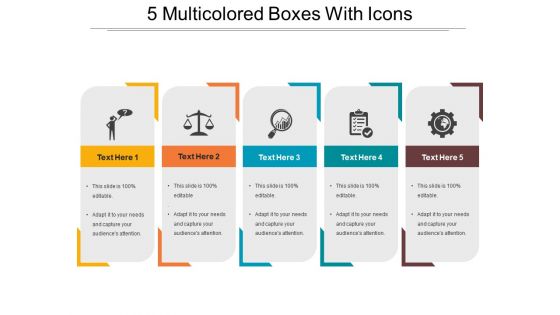
5 multicolored boxes with icons





Try Before you Buy Download Free Sample Product
 Impress Your
 Audience
 100%
100% Editable
 Save Hours
 of Time


Introducing 5 Multicolored Boxes With Icons template. By using this workflow PPT layout you can depict complex business functions such as supply chain management, inventory management or simple processes like controlling. Take the aid of this process diagram PowerPoint presentation to showcase current processes, function enhancements amongst others. You can add suitable icons and stunning pictures to make your presentation eye-catching and attention-grabbing. Showcase the stages of flow diagram creation such as determining components, ordering activities, etc. You can also display the advantages of flowchart including visual clarity, instant communication, effective coordination, effective analysis, and many more. You can showcase the numerous processes with this multiple boxes flowchart PPT layout. Download this amazing process diagram PowerPoint infographic to eliminate the complexities of various processes.
People who downloaded this PowerPoint presentation also viewed the following :
5 multicolored boxes with icons with all 5 slides:
Our 5 Multicolored Boxes With Icons bring customers to your doors. You will become the destination of choice.
FAQs for 5 multicolored
Contrast and simplicity are your best friends here. Don't let similar colors touch each other or they'll just blend together weirdly. Stick to maybe 3-4 colors tops - any more and it looks like a rainbow exploded. I learned that the hard way! Your colors should vibe together and match whatever vibe you're going for. Oh, and definitely test how they look tiny because those smooth gradients can turn into gross muddy messes when shrunk down. Start with grayscale sketches first, then drop in color where it'll actually make a difference.
Dude, those colorful box icons are a game changer for presentations. Your audience processes info way faster when you use different colors to organize stuff - like blue for data, green for action items, whatever works. They look so much more professional than basic bullet points too. Just pick a color system and don't switch it up halfway through (I've totally done that before, looks messy). Honestly, the visual hierarchy thing is real - people's eyes naturally follow the colors around. Try swapping out bullet points for colored boxes on your next slide. You'll see what I mean.
Honestly, tech and healthcare companies use those colorful box icons the most in their presentations. Makes sense since they're constantly explaining complicated processes and data flows to people. Logistics firms do it too - anything with multiple steps benefits from the color coding. Oh, and consulting/finance companies are obsessed with them because clients need to follow those layered strategy breakdowns without zoning out. Different colors help your audience track categories and priority levels way better. Just don't go crazy with like 8 colors - stick to 3 or 4 max or it gets messy.
Color psychology is actually super helpful for box icons! Red's perfect for urgent stuff or warnings. For trust and stability, go with blue - it just feels reliable, you know? Green screams "success" or "go ahead." Yellow catches attention fast but don't overdo it or people get annoyed. Orange is honestly slept on for creative energy! Think about your users' cultural background since colors mean different things globally. Map out what emotion each icon should trigger first, then pick colors that naturally fit. The whole point is matching colors to what the icon actually does.
Dude, definitely go vector for multicolored box icons - they stay sharp no matter what size. Illustrator's probably your best bet, the gradient tools are insane and color management is solid. Figma works great too if you like browser-based stuff, plus sharing with people is way easier. Honestly? I've seen some killer box icons made in Canva (don't @ me lol). The main thing is finding tools that give you clean geometric shapes and good color control. Just start with basic rectangles and add complexity as you go. Way less overwhelming that way.
Yeah, multicolored box icons work really well! People's brains just naturally love color-coding - it helps them sort through info without thinking about it. Black text boxes get pretty boring after staring at them for 20 minutes straight, honestly. The colors create this visual hierarchy that guides attention where you want it. Makes complex stuff feel way more digestible too. I'd stick with maybe 3-4 colors max though, otherwise it gets overwhelming. Oh, and make sure each color actually means something specific - like blue for tips, red for warnings, whatever works for your content.
Don't go crazy with colors - seriously, I've seen templates that look like a kid went nuts with crayons. Stick to 2-3 colors max that actually fit your brand. Make sure there's enough contrast so people can read everything (light yellow on white is basically invisible, trust me). Oh, and keep your color meanings the same throughout - red for warnings, green for good stuff, whatever works. Quick tip: check how it looks in grayscale since some people still print in black and white. Pick your palette first, then stick with it consistently.
Honestly, just build out a proper icon library with your brand colors and stick to it. Create a shared folder with all the pre-made icons so everyone stops making their own random versions - I swear, some decks look like a rainbow exploded on them. Define which colors work together and set standard sizes. Templates help too, though they're kind of a pain to set up initially. Trust me, you'll be so glad you did this when you're not frantically trying to match colors five minutes before a presentation. Way less stressful than winging it every time.
Oh man, multicolored icons can be tricky! I'd go with simple, high-contrast text that doesn't fight with all those colors. Clean fonts work best—save the fancy stuff for simpler designs. Black, white, or dark gray text usually looks way better than trying to match the icon colors (trust me on this one). Give everything some breathing room with padding too. I made some absolutely hideous designs when I started out by cramming everything together. The simpler approach just looks more professional overall.
Honestly, multicolored box icons are tricky because they turn into muddy messes when they're tiny. You'll want at least 24x24 pixels, but 32x32 is way better if you can swing it. I've made this mistake before - gorgeous colorful icons that just look like sad gray blobs once they shrink down. They're awesome at bigger sizes though, super useful for color coding stuff. Oh, and definitely test them on your actual phone, not just your computer screen. The difference is wild. Maybe make some simple single-color backups for when space gets really tight.
So those colored box icons are basically like chapter markers for your story - way better than boring bullet points, trust me. Different colors can represent themes, time periods, whatever you need. Red boxes for conflict, green for resolution - colors actually trigger emotions so use that to your advantage. I always map out my key story points to specific colored boxes before I even touch the slide design. It's like leaving breadcrumbs for your audience to follow. Honestly makes presentations so much more engaging than the usual wall of text everyone does.
Honestly, those animated box icons are a game-changer for presentations. The colors help people sort info in their heads, and the movement keeps everyone awake during those dreaded topic transitions. Perfect for breaking down processes or highlighting your main points. Way better than those cheesy stock photos everyone uses - you know the ones I'm talking about. Just don't go crazy with them though. Maybe stick to 2-3 max per slide? Otherwise you'll have people's eyes bouncing all over the place. They definitely make your slides look more professional without much effort.
Dude, everything's going super soft and gradient-heavy right now. Way more Apple vibes than that flat material design stuff. Shadows are back too - like actual subtle depth instead of everything being completely flat. Colors are getting warmer and more natural looking, which honestly feels way better than those crazy bright primary colors from a couple years ago. Oh and rounded corners everywhere, but not aggressively rounded if that makes sense? If you're redoing your icons I'd definitely go softer on the gradients and give everything more breathing room. Some of this stuff is almost *too* polished but whatever works I guess.
Definitely add text labels next to those colored boxes - some people really struggle with distinguishing colors. Try mixing in different patterns or shapes too. I learned this the hard way after a coworker couldn't tell my red and green categories apart during a meeting, whoops! Bump up your contrast and throw in a legend explaining what each color means. Oh, and there are colorblind simulators online that'll show you exactly how your slides look to different people. Super helpful for catching problems before you present.
Heat maps are honestly the best place to start - they show you exactly where people are clicking and if they're even noticing your icons. Also check your click-through rates and how long tasks are taking. A/B test different color schemes too, like your multicolored ones vs simpler versions. Quick user surveys help but I'd do those last since most people won't fill them out anyway. Analytics give you the real story first. Then you can dig deeper with the other stuff once you see patterns in the data.
-
Helpful product design for delivering presentation.
-
Attractive design and informative presentation.